
Introduction
Thank you for choosing the FL ESPORTS MK750 Wireless Mechanical Gaming Keyboard. This manual provides detailed instructions for setting up, operating, maintaining, and troubleshooting your new keyboard. Please read this manual thoroughly to ensure optimal performance and longevity of your device.
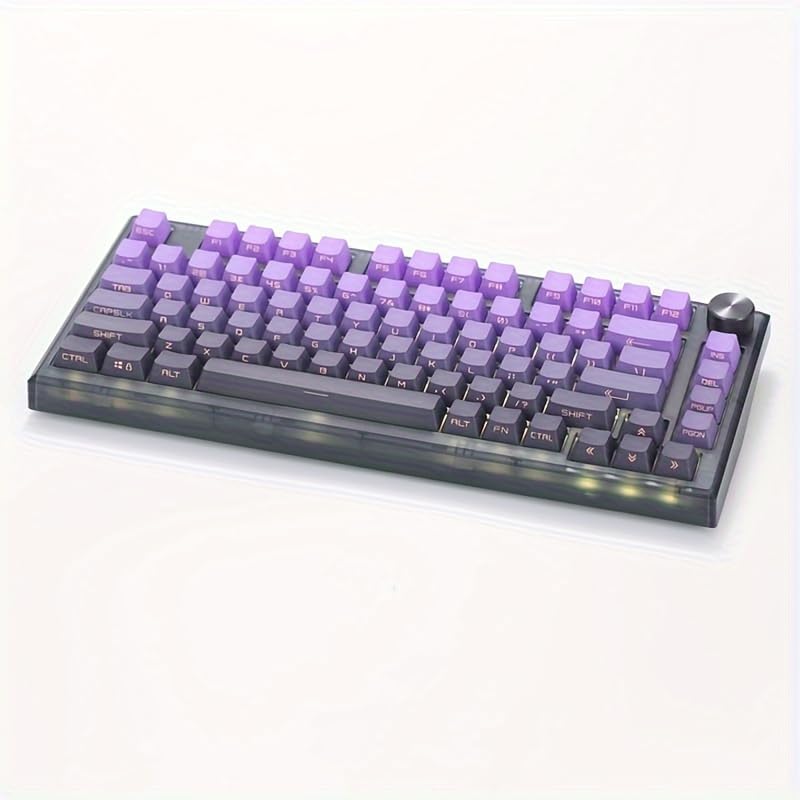
Image: The FL ESPORTS MK750 Wireless Mechanical Gaming Keyboard, showcasing its compact 75% layout and purple keycaps.
Package Contents
- FL ESPORTS MK750 Mechanical Keyboard
- USB-C to USB-A Cable
- 2.4GHz Wireless Receiver
- Keycap Puller
- Switch Puller
- User Manual (this document)
Setup
1. Charging the Keyboard
Before first use, fully charge the keyboard. Connect the provided USB-C cable to the keyboard's USB-C port and the other end to a USB power source (e.g., computer USB port, wall adapter). The charging indicator light will show the charging status.
2. Connectivity Options
The MK750 keyboard supports three connection modes: 2.4GHz wireless, Bluetooth 5.0, and wired USB-C.
2.1. 2.4GHz Wireless Connection
- Locate the 2.4GHz wireless receiver (dongle) in the package.
- Plug the 2.4GHz receiver into an available USB-A port on your computer.
- On the keyboard, switch the mode selector to 2.4GHz mode. The keyboard will automatically connect.
2.2. Bluetooth 5.0 Connection
- On the keyboard, switch the mode selector to Bluetooth mode.
- Press and hold the Function (Fn) key + one of the Bluetooth channel keys (e.g., Fn+1, Fn+2, Fn+3) for 3-5 seconds until the indicator light flashes rapidly, indicating pairing mode.
- On your device (computer, tablet, phone), enable Bluetooth and search for new devices. Select "FL ESPORTS MK750" from the list.
- Once paired, the indicator light will stop flashing and remain solid for a few seconds.
- You can pair up to three Bluetooth devices and switch between them using Fn+1, Fn+2, or Fn+3.
2.3. Wired USB-C Connection
- Connect the USB-C cable to the keyboard's USB-C port.
- Connect the USB-A end of the cable to your computer's USB-A port.
- The keyboard will automatically switch to wired mode and function as a standard USB keyboard.

Image: The keyboard shown connected to various devices including a desktop PC, laptop, tablet, and smartphone, illustrating its multi-system compatibility.
Operating Instructions
1. Keyboard Layout and Function Keys
The MK750 features a compact 75% layout, retaining essential function keys while optimizing desk space. Many keys have secondary functions accessible via the Function (Fn) key.
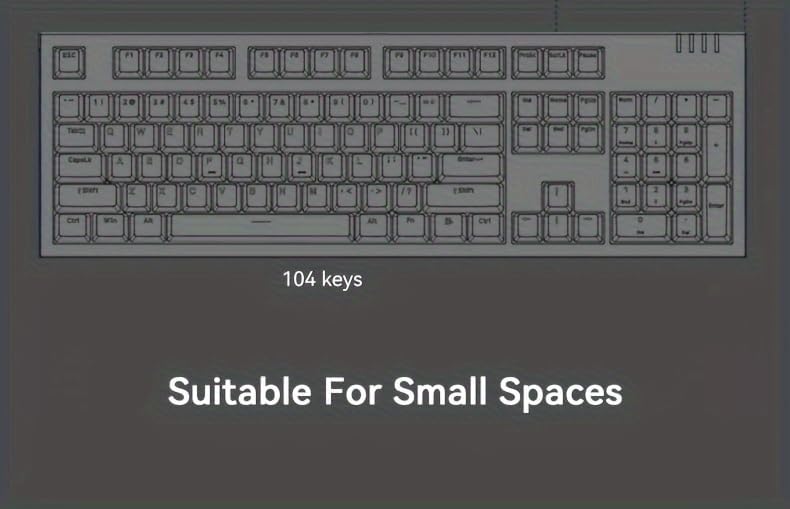
Image: Diagram illustrating the 82-key layout of the MK750 keyboard, highlighting its space-saving design compared to a full-size keyboard.
2. RGB Backlighting Control
The keyboard features customizable RGB backlighting with various effects and colors. Use the following key combinations to control the lighting:
- Fn + \|: Change RGB lighting effect mode.
- Fn + ↑ / ↓: Adjust brightness (5 levels).
- Fn + ← / →: Adjust effect speed.
- Fn + Del: Cycle through static colors (if supported by current mode).
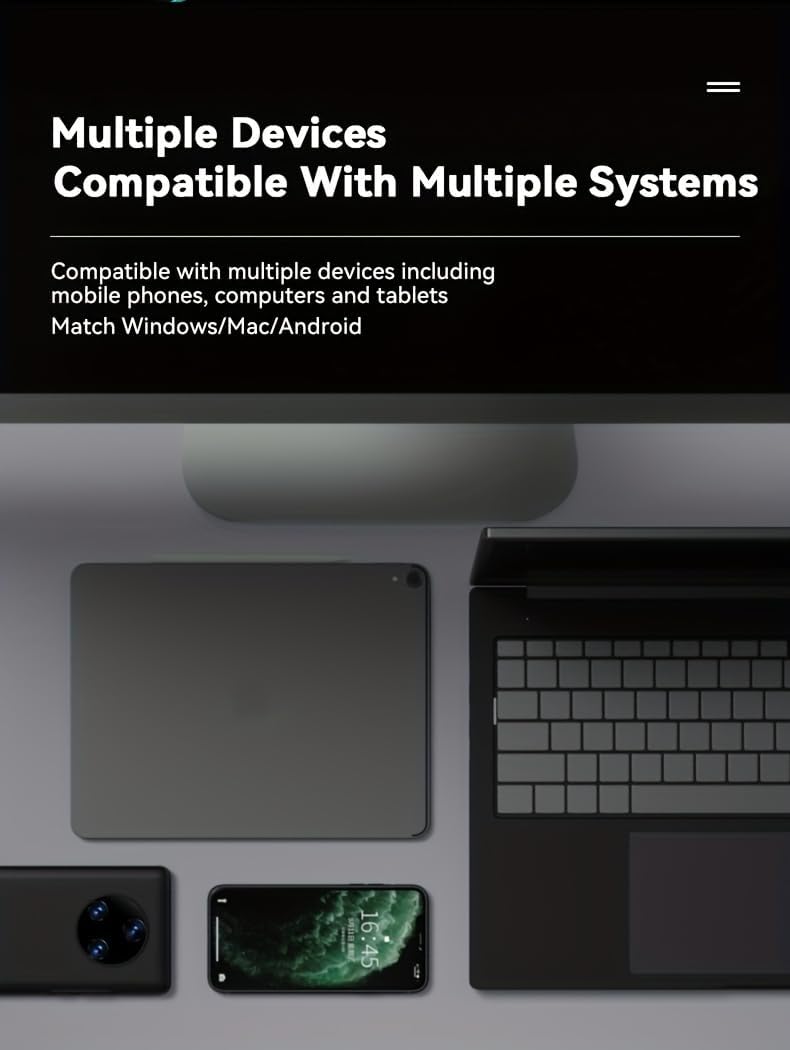
Image: Close-up of the keyboard's translucent side engraving and vibrant RGB lighting effects, showcasing the personalized illumination.
3. Volume Control Knob
The integrated metal knob allows for quick volume adjustments. Rotate clockwise to increase volume, counter-clockwise to decrease volume. Press the knob to mute/unmute audio.

Image: A detailed view highlighting the metal volume knob for quick adjustments and the internal gasket structure for improved key feel.
4. Hot-Swappable Switches
The MK750 features hot-swappable sockets, allowing you to change mechanical switches without soldering. This enables customization of typing feel and sound.
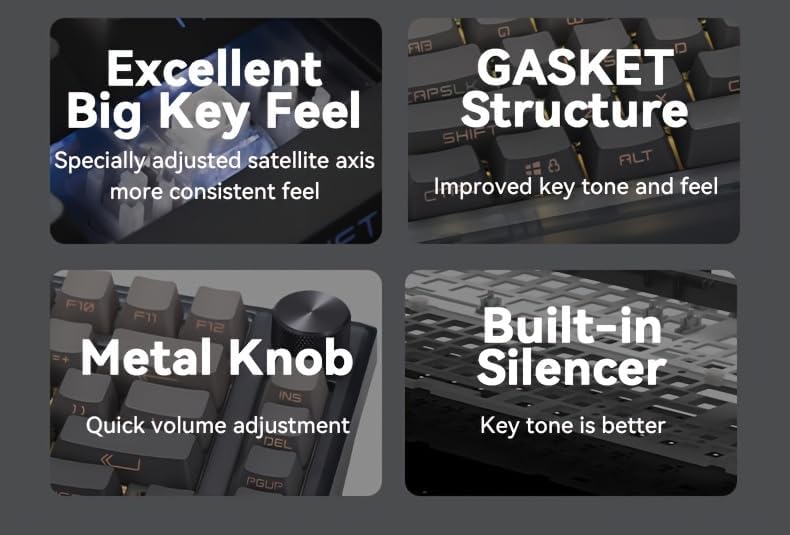
Image: A visual representation of the hot-swap feature, showing a switch being removed, alongside a description of the durable PBT keycaps.
5. Operating System Compatibility
The keyboard is compatible with Windows and Mac operating systems. No special drivers are typically required for basic functionality.
Maintenance
1. Cleaning the Keyboard
- Disconnect the keyboard from all power sources before cleaning.
- Use a soft, lint-free cloth slightly dampened with water or a mild cleaning solution to wipe the keycaps and chassis.
- For deeper cleaning, use the provided keycap puller to remove keycaps and clean underneath with compressed air or a small brush.
- Do not immerse the keyboard in liquid.
2. Keycap and Switch Replacement
- Use the keycap puller to gently remove keycaps by hooking it onto the keycap and pulling straight up.
- Use the switch puller to remove switches. Ensure the switch puller grips both clips on the switch before pulling straight up.
- When installing new switches, align the pins with the holes on the PCB and press down gently until it clicks into place. Do not force switches if they do not align.
- When installing keycaps, align them with the switch stem and press down firmly.
3. Battery Care
- Avoid fully discharging the battery frequently to prolong its lifespan.
- Store the keyboard in a cool, dry place when not in use for extended periods.
- If the keyboard will not be used for a long time, charge it to about 50% before storing.
Troubleshooting
1. Keyboard Not Responding
- Wired Mode: Ensure the USB-C cable is securely connected to both the keyboard and the computer. Try a different USB port or cable.
- 2.4GHz Wireless: Ensure the 2.4GHz receiver is plugged in and the keyboard is in 2.4GHz mode. Try re-pairing by unplugging and replugging the receiver.
- Bluetooth Mode: Ensure Bluetooth is enabled on your device and the keyboard is paired. Try re-pairing the keyboard. Check if the keyboard is connected to the correct Bluetooth channel (Fn+1/2/3).
- Battery: Check the battery level. Connect the keyboard to a charger.
2. RGB Lighting Not Working
- Ensure the keyboard is powered on.
- Try cycling through RGB modes using Fn + \|.
- Adjust brightness using Fn + ↑.
- If the issue persists, a factory reset (refer to advanced functions if available) might be necessary.
3. Keys Double-Typing or Not Registering
- This could indicate a faulty switch. Since the keyboard is hot-swappable, try replacing the problematic switch with a new one.
- Ensure the switch is fully seated in its socket.
- Clean around the keycap and switch to remove any debris.
Specifications
| Feature | Description |
|---|---|
| Model | MK750 |
| Connectivity | 2.4GHz Wireless, Bluetooth 5.0, USB-C Wired |
| Layout | 75% (82 Keys) |
| Switch Type | Pre-lubed Linear Mechanical Switches |
| Keycaps | Shine-Through PBT |
| Backlighting | RGB |
| Hot-Swappable | Yes |
| Battery | Built-in Rechargeable Lithium Battery (1 12V battery included) |
| Compatible Devices | PC (Windows, Mac) |
| Material | Polybutylene Terephthalate (PBT) |
Warranty and Support
FL ESPORTS products are designed and manufactured to the highest quality standards. This product is covered by a limited warranty from the date of purchase. Please refer to the warranty card included in your package or visit the official FL ESPORTS website for detailed warranty terms and conditions.
For technical support, troubleshooting assistance, or warranty claims, please contact FL ESPORTS customer service through their official website or the retailer where you purchased the product. Please have your product model and purchase information ready when contacting support.