
1. Introduction
Thank you for choosing the IIWEY Q7 Dual 4K Dash Cam. This device is designed to provide comprehensive vehicle surveillance, capturing high-resolution video footage from both the front and rear of your vehicle. Equipped with advanced features such as dual 4K recording, GPS tracking, G-sensor, loop recording, and various parking modes, the Q7 ensures reliable evidence collection and enhanced driving safety. This manual provides detailed instructions for installation, operation, and maintenance to help you maximize the functionality of your dash cam.
2. Package Contents
Please verify that all items listed below are included in your package. If any items are missing or damaged, please contact customer support.
- IIWEY Q7 Front Dash Cam Unit
- Rear Camera with Connection Cable
- Hardwire Kit
- CPL (Circular Polarizing Lens) Filter
- GPS Module
- Suction Cup Mount
- Car Charger Power Cable
- User Manual
- 128GB MicroSD Card (Pre-installed or included separately)

Image: Packaging for the Circular Polarizing Lens (CPL) Filter, which is included in the package.
3. Product Overview
The IIWEY Q7 Dash Cam is an all-inclusive solution for vehicle recording, featuring a robust design and advanced functionalities.
- Dual 4K Recording: Captures crystal-clear 3840*2160p video from both front and rear cameras simultaneously.
- Wide View: 170° wide-angle lens for comprehensive road coverage.
- IPS Screen: 3.18" IPS display for clear viewing and easy navigation.
- GPS Tracking: Records driving route and speed, viewable on maps.
- Super Capacitor: Provides enhanced durability and reliability, especially in extreme temperatures.
- Gravity Sensor (G-Sensor): Automatically detects sudden movements or collisions and locks the current video file to prevent overwriting.
- Loop Recording: Continuously records by overwriting the oldest unlocked files when the memory card is full.
- Parking Modes: Offers Motion Detection, Collision Detection, and Time-Lapse recording for 24/7 vehicle protection (requires hardwire kit).
- Low Voltage Protection: The hardwire kit includes a power management chip that cuts off power to the dash cam if the vehicle battery voltage drops below 11.6V, preventing battery drain.
- CPL Filter: Reduces glare and reflections from the windshield, enhancing video clarity and color saturation.
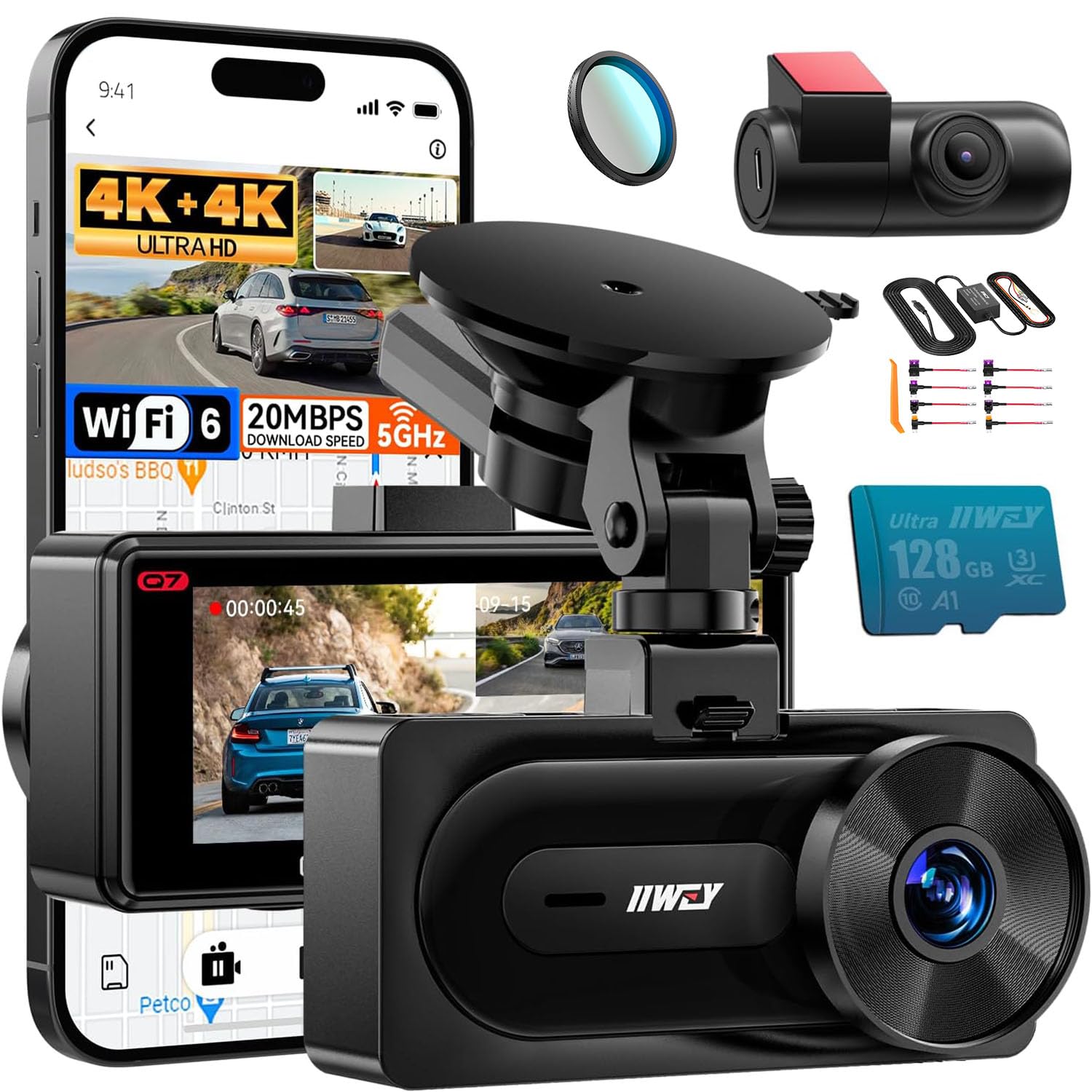
Image: Overview of the IIWEY Q7 Dash Cam highlighting key features like GPS, Loop Recording, Super Capacitor, Gravity Sensor, 128GB card support, and Dual 4K recording.
4. Setup and Installation
4.1 Dash Cam and Rear Camera Installation
- Mount the Front Dash Cam: Attach the suction cup mount to a clean, dry spot on your windshield, preferably behind the rearview mirror, ensuring it does not obstruct your view. Secure the front dash cam to the mount.
- Install the Rear Camera: Mount the rear camera on the rear windshield using the adhesive pad. Ensure the camera lens has a clear view of the road behind.
- Connect Cables: Connect the rear camera cable to the front dash cam. Route the cable neatly along the headliner and A-pillar to avoid interference with driving. Connect the power cable (either car charger or hardwire kit) to the front dash cam and route it to your vehicle's power source.
- Insert MicroSD Card: Ensure a compatible MicroSD card (128GB included, supports up to 512GB) is inserted into the dash cam's card slot.
4.2 CPL Filter Installation
The CPL filter helps reduce glare and reflections from the windshield, improving video quality.
- Check Compatibility: Ensure your IIWEY Q7 dash cam has pre-threaded lens for the CPL filter. The Q7 model is designed for this filter.
- Attach the Filter: Gently screw the CPL filter onto the front lens of the dash cam.
- Adjust for Optimal Effect: Once attached, you can rotate the CPL filter to achieve the desired glare reduction. Observe the live view on the dash cam screen while rotating to find the optimal position where reflections are minimized.
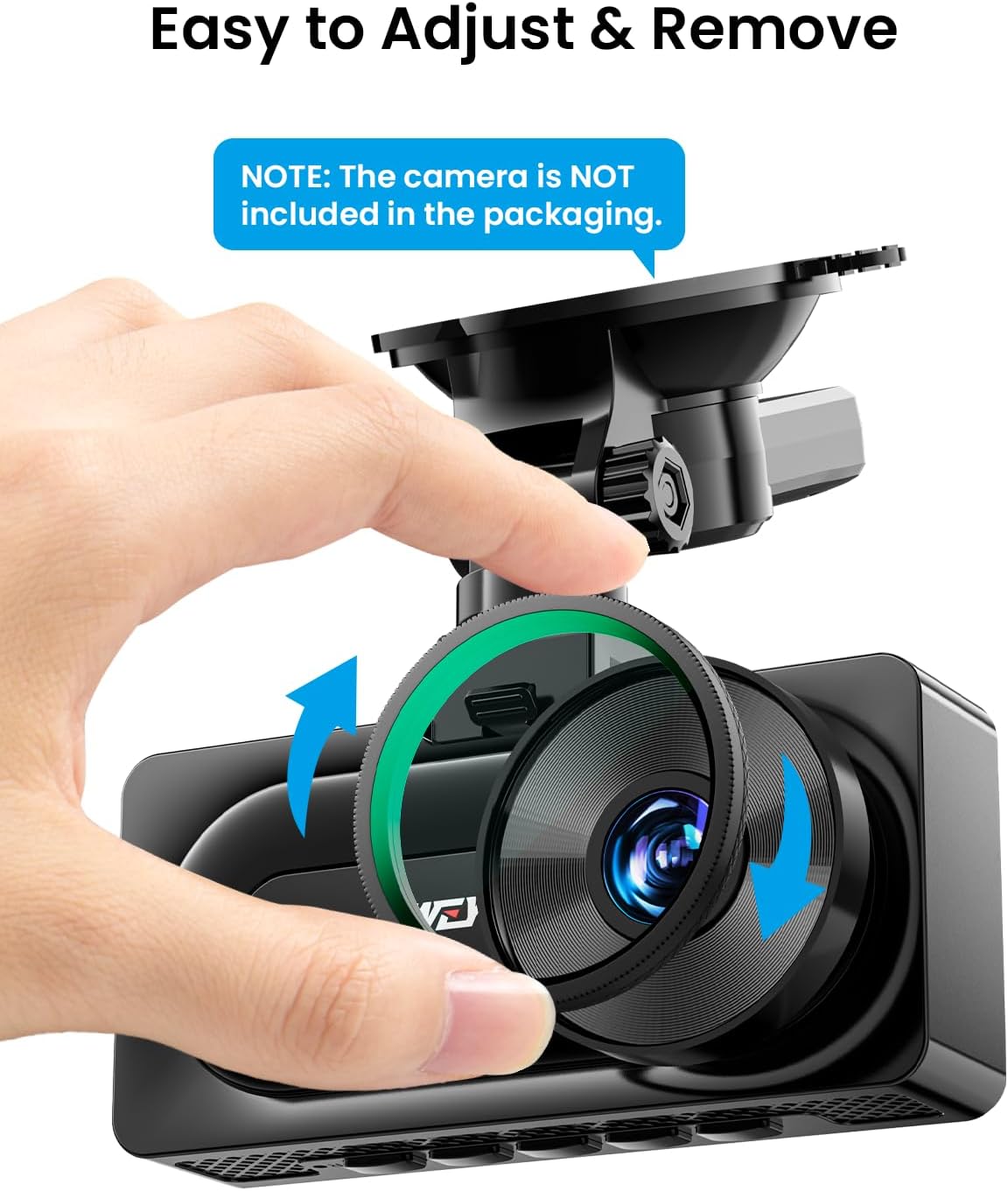
Image: Demonstrates how to easily adjust and remove the CPL filter from the dash cam lens.

Image: Illustrates the benefits of the CPL filter, including enhanced color tone, better details, and reduced light reflection.

Image: Confirms compatibility of the CPL filter with the IIWEY Q7 dash cam, showing the pre-threaded lens design.
4.3 Hardwire Kit Installation (for Parking Modes)
The hardwire kit enables 24/7 parking surveillance and provides low voltage protection for your vehicle's battery.
- Identify Fuse Box: Locate your vehicle's fuse box.
- Connect ACC Wire (Red): Connect the red ACC wire of the hardwire kit to a fuse that provides power only when the ignition is on (e.g., radio, cigarette lighter).
- Connect BAT Wire (Yellow): Connect the yellow BAT wire to a fuse that provides constant power even when the ignition is off (e.g., hazard lights, dome light).
- Connect GND Wire (Black): Connect the black GND wire to a metal bolt or screw on the vehicle's chassis for a secure ground connection.
- Connect to Dash Cam: Plug the hardwire kit's output cable into the dash cam's power input port.

Image: Shows the three main wires of the hardwire kit: ACC (red), GND (black), and BAT (yellow), for connection to the vehicle's electrical system.

Image: Illustrates the 24-hour surveillance capability provided by the hardwire kit, powering the dash cam even when the car is parked.

Image: Details the low voltage protection feature of the hardwire kit, which automatically powers off the dash cam if the vehicle's battery voltage drops below 11.6V.
5. Operating Instructions
5.1 Basic Operation
- Power On/Off: The dash cam will automatically power on and begin recording when your vehicle's ignition is turned on (if connected via car charger or hardwire kit). It will power off automatically when the ignition is turned off. You can also manually power it on/off using the power button.
- Recording: Once powered on, the dash cam will automatically start continuous loop recording. A red indicator light or icon on the screen typically indicates recording is active.
- Menu Navigation: Use the physical buttons on the dash cam to navigate through the menu options on the IPS screen to adjust settings.
5.2 Recording Modes
- Loop Recording: The dash cam records video in segments (e.g., 1, 3, or 5 minutes). When the memory card is full, the oldest unlocked files are automatically overwritten by new recordings. This ensures continuous recording without manual intervention.
- G-Sensor (Emergency Recording): The built-in G-sensor detects sudden impacts or rapid acceleration/deceleration. When triggered, it automatically locks the current video segment, preventing it from being overwritten by loop recording. These emergency files are stored in a separate folder.
5.3 Parking Modes (Requires Hardwire Kit)
With the hardwire kit installed, the dash cam can monitor your vehicle even when parked.
- Motion Detection: The dash cam will automatically start recording if it detects movement in its field of view while parked.
- Collision Detection: If the G-sensor detects an impact while the vehicle is parked, the dash cam will automatically power on and record an emergency video.
- Time-Lapse Recording: Records video at a very low frame rate (e.g., 1 frame per second) to condense long periods of parking surveillance into short, viewable clips.
5.4 GPS Functionality
The integrated GPS module records your vehicle's driving route and speed. This data can be viewed using a dedicated GPS player software on a computer, providing valuable information for incident analysis.
5.5 Low Voltage Protection
When using the hardwire kit, the dash cam's power supply will automatically cut off if your vehicle's battery voltage drops below 11.6V. This feature protects your car battery from draining completely, ensuring you have enough power to start your engine.
6. Maintenance
- Cleaning the Lens: Regularly clean the dash cam lenses with a soft, lint-free cloth to ensure clear video quality. Avoid abrasive materials or harsh chemicals.
- MicroSD Card Maintenance: It is recommended to format the MicroSD card periodically (e.g., once a month) within the dash cam's settings. This helps maintain card performance and prevents data corruption. Back up any important files before formatting.
- Firmware Updates: Check the IIWEY official website periodically for any available firmware updates. Keeping your dash cam's firmware up-to-date can improve performance and add new features.
- Temperature Considerations: Avoid exposing the dash cam to extreme temperatures for prolonged periods. The super capacitor design offers better heat resistance compared to traditional batteries, but extreme conditions can still affect performance.
7. Troubleshooting
- Dash Cam Not Powering On:
- Check if the power cable is securely connected to both the dash cam and the power source.
- Ensure the vehicle's ignition is on if using the car charger.
- If using the hardwire kit, verify all connections (ACC, BAT, GND) are correct and fuses are intact.
- Recording Issues (e.g., stops recording, corrupted files):
- Format the MicroSD card within the dash cam's settings.
- Try a different, high-quality MicroSD card (Class 10 or U3 recommended).
- Ensure loop recording is enabled in the settings.
- GPS Not Working:
- Ensure the GPS module is securely connected to the dash cam.
- Position the dash cam or GPS module in an area with a clear view of the sky, away from metallic obstructions.
- Allow a few minutes for the GPS to acquire a signal after powering on.
- Screen Freezes or Malfunctions:
- Perform a soft reset by pressing and holding the power button for 10-15 seconds.
- If the issue persists, try a factory reset through the dash cam's menu (note: this will erase all settings).
- CPL Filter Not Reducing Glare:
- Rotate the CPL filter while observing the live view on the screen to find the optimal angle for glare reduction.
- Ensure the filter is clean and free from smudges.
8. Specifications
| Feature | Specification |
|---|---|
| Model | IIWEY Q7 |
| Video Resolution | Front: 4K (3840x2160p), Rear: 4K (3840x2160p) |
| Lens Angle | 170° (Front & Rear) |
| Display Screen | 3.18" IPS |
| Storage | Supports MicroSD card up to 512GB (128GB included) |
| Power Input | 12V-24V |
| Hardwire Kit Output | 5V/3A |
| Low Voltage Cut-off | 11.6V |
| Special Features | GPS, G-Sensor, Loop Recording, Parking Modes, Super Capacitor, CPL Filter |
9. Warranty and Support
The IIWEY Q7 Dual 4K Dash Cam comes with a standard manufacturer's warranty. For specific warranty terms and conditions, please refer to the warranty card included in your package or visit the official IIWEY website.
If you encounter any issues or have questions regarding your product, please contact IIWEY customer support. Our team is available to assist you with troubleshooting, technical support, and any other inquiries.
Customer Support Contact: Please refer to the contact information provided on the product packaging or the official IIWEY website.
