
1. Product Overview
The Boytond Bluetooth V6.1 Single-Ear Wireless Headset with USB Dongle (Model YYK-520-2) is designed for clear communication and comfortable wear, suitable for various applications including business calls, music playback, and general use with computers and mobile devices. It features advanced Bluetooth 6.1 technology, dual-mic noise cancellation, and an ergonomic design for extended use.

Image 1.1: Boytond Bluetooth V6.1 Single-Ear Wireless Headset with USB Dongle, showing the headset, USB dongle, and various ear tips.
Package Contents:
- 1 x Single Ear Bluetooth Headset
- 1 x USB Dongle
- 1 x Charging Cable
- User Manual (this document)
- Multiple sizes of ear tips (S/M/L)
2. Setup and Connection
2.1 Charging the Headset
Before first use, fully charge the headset. Connect the provided charging cable to the headset's charging port and a USB power source. A full charge typically takes approximately 1.5 hours.
2.2 Bluetooth Connection (for Mobile Phones/Tablets)
- Ensure the headset is charged and powered off.
- Press and hold the Multi-Function Button (MFB) on the headset until the LED indicator flashes blue and red alternately, indicating pairing mode.
- On your mobile phone or tablet, go to Bluetooth settings and enable Bluetooth.
- Search for available devices and select "YYK-520" or similar from the list.
- Once connected, the LED indicator will flash blue slowly, and you will hear a voice prompt "Connected".
2.3 USB Dongle Connection (for Computers/Laptops)
The USB dongle provides a more stable and interference-free connection for computers and laptops, ideal for voice calls and gaming.
- Plug the USB dongle into an available USB port on your computer or laptop.
- The USB dongle's red and blue lights will flash alternately.
- Power on the headset. It will automatically connect to the USB dongle.
- The headset will prompt "Connected" via voice, and the USB dongle will show a blue light.
- You may need to select the headset as the audio input/output device in your computer's sound settings.
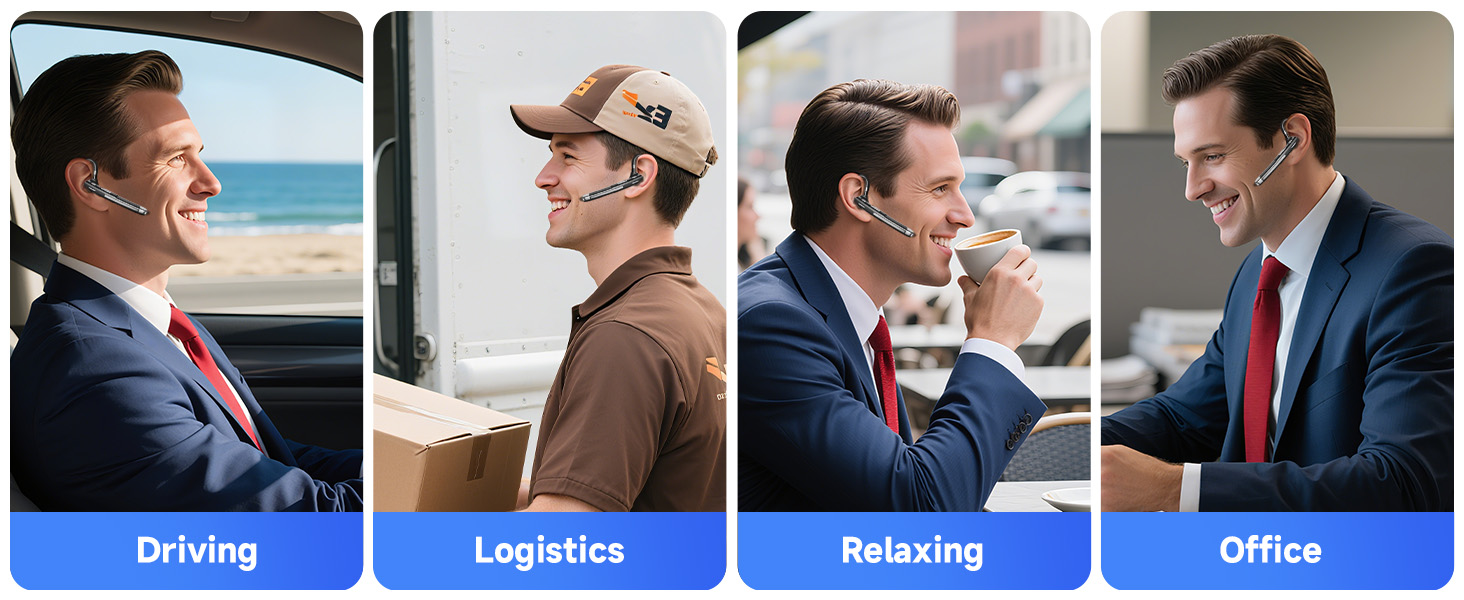
Image 2.1: Illustration of connecting the headset via Bluetooth to a phone and via USB dongle to a laptop.

Image 2.2: Step-by-step guide for connecting the headset using the USB dongle.
2.4 Dual Device Connection
The headset supports simultaneous connection to two devices, allowing seamless switching between them.
- Connect the headset to the first device (e.g., phone) via Bluetooth as described in 2.2.
- Disable Bluetooth on the first device. The headset will re-enter pairing mode.
- Connect the headset to the second device (e.g., computer via dongle or another phone via Bluetooth).
- Re-enable Bluetooth on the first device. The headset should automatically reconnect to both devices.
3. Operating Instructions
3.1 Wearing the Headset
The headset features an ergonomic design with a 270° rotating ear hook and 180° swiveling mic boom, allowing it to be worn comfortably on either the left or right ear.
- Select the appropriate ear tip size (S/M/L) for a secure and comfortable fit.
- Adjust the ear hook to fit over your ear.
- Rotate the microphone boom to position the microphone close to your mouth for optimal voice pickup.

Image 3.1: The headset's flexible design allows for comfortable wear on either ear.
Image 3.2: Visual guide on adjusting the headset for a proper fit.
3.2 Button Functions
The headset features intuitive controls for managing calls and media playback.

Image 3.3: Detailed overview of headset button functions.
- Multi-Function Button (MFB):
- Press once: Play/Pause music, Answer/End call.
- Double-click: Redial last number.
- Press and hold for 2 seconds: Reject call.
- Press and hold for 3 seconds: Activate Voice Assistant (Siri, Google Assistant).
- Volume Up Button (+):
- Press once: Increase volume.
- Press and hold for 1 second: Next track.
- Volume Down Button (-):
- Press once: Decrease volume.
- Press and hold for 1 second: Previous track.
- Mute Button:
- Press once during a call: Mute/Unmute microphone.
4. Maintenance and Care
To ensure the longevity and optimal performance of your headset, follow these maintenance guidelines:
- Clean the headset regularly with a soft, dry cloth. Avoid using harsh chemicals or abrasive materials.
- Store the headset in a cool, dry place away from direct sunlight and extreme temperatures.
- Do not expose the headset to water or excessive moisture.
- Avoid dropping or subjecting the headset to strong impacts.
- Use only the provided charging cable or a certified equivalent to charge the device.
5. Troubleshooting
If you encounter any issues with your Boytond headset, refer to the following common troubleshooting steps:
5.1 No Power/Cannot Turn On
- Ensure the headset is fully charged. Connect it to a power source and allow it to charge for at least 30 minutes before attempting to power on.
5.2 Cannot Pair with Device
- Ensure the headset is in pairing mode (LED flashing blue and red alternately).
- Make sure Bluetooth is enabled on your device and it is within 10 meters of the headset.
- Clear previous Bluetooth connections on your device and try pairing again.
- If using the USB dongle, ensure it is properly plugged into the computer and the headset is powered on.
5.3 Poor Audio Quality/Intermittent Connection
- Ensure the headset is within the effective range (up to 10 meters) of the connected device.
- Minimize obstacles between the headset and the device (e.g., walls, large electronic equipment).
- Check for interference from other 2.4GHz wireless devices.
- If connected to a computer, ensure the USB dongle is used for a more stable connection.
- Verify that the headset is selected as the default audio device in your computer's sound settings.
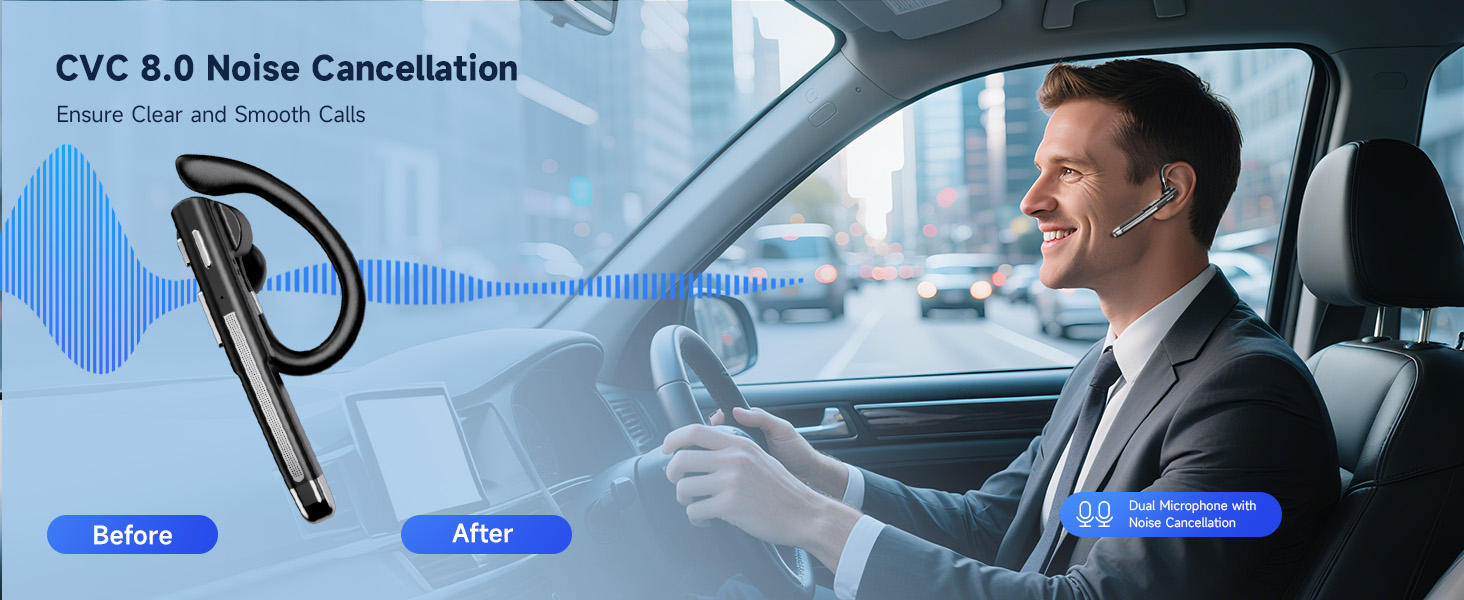
Image 5.1: The headset's CVC 8.0 Noise Cancellation technology ensures clear calls by reducing background noise.
5.4 Microphone Not Working/Poor Voice Pickup
- Ensure the microphone boom is positioned correctly near your mouth.
- Check if the microphone is muted (press the Mute button to toggle).
- Verify that the headset is selected as the input device in your application's or system's audio settings.
6. Specifications
| Feature | Description |
|---|---|
| Model Name | YYK-520-2&USB Dongle |
| Connectivity Technology | Wireless (Bluetooth, USB) |
| Bluetooth Version | 6.1 |
| Bluetooth Range | 10 Meters (33 feet) |
| Battery Life (Bluetooth) | Up to 10 hours talk time, 8 hours music playback |
| Battery Life (USB Dongle) | Up to 4 hours (due to higher power consumption by computers) |
| Standby Time | 180 Hours |
| Charging Time | Approx. 1.5 hours |
| Noise Control Features | CVC8.0 Noise Cancellation, Dual-Mic |
| Earpiece Shape | In-Ear |
| Item Weight | 2.08 ounces |
| Compatible Devices | Computers, Mobile Phones |

Image 6.1: The headset features innovative Bluetooth V6.1 technology.

Image 6.2: Overview of the headset's battery performance.
7. Warranty and Support
Boytond products are designed for reliability and performance. For specific warranty details, please refer to the warranty card included with your product or visit the official Boytond website.
Customer Support:
If you require further assistance or have questions not covered in this manual, please contact Boytond customer support through the following channels:
- Email: Refer to your product packaging or the official Boytond website for contact information.
- Online Support: Visit the Boytond store on Amazon or the manufacturer's website for FAQs and support resources.