
1. Product Overview
This manual provides comprehensive instructions for the Dell Wired USB Keyboard, model SK-8115. This keyboard is designed for general computing tasks, offering a standard 104-key layout for efficient data input and navigation. Its wired USB connection ensures reliable performance across various systems, making it suitable for office, home, or industrial environments.

Figure 1: Full view of the Dell Wired USB Keyboard SK-8115.
2. Setup Instructions
Follow these steps to connect your Dell Wired USB Keyboard to your computer:
- Unpack the Keyboard: Carefully remove the keyboard from its packaging.
- Locate a USB Port: Identify an available USB port on your computer.
- Connect the USB Cable: Insert the USB connector of the keyboard cable into the USB port on your computer. The keyboard is plug-and-play, meaning no additional drivers are typically required for basic functionality.
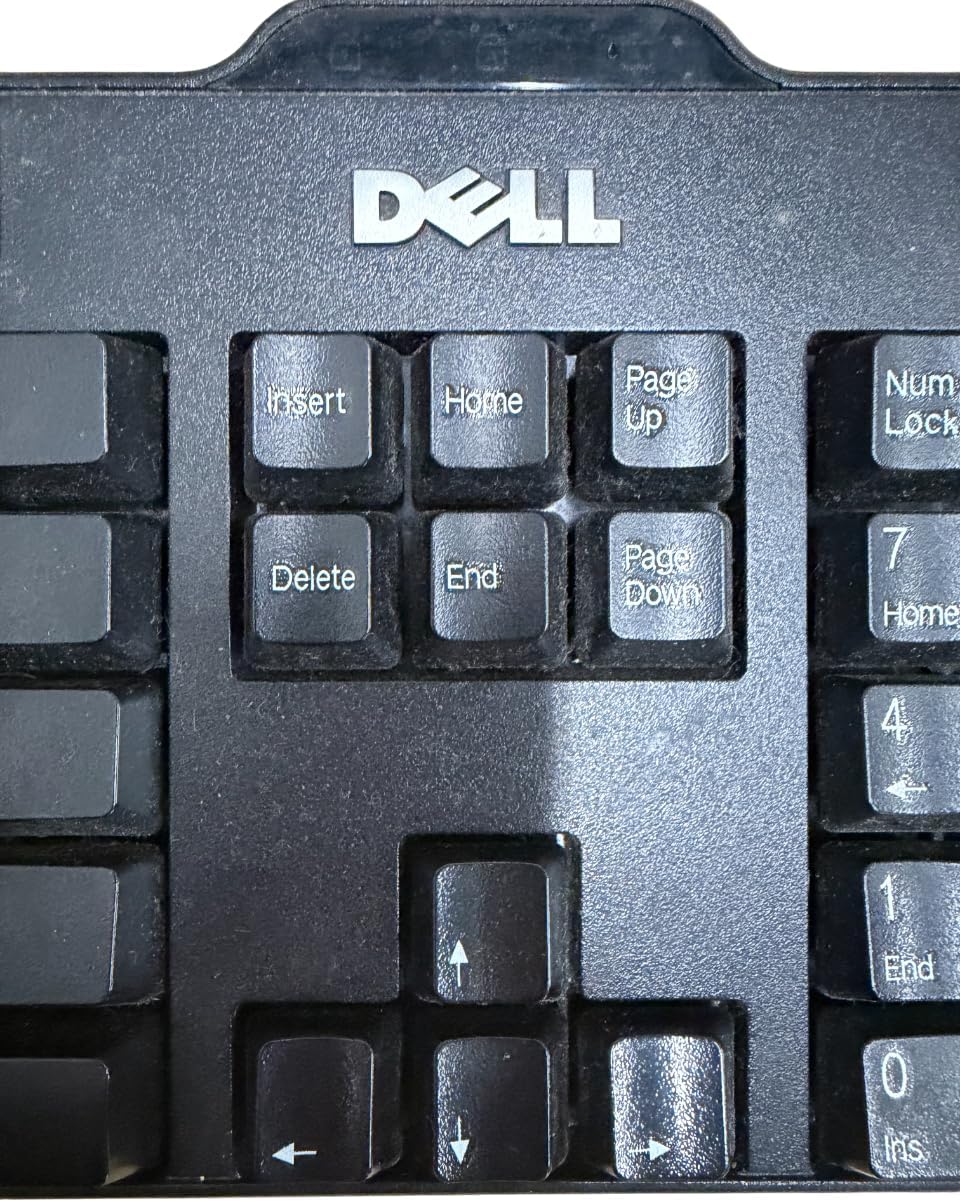
Figure 2: Close-up of the USB connector.
Adjusting Keyboard Tilt: For ergonomic comfort, you can adjust the tilt of the keyboard using the foldable feet located on the underside.

Figure 3: Underside of the keyboard with tilt feet.
3. Operating the Keyboard
The Dell SK-8115 keyboard features a standard 104-key QWERTY layout, providing all essential keys for typing and system control.
Key Layout and Functions:
- Alphanumeric Keys: Standard letter, number, and symbol keys for text input.
- Function Keys (F1-F12): Located at the top, these keys perform various functions depending on the application or operating system.
- Numeric Keypad: A dedicated section on the right for efficient numerical data entry. Ensure 'Num Lock' is active for its use.
- Navigation Keys: Includes Insert, Home, Page Up, Delete, End, Page Down, and arrow keys for cursor movement and document navigation.
- Modifier Keys: Shift, Ctrl (Control), Alt (Alternate), and the Windows key (or Super key) are used in combination with other keys to perform shortcuts and special commands.

Figure 4: Left section of the keyboard, showing alphanumeric and modifier keys.

Figure 5: Right section of the keyboard, showing navigation and numeric keypad.

Figure 6: Detail of the Dell logo and navigation key cluster.
4. Maintenance
Proper care ensures the longevity and optimal performance of your keyboard.
Cleaning:
- General Cleaning: Use a soft, slightly damp cloth to wipe the surface of the keyboard. Avoid harsh chemicals or abrasive materials.
- Dust Removal: Use compressed air to remove dust and debris from between the keys.
- Avoid Liquids: Do not immerse the keyboard in water or spray cleaning solutions directly onto it.
Storage:
Store the keyboard in a cool, dry environment away from direct sunlight and extreme temperatures when not in use for extended periods.
5. Troubleshooting
If you encounter issues with your keyboard, try the following troubleshooting steps:
- Keyboard Not Responding:
- Ensure the USB cable is securely connected to both the keyboard and the computer.
- Try plugging the keyboard into a different USB port on your computer.
- Restart your computer.
- Specific Keys Not Working:
- Check for any debris or obstructions under the affected keys. Gently clean with compressed air.
- If the issue persists, the key mechanism may be faulty.
- Incorrect Input:
- Verify that the correct keyboard layout is selected in your operating system settings.
- Ensure 'Num Lock' or 'Caps Lock' indicators are in the desired state.
If these steps do not resolve the issue, refer to the support information in Section 7.
6. Specifications
| Brand | Dell |
| Model Number | SK-8115 |
| Connectivity Technology | Wired USB |
| Number of Keys | 104 |
| Keyboard Layout | QWERTY |
| Color | Black |
| Material | Plastic |
| Compatible Devices | PC |
7. Warranty and Support
Warranty Information:
This Dell Wired USB Keyboard SK-8115 typically comes with a 30-day warranty from the date of purchase. Please retain your proof of purchase for warranty claims. The warranty covers defects in materials and workmanship under normal use.
Customer Support:
For technical assistance, warranty claims, or further inquiries, please refer to Dell's official support website or contact their customer service. You can find contact information and support resources by visiting www.dell.com/support.


