
1. Introduction
Thank you for purchasing the Carlinkit Tbox Ultra. This device upgrades your car's wired Apple CarPlay or wired Android Auto system to a full Android 15.0 operating system, enabling wireless CarPlay, wireless Android Auto, and access to various applications like YouTube and Netflix directly on your car's display. Please read this manual carefully before use to ensure proper operation and maximize your experience.
2. Product Overview
Key Features
- Operating System: Android 15.0 for enhanced performance and features.
- Processor: High-performance Qualcomm SM6350 CPU for smooth operation.
- Memory: 8GB RAM + 128GB ROM, expandable up to 512GB via TF/SD card.
- Navigation: Built-in GPS (L1+L5), Beidou, GLONASS, and Galileo for high-precision positioning.
- Connectivity: Supports wireless Apple CarPlay and wireless Android Auto.
- Multimedia: Enjoy video streaming from apps like YouTube and Netflix.
- Multitasking: Supports 2-screen split display for simultaneous app usage.
- Communication: Bluetooth 5.1 for phone calls and audio streaming, 4G network support (with SIM card).
- Control: Retains original car controls and supports voice commands (Siri/Google Assistant).
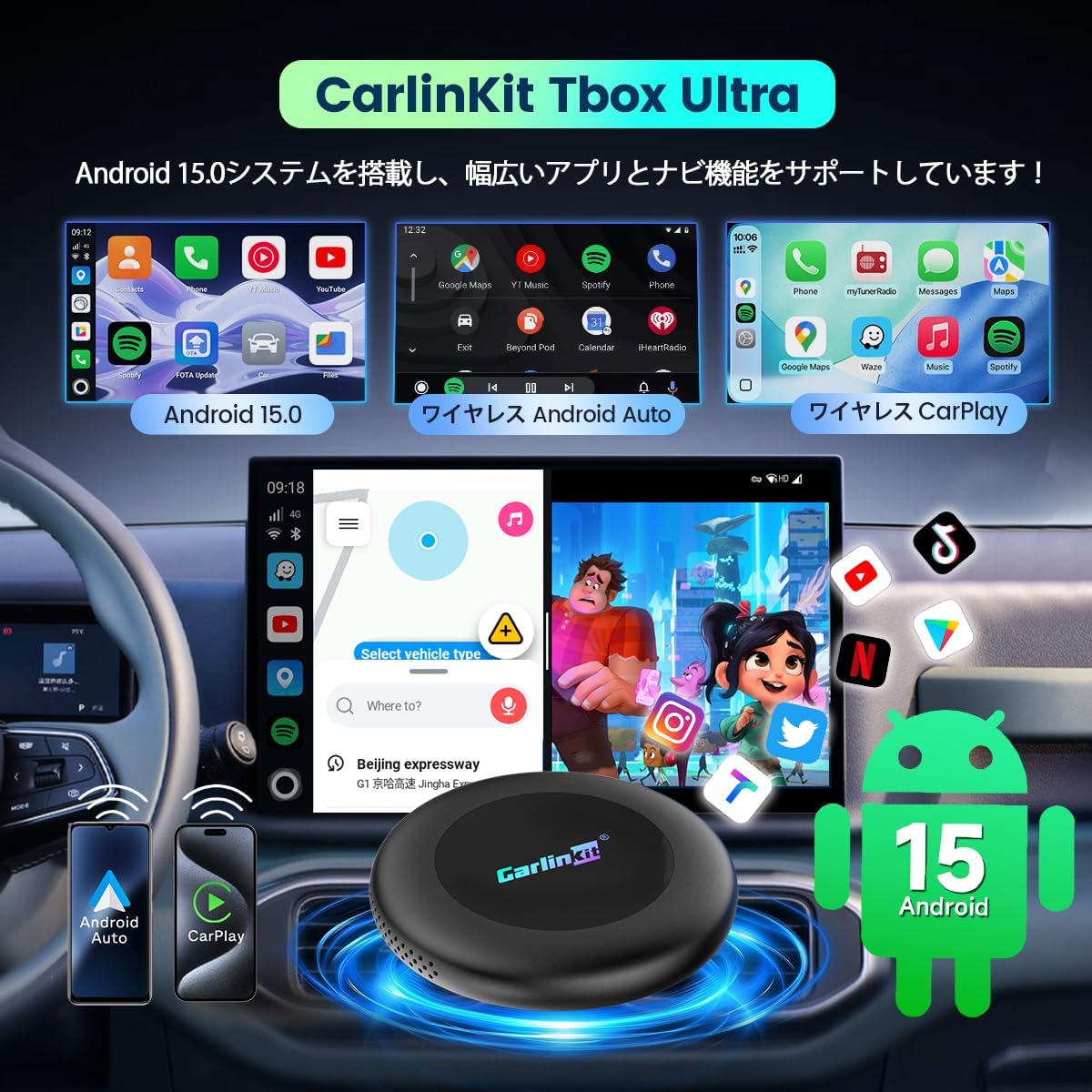
Image: Carlinkit Tbox Ultra device and car screen showing Android 15, Wireless Android Auto, and Wireless CarPlay interfaces.

Image: Diagram illustrating the Qualcomm SM6350 CPU, 8GB RAM, 128GB ROM, Bluetooth 5.1, and performance improvements of the Carlinkit Tbox Ultra.
What's Included
- Carlinkit Tbox Ultra Main Unit x1
- Product Box x1
- Y-type Power Cable x1
- USB-A to USB-C Cable x1
- USB-C to USB-C Cable x1
- Power Assist Cable x1
- User Manual x1

Image: Contents of the Carlinkit Tbox Ultra package, including the main unit, cables, and user manual.
3. Setup Instructions
The Carlinkit Tbox Ultra is designed for vehicles equipped with genuine wired Apple CarPlay or wired Android Auto. It is not compatible with third-party Android car navigation systems.
Initial Connection for Wireless CarPlay & Android Auto
- Connect the Tbox Ultra to your car's USB port (usually the one used for wired CarPlay/Android Auto).
- On your car's display, navigate to and click the "Autokit" application.
- On your smartphone, enable Bluetooth and Wi-Fi.
- Search for and connect to the Tbox Ultra's Bluetooth signal from your smartphone. Confirm pairing/allow access when prompted.
- Once connected, the system will automatically launch wireless CarPlay or Android Auto.

Image: Step-by-step guide on connecting the Carlinkit Tbox Ultra for wireless CarPlay and Android Auto.
Connecting to Wi-Fi
- Connect the Tbox Ultra to your car. The device will automatically boot into the Android system.
- On the car's display, go to Settings > Network & Internet > Wi-Fi.
- Turn on Wi-Fi and select your desired Wi-Fi network name from the list.
- Enter the password if required and click Connect.
Connecting via Smartphone Hotspot
- Enable network sharing (hotspot) on your smartphone.
- Connect the Tbox Ultra to your car. The device will automatically boot into the Android system.
- On the car's display, go to Settings > Network & Internet > Wi-Fi.
- Turn on Wi-Fi and find your smartphone's hotspot name in the list.
- Click to connect.
4. Operating Instructions
Switching Between CarPlay and Android Auto
Press and hold the adjustment button on the Tbox Ultra for 2-3 seconds to switch between CarPlay (default mode) and Android Auto mode.
Using Split-Screen Display
The Tbox Ultra supports a 2-screen split display, allowing you to run two applications simultaneously. For example, you can have navigation on one side and a video streaming app on the other without interrupting playback.

Image: Car screen showing a split display with navigation on one side and a video playing on the other.
Multimedia Playback (YouTube, Netflix, etc.)
Once connected to Wi-Fi or a 4G network (via SIM card), you can download and use various streaming applications like YouTube and Netflix directly on your car's display. This allows for video viewing during stops or for passenger entertainment.

Image: Carlinkit Tbox Ultra enabling YouTube and Netflix video playback on a car's infotainment screen.
Voice Control and Bluetooth Phone
The device supports voice control features like Siri and Google Assistant, allowing hands-free operation. You can also make and receive Bluetooth phone calls through the car's audio system, maintaining the original car's operational experience.

Image: Illustrations of voice control, Bluetooth phone calls, and 4G network connectivity features.
5. Maintenance
To ensure the longevity and optimal performance of your Carlinkit Tbox Ultra, follow these maintenance guidelines:
- Keep the device clean by wiping it with a soft, dry cloth. Avoid using harsh chemicals or abrasive cleaners.
- Ensure the device is placed in a well-ventilated area within your car to prevent overheating, especially during extended use. Avoid enclosing it in tight compartments.
- Periodically check for software updates. Updates can improve performance, add new features, and fix bugs. Refer to the device's settings for update options.
- Handle cables gently to prevent damage to connectors and ports.
6. Troubleshooting
Compatibility Issues
- Vehicle Compatibility: This product is compatible only with vehicles that have genuine wired Apple CarPlay or wired Android Auto installed from the factory. It is not compatible with aftermarket or third-party Android car navigation systems.
- Incompatible Car Models: The device is not compatible with BMW, Nissan Murano, Nissan GT-R, Nissan Leaf, Nissan Aiways, and BYD models.
- 2024 Toyota, Lexus, Crown Models: If you experience a "Connection Error" message, it may be necessary to use a dedicated power supply cable for the Tbox Ultra.
- Smartphone Compatibility: For wireless CarPlay, an iPhone with iOS 10.0 or later is required. For wireless Android Auto, an Android smartphone with Android 11.0 or later is required.

Image: Diagram showing car models compatible with the Carlinkit Tbox Ultra and smartphone OS requirements.
4G Network Issues
Some SIM cards may experience issues with 4G network connectivity, particularly in Japan, due to insufficient frequency bands or poor signal. If you encounter this, please switch your smartphone's hotspot frequency band to 2.4 GHz:
- Go to your smartphone's Settings.
- Navigate to Hotspot & Tethering.
- Select Wi-Fi Hotspot.
- Find Advanced Settings or similar option.
- Change the AP Band to 2.4 GHz.
General Issues
- If the device is unresponsive, try disconnecting and reconnecting it to the car's USB port.
- Ensure all cables are securely connected.
- Restart your car's infotainment system if necessary.
- If issues persist, refer to the support section for contact information.
7. Specifications
| Feature | Specification |
|---|---|
| Brand | Carlinkit |
| Model | Tbox Ultra |
| Operating System | Android 15.0 |
| CPU | Qualcomm SM6350 |
| RAM | 8 GB |
| ROM | 128 GB |
| Expandable Memory | Up to 512GB (TF/SD card) |
| GPS | L1+L5 (Beidou, GLONASS, Galileo) |
| Connectivity | Wireless CarPlay, Wireless Android Auto, USB, Bluetooth 5.1, 4G Network |
| Video Codecs | H.264, H.265/HEVC, VP9, AV1 |
| Dimensions | 85.5 x 85.5 x 13.55 mm |
| Color | Black |
| Technical Compliance Certification | R210-181448 |
8. Warranty and Support
Warranty Information
The Carlinkit Tbox Ultra comes with a 1-year manufacturer's warranty from the date of purchase. This warranty covers defects in materials and workmanship under normal use. Please retain your proof of purchase for warranty claims.
Customer Support
If you have any questions, encounter issues, or require assistance with your Carlinkit Tbox Ultra, please contact our customer support team. You can reach us through the following methods:
- Amazon Contact: Go to "Your Account" > "Order History" > Find your order > Click "Contact Seller".
- Email: Refer to the email address provided in the physical instruction manual included with your product.
When contacting support, please provide your product model (Tbox Ultra) and a detailed description of the issue you are experiencing.


