
1. Product Overview
The MSI Codex R2 AI 2nd Gaming Desktop is a high-performance system designed for gaming and demanding applications. It features an Intel 20-core Ultra 7 265 Processor, 32GB DDR5 RAM, a 2TB SSD, and a dedicated NVIDIA GeForce RTX 5060 graphics card. The system comes pre-installed with Windows 11 Professional and includes Wi-Fi 6E connectivity and a 650W 80+ Gold Power Supply.

Figure 1: Overview of the MSI Codex R2 AI 2nd Gaming Desktop highlighting its core components.
Key Features:
- Processor: Intel 20-core Ultra 7 265 (Up to 5.3GHz)
- Memory: 32GB DDR5 RAM
- Storage: 2TB SSD
- Graphics: Dedicated NVIDIA GeForce RTX 5060 Graphic
- Operating System: Windows 11 Professional
- Connectivity: Wi-Fi 6E, 5Gb RJ45 Ethernet
- Power Supply: 650W 80+ Gold PSU
- Included Accessories: MSI Gaming Keyboard and Mouse, Auth USB-C Hub
2. Setup Guide
2.1 Unboxing and Initial Inspection
Carefully remove the MSI Codex R2 AI 2nd Gaming Desktop and all accessories from its packaging. Ensure all components listed in the 'What's in the Box' section are present and undamaged. The package includes the desktop unit, an MSI Gaming Keyboard, an MSI Gaming Mouse, a power cable, Wi-Fi antennas, and an Auth USB-C Hub.

Figure 2: Included accessories with the MSI Codex R2 AI 2nd Gaming Desktop.
2.2 Connecting Peripherals
- Connect Monitor: Connect your monitor to one of the available display outputs on the graphics card (3 x DisplayPort 1.4a, 1 x HDMI 2.1).
- Connect Keyboard and Mouse: Plug the MSI Gaming Keyboard and Mouse into any of the available USB ports (6 x USB-A 3.2, 1 x USB-C 3.2, 4 x USB 2.0).
- Connect Wi-Fi Antennas: Screw the provided Wi-Fi antennas into the designated ports at the rear of the desktop for optimal wireless connectivity.
- Connect Network (Optional): For wired internet, connect an Ethernet cable to the 5Gb RJ45 Ethernet port.
- Connect USB-C Hub: The included Auth USB-C Hub can be connected to a USB-C 3.2 port for additional connectivity options.

Figure 3: Rear panel of the desktop illustrating available ports for peripheral connections.
2.3 Powering On
- Connect Power: Plug the power cable into the desktop's power input and then into a wall outlet.
- Start System: Press the power button located on the front panel of the desktop. The system will boot into Windows 11 Professional.
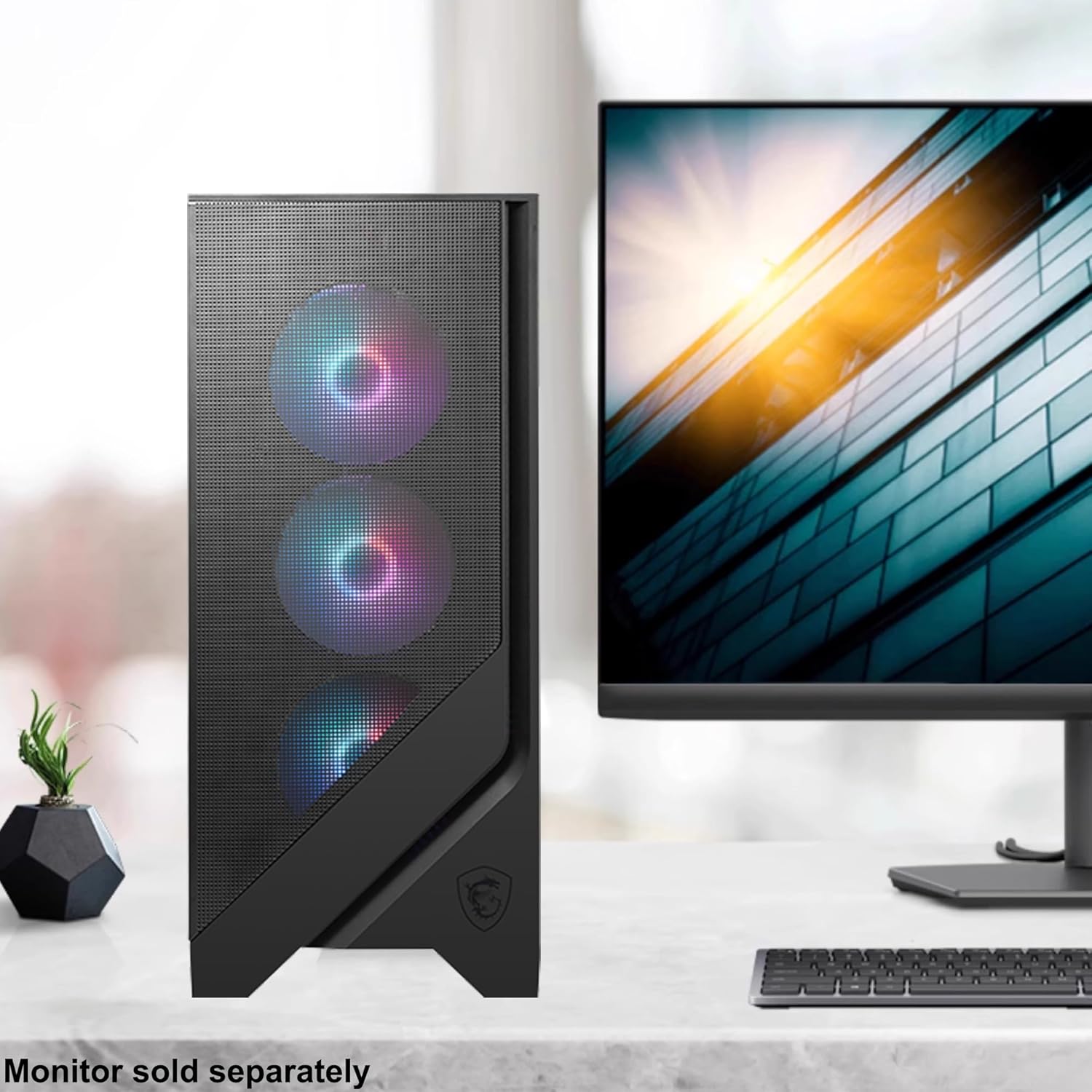
Figure 4: The desktop unit set up with a monitor (monitor sold separately).
3. Operating Instructions
3.1 General Usage
The MSI Codex R2 AI 2nd Gaming Desktop is optimized for high-performance tasks, including gaming, content creation, and multitasking. With its Intel 20-core Ultra 7 processor and NVIDIA GeForce RTX 5060 graphics, it handles demanding applications and modern game titles smoothly.
3.2 RGB Lighting Customization
The desktop features customizable RGB lighting for its internal fans and other components. You can typically adjust lighting effects and colors through pre-installed MSI software or a dedicated button on the chassis, if available. Refer to the MSI software documentation for detailed customization options.
Video 1: An overview of MSI Aegis Series Gaming Desktops, showcasing various features including RGB lighting and internal components. This video provides a general look at MSI's gaming desktop line.
4. Maintenance
4.1 Keeping Your System Cool
The desktop is equipped with an efficient air cooling system to maintain optimal operating temperatures during intensive use. To ensure proper airflow, regularly clean dust from the fan vents and keep the desktop in a well-ventilated area. Avoid blocking any intake or exhaust vents.

Figure 5: The MSI Codex R2 AI 2nd Gaming Desktop, showcasing its design and illuminated cooling fans.
4.2 Upgradeability
The MSI Codex R2 AI 2nd Gaming Desktop is designed for easy maintenance and future upgrades. Its internal layout allows for straightforward access to components such as RAM, storage drives, and the graphics card, facilitating potential enhancements or replacements.

Figure 6: Internal components of the desktop, demonstrating its upgrade-friendly design.
5. Troubleshooting
If you encounter issues with your MSI Codex R2 AI 2nd Gaming Desktop, consider the following general troubleshooting steps:
- No Power: Ensure the power cable is securely connected to both the desktop and the wall outlet. Test the outlet with another device.
- No Display: Verify that your monitor is properly connected to the graphics card's output and that the monitor is powered on and set to the correct input source.
- System Freezes/Crashes: Ensure all drivers (especially graphics drivers) are up to date. Check for sufficient airflow and clean any dust buildup.
- Peripheral Issues: Try connecting the keyboard, mouse, or other peripherals to different USB ports. Ensure drivers for specialized peripherals are installed.
- Software Problems: Perform system updates for Windows 11. Consider running a system diagnostic or antivirus scan if performance issues persist.
For more specific issues or advanced troubleshooting, please refer to the official MSI support website or contact their customer service.
6. Technical Specifications
| Feature | Detail |
|---|---|
| Model Name | MSI Codex R2 AI 2nd |
| Processor | Intel 20-core Ultra 7 265 (Base 2.4GHz, Max Boost 5.3GHz, 30MB SmartCache) |
| RAM | 32GB DDR5 |
| Storage | 2TB SSD |
| Graphics Card | NVIDIA GeForce RTX 5060 |
| Operating System | Windows 11 Professional |
| Max Screen Resolution | 3840x2160 |
| USB Ports | 6 x USB-A 3.2, 1 x USB-C 3.2, 4 x USB 2.0 |
| Display Ports | 1 x HDMI 2.1, 3 x DisplayPort 1.4a |
| Ethernet | 1 x 5Gb RJ45 Ethernet |
| Wireless Connectivity | Wi-Fi 6E |
| Power Supply | 650W 80+ Gold PSU |
| Dimensions (LxWxH) | 16 x 8.38 x 19 inches |
| Item Weight | 21.3 pounds |
| Color | Black |
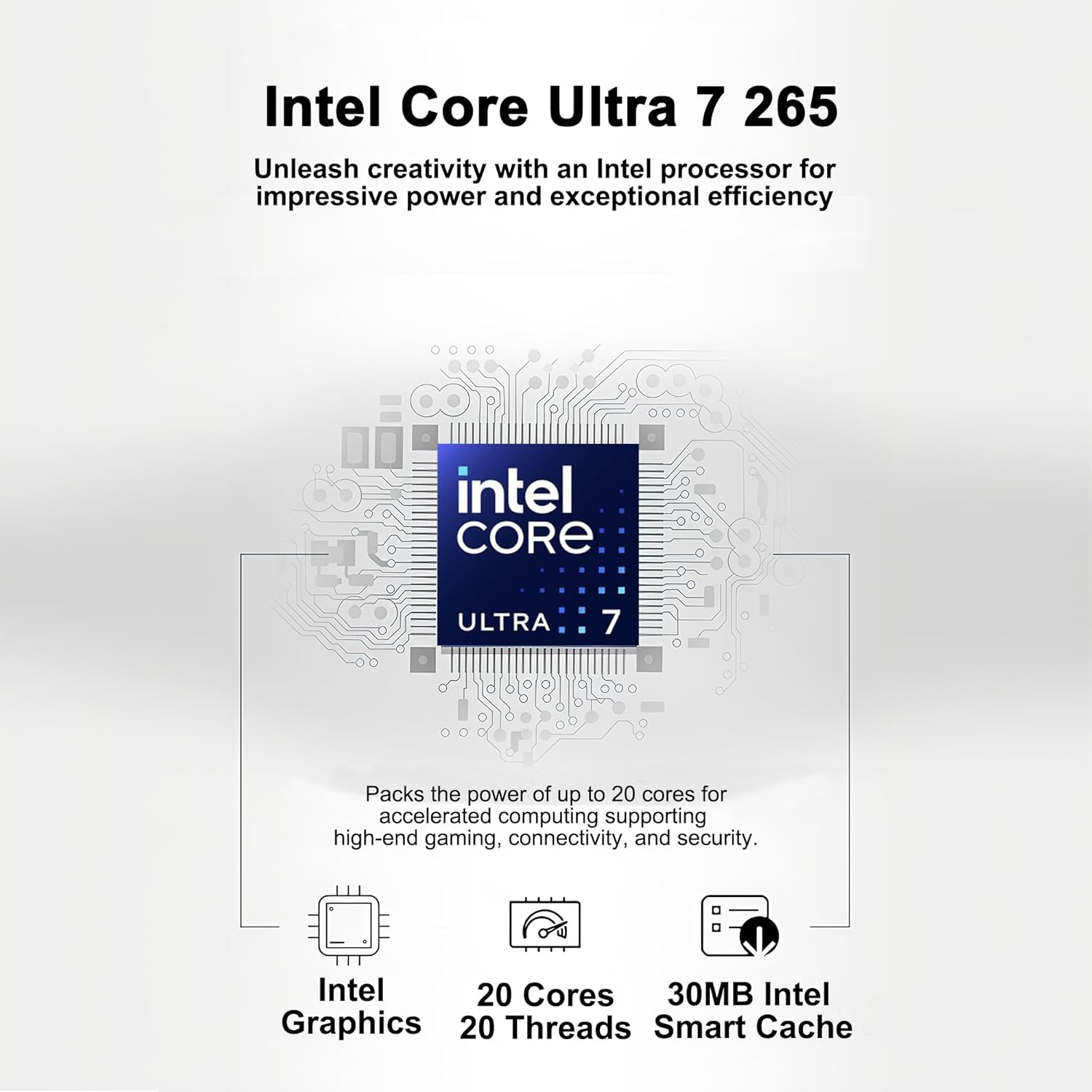
Figure 7: Details of the Intel Core Ultra 7 265 processor, including core count and cache.

Figure 8: Information regarding the NVIDIA GeForce RTX 5060 graphics card and its capabilities.

Figure 9: Physical dimensions and weight of the desktop unit.
7. Warranty and Support
For warranty information, technical support, or service inquiries, please visit the official MSI website or contact their customer support department. Keep your purchase receipt and product serial number readily available when seeking support.
You can find additional resources and contact information on the MSI Store Page.


