
Acer NT-01
Acer Nitro Katana NT-01 Wireless Game Controller User Manual
Model: NT-01 | Brand: Acer
Introduction
The Acer Nitro Katana NT-01 is a versatile wireless game controller designed for multi-platform compatibility and immersive gaming experiences. This manual provides essential information for setting up, operating, maintaining, and troubleshooting your controller.
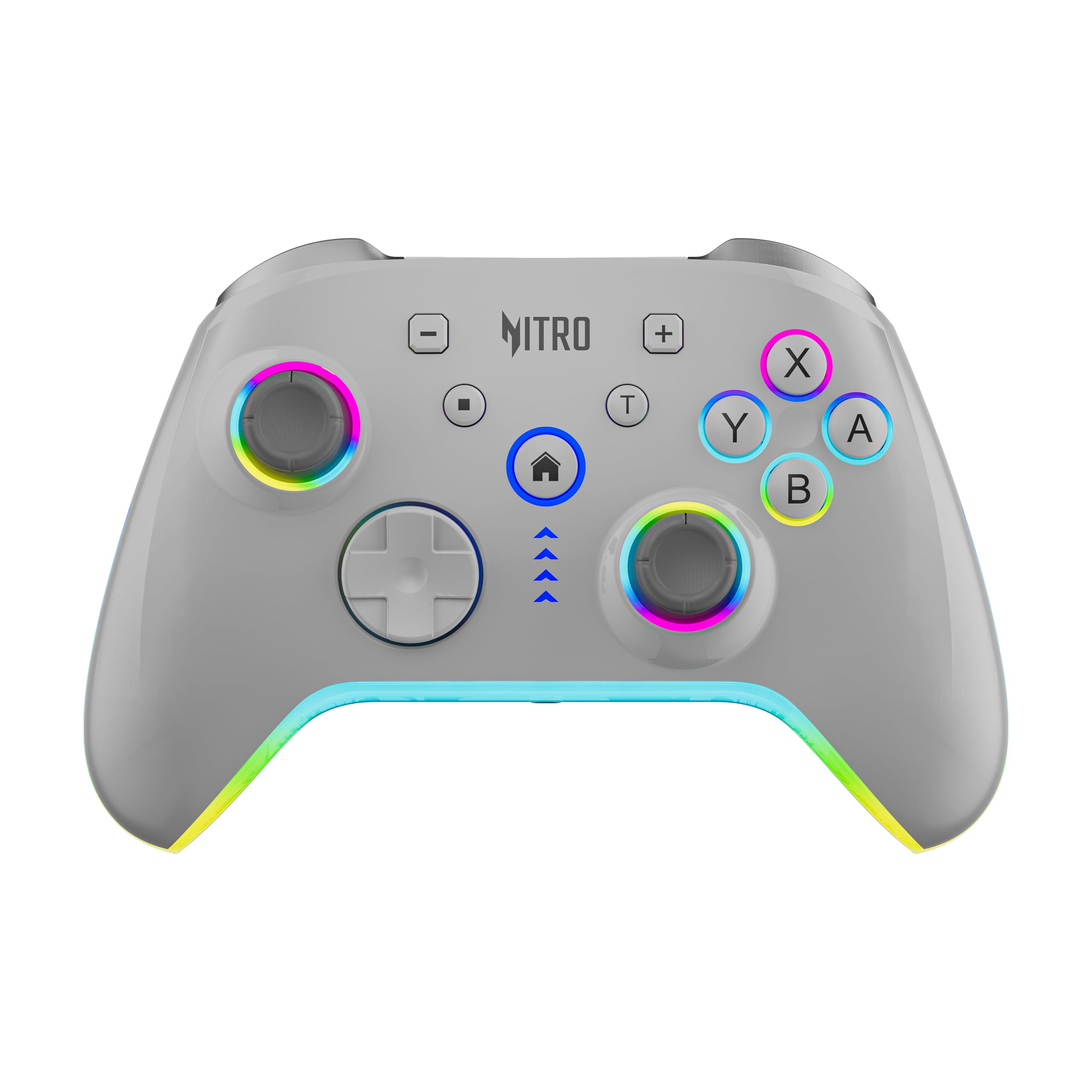
Image: Acer Nitro Katana NT-01 Wireless Game Controller, front view.
Key features include a 6-axis gyro motion system, dual vibration motors, Hall Effect triggers for precise control, and a 900mAh battery for extended playtime. It supports wireless Bluetooth and wired USB-C connections across various platforms including Nintendo Switch, Android, iOS, and PC.
Setup
1. Charging the Controller
Before initial use, fully charge the controller. Connect the included 0.8-meter USB-C cable to the controller's USB-C port and to a power source (e.g., computer USB port, USB wall adapter). The LED indicator will show charging status.

Image: Rear view of the controller highlighting the 900mAh battery capacity.
2. Connectivity Options
The NT-01 controller supports both wireless Bluetooth 5.0 and wired USB-C connections.

Image: Controller illustrating both wireless Bluetooth 5.0 (10-meter range) and wired USB-C connectivity.
Wireless Connection (Bluetooth 5.0)
- Ensure the controller is charged.
- Turn on the controller by pressing the Home button.
- Activate Bluetooth pairing mode on the controller (refer to specific platform instructions for button combinations, e.g., Home + Y for Switch, Home + A for Android).
- On your device (Switch, Android, iOS, PC), go to Bluetooth settings and select "Acer Nitro Katana NT-01" to pair.
- The controller's indicator lights will confirm successful pairing.
Wired Connection (USB-C)
- Connect the USB-C cable from the controller to your PC or compatible device.
- The controller will automatically switch to wired mode. For PC, it supports X-Input and D-Input modes.
3. Platform Compatibility
The Acer Nitro Katana NT-01 is compatible with a range of operating systems:
- Nintendo Switch
- Android: Version 6.0 and above
- iOS: Version 13 and above
- PC: Windows 7 and above (supports X-Input/D-Input)

Image: Controller with icons indicating compatibility with iOS 13+, Android 6.0+, and Windows 7+.
Operating the Controller
1. Button Layout and Functions
The controller features a standard 20-button layout, including two analog sticks, a D-pad, action buttons (A, B, X, Y), shoulder buttons (L1, R1), triggers (L2, R2), Home, Select, Start, and additional programmable buttons.
Hall Effect Triggers
The Hall Effect triggers (L2, R2) provide magnetic, contactless, and smooth control, enhancing precision and durability for actions like acceleration or braking in racing games.

Image: Top-down view of the controller emphasizing the Hall Effect triggers for precise control.
2. Motion Control (6-Axis Gyro)
The integrated 6-axis gyro system, composed of a 3D-Sensor and a G-Sensor, allows for accurate motion tracking. This enables tilt-aiming, steering, and other motion-based gameplay mechanics in compatible games.

Image: Controller with arrows indicating its 6-axis motion sensing capabilities.
3. Dual Vibration Motors
Experience immersive feedback with the left and right dual vibration motors. These motors provide haptic responses to in-game events, enhancing realism.
Image: Rear view of the controller with concentric circles indicating dual vibration motors.
4. Audio Sync (3.5mm Headphone Jack)
The controller includes a 3.5mm stereo headphone jack with microphone support, allowing you to connect your headset directly for in-game audio and communication.

Image: Side view of the controller highlighting the 3.5mm stereo headphone jack with mic support.
5. RGB Lighting
The controller features customizable RGB lighting, adding a visual element to your gaming setup. Refer to the controller's specific button combinations or companion software (if available) for adjusting lighting modes and colors.

Image: Controller showcasing its RGB lighting effects.
Maintenance
- Cleaning: Use a soft, dry cloth to clean the controller. Avoid abrasive cleaners or solvents.
- Storage: Store the controller in a cool, dry place away from direct sunlight and extreme temperatures.
- Battery Care: To prolong battery life, avoid fully discharging the controller frequently. Charge it regularly, even if not in use for extended periods.
- Durability: The Puyao joysticks are rated for 1 million cycles, and buttons are built for durability. Avoid excessive force or dropping the controller.
Troubleshooting
- Controller not connecting wirelessly:
- Ensure the controller is charged.
- Verify Bluetooth is enabled on your device.
- Make sure the controller is in the correct pairing mode for your platform.
- Try unpairing and re-pairing the controller from your device's Bluetooth settings.
- Ensure no other Bluetooth devices are causing interference.
- Input lag in wireless mode:
- Move closer to your device to reduce distance.
- Minimize interference from other wireless devices.
- For critical gaming, consider using the wired USB-C connection for zero latency.
- Controller not charging:
- Check if the USB-C cable is securely connected to both the controller and the power source.
- Try a different USB-C cable or power adapter.
- Ensure the power source is active.
- Buttons or joysticks unresponsive:
- Restart the controller and your device.
- Ensure the controller's firmware is up to date (check Acer's official support website).
- Clean around the buttons and joysticks to remove any debris.
Specifications
| Feature | Detail |
|---|---|
| Model Number | NT-01 |
| Connectivity | Bluetooth 5.0 (Wireless), USB-C (Wired) |
| Battery | 900mAh Lithium-ion |
| Motion Control | 6-Axis Gyro (3D-Sensor + G-Sensor) |
| Vibration | Dual Vibration Motors |
| Triggers | Hall Effect Triggers |
| Audio Port | 3.5mm Stereo Headphone Jack with Mic |
| Compatibility | Nintendo Switch, Android 6.0+, iOS 13+, PC (Windows 7+, X-Input/D-Input) |
| Product Dimensions | 11 x 16 x 4 cm |
| Item Weight | 215 g |
| Joystick Life | 1 Million Cycles (Puyao joysticks) |
Warranty Information
For detailed warranty terms and conditions, please refer to the warranty card included with your product or visit the official Acer support website. Warranty coverage typically includes manufacturing defects for a specified period from the date of purchase.
Support
Should you require assistance or have questions regarding your Acer Nitro Katana NT-01 controller, please contact Acer customer support:
- Manufacturer: Acer I Pvt Ltd, FORCETAKE INCORPORATED
- Importer: Acer India Pvt. Ltd., Embassy Heights, 13, Magrath Rd, Ashok Nagar, Bengaluru, Karnataka 560025
- Support Website: https://acer1.in/swdlo
- Phone (India): 1800-11-4100, 6366800400
- Email: acersupport@in.startek.com
- Live Agent Support: Monday to Saturday, 9 AM to 6 PM (Public Holidays excluded)

Image: Acer customer support details including phone numbers, email, and a QR code for quick access to support resources.
Product Videos
No official product videos with "creator_type":"Seller" were provided in the product data for embedding in this manual.
Related documentsNT-01


Ask a question about this manual
Ask about setup, troubleshooting, compatibility, parts, safety, or missing instructions. Manuals+ will review the question and use this page’s manual context to help answer it.