
Introduction
This manual provides comprehensive instructions for the setup, operation, maintenance, and troubleshooting of your Kreo Swarm 65 Wireless Mechanical Gaming Keyboard. Please read this manual carefully before using the product to ensure optimal performance and longevity.
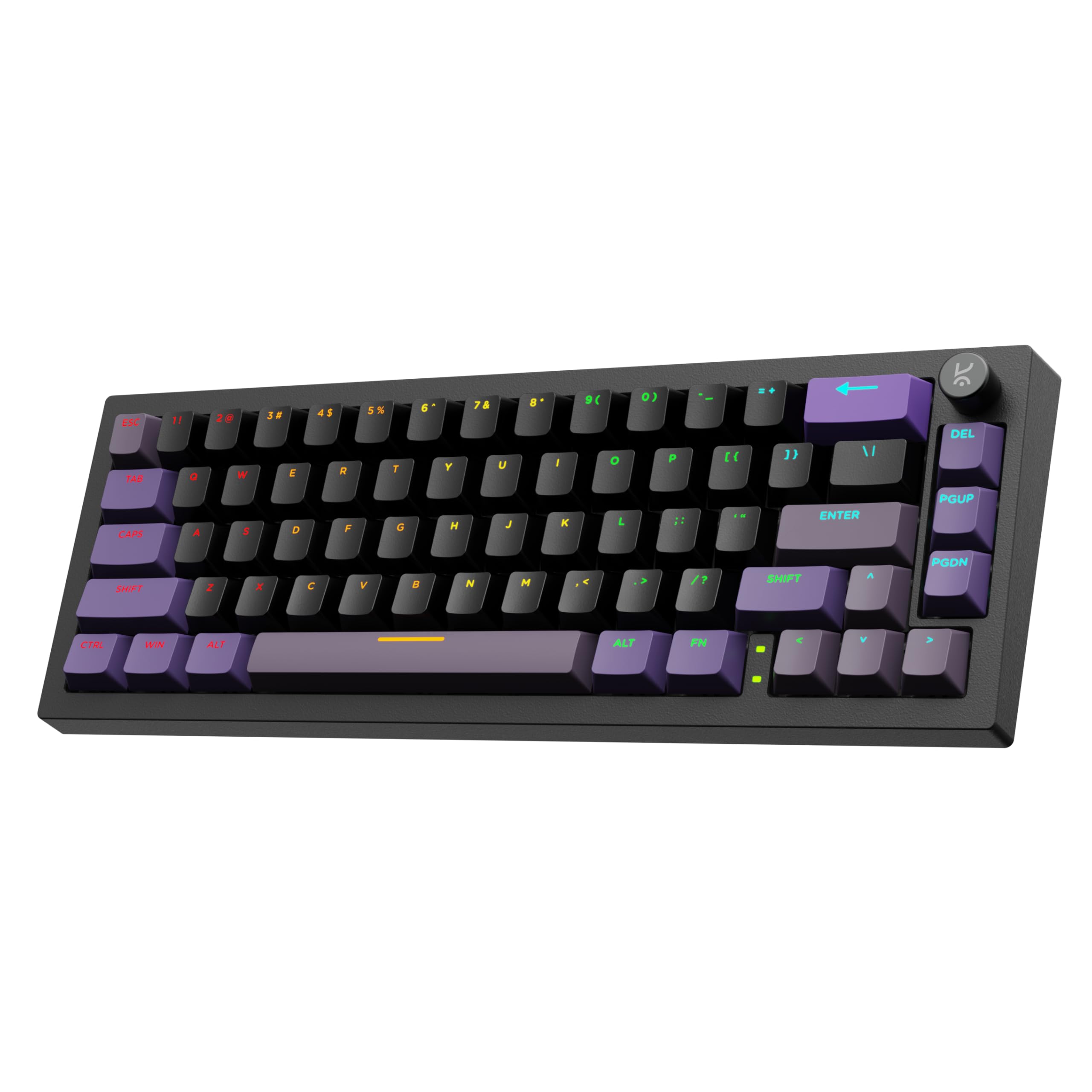
Image: The Kreo Swarm 65 Wireless Mechanical Gaming Keyboard, showcasing its compact 65% layout and RGB lighting.
Package Contents
- Kreo Swarm 65 Wireless Mechanical Gaming Keyboard
- USB-C Cable
- 2.4GHz Wireless Dongle
- Keycap Puller
- Switch Puller
- User Manual (this document)
Product Overview
The Kreo Swarm 65 is a versatile mechanical keyboard designed for gaming and productivity, featuring multiple connectivity options and customizable components.
Key Features:
- Tri-Mode Connectivity: Supports Bluetooth 5.0, 2.4GHz wireless, and USB-C wired connections.
- Gasket-Mounted Design: Provides cushioned keystrokes and improved acoustics.
- 5-Layer Sound Dampening: Reduces case ping and stabilizes typing sound for a quieter experience.
- Hot-Swap PCB: Compatible with 3-pin and 5-pin mechanical switches without soldering.
- Doubleshot PBT Keycaps: Durable keycaps with a Cherry profile for clear RGB diffusion.
- Compact 65% Layout: A 67-key layout that includes arrow keys and navigation buttons.
- Customizable Metal Volume Knob: For convenient audio control.
- Per-Key RGB Lighting: North-facing LEDs with software control for personalized illumination.
- Long Battery Life: 4000mAh battery offering up to 200 hours of use (RGB off).
- Cross-Platform Compatibility: Supports Windows, macOS, Linux, and Android.

Image: An exploded diagram illustrating the internal layers of the Kreo Swarm 65 keyboard, including Lucidus Keycaps, Upper Cover, Kreo Starling Switches, Polycarbonate Plate, Switch Plate Foam, Switch Film Sheets, PCB, PCB Foam, Silicone Pad, and Bottom Shell.

Image: A close-up showing the doubleshot PBT keycaps with a Cherry profile, highlighting their construction for durability and light transmission.

Image: A visual comparison demonstrating the difference between a doubleshot PBT shadowless keycap, which provides brighter and more even illumination, and a normal keycap, which may appear dimmer near rounded edges.
Setup
1. Charging the Keyboard
Before first use, connect the keyboard to a USB power source using the provided USB-C cable. The charging indicator will show the battery status.
2. Connecting the Keyboard
The Kreo Swarm 65 supports three connection modes:
- USB-C Wired Mode: Connect the keyboard directly to your device using the USB-C cable. The keyboard will automatically switch to wired mode.
- 2.4GHz Wireless Mode:
- Locate the 2.4GHz wireless dongle. It is stored in the dedicated dongle slot on the keyboard's underside.
- Insert the dongle into an available USB port on your computer.
- Switch the keyboard's mode selector to 2.4GHz. The keyboard should connect automatically.
- Bluetooth 5.0 Wireless Mode:
- Switch the keyboard's mode selector to Bluetooth.
- On your device (PC, laptop, tablet, smartphone), enable Bluetooth and search for new devices.
- Select "Kreo Swarm 65" from the list of available devices to pair.
- The keyboard can store up to 3 paired Bluetooth devices. Use the dedicated shortcut keys (e.g., Fn + 1, Fn + 2, Fn + 3) to switch between them.

Image: The Kreo Swarm 65 keyboard connected via USB, 2.4GHz wireless, and Bluetooth to a laptop, desktop, and tablet, demonstrating its tri-mode connectivity and compatibility with Mac/Windows software.

Image: A close-up view of the dedicated dongle slot on the underside of the Kreo Swarm 65 keyboard, designed for secure storage of the 2.4GHz wireless receiver.
Operating Instructions
1. Basic Keyboard Functions
The Kreo Swarm 65 features a compact 65% layout. Standard keys function as labeled. For secondary functions (e.g., F-keys, media controls), use the Fn key in combination with the corresponding key.
2. RGB Lighting Control
The keyboard features per-key RGB lighting with multiple customizable modes. Use the following shortcuts or the dedicated software for control:
- Fn + \: Cycle through RGB lighting effects.
- Fn + Arrow Keys: Adjust brightness and speed of effects.
- Software Control: Download the Kreo software from the official website to customize lighting, macros, and key assignments.
3. Customizable Metal Volume Knob
The metal knob located on the top right of the keyboard provides convenient control:
- Rotate: Adjust volume up or down.
- Press: Mute or unmute audio.
- Software Customization: The knob's functions can be remapped using the Kreo software.

Image: A close-up of the customizable metal volume knob on the Kreo Swarm 65 keyboard, indicating its function can be tailored to user workflow.
4. Cross-Platform Compatibility
The keyboard supports both Windows and macOS layouts. Use the dedicated shortcut (e.g., Fn + A for Windows, Fn + S for macOS, consult the keyboard's specific key legends if different) to switch between operating system layouts. It is also plug-and-play compatible with Linux and Android devices.
Maintenance
1. Cleaning the Keyboard
- Disconnect the keyboard from all power sources before cleaning.
- Use a soft, lint-free cloth slightly dampened with water or a mild cleaning solution to wipe the keycaps and chassis.
- For dust and debris between keycaps, use compressed air.
- To clean under the keycaps, use the provided keycap puller to carefully remove them.
2. Replacing Keycaps and Switches
The Kreo Swarm 65 features a hot-swap PCB, allowing for easy replacement of switches without soldering.
- Keycap Replacement: Use the provided keycap puller to gently remove keycaps. Align new keycaps and press them firmly onto the switch stem.
- Switch Replacement:
- First, remove the keycap using the keycap puller.
- Use the provided switch puller to grip the top and bottom clips of the switch.
- Gently pull the switch straight up to remove it from the PCB.
- Align the pins of the new 3-pin or 5-pin switch with the holes on the PCB.
- Press the new switch firmly into place until it clicks. Ensure the pins are not bent.

Image: A close-up of the Kreo Swarm 65's 5-pin hot-swap PCB, showing the sockets ready for switch installation, indicating unlimited switch compatibility.
Troubleshooting
| Problem | Possible Cause | Solution |
|---|---|---|
| Keyboard not responding in wireless mode. | Low battery, incorrect mode, dongle not connected, Bluetooth not paired. | Charge the keyboard. Ensure the mode switch is set correctly (2.4GHz or Bluetooth). Re-insert the 2.4GHz dongle. Re-pair Bluetooth. Try wired mode to confirm keyboard functionality. |
| RGB lighting not working or dim. | Brightness set too low, lighting effect turned off, software issue. | Adjust brightness using Fn + Arrow Up. Cycle through effects using Fn + \. Check Kreo software settings. |
| Keys not registering or double-typing. | Faulty switch, debris under keycap/switch, software conflict. | Remove keycap and clean around the switch. If issue persists, replace the switch. Update keyboard firmware/software. |
| Cannot switch between devices (Bluetooth). | Device not properly paired, incorrect shortcut used. | Ensure all devices are paired correctly. Use Fn + 1/2/3 to switch. Re-pair if necessary. |
Specifications
| Brand | Kreo |
| Model Name | Swarm 65 Starling |
| Model Number | KM3R651BK |
| Connectivity Technology | Bluetooth 5.0, 2.4GHz Wireless, USB-C Wired |
| Keyboard Description | Mechanical |
| Switch Type | Starling Linear (also compatible with GTMX Tactile) |
| Keycap Material | Doubleshot PBT |
| Layout | 65% (67-key) |
| Battery Capacity | 4000mAh |
| Battery Life (RGB off) | Up to 200 hours |
| Polling Rate | 1000Hz (Wired & Wireless) |
| Compatible Devices | PC, Laptop, Tablet, Smartphone |
| Operating Systems | Windows, macOS, Linux, Android |
| Product Dimensions | 25 x 14 x 3 cm |
| Item Weight | 500 g |
| Country of Origin | China |
Warranty and Support
For warranty information and technical support, please refer to the official Kreo website or contact customer service using the details below:
- Manufacturer: Kreo, Koramangala 4-B Block, Bengaluru, Karnataka 560034
- Phone: 9611507877
- Email: help@kreo-tech.com
Please retain your proof of purchase for warranty claims.


