
Introduction
This manual provides essential information for the safe and efficient operation of your VAULTEK NV10i 10 Series Sub-Compact Biometric Smart Safe. Please read all instructions carefully before use and retain this manual for future reference.
Important Safety Information
- Always keep backup keys in a secure location away from the safe.
- Do not store the safe keys or master code inside the safe.
- Ensure the safe is securely mounted to prevent unauthorized removal.
- Keep fingers clear of the lid when closing to avoid pinching.
- This safe is designed to protect valuables and firearms. Always follow local laws and regulations regarding firearm storage.
What's Included
Your VAULTEK NV10i safe package includes the following items:
- VAULTEK NV10i Safe
- (2) Manual Keys
- AC Power Adapter
- Interior Foam Padding
- 4 Ft. Steel Security Cable
- Mounting Hardware

Image showing the included accessories: two manual keys, an AC power adapter, a steel security cable, and mounting hardware.
Initial Setup
Powering Your Safe
The NV10i safe can be powered via the included AC power adapter or with three (3) AAA alkaline batteries (not included) for backup power.
- AC Power: Connect the AC power adapter to the safe's power port and plug it into a wall outlet.
- Backup Batteries: Install three AAA alkaline batteries into the battery compartment. These provide power for up to 3 months.

Image showing the AC power adapter cable, used to power the safe.
Programming Access Methods
Biometric Fingerprint Scanner
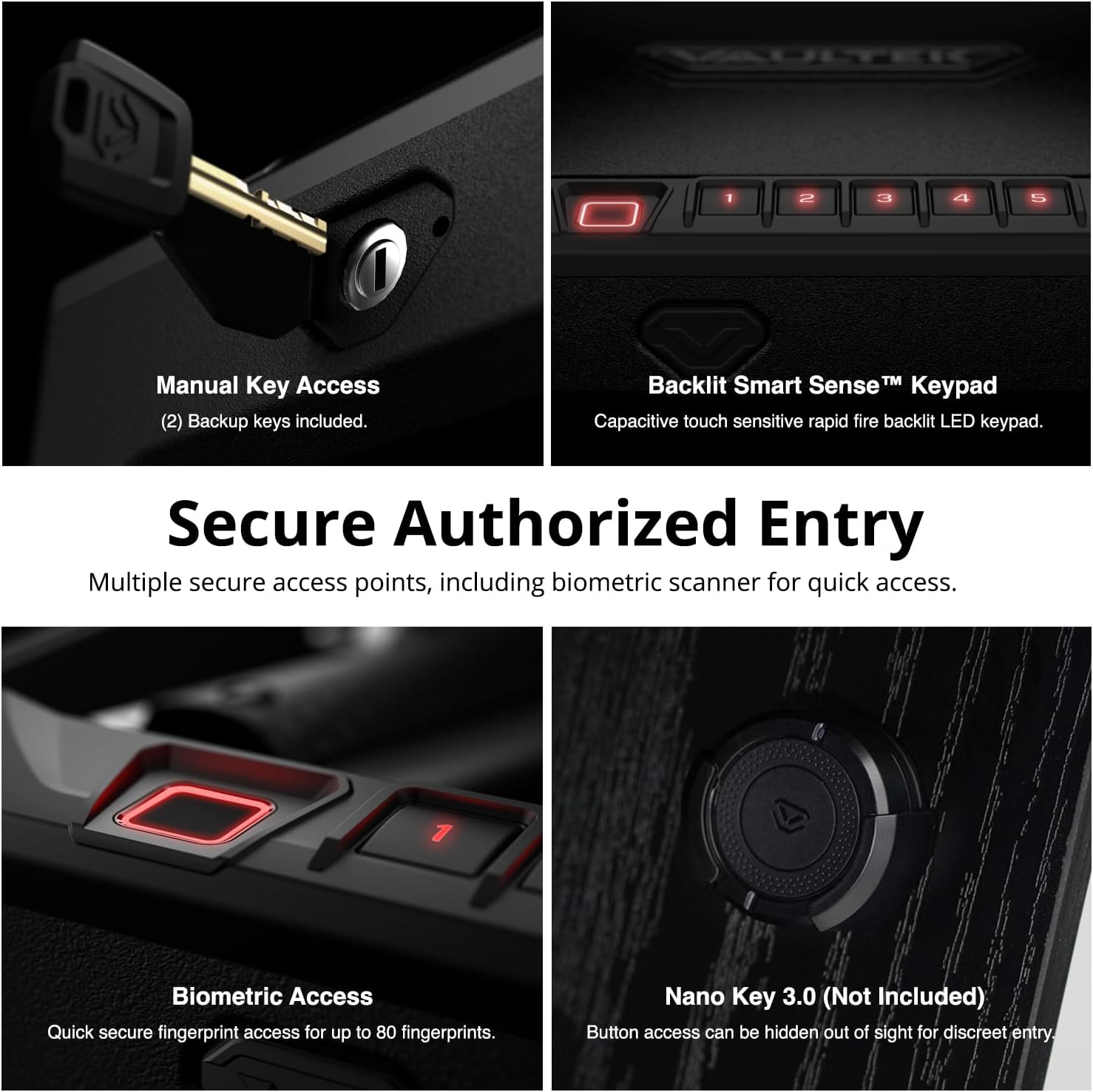
The high-resolution biometric scanner can store up to 80 unique fingerprints.
- Open the safe using a manual key or the default code.
- Locate the 'PROGRAM' button inside the safe.
- Press and release the 'PROGRAM' button. The biometric scanner will illuminate.
- Place your finger firmly on the scanner. Lift and repeat several times until the safe confirms successful enrollment.

Close-up view of the biometric fingerprint scanner on the safe, used for quick access.
Smart Sense Keypad
The backlit Smart Sense keypad allows for a 4 to 8 digit master code.
- Open the safe.
- Press and hold the 'PROGRAM' button until the keypad illuminates.
- Enter your desired 4 to 8 digit master code.
- Press and hold the 'PROGRAM' button again to save the code.
Close-up view of the backlit Smart Sense keypad with numbered buttons.
ViSN (VAULTEK Intelligent Safe Network) App Setup
The ViSN platform uses WiFi enabled cloud technology for remote management and live alerts. Download the exclusive iOS/Android smartphone app for guided setup and real-time monitoring.
- Download the VAULTEK ViSN app from your device's app store. Download App
- Follow the in-app instructions to connect your NV10i safe to your WiFi network.
- Register your safe and configure alert preferences.

A smartphone displaying the VAULTEK ViSN app interface for safe monitoring.
Mounting Your Safe
The safe can be mounted to a nightstand, desk, or vehicle using the pre-drilled holes and included hardware or steel security cable.
- Choose a secure location for mounting.
- Use the pre-drilled holes on the safe as a template to mark drilling locations.
- Secure the safe using the provided mounting hardware.
- Alternatively, use the 4 ft. steel security cable to tether the safe to a fixed object.

The VAULTEK NV10i safe securely mounted to a surface, demonstrating its compact profile.
Operating Your Safe
Quick Access Methods
Biometric Access
Place your enrolled finger firmly on the biometric scanner. The safe will unlock and the lid will automatically open.
Keypad Access
Enter your programmed 4 to 8 digit master code on the Smart Sense keypad. The safe will unlock and the lid will automatically open.
Manual Key Access
Insert one of the provided manual keys into the keyhole and turn to unlock the safe. The lid will then open.

A hand inserting a manual key into the safe's keyhole for backup access.
Nano Key 3.0 (Optional)
If you have purchased the optional Nano Key 3.0, it provides the fastest entry method. Once activated within range of your safe, the safe will open automatically.

A close-up of the Nano Key 3.0, an optional accessory for rapid, discreet access.
Interior LED Lighting
The safe features responsive LED lighting in low-light situations. The LED backlit keypad's proximity sensor helps locate the safe, and interior LED lights illuminate the contents upon opening.
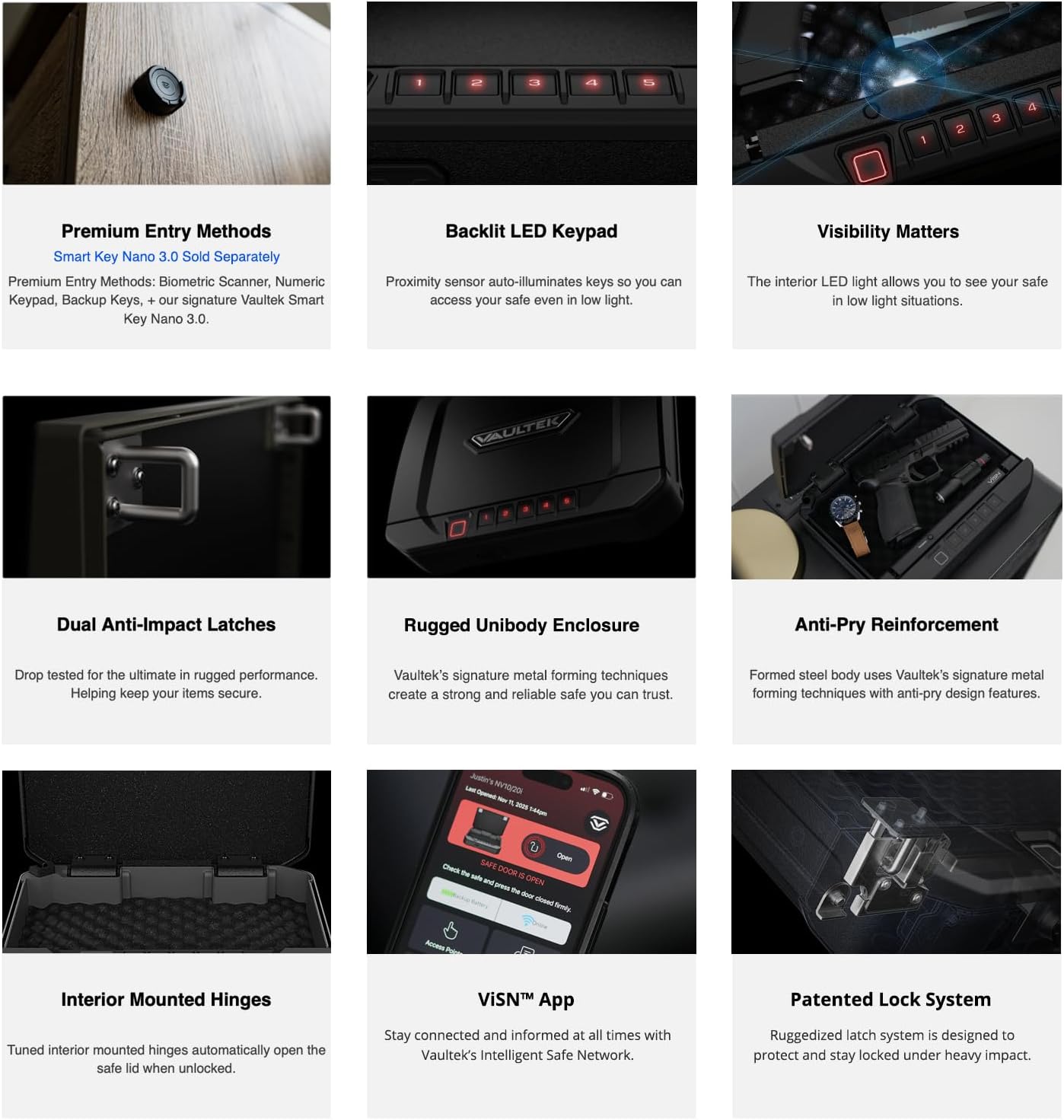
The interior of the open safe, showing a handgun and the illuminated LED light for visibility.
ViSN Live Alerts and Monitoring
Through the ViSN smartphone app, you can receive live alerts for safe activity, such as tampering attempts, low battery, or unauthorized access. Monitor your safe's status from anywhere.
Video demonstrating the various secure access points for VAULTEK 10 and 20 Series safes, including biometric, keypad, manual key, and Nano Key 3.0 options.
Maintenance
- Battery Replacement: Replace AAA alkaline batteries every 3-6 months or when the low battery indicator appears.
- Cleaning: Wipe the exterior with a soft, damp cloth. Avoid abrasive cleaners. Clean the biometric sensor gently with a dry, lint-free cloth.
- Keypad: Keep the keypad free from dirt and debris for optimal performance.
Troubleshooting
| Problem | Solution |
|---|---|
| Safe not opening with fingerprint. | Ensure your finger is clean and dry. Re-enroll your fingerprint if issues persist. Try using a different enrolled finger or another access method. |
| Keypad not responding. | Check battery levels. Ensure the keypad is clean. Try pressing the 'PROGRAM' button to wake it up. |
| Safe not connecting to ViSN app. | Verify your WiFi connection. Ensure the safe is within range of your router. Restart the app and safe. |
| Lid not opening automatically. | Check for any obstructions. Ensure the safe is on a level surface. Verify power source (AC adapter or fresh batteries). |
Specifications
| Feature | Detail |
|---|---|
| Brand | VAULTEK |
| Model Number | NV10i |
| Product Dimensions | 8.5"D x 10.5"W x 2.13"H |
| Chamber Depth | 8.5 Inches |
| Material | Carbon Steel |
| Lock Type | Backlit Keypad, Biometric, Key, Patented Dual Anti-Impact Latch System |
| Biometric Capacity | Up to 80 unique fingerprints |
| Special Features | Backlit LED Smart Sense™ Capacitive Keypad, Biometric Access, Patented Dual Anti-Impact Latch System, Precision Engineered Metal Forming + Unibody Housing Design, ViSN™ Vaultek Intelligent Safe Network |
| Mounting Type | Mountable with pre-drilled holes and hardware along with the included steel security cable. |
| Power Source | AC Power Adapter, 3 AAA Alkaline Batteries (Not Included) |
| Handgun Fitment | Up to 9.875” in overall length and 5.375” in overall height. |

Image illustrating the internal dimensions and maximum handgun length capacity of the safe.
Warranty and Support
VAULTEK products are known for their quality and reliability. Your NV10i safe comes with VAULTEK's 5-star support. For warranty information, technical assistance, or customer service, please visit the official VAULTEK website or contact their support team directly.

VAULTEK Customer Support logo.


