
1. Introduction
The Camgeet USB 3.0 HDMI 4-Port KVM Switch is designed to allow four computers to share a single monitor, keyboard, mouse, and up to four additional USB 3.0 devices. This device supports high-resolution video output up to 4K@60Hz and 2K@120Hz, ensuring a clear and smooth visual experience. Its EDID simulation feature helps maintain display settings when switching between computers, preventing window rearrangement.
This manual provides comprehensive instructions for setting up, operating, and maintaining your KVM switch, along with troubleshooting tips.
2. What's in the Box
- 1x USB 3.0 KVM Switch
- 4x USB 3.0 Cables (1.5m)
- 1x HDMI 2.0 Cable (1.5m)
- 1x Wired Remote
- 1x Power Adapter
- 1x User Manual

Image: Contents of the Camgeet USB 3.0 HDMI 4-Port KVM Switch package.
3. Product Overview and Features
The Camgeet USB 3.0 HDMI 4-Port KVM Switch is designed for efficiency and high performance in multi-computer environments. It allows seamless control of up to four computers using a single set of peripherals.
Key Features:
- 4-Port KVM Functionality: Control four computers with one monitor, keyboard, and mouse.
- High-Resolution Support: Supports resolutions up to 4K@60Hz and 2K@120Hz. Also compatible with 4K@30Hz, 3D, and 1080P resolutions.
- EDID Simulation: Simulates the display's EDID to store resolution and refresh rate, preventing window rearrangement when switching between computers.
- USB 3.0 Ports: Features four USB 3.0 ports for connecting peripherals like wireless keyboards, mice, printers, and scanners, offering data transfer speeds up to 5Gbps. Backward compatible with USB 2.0 and USB 1.1 devices.
- Dual Switching Modes: Switch between connected computers using either the front panel button or the included wired remote controller. LED indicators show the active computer.
- Wide Compatibility: Driver-free operation for Windows, Mac OS, Linux, and Chrome OS. Compatible with HDMI-capable devices such as PS5, PS4, TV Box, PC, and Laptops.
- Power Adapter and ON-OFF Switch: Includes a power adapter for stable operation with high-power USB devices and an ON-OFF switch for convenience.

Image: Camgeet USB 3.0 HDMI 4-Port KVM Switch.

Image: Desk space comparison with and without the KVM switch.
4. Setup Instructions
Follow these steps to set up your Camgeet KVM Switch:
- Connect the Monitor: Connect your HDMI monitor to the KVM switch's HDMI OUTPUT port using an HDMI cable.
- Connect Computers: For each computer (up to four), connect its HDMI output to an HDMI INPUT port on the KVM switch. Simultaneously, connect a USB 3.0 port from each computer to the corresponding USB 3.0 INPUT port on the KVM switch using the provided USB 3.0 cables.
- Connect Peripherals: Connect your keyboard, mouse, and any other USB 3.0 devices (e.g., printer, USB drive) to the USB 3.0 OUTPUT ports on the front of the KVM switch.
- Connect Wired Remote (Optional): If desired, plug the wired remote controller into the dedicated port on the KVM switch.
- Connect Power: Plug the power adapter into the DC 5V port on the KVM switch and then into a power outlet. Turn on the KVM switch using the ON-OFF switch.
Ensure all connections are secure before powering on your computers and the KVM switch.

Image: KVM Switch connection diagram.
5. Operating Instructions
Switching Between Computers:
You can switch between the connected computers using two methods:
- Front Panel Button: Press the 'SELECT' button on the front panel of the KVM switch to cycle through the connected computers (PC1, PC2, PC3, PC4). The corresponding LED indicator will light up to show which computer is currently active.
- Wired Remote Controller: Use the included wired remote controller to switch between computers. Press the button on the remote to cycle through the inputs.

Image: Switching methods for the KVM switch.
EDID Simulation:
The KVM switch features EDID (Extended Display Identification Data) simulation. This technology ensures that your computers always detect a connected display, even when you switch to another computer. This prevents your operating system from reorganizing windows or changing resolutions, providing a seamless transition.
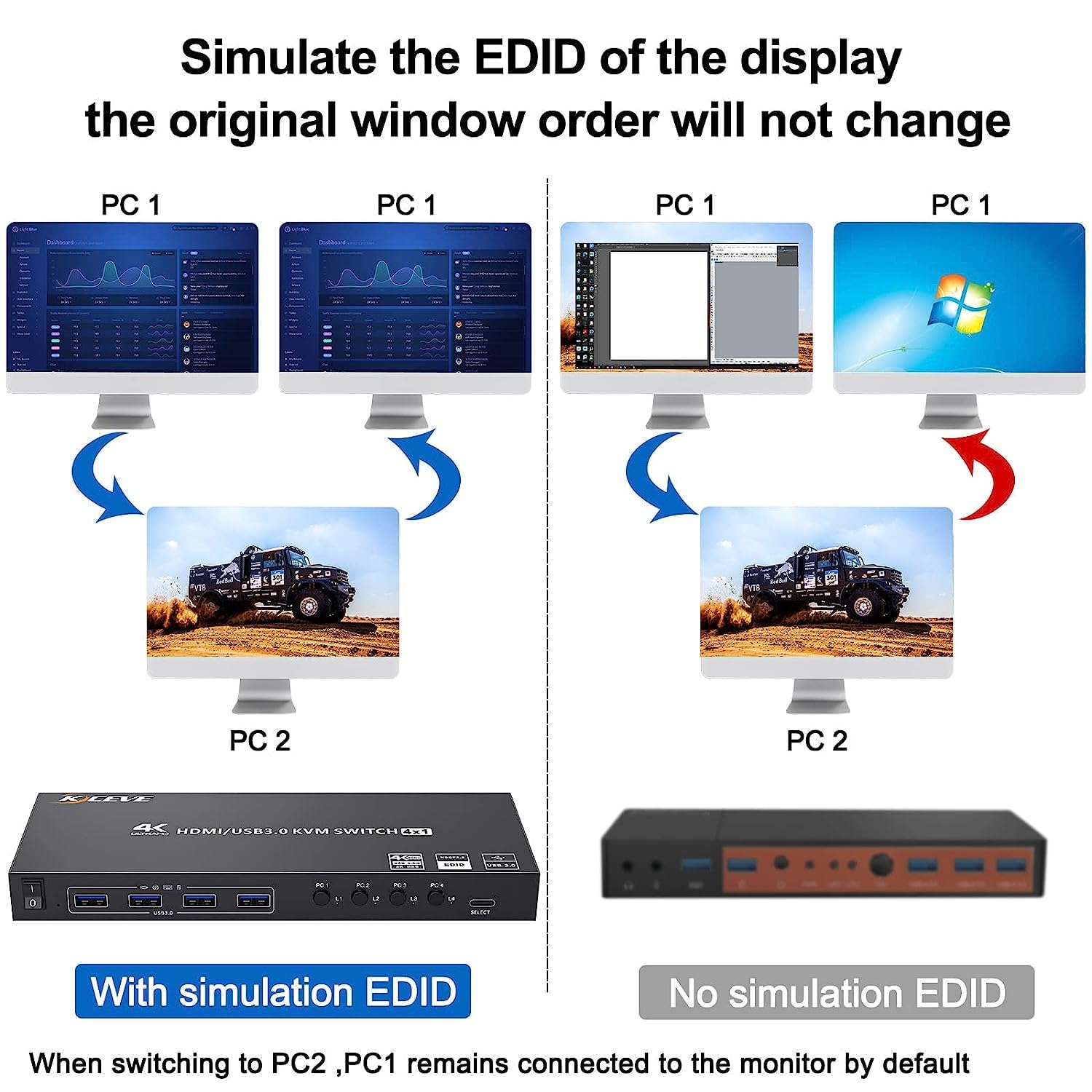
Image: EDID simulation in action, maintaining window order.
USB 3.0 Data Transfer:
The integrated USB 3.0 ports support data transfer speeds up to 5Gbps, which is 10 times faster than USB 2.0. This allows for quick file transfers and efficient use of high-speed USB devices.

Image: USB 3.0 data transfer speed demonstration.
6. Maintenance
To ensure the longevity and optimal performance of your Camgeet KVM Switch, please observe the following maintenance guidelines:
- Cleaning: Use a soft, dry cloth to clean the exterior of the device. Avoid using liquid cleaners or aerosols, which may damage the unit.
- Environment: Keep the KVM switch in a cool, dry place, away from direct sunlight, heat sources, and excessive moisture. Ensure adequate ventilation around the device.
- Cable Management: Organize cables neatly to prevent strain on ports and accidental disconnections. Avoid bending cables sharply.
- Power Off: When not in use for extended periods, it is recommended to turn off the KVM switch using its ON-OFF button.
7. Troubleshooting
If you encounter issues with your KVM switch, please refer to the following common troubleshooting steps:
- No Display on Monitor:
- Ensure all HDMI cables are securely connected to both the KVM switch and the monitor/computers.
- Verify that the KVM switch is powered on and the correct input is selected.
- Test the monitor and HDMI cables directly with a single computer to rule out issues with those components.
- Ensure your computers are powered on and not in sleep mode.
- Keyboard/Mouse Not Responding:
- Check that the USB 3.0 cables from the computers to the KVM switch are properly connected.
- Ensure your keyboard and mouse are plugged into the dedicated USB 3.0 OUTPUT ports on the KVM switch.
- Try connecting the keyboard/mouse directly to the computer to confirm they are functional.
- Some specialized gaming keyboards/mice may require direct connection or specific drivers; try a standard keyboard/mouse first.
- Resolution or Refresh Rate Issues:
- Confirm that your monitor and graphics cards support the desired resolution and refresh rate.
- Ensure you are using high-quality HDMI 2.0 cables for 4K@60Hz output.
- Check your computer's display settings to ensure the correct resolution and refresh rate are selected. The EDID simulation should help with automatic recognition.
- USB 3.0 Device Not Recognized:
- Ensure the device is properly connected to one of the USB 3.0 OUTPUT ports.
- Verify that the device works when connected directly to the computer.
- Some high-power USB devices may require the KVM switch to be powered via the included power adapter.
- Window Rearrangement After Switching:
- The KVM switch's EDID simulation feature is designed to prevent this. Ensure all connections are stable. If the issue persists, check for any driver updates for your graphics card.
If these steps do not resolve your issue, please contact Camgeet customer support for further assistance.
Video: Demonstration of the Camgeet 4-Port USB 3.0 KVM Switch, showing its connections and EDID functionality across multiple monitors and resolutions.
8. Specifications
| Feature | Specification |
|---|---|
| Product Dimensions | 8.03 x 3.07 x 0.87 inches |
| Item Model Number | KC-KVM401A |
| Weight | 12.7 ounces |
| Operation Mode | ON-OFF |
| Current Rating | 2 Amps |
| Operating Voltage | 2 Volts (DC) |
| Contact Type | Normally Open |
| Connector Type | Plug In |
| Terminal | Solder |
| Circuit Type | 4-way |
| Actuator Type | Wired Remote |
| Max Resolution | 4K@60Hz, 2K@120Hz |
| USB Standard | USB 3.0 (5Gbps) |
9. Warranty and Support
Camgeet provides a 1-year warranty for this USB 3.0 KVM Switch. Additionally, lifetime technical support is available to assist you with any questions or issues you may encounter.
For warranty claims or technical assistance, please contact Camgeet customer support through the retailer where you purchased the product or visit the official Camgeet website.