
Introduction
This manual provides comprehensive instructions for the setup, operation, maintenance, and troubleshooting of your KNAON Portable Thermal Printer. This device offers convenient wireless and USB printing capabilities, designed for efficiency and portability. Please read this manual thoroughly before using the printer to ensure optimal performance and longevity.
Setup Guide
1. Package Contents
Verify that all items are present in your package:
- KNAON Portable Thermal Printer
- 3 Rolls of A4 Thermal Paper
- 4 Rolls of A4 Thermal Paper
- USB Cable
- User Manual (this document)
2. Loading Thermal Paper
The printer is designed to work exclusively with thermal paper. Standard paper is not compatible.
- Open the paper compartment cover.
- Insert the A4 thermal paper roll or folded sheets into the compartment, ensuring the printable side faces the print head.
- Close the cover securely.
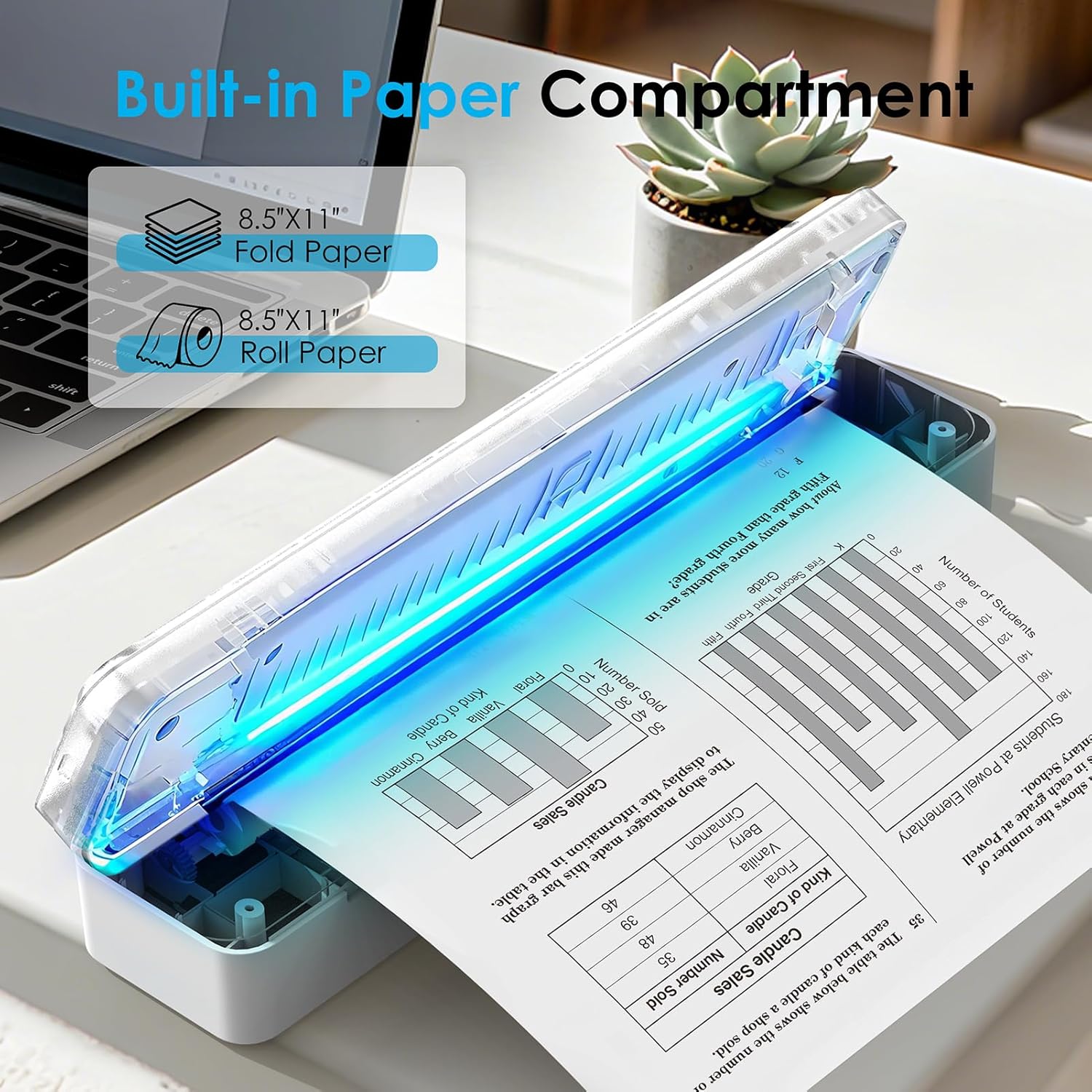
Image: The KNAON Portable Thermal Printer with its built-in paper compartment open, showing how to load 8.5"x11" fold paper or roll paper.
3. Powering On and Charging
- To power on, press and hold the power button until the indicator light illuminates.
- Connect the printer to a power source using the provided USB cable for charging. The indicator light will show charging status.
4. Initial Connection
Bluetooth Connection (iOS/Android)
- Download the 'FlashToy' app from the Apple App Store or Google Play Store.
- Ensure Bluetooth is enabled on your mobile device.
- Open the 'FlashToy' app and follow the in-app instructions to connect to your printer. Direct Bluetooth pairing through device settings is not supported; connection must be made via the app.

Image: A smartphone displaying the 'FlashToy' app interface for easy mobile printing, connected to the KNAON Portable Thermal Printer.
USB Connection (Windows/macOS)
- For Windows (7 and above) and macOS, you must download and install the appropriate printer driver. Refer to the Support section for driver download information.
- Connect the printer to your computer using the provided USB cable.
- After driver installation, the printer will be recognized by your operating system.

Image: The KNAON Portable Thermal Printer connected to a laptop via a USB cable, demonstrating versatile connectivity options.
Operating Instructions
1. Printing via Bluetooth (FlashToy App)
- Ensure your printer is powered on and connected to the 'FlashToy' app.
- Within the app, select the document or image you wish to print.
- Adjust print settings (e.g., paper size, orientation) as needed.
- Initiate the print command from the app.
2. Printing via USB (Windows/macOS)
- Ensure your printer is connected to your computer via USB and the drivers are installed.
- Open the document or image on your computer using your preferred application.
- Select "Print" from the application's menu (e.g., File > Print).
- Choose the KNAON Portable Thermal Printer from the list of available printers.
- Adjust print settings as required and confirm the print job.
3. Supported File Formats
The printer supports various file formats for printing, including:
- Word documents (.doc, .docx)
- Excel spreadsheets (.xls, .xlsx)
- PowerPoint presentations (.ppt, .pptx)
- Web pages
- Text files (.txt)
- Image files (e.g., .jpg, .png)
Image: An illustration showing the KNAON Portable Thermal Printer's compatibility with multiple file formats, including Word, Excel, PowerPoint, Web Page, TXT, and Picture files.
Maintenance
1. Cleaning the Printer
- Ensure the printer is powered off and disconnected from any power source before cleaning.
- Use a soft, lint-free cloth slightly dampened with water or isopropyl alcohol to gently wipe the exterior of the printer.
- To clean the print head, use a specialized thermal printer cleaning pen or a cotton swab lightly dampened with isopropyl alcohol. Wipe the print head gently and allow it to dry completely before use.
- Avoid using abrasive cleaners or solvents that could damage the printer's surface or internal components.
2. Thermal Paper Handling and Storage
- Store thermal paper in a cool, dry place away from direct sunlight, heat, and humidity to preserve its print quality and longevity.
- Avoid touching the thermal coating of the paper excessively, as oils from your skin can affect print quality.
- Only use thermal paper specifically designed for thermal printers.

Image: A package of KNAON US Letter 8.5" x 11" thermal paper rolls, indicating the type of paper required for the printer.
3. Battery Care
- For optimal battery life, charge the printer regularly and avoid completely draining the battery frequently.
- If storing the printer for an extended period, charge it to approximately 50% capacity and store it in a cool, dry place. Recharge every few months to prevent deep discharge.
Troubleshooting
Common Issues and Solutions:
- Printer not powering on: Ensure the printer is charged. Connect it to a power source using the USB cable and try again.
- Cannot connect via Bluetooth:
- Confirm Bluetooth is enabled on your mobile device.
- Ensure you are connecting through the 'FlashToy' app, not directly via device Bluetooth settings.
- Restart both the printer and your mobile device.
- Printer not recognized by computer (USB):
- Verify that the correct printer drivers for Windows or macOS are installed.
- Try a different USB port or cable.
- Restart your computer and the printer.
- Poor print quality or blank pages:
- Ensure you are using thermal paper and it is loaded correctly with the printable side facing the print head.
- Clean the print head as described in the Maintenance section.
- Check if the thermal paper is old or improperly stored.
- Paper jam: Power off the printer, carefully open the paper compartment, and gently remove any jammed paper. Ensure paper is loaded correctly and not wrinkled.
If you encounter issues not covered here, please refer to the Support section for further assistance.
Specifications
| Brand | KNAON |
| Model Number | B0G2XBJX2T |
| Connectivity Technology | Bluetooth, USB |
| Printing Technology | Thermal |
| Printer Output | Monochrome (Black & White) |
| Maximum Media Size | A4 (US Letter) |
| Print Media | Thermal Paper Only |
| Max Input Sheet Capacity | 200 |
| Maximum Copy Resolution | 203 dpi |
| Dimensions | Approximately 12 x 2.17 x 1.65 inches |
| Included Components | Printer, 7 Rolls A4 Thermal Paper (3+4), USB Cable |
Warranty Information
The KNAON Portable Thermal Printer comes with a limited warranty. For specific terms and conditions, please refer to the warranty card included in your product packaging or contact KNAON customer support.
Customer Support
For further assistance, including driver downloads, additional instructional guides, and troubleshooting videos, please visit the official KNAON support website or contact our customer service team.
- Official KNAON Store: Visit KNAON Store on Amazon
- Driver Downloads: Available on the KNAON support website (URL not provided in source data, user should search for "KNAON printer drivers").
- Troubleshooting Videos: Available on the KNAON support website or official channels.
KNAON is committed to providing a seamless user experience and rigorous quality testing for all products.