
1. Introduction
The ATTACK SHARK G800 is a versatile wireless RGB gaming headset designed for an immersive audio experience across multiple platforms. It features tri-mode connectivity (2.4Ghz wireless, Bluetooth, and wired), 7.1 virtual surround sound, 50mm drivers, and a detachable AI noise-canceling microphone. This manual provides instructions for setup, operation, and maintenance to ensure optimal performance.
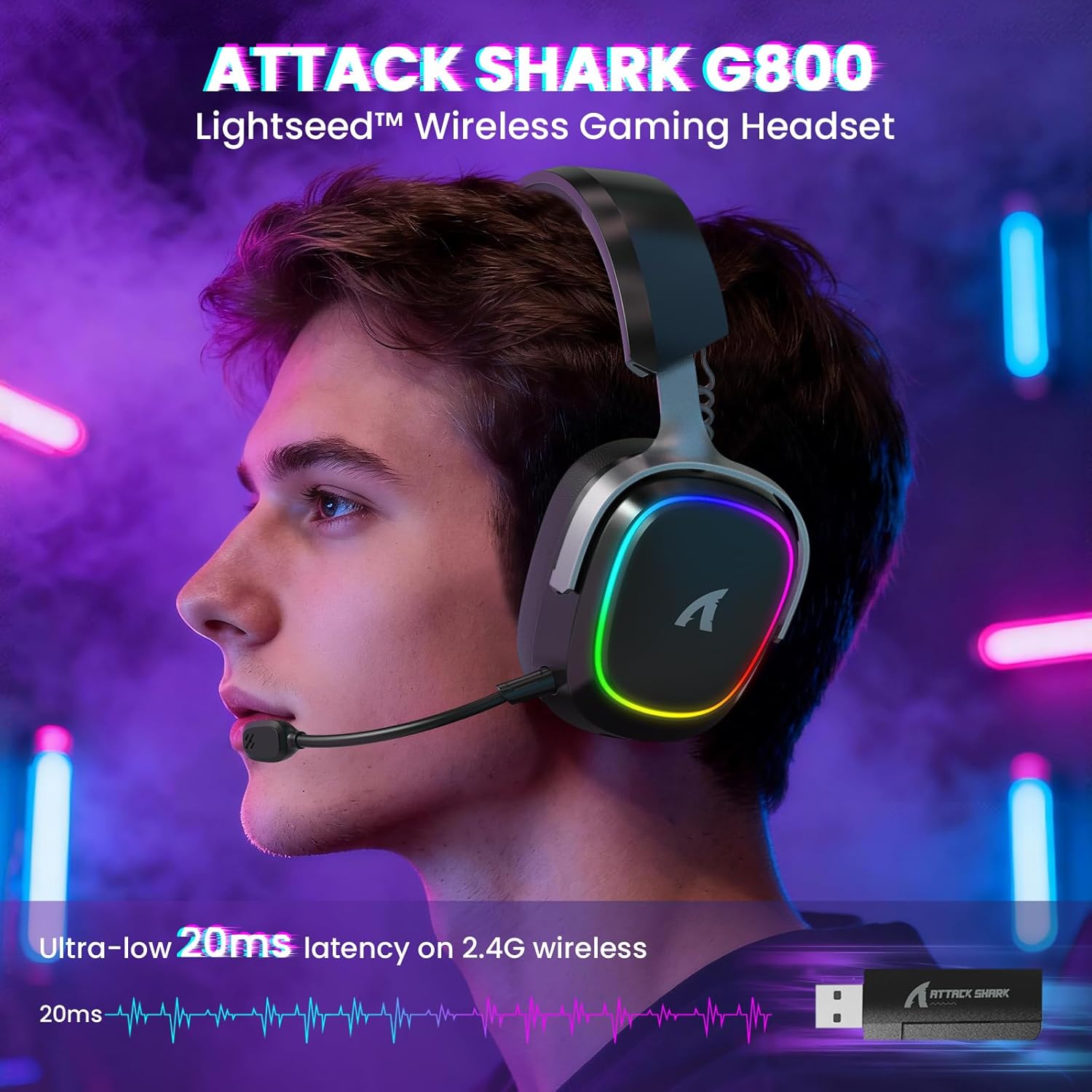
Image: The G800 headset in use, highlighting its RGB lighting and comfortable fit.
2. What's in the Box
- ATTACK SHARK G800 Wireless RGB Gaming Headset
- Detachable AI Noise-Canceling Microphone
- 2.4Ghz Wireless USB-A + Type-C Dual-Head Receiver
- USB-A to USB-C Charging Cable
- USB-C to USB-C Audio Cable
- User Manual (this document)
3. Product Overview: Controls and Ports
Familiarize yourself with the various controls and ports on your G800 headset for seamless operation.
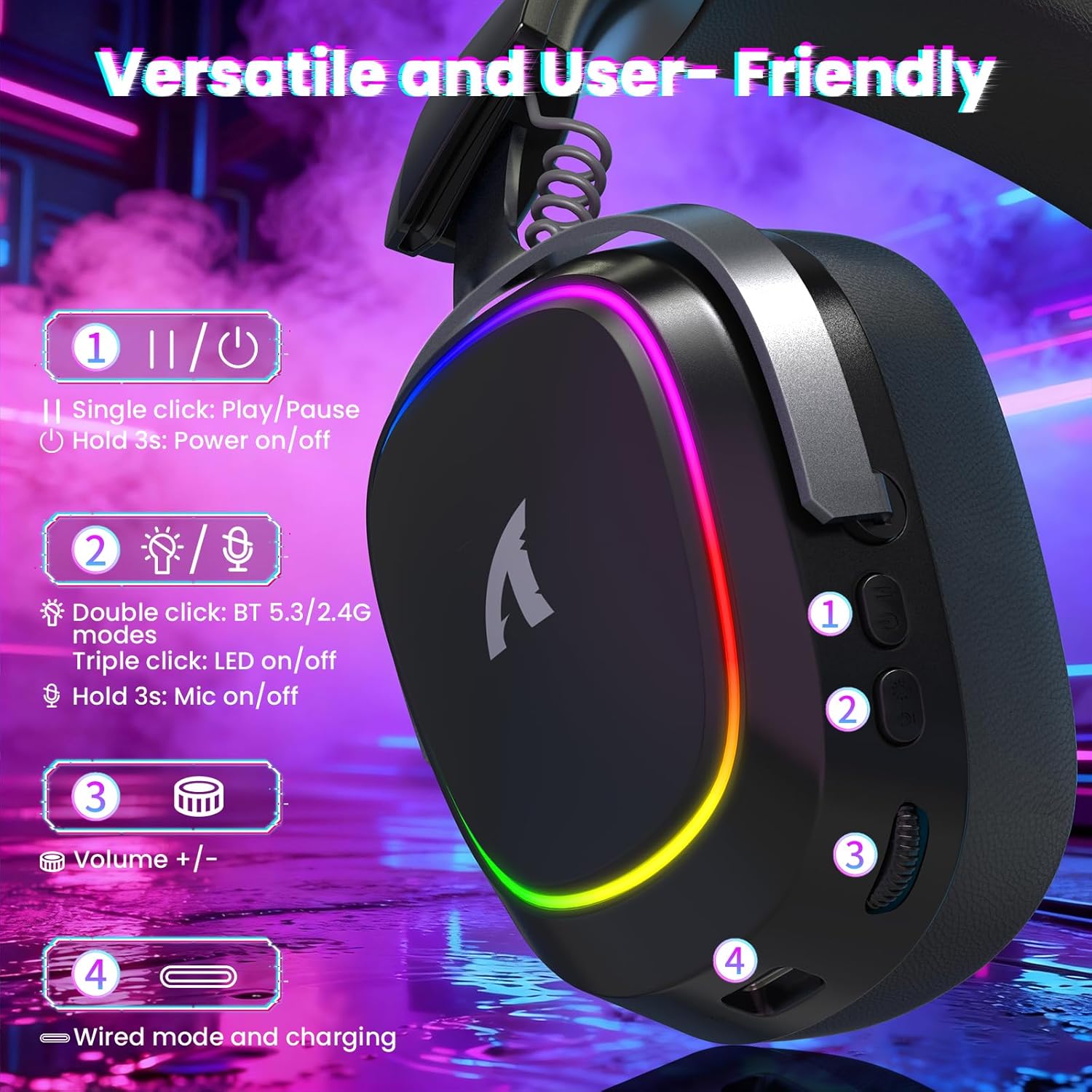
Image: Detailed view of the headset's left earcup with numbered controls and their functions.
- Play/Pause & Power Button: Single click for play/pause. Hold for 3 seconds to power on/off.
- Mode Switch & LED/Mic Control: Double click to switch between Bluetooth (BT 5.3) and 2.4Ghz wireless modes. Triple click to toggle RGB LED on/off. Hold for 3 seconds to toggle microphone on/off.
- Volume Wheel: Rotate to adjust audio volume up or down.
- Wired Mode & Charging Port: USB-C port for wired connection and charging.
- Microphone Jack: Port for connecting the detachable microphone.
4. Setup and Connection
The G800 headset offers three connection methods: 2.4Ghz wireless, Bluetooth, and wired.
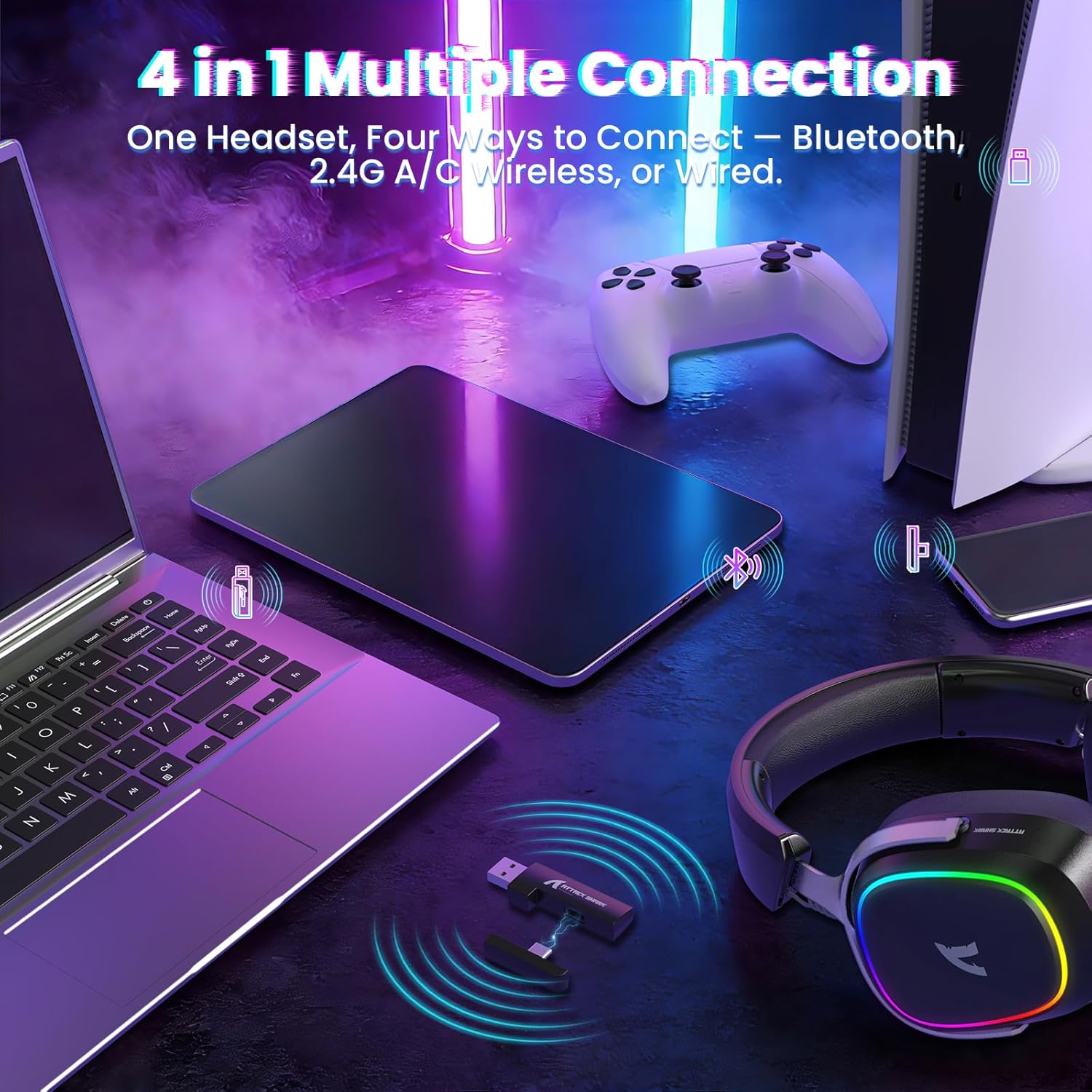
Image: The headset demonstrating its multi-platform connectivity options.
4.1. 2.4Ghz Wireless Connection
- Insert the 2.4Ghz USB-A or Type-C dual-head receiver into an available USB port on your PC, laptop, or PS5.
- Power on the G800 headset by holding the Power Button (1) for 3 seconds.
- Double click the Mode Switch (2) until the headset indicates 2.4Ghz mode (usually via an LED indicator or voice prompt).
- The headset should automatically connect to the receiver. If not, ensure the receiver is properly inserted and the headset is in 2.4Ghz mode.
4.2. Bluetooth Connection
- Power on the G800 headset by holding the Power Button (1) for 3 seconds.
- Double click the Mode Switch (2) until the headset indicates Bluetooth mode (usually via an LED indicator or voice prompt). The headset will enter pairing mode.
- On your device (e.g., mobile phone, tablet, PC), go to Bluetooth settings and search for available devices.
- Select "ATTACK SHARK G800" from the list to pair.
4.3. Wired Connection
- Connect one end of the USB-C audio cable to the Wired Mode & Charging Port (4) on the headset.
- Connect the other end of the USB-C audio cable to your device's compatible port.
- The headset will automatically switch to wired mode.
4.4. Charging the Headset
The G800 headset is equipped with a 1000mAh battery for extended use.

Image: Visual representation of the headset's 1000mAh battery capacity.
- Connect the USB-A to USB-C charging cable to the Wired Mode & Charging Port (4) on the headset and to a USB power source (e.g., computer USB port, wall adapter).
- The LED indicator on the headset will show charging status.
- The headset includes charging over-voltage protection for safety.
- An auto-shutdown function activates after 5 minutes of inactivity to conserve power.
5. Operating Instructions
5.1. Audio Experience
The G800 features 50mm large-aperture biological diaphragm drivers and virtual 7.1 surround sound for an immersive audio experience.

Image: The 50mm audio drivers, responsible for high-fidelity sound.

Image: Demonstrating the 7.1 surround sound capability for precise audio positioning.
5.2. Microphone Usage
The detachable 360° AI Noise-Canceling Microphone ensures clear voice communication by filtering out background noise.
- Insert the detachable microphone into the dedicated microphone jack on the headset.
- Hold the Mode Switch (2) for 3 seconds to toggle the microphone on or off.
5.3. RGB Lighting Control
The headset features customizable RGB lighting.
- Triple click the Mode Switch (2) to toggle the RGB LED lighting on or off.
5.4. Software Customization
Enhance your audio experience with the dedicated driver software.
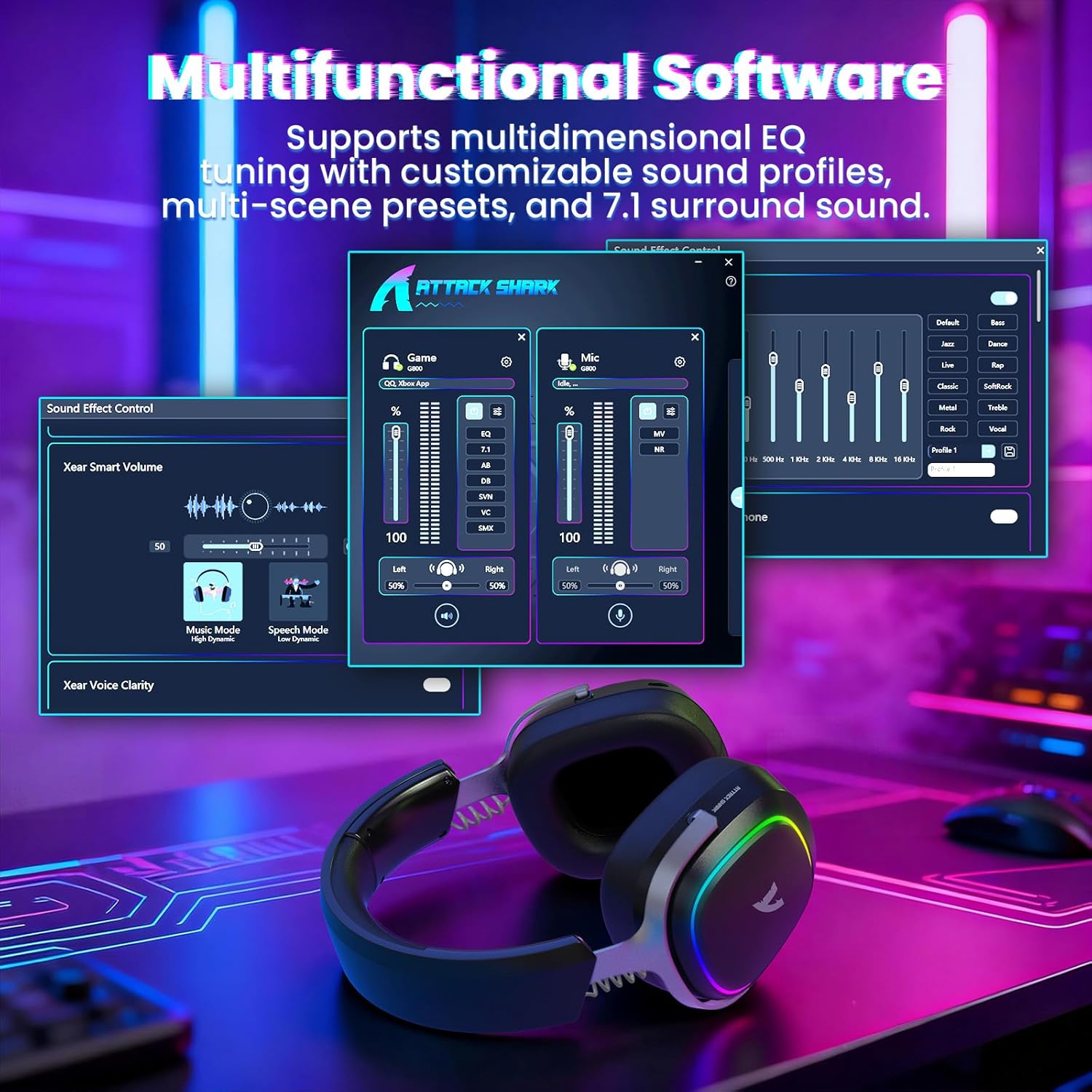
Image: The software interface for customizing audio settings.
- Download the official ATTACK SHARK G800 driver software from the manufacturer's website.
- The software allows you to create custom EQ sound profiles and fine-tune 7.1 surround sound settings to match your preferences and game types.
6. Maintenance
Proper maintenance ensures the longevity and performance of your G800 headset.
- Cleaning: Use a soft, dry cloth to clean the headset. Avoid liquid cleaners or abrasive materials.
- Storage: Store the headset in a cool, dry place away from direct sunlight and extreme temperatures.
- Ear Pads: The ear cushions are replaceable. Refer to the manufacturer's website for replacement parts and instructions.

Image: Components of the headset, including replaceable ear cushions.
7. Troubleshooting
- No Sound:
- Check volume levels on both the headset and your connected device.
- Ensure the correct audio output device is selected in your device's sound settings.
- Verify the headset is properly connected (2.4Ghz receiver, Bluetooth paired, or wired cable).
- Reboot the headset and your device.
- Microphone Not Working:
- Ensure the microphone is securely attached to the headset.
- Check if the microphone is muted (hold Mode Switch (2) for 3 seconds to toggle).
- Verify the correct microphone input device is selected in your device's sound settings.
- Test the microphone on another device if possible.
- Connection Issues:
- For 2.4Ghz, ensure the receiver is fully inserted and the headset is in 2.4Ghz mode.
- For Bluetooth, ensure the headset is in pairing mode and within range of your device. Try unpairing and re-pairing.
- For wired, ensure the cable is securely connected to both the headset and your device.
- Avoid sources of interference (e.g., other wireless devices, microwaves).
- RGB Lights Not Working:
- Triple click the Mode Switch (2) to toggle the RGB LED on/off.
- Ensure the headset has sufficient battery charge.
8. Specifications
| Feature | Specification |
|---|---|
| Model Name | G800 |
| Connectivity Technology | Wired, Bluetooth (BT 5.3), 2.4Ghz Wireless |
| Audio Driver Type | Dynamic Driver (50mm) |
| Surround Sound | Virtual 7.1 Spatial Audio |
| Microphone | Detachable 360° AI Noise-Canceling |
| Wireless Latency (2.4Ghz) | 20ms (Lightseed Wireless Technology) |
| Wireless Range (2.4Ghz) | Up to 10m / 32.8ft |
| Bluetooth Range | Up to 30m / 98.4ft |
| Battery Capacity | 1000mAh |
| Ear Placement | Over Ear |
| Material | Aluminum Alloy, Protein Leather, Memory Foam |
| Weight | 1.1 pounds (approx.) |
| Compatible Devices | PC, Laptops, PS5, Mobile Devices |
9. Safety Information
- Avoid prolonged listening at high volumes to prevent hearing damage.
- Do not expose the headset to extreme temperatures, humidity, or liquids.
- Keep out of reach of children.
- Do not attempt to disassemble or modify the headset. This will void the warranty.
- Dispose of the product responsibly according to local regulations.
10. Official Product Video
Video: An official product video showcasing the ATTACK SHARK G800 Wireless Tri Mode RGB Gaming Headset's features and design. This video is provided by the seller, UrWorthLtd US.
11. Warranty and Support
For warranty information, technical support, or customer service, please refer to the documentation included with your purchase or visit the official ATTACK SHARK website. Keep your proof of purchase for warranty claims.


