
1. Introduction
This manual provides essential information for setting up, operating, maintaining, and troubleshooting your HP Stream 14 Laptop. Please read this guide thoroughly to ensure optimal performance and longevity of your device.
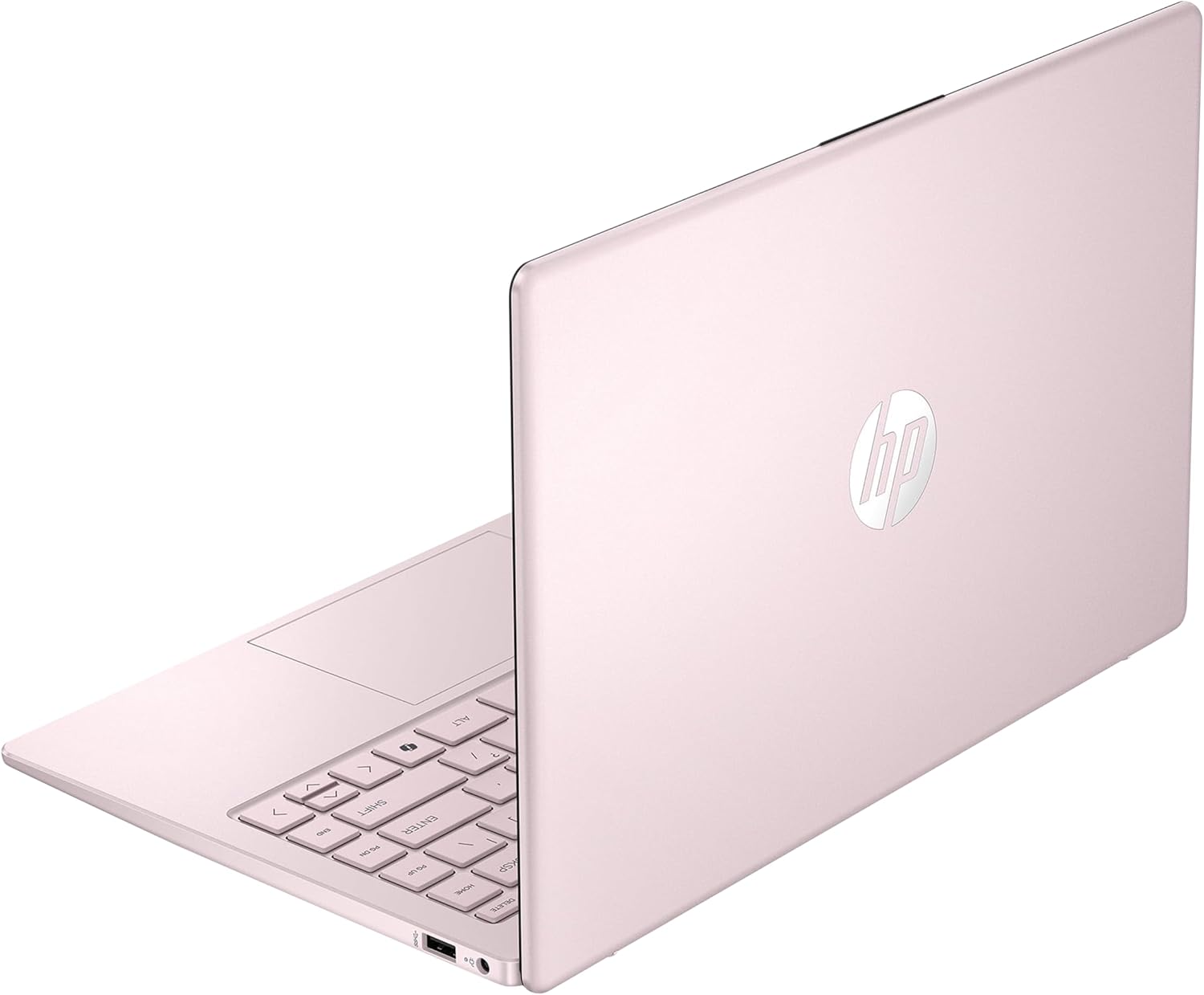
Figure 1: HP Stream 14 Laptop (Pink)
2. Setup
2.1 Unboxing and Initial Inspection
Carefully remove your laptop and all accessories from the packaging. Verify that all components are present: laptop, power adapter, and documentation. Inspect the laptop for any physical damage.
2.2 Connecting the Power Adapter
Before first use, connect the power adapter to the AC Smart pin port on your laptop and then to a power outlet. Allow the battery to charge fully.

Figure 2: Laptop Ports and AC Smart Pin
2.3 First Boot and Windows 11 S Setup
Press the power button to turn on your laptop. Follow the on-screen instructions to complete the Windows 11 S setup process. This includes selecting your region, connecting to a Wi-Fi network, and creating a user account.
2.4 Connecting Peripherals
Your HP Stream 14 Laptop features various ports for connecting external devices:
- USB Type-C: For data transfer and connecting compatible devices.
- USB Type-A (x2): For connecting USB devices like mice, keyboards, or external storage.
- HDMI 1.4b: For connecting to external displays or projectors.
- Headphone/microphone combo: For audio input and output.
To connect to wireless accessories, ensure Bluetooth is enabled in Windows settings.
3. Operating Instructions
3.1 Power On/Off
- To Power On: Press the power button located on the keyboard.
- To Power Off: Click the Start button in Windows, then select Power > Shut down.
3.2 Using the Touch Pad and Keyboard
The integrated touch pad supports multi-touch gestures for navigation. The chiclet-style keyboard provides a comfortable typing experience.
3.3 Display Features
The 14-inch HD display offers a resolution of 1366 x 768 pixels. It features a micro-edge design for an immersive viewing experience and Bright View technology for vibrant colors.

Figure 3: HD Micro-edge Display
3.4 Camera and Connectivity
The integrated 720p HD camera is suitable for video calls and online meetings. The laptop supports Wi-Fi 5 (802.11ax) and Bluetooth for wireless connectivity.

Figure 4: Stay Connected Features
3.5 Performance and Storage
Equipped with an Intel Processor N150 and 4GB DDR4 RAM, the laptop provides efficient performance for everyday tasks and multitasking. The 128GB UFS storage offers quick boot-up times and ample space for documents and applications.
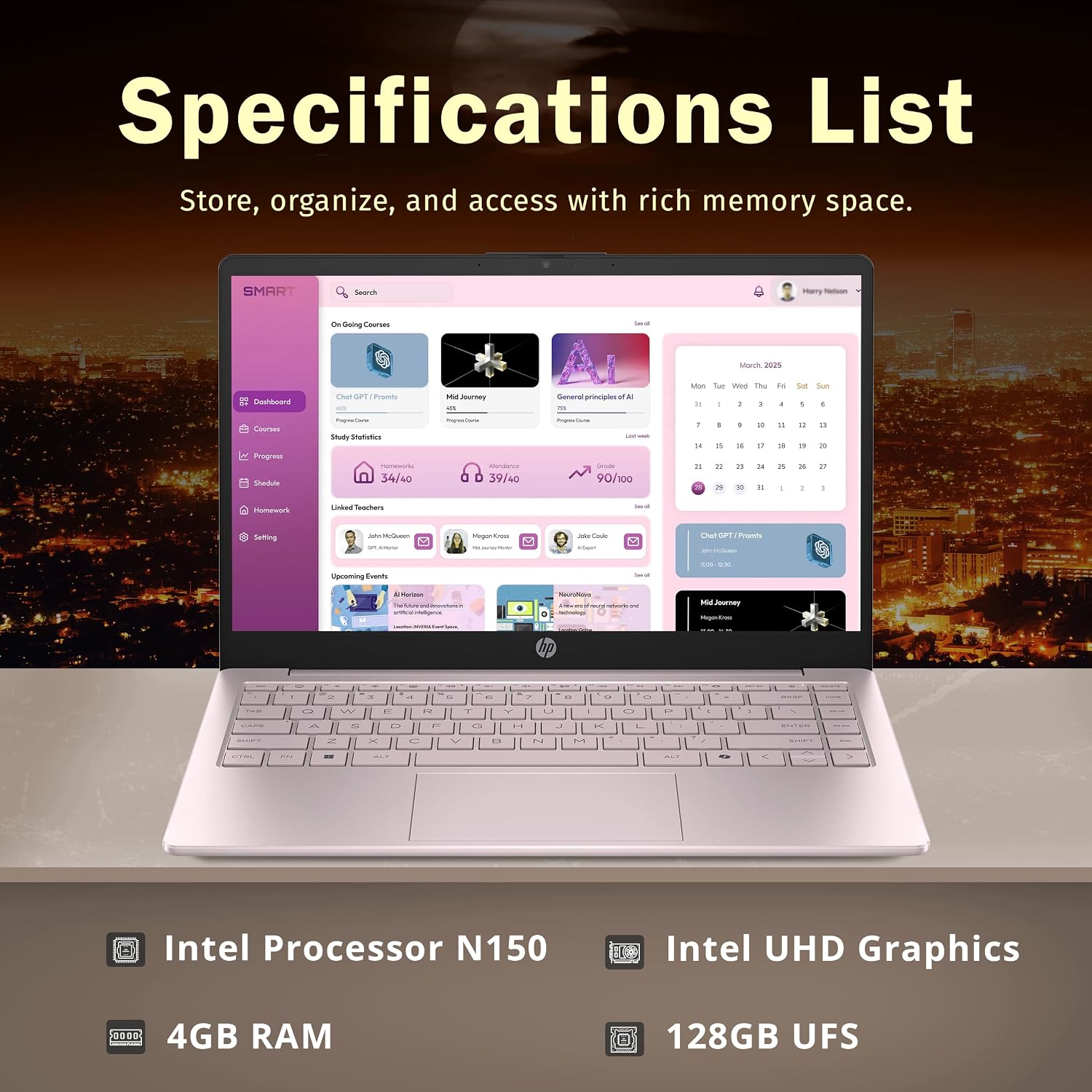
Figure 5: Key Specifications Overview
4. Maintenance
4.1 Cleaning the Laptop
- Screen: Use a soft, lint-free cloth slightly dampened with water or a screen cleaner. Avoid harsh chemicals.
- Keyboard and Casing: Use a soft, dry cloth. A can of compressed air can remove debris from between keys.
4.2 Battery Care
To maximize battery life, avoid extreme temperatures and allow the battery to discharge partially before recharging. For long-term storage, charge the battery to about 50%.
4.3 Software Updates
Regularly check for and install Windows 11 S updates to ensure system stability, security, and optimal performance.
5. Troubleshooting
If you encounter issues with your HP Stream 14 Laptop, refer to the following common solutions:
5.1 Slow Performance or Lag
- Restart: A simple restart can resolve many temporary performance issues.
- Close Unused Applications: Too many open programs can consume RAM and CPU resources.
- Check Storage: Ensure you have sufficient free space on your 128GB UFS drive. Delete unnecessary files or transfer them to external storage.
- Update Windows: Ensure your operating system is up to date.
5.2 Battery Drain Issues
- Adjust Power Settings: Optimize power settings in Windows to conserve battery.
- Reduce Screen Brightness: Lowering display brightness significantly extends battery life.
- Close Background Apps: Applications running in the background can consume power.
5.3 Connectivity Problems (Wi-Fi/Bluetooth)
- Toggle On/Off: Turn Wi-Fi or Bluetooth off and then on again.
- Restart Router/Modem: For Wi-Fi issues, restart your network equipment.
- Update Drivers: Ensure your wireless and Bluetooth drivers are current.
6. Specifications
| Feature | Detail |
|---|---|
| Brand | HP |
| Model Name | HP Stream |
| Screen Size | 14 inches |
| Display Resolution | 1366 x 768 pixels (HD) |
| Processor | Intel Processor N150 (3.6 GHz, 4 Cores) |
| RAM Memory | 4 GB DDR4 (3200 MHz) |
| Storage | 128 GB UFS (Solid State) |
| Graphics | Intel Graphics (Integrated) |
| Operating System | Windows 11 S |
| Connectivity | Wi-Fi 5 (802.11ax), Bluetooth |
| Ports | 1x USB Type-C, 2x USB Type-A, 1x HDMI 1.4b, 1x Headphone/microphone combo, 1x AC Smart pin |
| Camera | 720p HD Camera |
| Dimensions (L x W x Th) | 12.76 x 8.86 x 0.71 inches (Product description) / 19"L x 12"W x 3"Th (Specification list) |
| Weight | 3.24 lbs (Product description) / 5 pounds (Specification list) |
| Special Feature | Anti Glare Coating |
Note: Dimensions and weight may vary slightly based on specific configuration or measurement method.
7. Warranty and Support
7.1 Manufacturer's Warranty
Your HP Stream 14 Laptop is covered by a manufacturer's warranty. Please refer to the warranty card included with your product for specific terms, conditions, and duration. Keep your proof of purchase for warranty claims.
7.2 Technical Support
For technical assistance, driver downloads, or further troubleshooting, visit the official HP support website. You can also contact Amazon Renewed support for issues related to your renewed product purchase.


