
Introduction
This manual provides essential information for setting up, operating, maintaining, and troubleshooting your HP 17-cn3003dx 17.3" HD+ Laptop. Please read these instructions carefully to ensure proper use and longevity of your device.
1. Initial Setup
1.1 Unboxing and Contents
Carefully remove all components from the packaging. The box should contain the following items:
- HP 17-cn3003dx 17.3" HD+ Laptop (Natural Silver)
- Power Adapter
- HP 90 Day Limited Warranty Information
1.2 Connecting Power
- Connect the power adapter cable to the power input port on the side of the laptop.
- Plug the power adapter into a wall outlet.
- Allow the laptop to charge for at least 30 minutes before initial use, or until the battery indicator shows sufficient charge.
1.3 First Boot and Windows 11 Setup
- Press the power button to turn on the laptop.
- Follow the on-screen instructions to complete the Windows 11 Home setup process. This includes selecting your region, language, connecting to a Wi-Fi network, and creating a user account.
- Ensure you have an active internet connection for Windows updates and software installations during the setup.
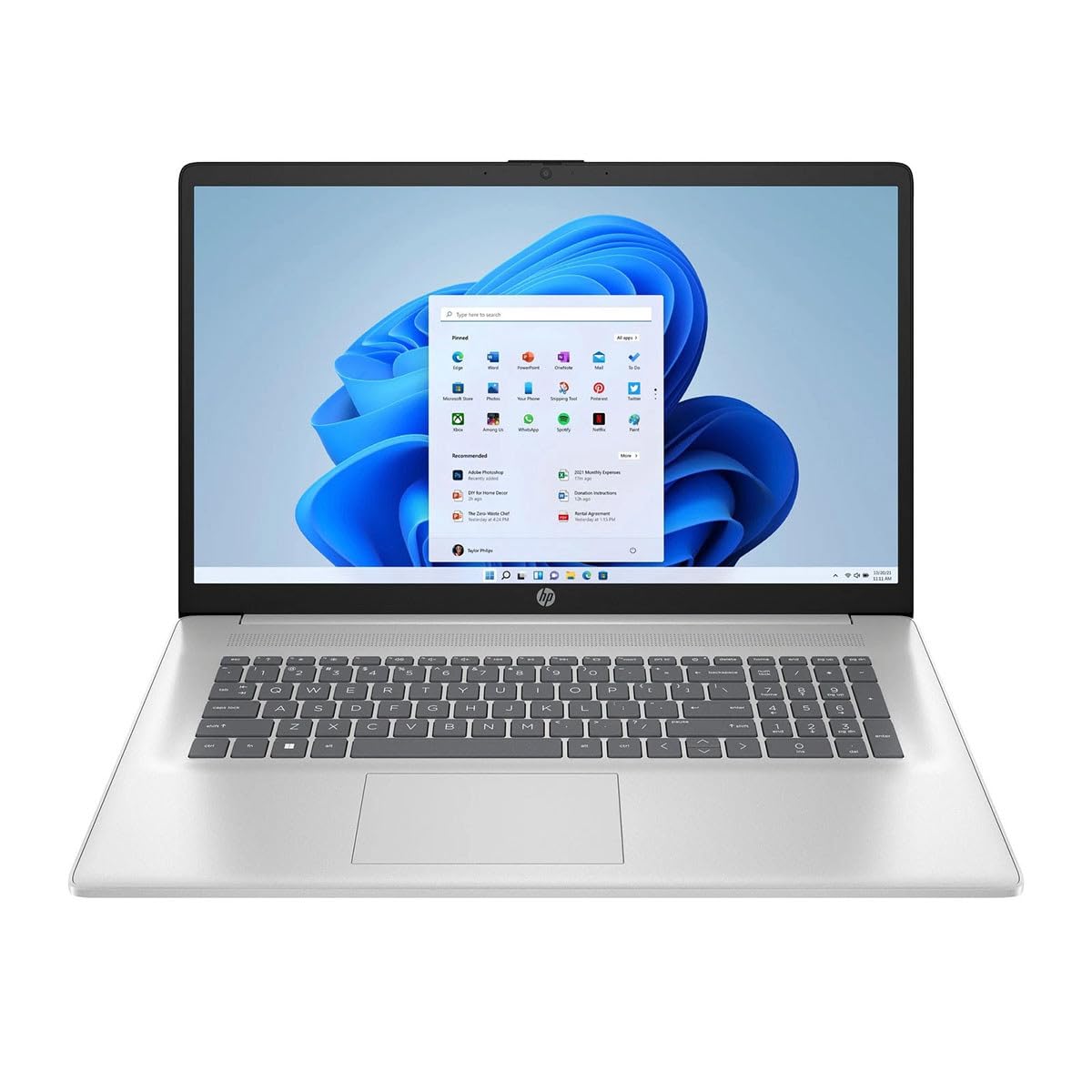
Figure 1: HP 17-cn3003dx Laptop, open view showing the screen and keyboard.
2. Operating Your HP 17-cn3003dx Laptop
2.1 Power On/Off and Sleep Mode
- Power On: Press the power button located on the keyboard deck.
- Shut Down: Click the Start button, then Power > Shut down.
- Sleep Mode: Close the laptop lid or click the Start button, then Power > Sleep.
2.2 Keyboard and Touchpad Usage
- The laptop features a full-size keyboard with a numeric keypad.
- The integrated touchpad supports multi-touch gestures for navigation and control. Refer to Windows settings for touchpad customization.
2.3 Connecting External Devices
The laptop is equipped with various ports for connecting external devices:
- USB Ports: Use the USB 3.0 ports for connecting peripherals such as external hard drives, mice, or keyboards.
- HDMI Port: Connect an external monitor or TV using an HDMI cable for extended display options.
- Audio Jack: Connect headphones or external speakers.

Figure 2: Left side of the HP 17-cn3003dx laptop, showing USB port and power input.

Figure 3: Right side of the HP 17-cn3003dx laptop, showing HDMI, USB, and audio jack.
2.4 Wireless Connectivity (Wi-Fi)
To connect to a Wi-Fi network:
- Click the Wi-Fi icon in the system tray (bottom right of the screen).
- Select your desired network from the list.
- Enter the network password if prompted and click Connect.
2.5 Battery Management
- The laptop is powered by a nonstandard battery.
- For optimal battery life, use the provided HP power adapter.
- Battery life can vary based on usage patterns and settings.
2.6 Using Microsoft Copilot
The HP 17-cn3003dx laptop includes Microsoft Copilot, an AI-powered intelligent assistant. Access Copilot by pressing the dedicated Copilot key on the keyboard. Copilot can assist with various tasks, enhance creativity, and provide relevant information.
3. Maintenance and Care
3.1 Cleaning Your Laptop
- Screen: Use a soft, lint-free cloth lightly dampened with water or a screen cleaner. Do not spray liquid directly onto the screen.
- Keyboard and Chassis: Use a soft, dry cloth. For stubborn dirt, a slightly damp cloth can be used. Avoid excessive moisture.
- Ensure the laptop is powered off and unplugged before cleaning.

Figure 4: Back view of the HP 17-cn3003dx laptop, showing the HP logo.
3.2 Software Updates
Regularly check for and install Windows updates to ensure your system has the latest security patches and performance improvements. Go to Settings > Windows Update to manage updates.
3.3 Storage Management
The laptop is equipped with a 256GB PCIe NVMe M.2 SSD. To maintain optimal performance:
- Avoid filling the SSD to its maximum capacity.
- Regularly delete unnecessary files and applications.
- Consider using cloud storage for large files to free up local space.
4. Troubleshooting Common Issues
4.1 Power Issues
- Laptop not turning on: Ensure the power adapter is securely connected to both the laptop and a working power outlet. Check if the power indicator light is on.
- Battery not charging: Verify the power adapter is functioning correctly. Try a different outlet.
4.2 Display Problems
- No display: Connect an external monitor via HDMI to check if the issue is with the laptop's internal display. Restart the laptop.
- Flickering screen: Update your graphics drivers. Adjust display refresh rate in Windows settings.
4.3 Connectivity Issues
- Wi-Fi not connecting: Ensure Wi-Fi is enabled. Restart your router and modem. Check network settings in Windows.
- USB devices not recognized: Try connecting the device to a different USB port. Update USB drivers.
5. Product Specifications
| Feature | Specification |
|---|---|
| Model Name | 17-cn3003dx |
| Screen Size | 17.3 Inches HD+ |
| Max Screen Resolution | 1920 x 1080 pixels |
| Processor | Intel Core i3-N305 (1.8 GHz) |
| RAM | 8 GB DDR4 |
| Hard Drive | 256 GB PCIe NVMe M.2 SSD |
| Operating System | Windows 11 Home |
| Graphics Card | Integrated Intel Graphics |
| Wireless Type | 802.11ax (Wi-Fi 6) |
| USB Ports | Multiple USB 3.0 ports |
| HDMI Port | Yes |
| Item Weight | 6.5 pounds |
| Product Dimensions | 22 x 13.3 x 13.3 inches |
| Color | Natural Silver |
6. Warranty and Support
6.1 Warranty Information
This HP 17-cn3003dx laptop comes with an HP 90 Day Limited Warranty. Please refer to the warranty documentation included in your product packaging for full terms and conditions.
6.2 Technical Support
For technical assistance, driver downloads, or further support, please visit the official HP support website:
When contacting support, please have your laptop's model number (17-cn3003dx) and serial number ready.


