
Introduction
This manual provides essential information for setting up, operating, and maintaining your Acer Nitro KG240Y W3biip 23.8-inch Full HD 240Hz IPS Gaming Monitor. Please read these instructions carefully before using your monitor to ensure optimal performance and safety.
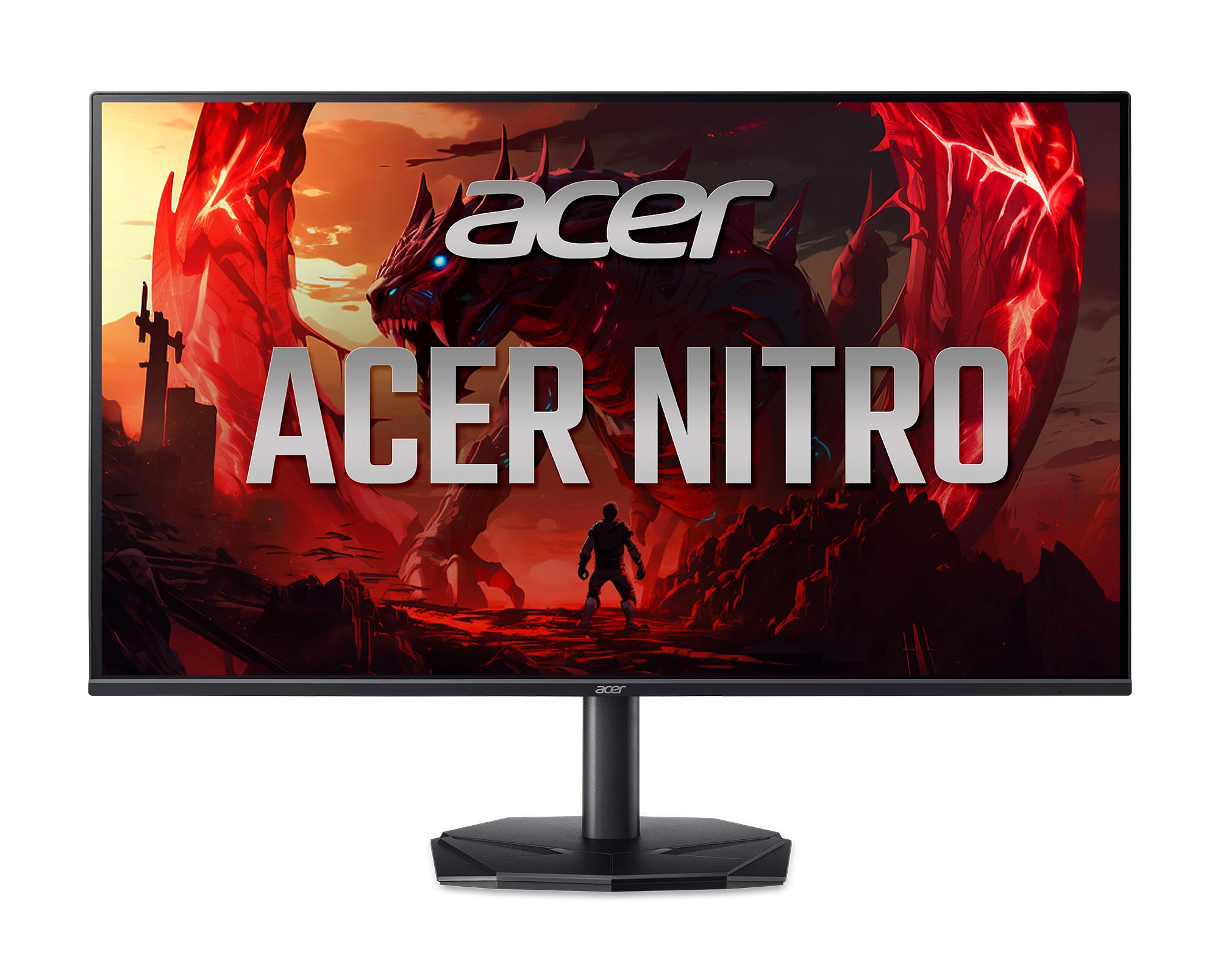
Front view of the Acer Nitro KG240Y W3biip 23.8-inch Gaming Monitor.
What's in the Box
Verify that all components are present in the package:
- Display Unit
- Monitor Stand (Base and Neck)
- Power Cord
- HDMI Cable
Setup Instructions
1. Assembling the Monitor Stand
- Carefully remove the monitor and stand components from the packaging.
- Attach the stand base to the stand neck. Secure with the captive screw, if present.
- Align the stand assembly with the mounting points on the back of the monitor. Gently push until it clicks into place or secure with screws as per the included quick start guide.
2. Connecting Cables
Ensure the monitor and your computer are powered off before making any connections.
- Power Connection: Connect the power cord to the monitor's power input and then to a power outlet.
- Video Connection:
- For optimal performance, connect the included HDMI cable from your computer's graphics card to one of the HDMI 2.0 ports on the monitor.
- Alternatively, use a DisplayPort 1.2 cable to connect your computer to the monitor's DisplayPort input.
Rear view of the monitor displaying the power and video input ports (HDMI, DisplayPort).
3. Initial Power-On
- Plug the power cord into a wall outlet.
- Press the power button on the monitor.
- Power on your computer. The monitor should automatically detect the input signal. If not, you may need to manually select the input source using the OSD menu.
Operating Instructions
On-Screen Display (OSD) Menu
The OSD menu allows you to adjust various monitor settings. The control buttons are typically located on the back or bottom right side of the monitor.
- Power Button: Turns the monitor on or off.
- Menu Button: Opens the OSD menu.
- Navigation Buttons: Used to navigate through menu options and adjust values.
- Input Select Button: Quickly switches between available video input sources (HDMI 1, HDMI 2, DisplayPort).
Common OSD Settings
- Picture: Adjust brightness, contrast, gamma, and color temperature.
- Color: Fine-tune color settings, including sRGB mode.
- Gaming: Enable/disable AMD FreeSync Premium, adjust overdrive, and set refresh rate.
- Input: Manually select the active video input source.
- System: Language, OSD timeout, and factory reset options.
Enabling AMD FreeSync Premium
To utilize AMD FreeSync Premium, ensure your graphics card supports it and that the feature is enabled in both your graphics card control panel and the monitor's OSD menu (usually under the "Gaming" section).
Setting Refresh Rate
To achieve the 240Hz refresh rate, ensure your graphics card and cable (DisplayPort or HDMI 2.0) support it. Set the refresh rate in your operating system's display settings (e.g., Windows Display Settings > Advanced display settings > Display adapter properties).
Key Features
The Acer Nitro KG240Y W3biip monitor offers several features designed to enhance your viewing and gaming experience:
Full HD (1920x1080) Resolution
Experience sharp, high-quality images with excellent detail on the 23.8-inch IPS panel. The 16:9 aspect ratio is ideal for both productivity and entertainment. The zero-frame design maximizes screen space for an immersive view.

Visual comparison demonstrating the clarity of Full HD (1080p) resolution.
AMD FreeSync Premium Technology
Enjoy tear-free and stutter-free gaming. AMD FreeSync Premium synchronizes the monitor's refresh rate with your graphics card's frame rate, providing a smooth and fluid gaming experience.

Illustration of AMD FreeSync Premium eliminating screen tearing during fast-paced action.
240Hz Refresh Rate
Experience ultra-smooth 2D motion scenes with a rapid refresh rate of up to 240Hz. This significantly shortens frame rendering time and lowers input lag, providing a competitive edge in fast-paced games.

Visual representation of the smoothness provided by a 240Hz refresh rate compared to lower rates.
Up to 0.5ms GTG (Gray to Gray) Response Time
Enjoy clearer, more immersive images without blurring. The rapid 0.5ms GTG response time ensures that fast-moving action and dramatic transitions are rendered smoothly, free from smearing or ghosting effects.

Demonstration of reduced motion blur with a 0.5ms GTG response time.
HDR10 Support and sRGB 99% Color Accuracy
The monitor supports HDR10, providing enhanced contrasts and a wider color palette for more realistic and natural images. With 99% sRGB color accuracy, it is suitable for color-critical tasks such as graphic design and photo editing.

Visual representation of improved contrast and color depth with HDR10 support.
Maintenance
- Cleaning the Screen: Gently wipe the screen with a soft, lint-free cloth. For stubborn marks, dampen the cloth with a small amount of water or a specialized screen cleaner. Avoid using harsh chemicals or abrasive materials.
- Cleaning the Casing: Use a soft, dry cloth to clean the monitor casing.
- Ventilation: Ensure the ventilation openings on the monitor are not blocked to prevent overheating.
- Power Off: Always power off the monitor when not in use for extended periods.
Troubleshooting
| Problem | Possible Solution |
|---|---|
| No image on screen |
|
| Image flickering or unstable |
|
| Colors appear incorrect |
|
Specifications
| Feature | Detail |
|---|---|
| Brand | Acer |
| Model Number | KG240Y W3biip |
| Screen Size | 23.8 Inches |
| Panel Type | IPS |
| Resolution | 1920 x 1080 (Full HD) |
| Aspect Ratio | 16:9 |
| Max Refresh Rate | 240Hz |
| Response Time | Up to 0.5ms GTG |
| Color Gamut | sRGB 99% |
| HDR Support | HDR10 |
| Adaptive Sync Technology | AMD FreeSync Premium |
| Video Inputs | 1 x DisplayPort 1.2, 2 x HDMI 2.0 |
| Item Weight | 9.79 pounds |
| Product Dimensions (LxWxH) | 8.28 x 24.08 x 18.12 inches |
| Color | Black |
Warranty and Support
For warranty information and technical support, please refer to the warranty card included with your product or visit the official Acer support website. You can typically find drivers, FAQs, and contact information for customer service there.
Acer Support Website: www.acer.com/support


