
1. Product Overview
The Acer Connect M6E 5G Mobile Wi-Fi Hotspot is a portable device designed to provide high-speed 5G connectivity and secure Wi-Fi access. It is ideal for travel, remote work, and maintaining internet access for multiple devices without relying on public networks.
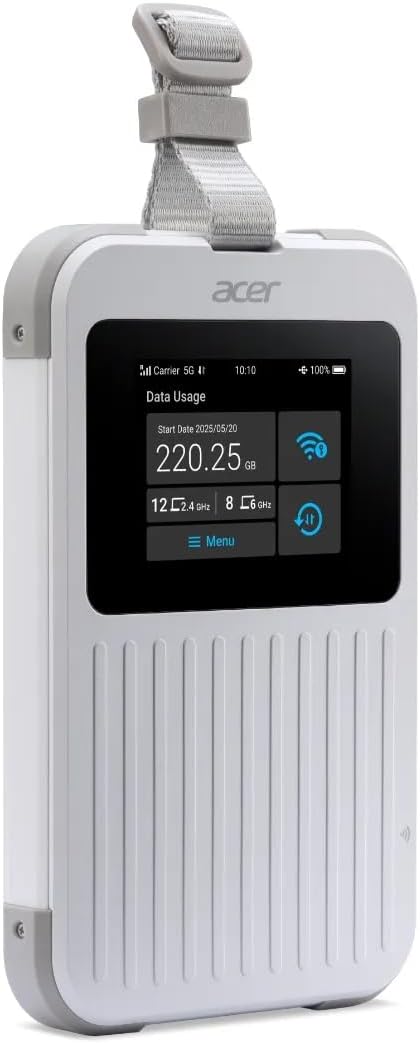
The Acer Connect M6E 5G Mobile Wi-Fi Hotspot, a compact and portable device designed for high-speed internet access on the go.
Key Features:
- Blazing Fast 5G Speeds: Enjoy ultra-low latency and high-speed internet for streaming, gaming, and work.
- Portable & Lightweight: Compact design fits easily in your bag, making it ideal for travel and remote work.
- Secure Wi-Fi Anywhere: Protect your data with encrypted connections instead of using public hotspots.
- Long Battery Life: Stay connected for hours with a powerful 8000 mAh battery designed for all-day use.
- Multi-Device Support: Connect up to 20 devices simultaneously for seamless productivity and entertainment.
- Rugged Design: MIL-STD 810H certified and IP68 water-resistant for enhanced durability.
- Tri-SIM Support: Supports physical SIM, Virtual SIM, and eSIM for broad country coverage.
- NFC Touch-to-Connect: Quick pairing with Android devices.
2. What's in the Box
Upon unboxing your Acer Connect M6E, ensure all components are present:
- Acer Connect M6E 5G Mobile Wi-Fi Hotspot
- USB Type-C Charging Cable
- Quick Start Guide / Instruction Manual
3. Setup Guide
3.1. Charging the Device
Before initial use, fully charge your Acer Connect M6E hotspot.
- Connect the provided USB Type-C cable to the charging port on the device.
- Plug the other end of the cable into a compatible USB power adapter (not included) or a computer's USB port.
- The touchscreen display will indicate charging status. A full charge typically takes several hours.
3.2. Inserting a SIM Card (Optional)
The Acer Connect M6E supports physical SIM cards, virtual SIMs, and eSIMs. If using a physical SIM:
- Power off the device by pressing and holding the power button.
- Locate the SIM card slot, usually under a removable back cover or side tray.
- Insert your Nano-SIM card into the designated slot with the gold contacts facing down.
- Ensure the SIM card is securely seated.
- Replace any covers or trays.
3.3. Initial Power On and Connection
- Press and hold the power button until the Acer logo appears on the touchscreen.
- The device will boot up and automatically search for available 5G or 4G LTE networks.
- Once connected, the network status (e.g., 5G, 4G LTE) and signal strength will be displayed on the screen.
- The Wi-Fi network name (SSID) and password (Key) will be shown on the touchscreen.
- On your device (smartphone, laptop, tablet), search for the Wi-Fi network name displayed on the M6E.
- Enter the password to connect.
4. Operating Instructions
4.1. Touchscreen Navigation
The 2.4-inch touchscreen allows for easy management of the hotspot's settings and information.
- Swipe: Navigate through different information screens (e.g., data usage, connected devices, battery status).
- Tap: Select options or confirm actions.
4.2. Connecting Multiple Devices

The Acer Connect M6E supports connections for up to 20 devices simultaneously, enabling seamless sharing of its high-speed Wi-Fi 6E network.
The M6E can support up to 20 devices simultaneously. To connect additional devices:
- Ensure the hotspot is powered on and has an active internet connection.
- On each device, go to Wi-Fi settings and select the M6E's SSID.
- Enter the Wi-Fi password when prompted.
4.3. NFC Touch-to-Connect (for Android Devices)
For compatible Android smartphones, you can quickly connect using NFC:
- Ensure NFC is enabled on your Android device.
- Tap your Android device against the NFC area on the Acer Connect M6E.
- Follow the on-screen prompts to establish the Wi-Fi connection.
4.4. Security Features

Ensure your data is protected with enterprise-grade security features including WPA3 encryption, firewall, and VPN support, safeguarding your connections from public networks.
The Acer Connect M6E includes advanced security protocols to protect your data:
- WPA3 Encryption: Provides enhanced security for your Wi-Fi network.
- Built-in Firewall: Helps prevent unauthorized access to your connected devices.
- VPN Support: Allows for secure, encrypted connections over public networks.
- SIM Lock: Prevents unauthorized use of your SIM card.
4.5. USB Type-C Tethering
You can also connect a single device directly to the hotspot via USB for a stable, wired internet connection.
- Connect the Acer Connect M6E to your laptop or PC using a USB Type-C cable.
- On the hotspot's touchscreen, select the USB tethering option (if prompted).
- Your connected device should now have internet access via the hotspot.
5. Maintenance
To ensure the longevity and optimal performance of your Acer Connect M6E:
- Keep it Clean: Wipe the device with a soft, dry cloth. Avoid harsh chemicals or abrasive materials.
- Software Updates: Regularly check for and install firmware updates to ensure the latest features and security patches. This can usually be done via the device's settings menu on the touchscreen or a connected web interface.
- Battery Care: Avoid extreme temperatures. Do not leave the device fully discharged for extended periods.
- Storage: Store the device in a cool, dry place when not in use.
6. Troubleshooting
6.1. No Internet Connection
- Check Signal Strength: Ensure the device is in an area with good 5G/4G LTE coverage.
- SIM Card: Verify the SIM card is correctly inserted and active. Check your data plan status with your service provider.
- Reboot: Turn the hotspot off and then on again.
- APN Settings: If using a physical SIM, ensure the Access Point Name (APN) settings are correct for your carrier. These can usually be configured via the device's web interface.
6.2. Device Not Connecting to Wi-Fi
- Correct Password: Double-check that you are entering the correct Wi-Fi password.
- Device Limit: Ensure you haven't exceeded the maximum number of connected devices (20).
- Restart: Restart both the hotspot and the device you are trying to connect.
6.3. Slow Speeds
- Signal Strength: Move to an area with better signal.
- Connected Devices: Disconnect any unnecessary devices to free up bandwidth.
- Data Cap: Check if you have reached your data plan's high-speed limit.
- Interference: Move away from other electronic devices that might cause interference.
7. Specifications
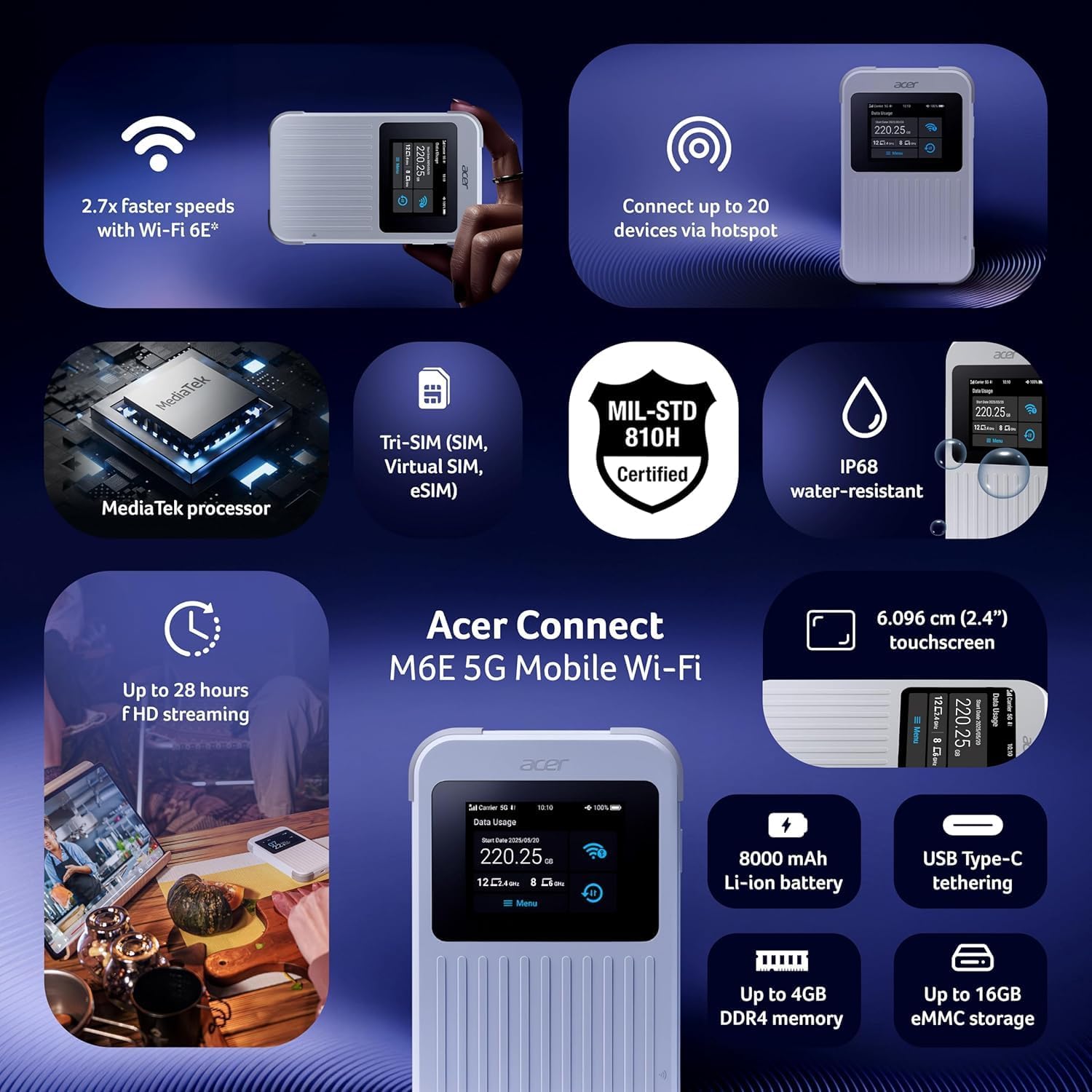
An overview of the Acer Connect M6E's capabilities, including MediaTek processor, Tri-SIM support (SIM, Virtual SIM, eSIM), MIL-STD 810H certification, IP68 water resistance, 2.4-inch touchscreen, 8000 mAh battery, USB Type-C tethering, up to 4GB DDR4 memory, and up to 16GB eMMC storage.
| Feature | Detail |
|---|---|
| Model Name | M6E |
| Connectivity Technology | 5G |
| Wireless Communication Standard | 802.11ac, 802.11ax (Wi-Fi 6E), 802.11b, 802.11g, 802.11n |
| Frequency Band Class | Dual-Band |
| Battery Capacity | 8000 mAh |
| Touchscreen Size | 2.4 inches |
| Ruggedness | IP68 Water-Resistant, MIL-STD 810H Certified |
| SIM Support | Tri-SIM (Physical SIM, Virtual SIM, eSIM) |
| Security Features | Enterprise-Grade Security, WPA3, Firewall, VPN, SIM Lock |
| Special Feature | Remote Access, NFC Touch-to-Connect |
| Compatible Devices | Personal Computer, Smartphone |
| Included Components | Hotspot |
8. Warranty and Support
For warranty information, technical support, or service inquiries, please refer to the official Acer website or contact Acer customer service directly.
- Online Support: Visit the Acer Support Website for FAQs, drivers, and manuals.
- Contact Customer Service: Refer to your product packaging or the Acer website for regional contact information.
9. Additional Resources
9.1. Product Images

The 'Tap, Connect, Create' image highlights the M6E's NFC touch-to-connect, 8000 mAh battery for up to 28 hours of HD streaming, and USB Type-C tethering capabilities for charging and data sharing.
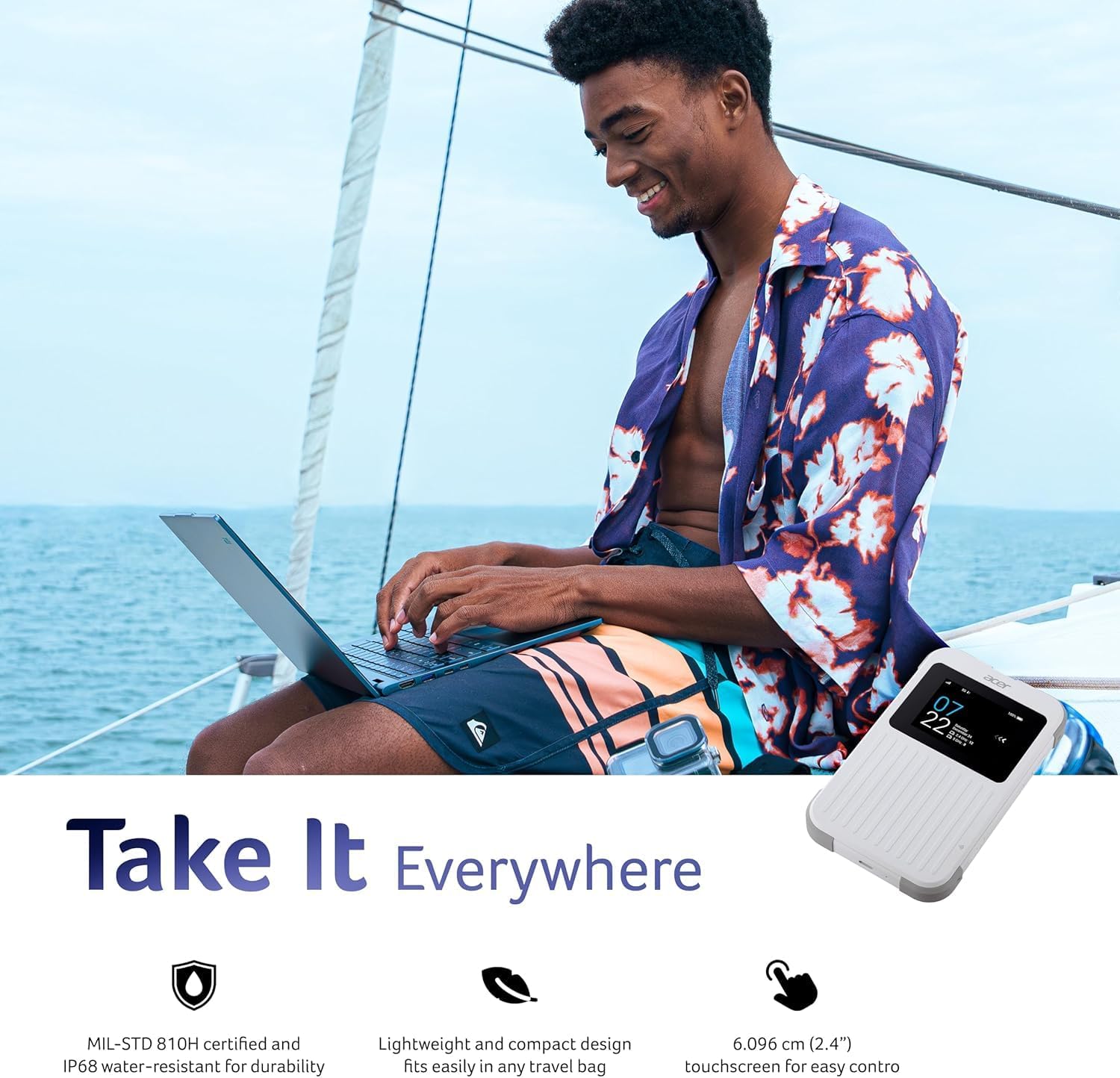
The 'Take It Everywhere' image emphasizes the M6E's MIL-STD 810H certification, IP68 water-resistant durability, lightweight design, and 2.4-inch touchscreen for easy control, making it suitable for any environment.
9.2. Related Videos
This video illustrates how a portable Wi-Fi hotspot provides a secure and private internet connection, offering an alternative to public Wi-Fi networks and simplifying eSIM management for global connectivity.
Discover the convenience of global travel Wi-Fi with this portable mobile hotspot, featuring 4G LTE and Wi-Fi 6 for fast and reliable internet access wherever you go.


