
1. Introduction
This manual provides instructions for the installation, operation, and maintenance of your Surakey Android 15 Car Stereo Radio. This unit is designed to enhance your driving experience with advanced features such as Apple CarPlay, Android Auto, GPS navigation, Bluetooth connectivity, and a 7-inch IPS touchscreen. Please read this manual thoroughly before installation and use to ensure proper functionality and safety.
Compatibility: This car stereo is compatible with RAM 1500, 2500, and 3500 models from 2009-2012. For specific fitment details, refer to the compatibility section.
2. Product Features
- Android 15 Operating System: Equipped with 4GB RAM and 64GB ROM for smooth performance.
- 7-inch IPS Touchscreen: High-definition 2.5D display for clear visuals and responsive touch control.
- Apple CarPlay & Wireless Android Auto: Supports both wired USB and wireless Bluetooth/WiFi connections for seamless smartphone integration, allowing access to navigation, music, calls, and messages via voice control.
- Mirror Link & Split Screen: Enables screen mirroring from iOS and Android smartphones. Supports displaying two applications simultaneously, such as navigation and music.
- GPS Navigation: Offers both offline and online navigation options. Includes a GPS module for offline use and supports online navigation apps via WiFi/WLAN.
- Steering Wheel Control (SWC): Allows control of calls, music, and volume directly from your vehicle's steering wheel buttons.
- Multimedia Receiver: Features a Quad/4-core processor, 4G/WiFi support, external microphone input, app download capability, FM/RDS radio, DSP, Bluetooth, HD 1024P/IPS 1280P video playback, rearview camera support, MP3/AUX/USB, and compatibility with extended equipment like TPMS, OBD2, and DAB+.
3. Specifications
| Product Name | Car Navigation Player |
| Material | Metal and Plastic |
| Screen Size | 7 inches |
| Memory (RAM + ROM) | 4GB RAM + 64GB ROM |
| System | Android 15 |
| CPU | 4 Core |
| Connectivity | WiFi, Bluetooth 4.0, GPS |
| Audio Formats | MP3/WMA/MP2/OGG/AAC/M4A/MA4/FLAC/APE/3GP/WAV |
| Video Formats | Mpeg1/Mpeg2/Mpeg4/SP/ASP/GMC/XVID/H.263/H.264 |
| Picture Formats | BMP/JPG/GIF/PNG |
| Voltage | DC12V |
| Item Weight | 1.6 ounces |
| Package Dimensions | 1.97 x 1.18 x 1.18 inches |
4. Vehicle Compatibility
This car stereo is designed for specific vehicle models and years. Please verify your vehicle's compatibility before installation.
Compatible Models:
- For DODGE RAM 1500 2500 3500 2009-2012
- For Chrysler Town & Country 2011-2016
- For Chrysler 200 2011-2014
- For Chrysler 2008 2009 2010
- For Chrysler 300 300C 2007-2010
- For Chrysler Cirrus 2007-2012
- For Chrysler Voyager 2008-2016
- For Chrysler Sebring 2007-2010
- For Chrysler Aspen 2008-2010
- For Jeep Wrangler JK 2007-2017
- For Jeep Wrangler JK 2011-2014
- For Jeep Grand Cherokee 2008-2010
- For Jeep Grand Cherokee 2011 2012 2013
- For Jeep Compass 2009-2017
- For Jeep Patriot 2009-2017
- For Jeep Liberty 2008-2012
- For Jeep Commander 2008-2010
- For Dodge Grand Caravan 2011-2020
- For Dodge Grand Caravan 2008-2020
- For Dodge Grand Caravan 2008-2010
- For Dodge Challenger 2008-2014
- For Dodge Durango 2011 2012 2013
- For Dodge Dakota 2005-2011
- For Dodge Charger 2008 2009 2010
- For Dodge Nitro 2007-2011
- For Dodge Avenger 2008-2014
- For Dodge Caliber 2009-2012
- For Dodge Journey 2009-2010
Incompatible Models:
- Not fit for Jeep Grand Cherokee 2008-2013
- Not fit for Dodge Durango 2008-2018
Important Note: Before ordering, please check your car model, year, and model number. It is recommended to send a complete image of the plugs on the back of the center console and the on-board main unit to the seller to confirm compatibility and identify any additional wiring harnesses or adapters required.
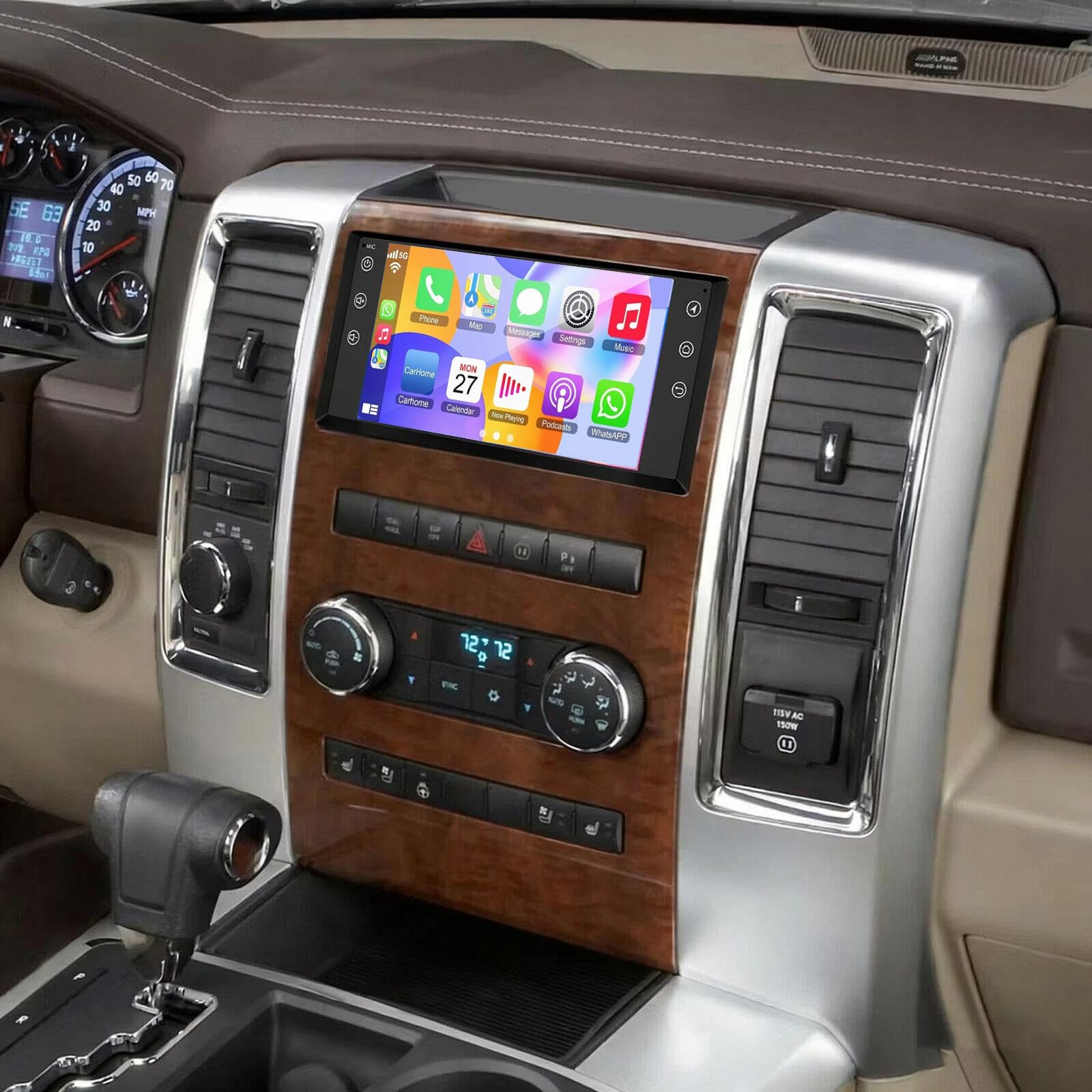
Image: The Surakey Android 15 Car Stereo Radio unit, a general view of the product.
5. Setup and Installation
Installation of this car stereo requires technical knowledge and experience with car audio systems. It is highly recommended to seek professional installation to avoid damage to the unit or your vehicle's electrical system.
General Installation Steps (Professional Installation Recommended):
- Preparation: Disconnect the vehicle's battery to prevent electrical shorts.
- Remove Factory Unit: Carefully remove the existing car stereo and dashboard trim.
- Wiring Connections: Connect the provided wiring harness to the vehicle's existing wiring. Ensure all connections are secure and correctly matched (power, ground, speakers, antenna, etc.).
- Accessory Connections: Connect the GPS antenna, external microphone, USB cables, and any optional accessories like a backup camera.
- Mounting: Securely mount the new car stereo into the dashboard opening.
- Testing: Reconnect the battery and perform initial tests to ensure all functions (power, audio, touchscreen, GPS, Bluetooth, etc.) are working correctly before reassembling the dashboard.
- Reassembly: Reinstall dashboard trim and ensure all components are properly seated.

Image: Rear view of the car stereo unit with connected wiring harnesses and accessories, illustrating the complexity of connections.
6. Operating Instructions
This section covers the basic operation of your car stereo's key features.
6.1. Power On/Off and Basic Navigation
- Power: The unit typically powers on with the vehicle's ignition. A power button (often labeled RST or with a power icon) may be available for manual control.
- Touchscreen Interface: Navigate through menus and applications by tapping and swiping on the 7-inch IPS touchscreen.
- Home Screen: The main screen provides quick access to frequently used functions like music, video player, equalizer, YouTube, settings, and Car Link.
Video: A brief demonstration of the car stereo's user interface, showing navigation between different applications and settings on the home screen.
6.2. Apple CarPlay & Android Auto
- Connection: Connect your iOS or Android smartphone via a USB cable or wirelessly via Bluetooth and WiFi.
- Access: Once connected, the CarPlay or Android Auto interface will appear on the stereo screen, allowing access to phone functions like navigation, calls, messages, and music.
- Voice Control: Use voice commands (e.g., "Hey Siri" or "Ok Google") for hands-free operation.

Image: Visual representation of the Apple CarPlay and Android Auto interfaces on the car stereo screen.
6.3. Mirror Link
- Function: Mirror Link allows you to display your smartphone's screen directly onto the car stereo.
- Connection: Connect your smartphone using a USB data cable or via WiFi.
- Usage: Once mirrored, you can interact with your phone's apps through the car stereo's touchscreen.

Image: The car stereo display showing a mirrored smartphone screen via Mirror Link.
6.4. GPS Navigation
- Offline Navigation: Use the included GPS module for navigation without an internet connection. Pre-loaded maps may be available, or you may need to download them.
- Online Navigation: Connect to WiFi/WLAN to use online navigation applications (e.g., Google Maps, Waze) downloaded from the app store.
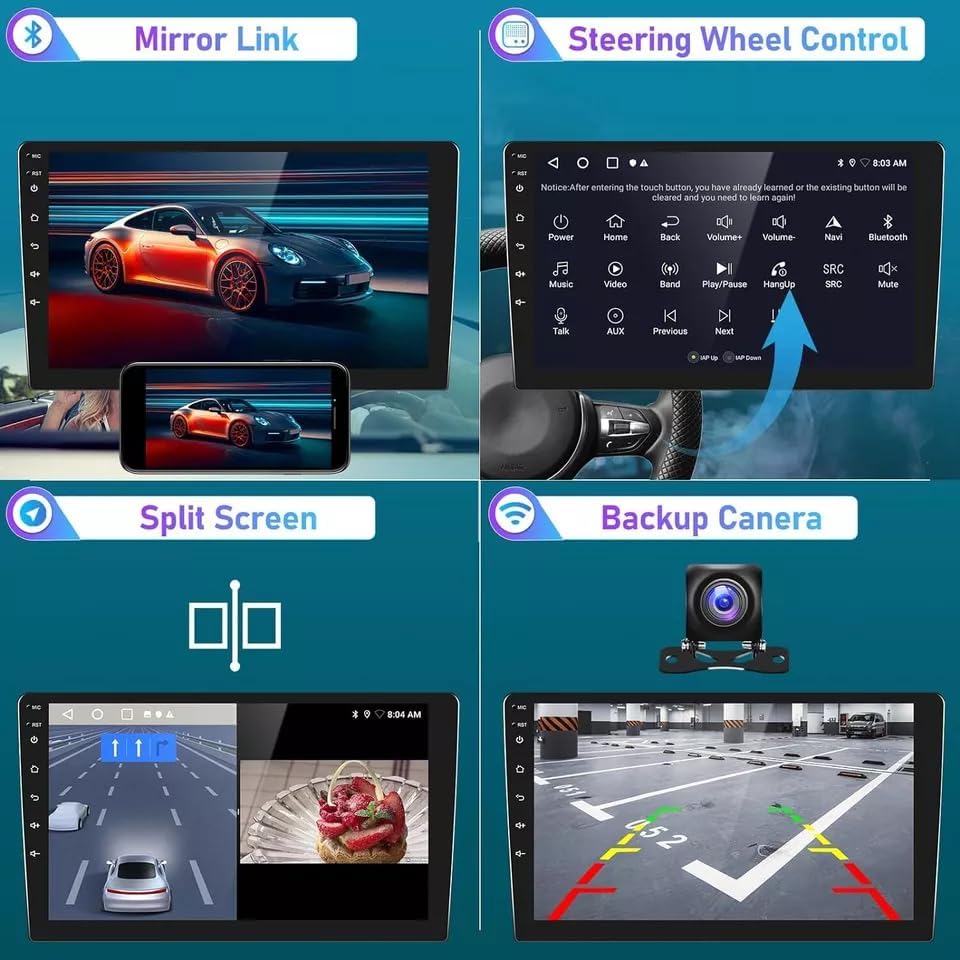
Image: The car stereo displaying GPS navigation, along with other features like Bluetooth, FM RDS, and WiFi.
6.5. Bluetooth Connectivity
- Pairing: Enable Bluetooth on your smartphone and search for the car stereo. Select the stereo from the list of available devices and pair them.
- Hands-Free Calling: Make and receive calls directly through the car stereo, using the built-in or external microphone and vehicle speakers.
- Audio Streaming: Stream music and other audio from your smartphone to the car stereo.
6.6. Steering Wheel Control (SWC)
- Configuration: After installation, you may need to configure the steering wheel controls in the stereo's settings menu to match your vehicle's buttons.
- Functions: Control volume, change tracks, answer/end calls, and switch modes without taking your hands off the steering wheel.
6.7. Backup Camera
- Automatic Display: When a compatible backup camera is connected and the vehicle is shifted into reverse, the stereo screen will automatically display the camera feed.
- Parking Assistance: Many backup cameras provide guidelines on the screen to assist with parking.

Image: A multi-panel view demonstrating Mirror Link, Steering Wheel Control, Split Screen, and Backup Camera functionalities.

Image: Diagram illustrating the integration of a factory rear camera with the car stereo for parking assistance.
7. Maintenance
Proper maintenance ensures the longevity and optimal performance of your car stereo.
- Screen Cleaning: Use a soft, lint-free cloth to gently wipe the touchscreen. For stubborn smudges, slightly dampen the cloth with water or a screen-safe cleaner. Avoid harsh chemicals or abrasive materials.
- Software Updates: Periodically check for software updates from the manufacturer to ensure you have the latest features and bug fixes. Updates can typically be performed via WiFi.
- Environmental Care: Avoid exposing the unit to extreme temperatures, direct sunlight for prolonged periods, or excessive moisture.
- Connection Checks: Occasionally check all wiring connections to ensure they are secure, especially after driving on rough terrain.
8. Troubleshooting
If you encounter issues with your car stereo, refer to the following common troubleshooting steps:
- No Power:
- Check vehicle's fuse box for blown fuses.
- Ensure all power connections to the stereo are secure.
- Verify the vehicle's battery is charged.
- No Sound:
- Check volume levels on the stereo and any connected devices.
- Ensure speaker wires are correctly connected and not shorted.
- Verify the audio source is selected correctly.
- Touchscreen Unresponsive:
- Perform a soft reset by pressing the RST button (if available) with a thin object.
- Restart the vehicle to power cycle the unit.
- GPS Not Working/Inaccurate:
- Ensure the GPS antenna is properly connected and has a clear view of the sky.
- Check GPS settings in the stereo menu.
- Verify map data is up-to-date for offline navigation.
- Bluetooth Connection Issues:
- Ensure Bluetooth is enabled on both the stereo and your smartphone.
- Delete previous pairings and attempt to re-pair the devices.
- Move the smartphone closer to the stereo.
- CarPlay/Android Auto Not Connecting:
- Ensure your smartphone's operating system is up-to-date.
- Try a different USB cable (for wired connections).
- Check app permissions on your smartphone for CarPlay/Android Auto.
If these steps do not resolve the issue, please contact the seller or a qualified service technician for further assistance.
9. Warranty and Support
For warranty information and technical support, please refer to the documentation provided with your purchase or contact the seller directly. Keep your proof of purchase for warranty claims.
Seller Contact: Fuyatong-US (via Amazon)
Product ASIN: B0G2M5ZL4V