
Introduction
Welcome to the user manual for your new TABWEE T50 11-inch Android Tablet. This guide provides essential information on setting up, operating, maintaining, and troubleshooting your device. The TABWEE T50 combines the latest Android 16 system with Gemini AI for a fast, intelligent, and smooth user experience. It features an Unisoc T7250 Octa-Core processor, 24GB RAM, 128GB ROM (expandable to 2TB), an 8000mAh battery, a 90Hz HD+ display, and 13MP rear and 8MP front cameras.
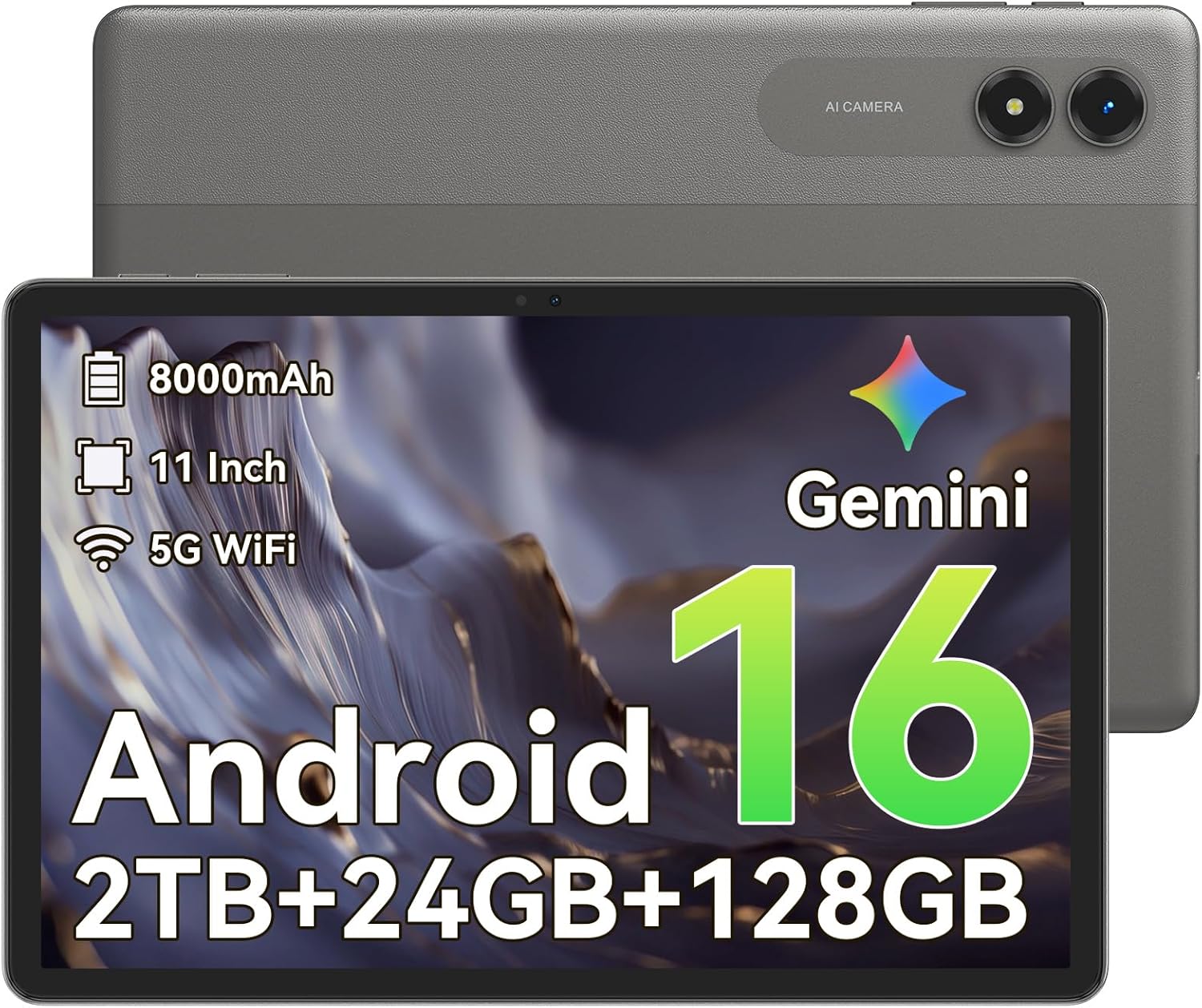
Image: Front view of the TABWEE T50 Tablet.
Package Contents
Upon opening the package, ensure all items are present:
- TABWEE T50 Tablet
- USB Charging Cable
- SIM Ejector Tool
- Quick Start Guide (this manual)
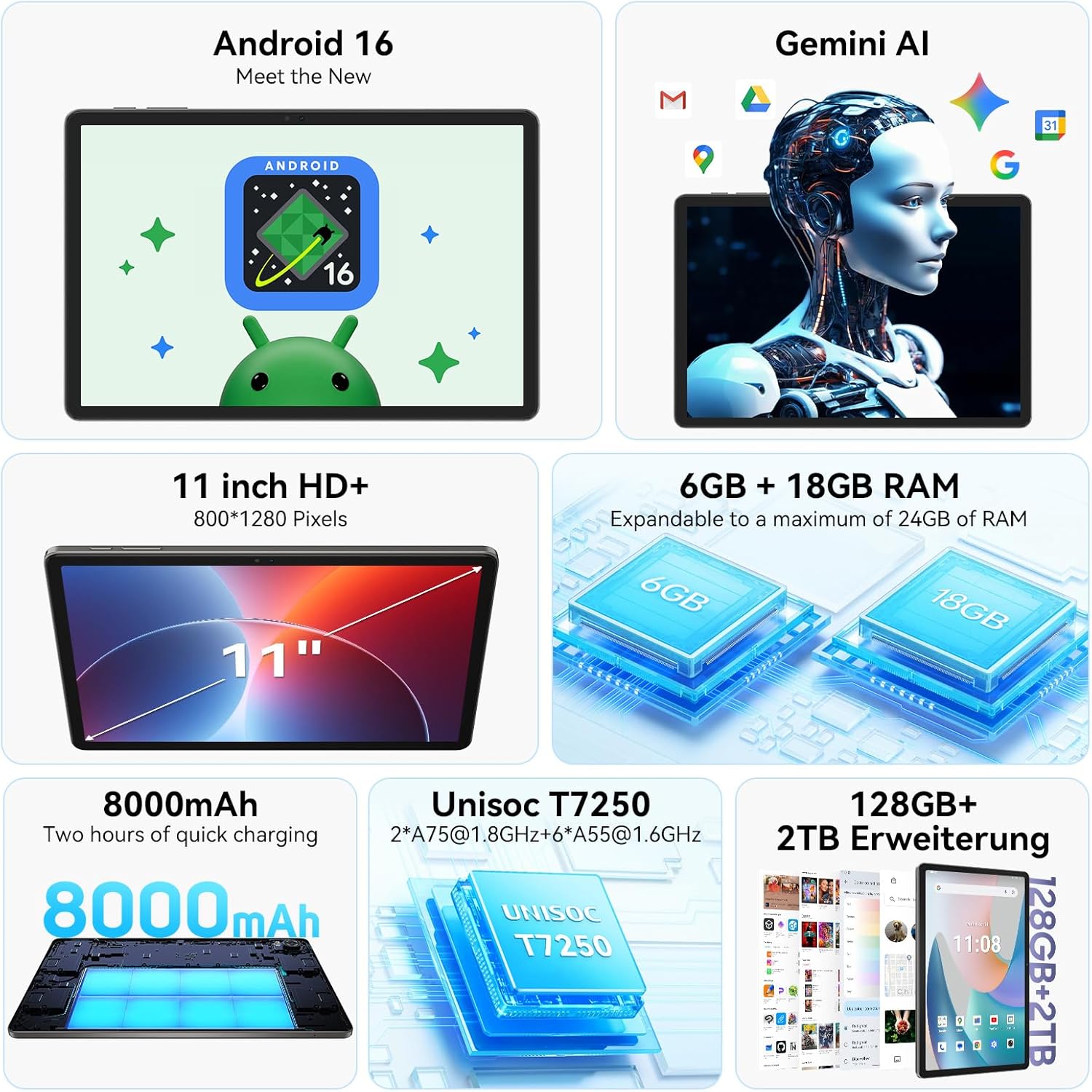
Image: The TABWEE T50 Tablet along with its standard accessories, including a charging cable and SIM ejector tool.
Setup
1. Initial Charging
Before first use, fully charge your TABWEE T50 Tablet.
- Connect the USB charging cable to the tablet's charging port.
- Connect the other end of the cable to a compatible USB power adapter (not included) and plug it into a power outlet.
- Allow the tablet to charge until the battery indicator shows 100%. This may take approximately 5 hours for a full charge.

Image: Illustration of the tablet's 8000mAh battery and charging process.
2. Powering On and Initial Configuration
Press and hold the power button until the TABWEE logo appears. Follow the on-screen prompts to complete the initial setup:
- Select your language.
- Connect to a Wi-Fi network.
- Sign in with your Google account or create a new one.
- Review and accept the terms and conditions.
- Set up screen lock (PIN, pattern, password, or facial unlock).
3. Inserting a MicroSD Card (Optional)
To expand storage up to 2TB, insert a microSDXC card.
- Locate the SIM/microSD card tray on the side of the tablet.
- Use the provided SIM ejector tool to open the tray.
- Place the microSD card into the designated slot with the gold contacts facing down.
- Gently push the tray back into the tablet until it clicks into place.
Operating Instructions
Display and Navigation
The TABWEE T50 features an 11-inch HD+ IPS display with a 1280x800 resolution and a 90Hz refresh rate for smooth visuals. It includes eye protection features to reduce blue light and minimize eye strain.

Image: The tablet's 11-inch HD+ display showcasing a vibrant mountain landscape.
- Touchscreen Gestures: Tap, swipe, pinch-to-zoom, and long-press for various interactions.
- Home Screen: Customize with widgets, app shortcuts, and wallpapers.
- Notifications Panel: Swipe down from the top of the screen to access quick settings and notifications.
Android 16 with Gemini AI
Your tablet runs on Android 16, offering enhanced privacy controls, adaptive battery optimization, and an intuitive user interface. Gemini AI provides intelligent assistance for tasks, content creation, and learning.

Image: The tablet displaying the Gemini AI interface with various AI-powered features.
- Multitasking: Utilize split-screen mode for running multiple applications simultaneously.
- Privacy Controls: Manage app permissions and data access through system settings.
- Adaptive Battery: The AI-powered battery management optimizes power consumption based on your usage patterns.
Camera Functionality
The TABWEE T50 is equipped with an 8MP front camera and a 13MP rear camera.
- Open the Camera app from the home screen or app drawer.
- Switch between front and rear cameras using the camera icon.
- Tap the shutter button to take photos or the video icon to record videos.
- Explore various camera modes and settings for optimal results.

Image: The tablet's screen displaying the camera interface, capturing a selfie.
Connectivity
The tablet supports WiFi 5G and Bluetooth 5.0 for seamless connectivity.
- Wi-Fi: Go to Settings > Network & internet > Wi-Fi to connect to available networks.
- Bluetooth: Go to Settings > Connected devices > Bluetooth to pair with Bluetooth accessories like headphones or keyboards.
- OTG (On-The-Go): The tablet supports OTG for connecting USB devices or for reverse charging other devices.

Image: Visual representation of the tablet's Bluetooth 5.0 and 5G WiFi connectivity features.

Image: The tablet connected to a smartphone, illustrating its power-sharing capability via OTG.
Maintenance
- Cleaning: Use a soft, lint-free cloth to clean the screen and body. Avoid abrasive materials or harsh chemicals.
- Software Updates: Regularly check for system updates in Settings > System > System update to ensure optimal performance and security.
- Battery Care: To prolong battery life, avoid extreme temperatures and do not let the battery drain completely frequently.
- Storage Management: Periodically clear unnecessary files and apps to maintain performance. Go to Settings > Storage to manage your storage.
Troubleshooting
- Tablet Not Turning On: Ensure the tablet is sufficiently charged. If it doesn't respond, press and hold the power button for 10-15 seconds to force a restart.
- Apps Crashing/Freezing: Close and reopen the app. If the issue persists, clear the app's cache (Settings > Apps > [App Name] > Storage & cache > Clear cache).
- Wi-Fi Connectivity Issues: Restart your tablet and Wi-Fi router. Forget the network and reconnect.
- Slow Performance: Close background apps, clear cache, or consider a factory reset if issues persist (backup data first).
- Screen Unresponsive: Restart the tablet. If the problem continues, contact customer support.
Specifications
| Feature | Detail |
|---|---|
| Model Name | TABWEE T50 |
| Operating System | Android 16 with Gemini AI |
| Processor | Unisoc T7250 Octa-Core |
| RAM | 24 GB (6GB physical + 18GB virtual) |
| Internal Storage | 128 GB |
| Expandable Storage | Up to 2 TB via microSDXC |
| Display Size | 11-inch HD+ IPS |
| Display Resolution | 1280x800 pixels |
| Refresh Rate | 90 Hz |
| Rear Camera | 13 MP |
| Front Camera | 8 MP |
| Battery Capacity | 8000 mAh |
| Battery Type | Lithium Polymer |
| Average Battery Life | Up to 8 hours (video streaming) |
| Connectivity | WiFi 5G (802.11ac), Bluetooth 5.0, GPS, OTG |
| Weight | 640 Grams |
| Color | Gray |
| Model Year | 2026 |
| UPC | 721718099727 |

Image: Diagram illustrating the Unisoc T7250 Octa-Core processor architecture.

Image: The tablet displaying its storage and RAM specifications, including 24GB RAM and 128GB ROM with 2TB expansion.
Warranty and Support
The TABWEE T50 Tablet comes with a 2-year limited warranty. TABWEE also provides lifetime customer support to assist with any questions or issues you may encounter.
- Warranty Coverage: Covers manufacturing defects for two years from the date of purchase.
- Customer Support: For technical assistance, troubleshooting, or warranty claims, please contact TABWEE customer service. Refer to the official TABWEE website for contact details.
- Spare Parts: EU spare part availability is guaranteed for 2 years.

Image: A badge indicating TABWEE's warranty and lifetime support. Please note that the warranty duration is 2 years as per product specifications.


