
Introduction
This user guide is designed to assist users of Apple Numbers on Mac, iPad, and iPhone in understanding and utilizing the application's full capabilities. It provides clear, step-by-step instructions for managing personal budgets, tracking business performance, organizing school projects, and collaborating with teams. The guide aims to transform users from basic familiarity to complete confidence in creating clean, powerful spreadsheets, formatting data, building dynamic formulas, designing compelling charts, and collaborating seamlessly across all Apple devices.
Getting Started (Setup)
Apple Numbers is pre-installed on most new Apple devices. If not, it can be downloaded from the App Store on your Mac, iPad, or iPhone. Ensure your device's operating system is up to date for optimal performance.
- Download/Update Numbers: Open the App Store on your device. Search for "Numbers" and download or update the application.
- Launch Numbers: Tap the Numbers icon on your home screen or click it in your Applications folder.
- Create a New Spreadsheet: Upon launching, you will typically be presented with an option to create a new spreadsheet or open an existing one. Select "New Document" to begin.
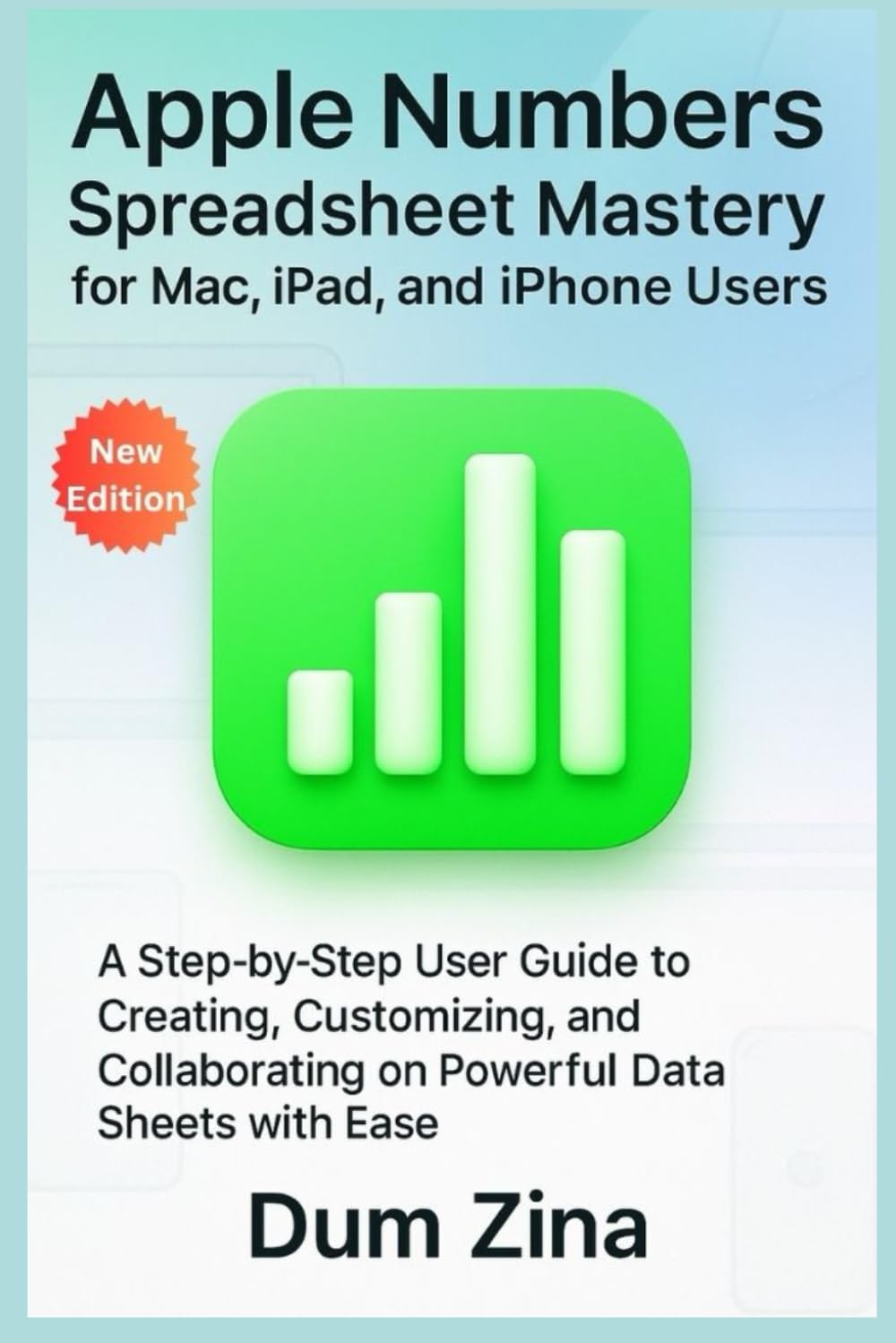
Figure 1: Front cover of the Apple Numbers Spreadsheet Mastery user guide. This image displays the title and design of the guide, indicating its focus on Apple Numbers for Mac, iPad, and iPhone users.
Operating Apple Numbers
This section covers the fundamental operations within Apple Numbers, from basic data entry to advanced features.
1. Creating and Managing Spreadsheets
- Starting a New Document: Choose a template or a blank canvas. Numbers offers various templates for budgets, invoices, and more.
- Adding Tables: Insert new tables into your sheet. Each sheet can contain multiple tables.
- Entering Data: Click on a cell and type your data. Use the Tab key to move to the next cell or Enter to move down.
- Saving Your Work: Numbers automatically saves your changes. You can also manually save or duplicate documents.
2. Formatting Data and Cells
- Cell Formatting: Select cells and use the Format inspector to change font, size, color, alignment, and number format (currency, percentage, date, etc.).
- Table Styles: Apply pre-designed table styles or customize borders, fill colors, and header/footer rows.
- Conditional Highlighting: Set rules to automatically highlight cells based on their values, making data analysis easier.
3. Building Formulas and Functions
Formulas are the core of spreadsheet functionality. Numbers supports a wide range of functions.
- Basic Arithmetic: Start a formula with an equals sign (=). Example:
=A1+B1for addition. - Using Functions: Access the Function Browser to find and insert functions like SUM, AVERAGE, IF, VLOOKUP. Example:
=SUM(C2:C10). - Referencing Cells: Understand absolute (
$A$1) and relative (A1) cell references for copying formulas.
4. Designing Charts and Graphs
Visualize your data effectively with various chart types.
- Selecting Data: Highlight the data you wish to chart.
- Inserting a Chart: Click the Chart button in the toolbar and choose your desired chart type (e.g., Bar, Line, Pie, Scatter).
- Customizing Charts: Use the Format inspector to adjust titles, labels, colors, and data series.
5. Collaboration and Sharing
Work with others on your spreadsheets in real-time.
- Sharing a Document: Click the Share button and invite people via email or link. You can set permissions (view only or edit).
- Real-time Collaboration: See changes made by collaborators as they happen.
- Exporting: Export your Numbers document to other formats like Microsoft Excel, PDF, or CSV.
Maintenance and Best Practices
To ensure your spreadsheets remain organized and functional:
- Regular Organization: Keep your Numbers documents in logical folders within iCloud Drive or other cloud storage.
- Data Validation: Implement data validation rules to prevent incorrect entries.
- Backup Important Files: While Numbers auto-saves, consider periodically backing up critical spreadsheets to an external drive or another cloud service.
- Clear Naming Conventions: Use descriptive names for your files, sheets, and tables.
Troubleshooting Common Issues
Here are solutions to some common problems encountered while using Apple Numbers:
- Formulas Not Calculating:
Ensure the formula starts with an equals sign (=). Check for correct cell references and function syntax. Sometimes, simply re-entering the formula can resolve minor glitches.
- Syncing Problems Across Devices:
Verify that iCloud Drive is enabled for Numbers on all your devices (Settings > [Your Name] > iCloud > iCloud Drive > Numbers). Ensure all devices are connected to the internet.
- Application Crashing or Freezing:
Try force-quitting and restarting the Numbers app. Ensure your device's operating system and the Numbers app are updated to the latest versions. Large or complex spreadsheets can sometimes cause performance issues; try simplifying them if possible.
- Formatting Issues After Importing:
When importing from other spreadsheet software (like Excel), formatting may not transfer perfectly. You may need to manually adjust fonts, cell sizes, and styles within Numbers.
Specifications
This section provides details about the "Apple Numbers Spreadsheet Mastery" user guide itself.
| Attribute | Detail |
|---|---|
| ASIN | B0G2LD4TXH |
| Publisher | Independently published |
| Publication Date | November 16, 2025 |
| Language | English |
| Print Length | 196 pages |
| ISBN-13 | 979-8274812665 |
| Item Weight | 12.5 ounces |
| Dimensions | 6 x 0.45 x 9 inches |

Figure 2: Back cover of the Apple Numbers Spreadsheet Mastery user guide. This image shows the ISBN barcode and additional publication details.
Warranty Information
This document is a user guide for software. As such, it does not come with a product warranty in the traditional sense. For information regarding the warranty or terms of service for the Apple Numbers application itself, please refer to Apple's official documentation and terms of use provided with the software.
Support
For further assistance with Apple Numbers, please consult the following resources:
- Apple Support Website: Visit support.apple.com/numbers for official documentation, FAQs, and troubleshooting guides directly from Apple.
- Numbers In-App Help: Access the built-in help features within the Numbers application on your Mac, iPad, or iPhone.
- Community Forums: Engage with other Apple Numbers users and experts on Apple's official support communities.
For questions specifically related to the content of this "Apple Numbers Spreadsheet Mastery" guide, you may contact the publisher or author through channels typically provided within the book itself, if available.


