
1. Introduction
This APILDELLA 14'' Dual Laptop Screen Extender is designed to provide an additional 1080P FHD display for enhanced productivity. It features an upgraded zero-contact frame for laptop screen protection and a sliding support arm compatible with 13-16'' laptops. Its minimalist, lightweight design makes it portable for various work environments, supporting Mac, Windows, and Chrome operating systems.
2. Product Overview
Key Features
- Upgraded zero-contact frame design for scratch-free laptop screen protection.
- Sliding support arm compatible with 13-16'' laptops (diagonal size).
- Minimalist hidden structure, lightweight, and portable for easy transport.
- Includes USB-C+A and HDMI cables for instant plug-and-play use.
- Compatible with Mac, Windows, Android, and most 13"-16" laptops.
- 1080P FHD IPS display with 1920x1080P resolution.
- HDR mode for richer colors and enhanced visual experience.
- Adjustable brightness, contrast, and backlight settings.
- Features anti-vertigo and low blue light technology for eye protection and reduced fatigue.
- Supports both extend and mirror display modes.
- Foldable from 0-225° with an integrated bracket for stability and adjustable viewing angles.
Package Contents
The product package includes the following items:
- 1 x APILDELLA A4 Monitor
- 1 x HDMI to Mini HDMI Cable
- 1 x USB-A to USB-C Cable
- 1 x USB-C to USB-C Cable
- 1 x A4 User Manual
- 1 x Package Box
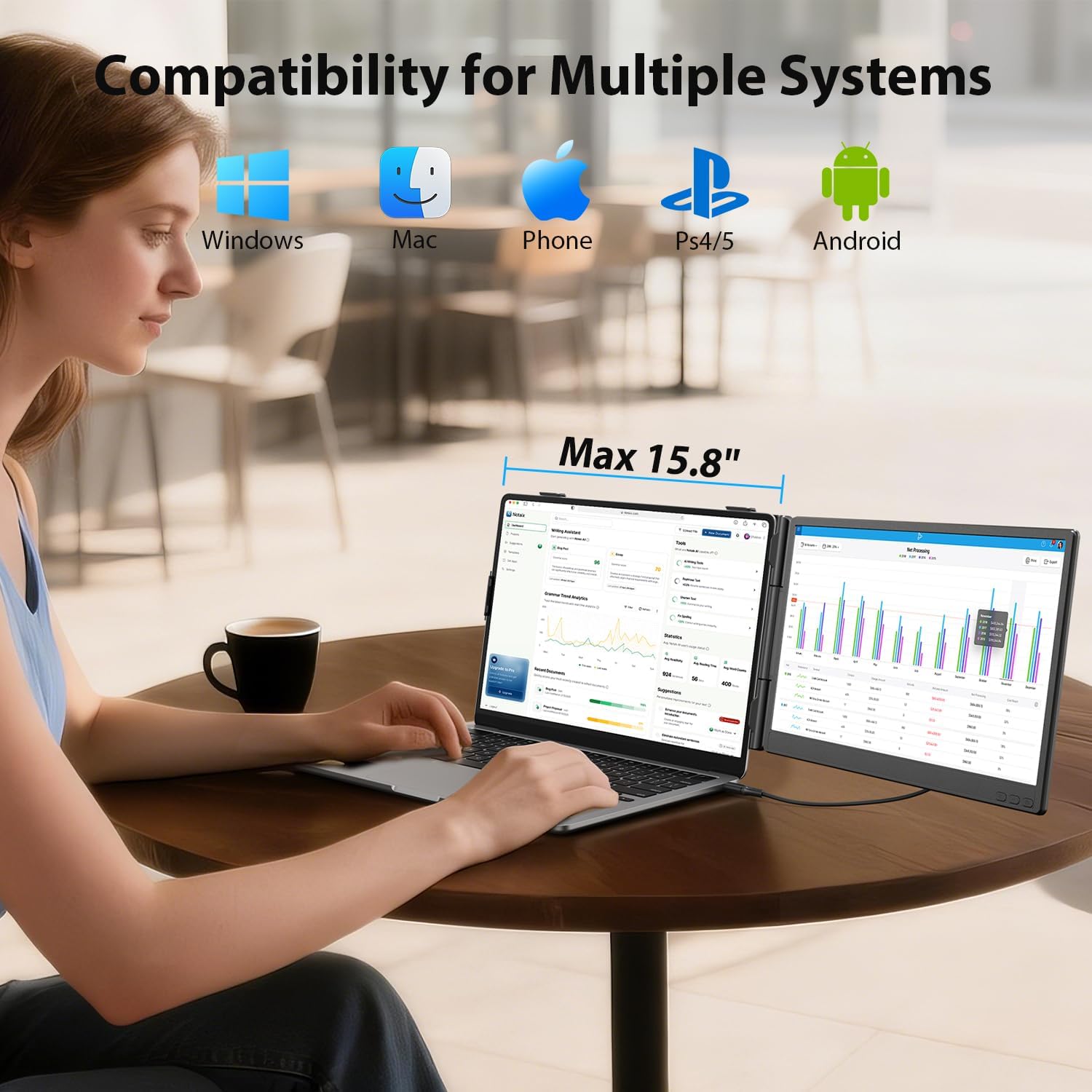
Image: The APILDELLA 14 inch Dual Laptop Screen Extender in use, demonstrating compatibility with Windows, Mac, Phone, PS4/5, and Android systems.
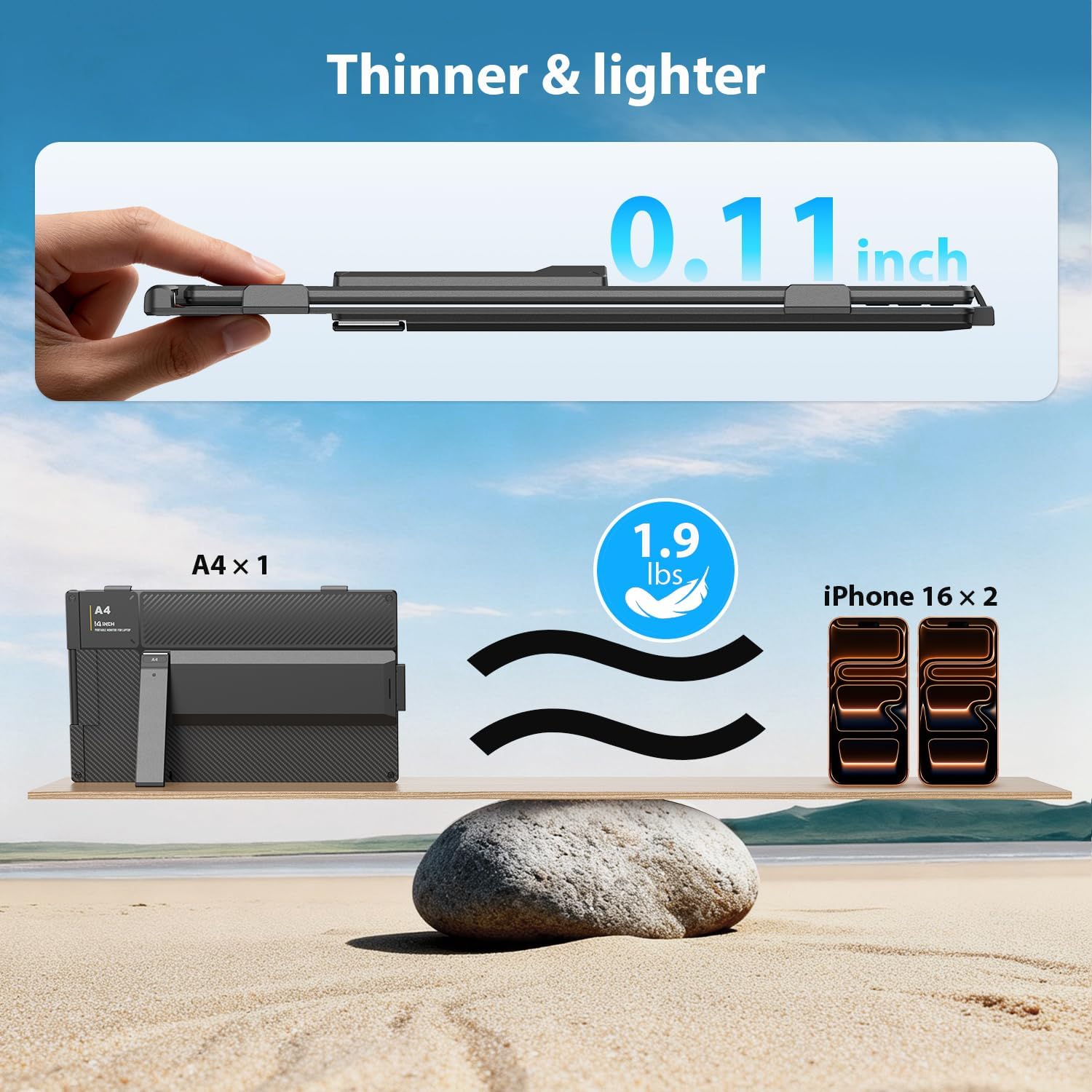
Image: The APILDELLA 14 inch Dual Laptop Screen Extender showcasing its ultra-thin profile (0.11 inches) and lightweight design (1.9 lbs).
3. Setup Instructions
Step 1: Unfold and Adjust
Unfold the extended screen and pull to extend the frame. Adjust the integrated kickstand for optimal viewing angle. The monitor is foldable from 0-225° to suit various setups.

Image: The screen extender attached to a laptop, illustrating its compatibility with 13-16 inch laptops and its 226° folding capability and 90° kickstand.
Step 2: Connect to Laptop
The APILDELLA A4 monitor offers flexible connection options:
- Type-C Connection: If your laptop has a full-function USB-C port (supporting video output and power delivery), simply connect the monitor using one USB-C to USB-C cable.
- USB-A and HDMI Connection: If your laptop has a USB-A port and an HDMI port, use two cables: one Mini HDMI cable for video signal and one USB-A to USB-C cable for power.

Image: A visual guide demonstrating how to connect the screen extender to a laptop using either a single USB-C cable or a combination of HDMI and USB-A cables.
Setup Video Guide
Video: An official APILDELLA video demonstrating the setup process for the A4 Dual Laptop Screen Extender.
4. Operating Instructions
Multi-Mode Functionality
The APILDELLA A4 monitor supports various display modes to enhance your workflow:
- Extend Mode: This mode allows you to expand your desktop across multiple screens, providing more workspace. For example, you can code on the extender while checking emails on your main laptop monitor.
- Mirror Mode: This mode duplicates your main laptop display onto the extender, which is useful for presentations or sharing content with others.
- Folding Mode: The monitor can be folded for compact storage or adjusted to various angles for comfortable viewing.
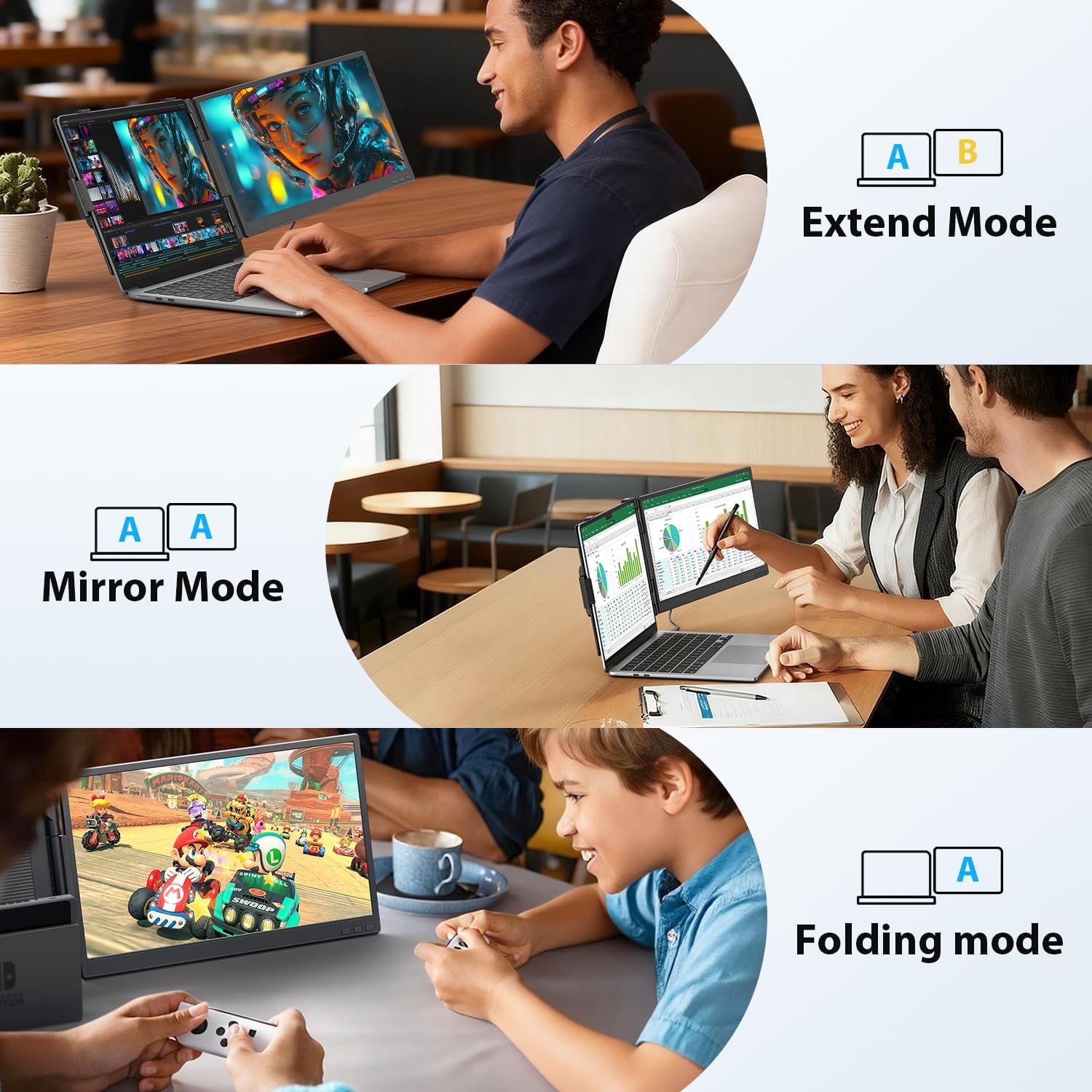
Image: Illustrations of the screen extender operating in Extend Mode, Mirror Mode, and Folding Mode for different use cases.
Display Adjustments
The screen's brightness, contrast, backlight, and other parameters can be adjusted using the control buttons on the monitor to achieve your preferred visual settings. Refer to the included A4 User Manual for detailed instructions on navigating the on-screen display (OSD) menu.

Image: A close-up of the screen extender showcasing its 14'' Full HD display with high image quality, 1920x1080 resolution, sRGB, IPS technology, and Low Blue Light feature.
5. Compatibility
The APILDELLA 14'' Dual Laptop Screen Extender is broadly compatible with a range of devices and operating systems:
- Laptop Size: Designed for 13-16 inch laptops.
- Operating Systems: Compatible with Mac, Windows, and Android.
- Processor Compatibility: Supports MacBooks powered by M1, M2, M3, and M4 chips.
- Device Types: Can connect to phones, Macs, Windows devices, Android devices, and gaming consoles such as PS4/5, X-BOX, and Nintendo Switch.
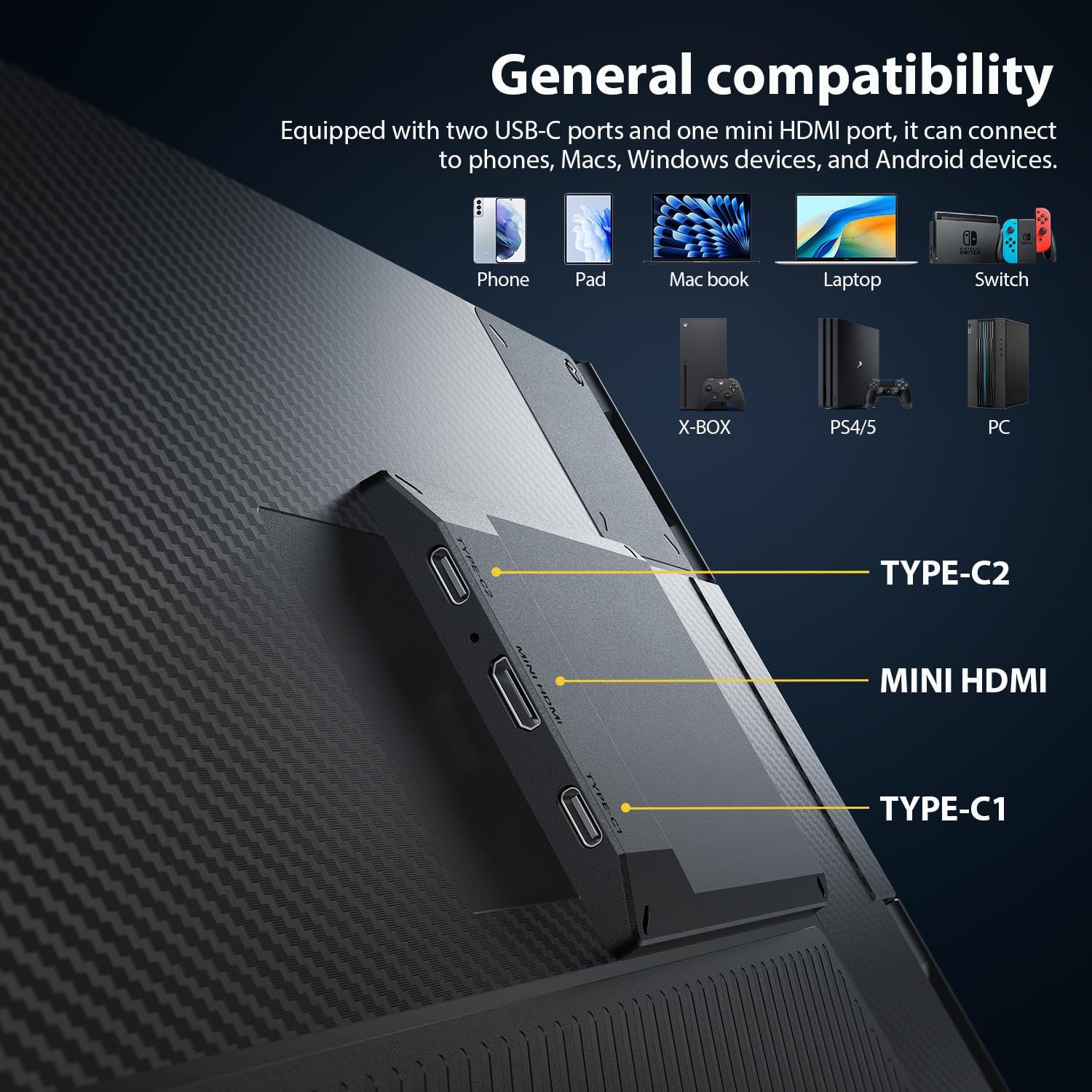
Image: The back of the screen extender highlighting its TYPE-C2, MINI HDMI, and TYPE-C1 ports, along with icons representing compatibility with phones, pads, MacBooks, laptops, Switch, X-BOX, PS4/5, and PC.
6. Troubleshooting
If you encounter issues with your APILDELLA A4 monitor, refer to the following common solutions:
- "No Signal" Display: If the screen shows "no signal" when connected via USB-C, your laptop's USB-C port may only support charging and not video output. In this case, connect an HDMI cable to transmit the video signal.
- Screen Flickering: Screen flickering can be caused by insufficient power. Connect an additional external power source directly to the first Type C port of the monitor to ensure it receives adequate power.
- General Connection Issues: Ensure all cables (USB-C, HDMI, USB-A) are securely connected to both the monitor and your laptop. If using HDMI, verify that the HDMI to C cable is connected to the Mini HDMI port on the extender.
7. Maintenance
To ensure the longevity and optimal performance of your APILDELLA 14'' Dual Laptop Screen Extender, follow these maintenance guidelines:
- Cleaning: Gently wipe the screen and exterior surfaces with a soft, dry, lint-free cloth. Avoid using abrasive cleaners, solvents, or chemical sprays, as these can damage the display or finish.
- Storage: When not in use, fold the monitor compactly and store it in a protective sleeve or bag to prevent scratches and damage.
- Handling: Handle the monitor with care, avoiding excessive force or dropping, which could damage internal components or the screen.
8. Specifications
| Feature | Specification |
|---|---|
| Brand | APILDELLA |
| Model Name | A4 |
| Screen Size | 14 Inches |
| Resolution | 1920 x 1080 Pixels (FHD) |
| Aspect Ratio | 16:9 |
| Screen Surface Description | Glossy |
| Contrast Ratio | 2000:1 |
| Refresh Rate | 60 Hz |
| Display Type | LCD (IPS Panel) |
| Brightness | 250 candela_per_square_meter |
| Connectivity Technology | HDMI, DisplayPort, USB-C |
| Additional Features | Built-In Speakers, Eye Care, Lightweight, Portable |
| Compatible Devices | Gaming Console, Laptop, Tablet |
| Item Dimensions (D x W x H) | 2"D x 28"W x 16"H |
| Response Time | 2 Milliseconds |
| UPC | 766157924322 |
9. Warranty and Support
The APILDELLA 14'' Dual Laptop Screen Extender (Model A4) is covered by a 1-year manufacturer warranty. This warranty ensures that your product is free from defects in materials and workmanship under normal use during the warranty period.
For any questions, technical assistance, or warranty claims, please contact APILDELLA customer service. Our team is dedicated to providing friendly and helpful support to ensure your satisfaction.
Please refer to the contact information provided in your A4 User Manual or visit the official APILDELLA website for support details.