
Introduction
This manual provides detailed instructions for the installation, operation, and maintenance of your Rimoody 9-inch Android 15 Car Stereo. Please read this manual thoroughly before using the product to ensure proper functionality and safety. Keep this manual for future reference.
Setup and Installation
Package Contents
Before installation, verify that all items are present in the package:
- 1 x Car Stereo Unit
- 1 x Power Cable
- 1 x GPS Antenna
- 1 x Rear Camera Input Cable
- 1 x RCA Cable
- 2 x USB Cables
- 2 x Mounting Brackets
- 4 x Screws
- 1 x User Manual

Image: Contents of the Rimoody Car Stereo package, including the main unit, various cables, GPS antenna, mounting brackets, and screws.
Installation Guidelines
The car stereo is designed for a standard 2-DIN installation slot. Professional installation is recommended. Ensure the vehicle's power is disconnected before beginning installation.
- Remove the existing car stereo from your vehicle's dashboard.
- Connect the power cable, speaker wires, and other necessary cables (GPS antenna, USB, RCA, rear camera input) to the corresponding ports on the new stereo.
- Secure the mounting brackets to the sides of the stereo unit using the provided screws.
- Slide the stereo into the 2-DIN slot in your dashboard until it clicks into place or is securely fastened.
- Reconnect the vehicle's power and test the unit.

Image: A visual comparison showing a car dashboard before and after the installation of the 9-inch Rimoody Car Stereo, highlighting the integrated appearance.
Operating Instructions
Basic Functions
- Power On/Off: Press and hold the power button on the front panel or use the vehicle's ignition.
- Volume Control: Use the volume buttons on the front panel or steering wheel controls.
- Touchscreen: Navigate the Android interface by tapping, swiping, and pinching on the 9-inch capacitive touchscreen.
Wireless CarPlay & Android Auto
Connect your iOS or Android smartphone wirelessly to access navigation, music, calls, and messages directly on the car stereo display.
- Ensure Bluetooth and Wi-Fi are enabled on your smartphone.
- On the car stereo, select the CarPlay or Android Auto application.
- Follow the on-screen prompts to pair your device.

Image: The car stereo display showing the interface for Wireless CarPlay and Android Auto, along with icons for Bluetooth, Wi-Fi, USB connection, hands-free calling, and voice control.
Bluetooth Connectivity
Pair your smartphone via Bluetooth for hands-free calling and audio streaming.
- Go to the Bluetooth settings on the car stereo.
- Enable Bluetooth on your smartphone and search for available devices.
- Select the car stereo (e.g., "Rimoody Car Stereo") from your phone's list and confirm pairing.
FM/RDS Radio
Access FM radio stations with RDS (Radio Data System) for station information.
- Select the 'Radio' application from the main menu.
- Use the scan function to automatically search and save available stations.
- Manually tune to frequencies or select from saved presets.

Image: Visual representation of Bluetooth calling, FM/RDS radio frequency range (87.5MHz to 108MHz), and the graphic equalizer (EQ) interface on the car stereo.
GPS Navigation & Wi-Fi
The unit includes built-in offline maps. Connect to Wi-Fi to download map data, access online maps, and use other internet-dependent applications.
- GPS: Open the 'Navigation' app. If using offline maps, ensure data is downloaded via Wi-Fi.
- Wi-Fi: Go to 'Settings' > 'Network & Internet' > 'Wi-Fi' to connect to an available network.

Image: The car stereo display showing GPS navigation with map data and a separate section illustrating Wi-Fi connectivity with various app icons.
Mirror Link
Project your smartphone's screen onto the car stereo display for a larger view of your phone's content.
- Select the 'Mirror Link' application.
- Follow the specific instructions for iOS or Android devices to establish the connection.
Rear Camera Input & Steering Wheel Control (SWC)
The stereo supports AHD/CVBS rear cameras for parking assistance and integrates with your vehicle's steering wheel controls for convenience.
- Rear Camera: When the vehicle is in reverse gear, the display will automatically switch to the rear camera view.
- SWC: Configure steering wheel controls in the system settings to map vehicle buttons to stereo functions (e.g., volume, track skip).
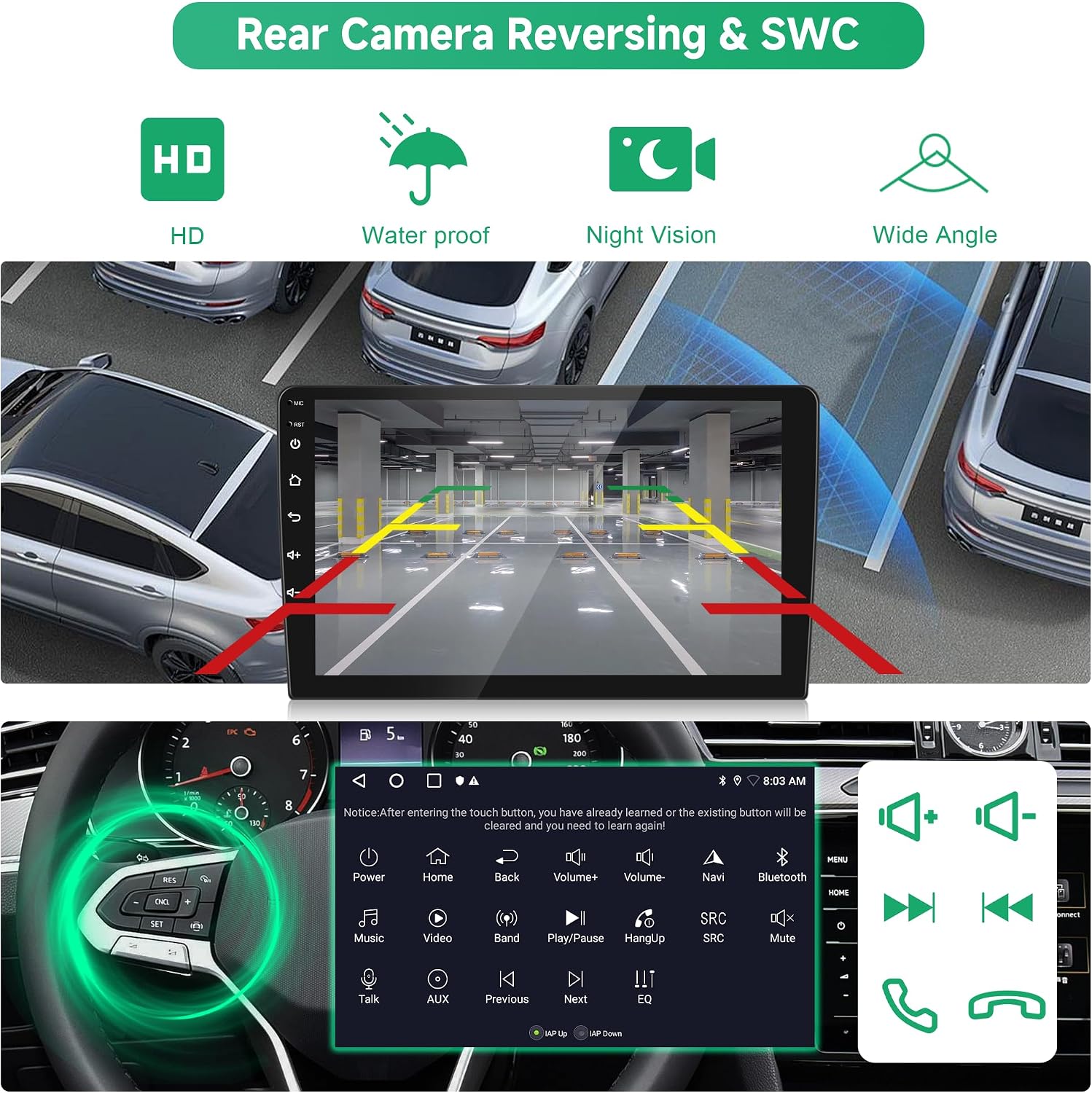
Image: The car stereo display showing a rear camera view with parking guidelines, alongside an illustration of steering wheel controls and their corresponding functions on the stereo.
EQ DSP & UI Themes
Customize your audio experience with the built-in DSP (Digital Signal Processor) and equalizer (EQ). Personalize the interface with 26 available desktop themes.
- EQ/DSP: Access audio settings to adjust sound profiles, balance, fader, and other DSP features.
- UI Themes: Navigate to 'Settings' > 'Display' > 'Themes' to select your preferred desktop interface.
Maintenance
Cleaning the Unit
To maintain the clarity of the screen and the appearance of the unit:
- Use a soft, dry, lint-free cloth to wipe the screen and exterior.
- For stubborn smudges, lightly dampen the cloth with water or a screen-safe cleaner.
- Avoid using abrasive cleaners, solvents, or alcohol-based products, as these can damage the screen and finish.
Software Updates
Periodically check for software updates to ensure optimal performance and access to new features. Updates can typically be found on the manufacturer's website or through the system's settings if an internet connection is available.
Troubleshooting
If you encounter issues, refer to the following common solutions:
| Problem | Possible Cause | Solution |
|---|---|---|
| Unit does not power on | Incorrect wiring; Blown fuse; Vehicle power issue | Check power cable connections; Inspect vehicle fuses; Consult a professional installer. |
| No sound | Volume too low; Mute activated; Speaker wiring issue | Increase volume; Check mute status; Verify speaker connections. |
| Bluetooth not connecting | Bluetooth off on phone/stereo; Device not discoverable | Ensure Bluetooth is on for both devices; Make phone discoverable; Try re-pairing. |
| GPS signal weak/lost | GPS antenna obstructed or improperly installed | Ensure GPS antenna has a clear view of the sky; Check antenna connection. |
| Touchscreen unresponsive | Temporary software glitch | Restart the unit by pressing the reset button (if available) or power cycling the vehicle. |
For issues not listed here, please contact customer support.
Specifications
General
- System: Android
- Chipset: MT8163
- Operating Speed: 1.3 GHz
- Operating Temperature: -20 ℃ to 75 ℃
- Languages: Chinese, English, French, Italian, Korean, Japanese, Arabic, Spanish, Portuguese, Russian, Turkish, Vietnamese, Hebrew, Polish, German
Display
- Screen Size: 9 inches
- Screen Resolution: 1024 x 600
Memory
- RAM: 2 GB
- ROM: 64 GB
Audio & Radio
- Output Power: 4 x 45 W
- Power Amplifier Chip: YD7388
- Radio Chip: MT6625N
- Radio Band: FM/RDS
Connectivity
- Bluetooth Version: 4.1
- Wi-Fi: Supported
- USB: Dual USB interface
- Reverse Input: AHD/CVBS
- External Microphone: Supported
- Video Output: Not supported
Features
- Wireless CarPlay & Android Auto
- Mirror Link
- Split Screen
- Steering Wheel Control (SWC) Support
- Built-in Offline Maps (requires internet for data download)
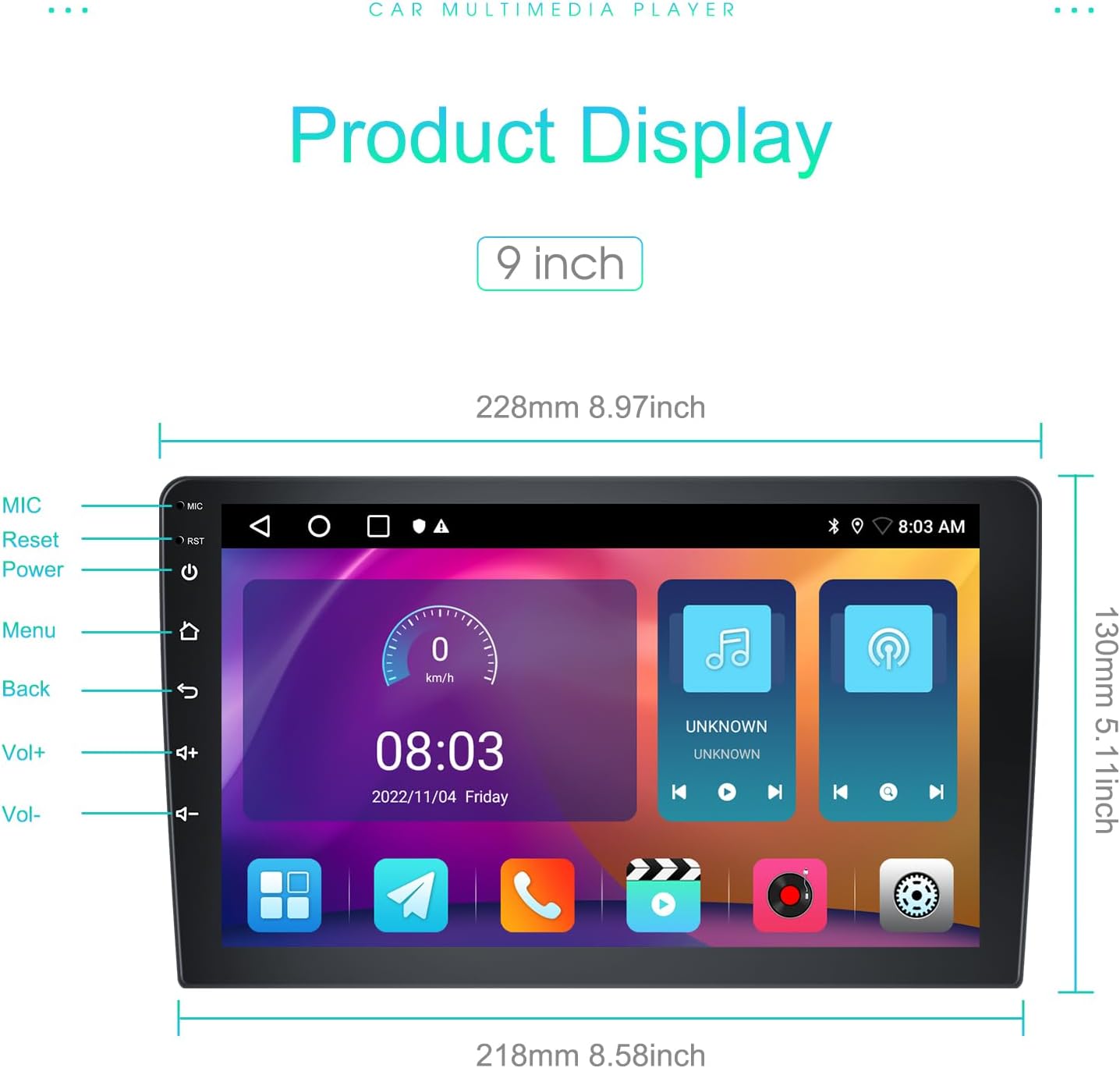
Image: A detailed view of the car stereo's front panel, indicating its 9-inch screen size and overall dimensions (228mm width, 130mm height).
Warranty Information
This Rimoody Car Stereo comes with a 2-year manufacturer's warranty. This warranty covers defects in materials and workmanship under normal use. It does not cover damage caused by improper installation, accident, misuse, abuse, neglect, unauthorized modification, or normal wear and tear.
Please retain your proof of purchase for warranty claims.
Customer Support
If you require further assistance, have questions about your product, or need to make a warranty claim, please contact Rimoody customer support through the retailer where the product was purchased or refer to the official Rimoody website for contact information.
When contacting support, please have your product model number (B0G2KXCNYG) and proof of purchase readily available.


