
1. Introduction
Thank you for choosing the Rimoody 7-inch 2 DIN Android 15 Car Radio. This manual provides detailed instructions for installation, operation, and troubleshooting to ensure you get the most out of your new car multimedia system. This device features wireless Carplay and Android Auto, a 7-inch touchscreen, FM/RDS radio, EQ sound customization, WiFi, GPS navigation, Mirror Link, Bluetooth connectivity, steering wheel control compatibility, and rear camera support.
2. Safety Information
- Professional Installation Recommended: Due to the complexity of car electrical systems, professional installation is highly recommended to prevent damage to the unit or your vehicle.
- Power Supply: Ensure the unit is connected to a 12V DC power supply with a negative ground. Incorrect voltage can cause damage.
- Wiring: Carefully follow the wiring diagram. Incorrect wiring can lead to malfunctions or electrical hazards.
- Driving Safety: Do not operate the unit in a way that distracts you from driving. Always prioritize road safety.
- Temperature: Avoid exposing the unit to extreme temperatures or direct sunlight for prolonged periods.
- Moisture: Keep the unit away from water and moisture to prevent electrical shock or damage.
3. Package Contents
Please check the box for the following items:
- Car Multimedia Player (Main Unit)
- Power Cable
- RCA Cable
- 8-Pin Canbus Plug (if applicable to your vehicle)
- USB Cable (x2)
- Rear Camera Input Cable
- Radio Antenna
- GPS Antenna
- Microphone (MIC)
- Bracket
- User Manual
- Rear Camera

Image: Diagram showing the dimensions of the 7-inch car radio and a visual list of all included accessories such as power cables, USB cables, GPS antenna, rear camera, and brackets.
4. Product Overview
The Rimoody 7-inch 2 DIN Android 15 Car Radio is designed to enhance your driving experience with a range of modern features:
- 7-inch 1080P 2.5D Touchscreen: High-resolution display (1024*600) for clear visuals and easy operation.
- Android 15 Operating System: Provides a smooth and responsive user experience with access to various applications.
- 2GB RAM + 64GB ROM: Sufficient memory and storage for system operations and app installations.
- Wireless/Wired Carplay & Android Auto: Seamless integration with your smartphone for navigation, music, calls, and more.
- Mirror Link: Project your phone's screen directly onto the car radio display.
- FM/RDS Radio: High-quality stereo radio with automatic and manual channel tuning.
- Bluetooth Connectivity: Hands-free calling and wireless audio streaming.
- Built-in GPS Navigation & WiFi: Supports offline maps and allows access to online apps like YouTube, Spotify, and more via WiFi.
- EQ Sound Customization: Built-in equalizer with various music effects to optimize audio quality.
- Rear Camera Support: Automatically displays the rear view when reversing for safer parking.
- Steering Wheel Control (SWC): Allows control of essential functions directly from your steering wheel.
- Dual USB Ports: For media playback, charging, and file management.
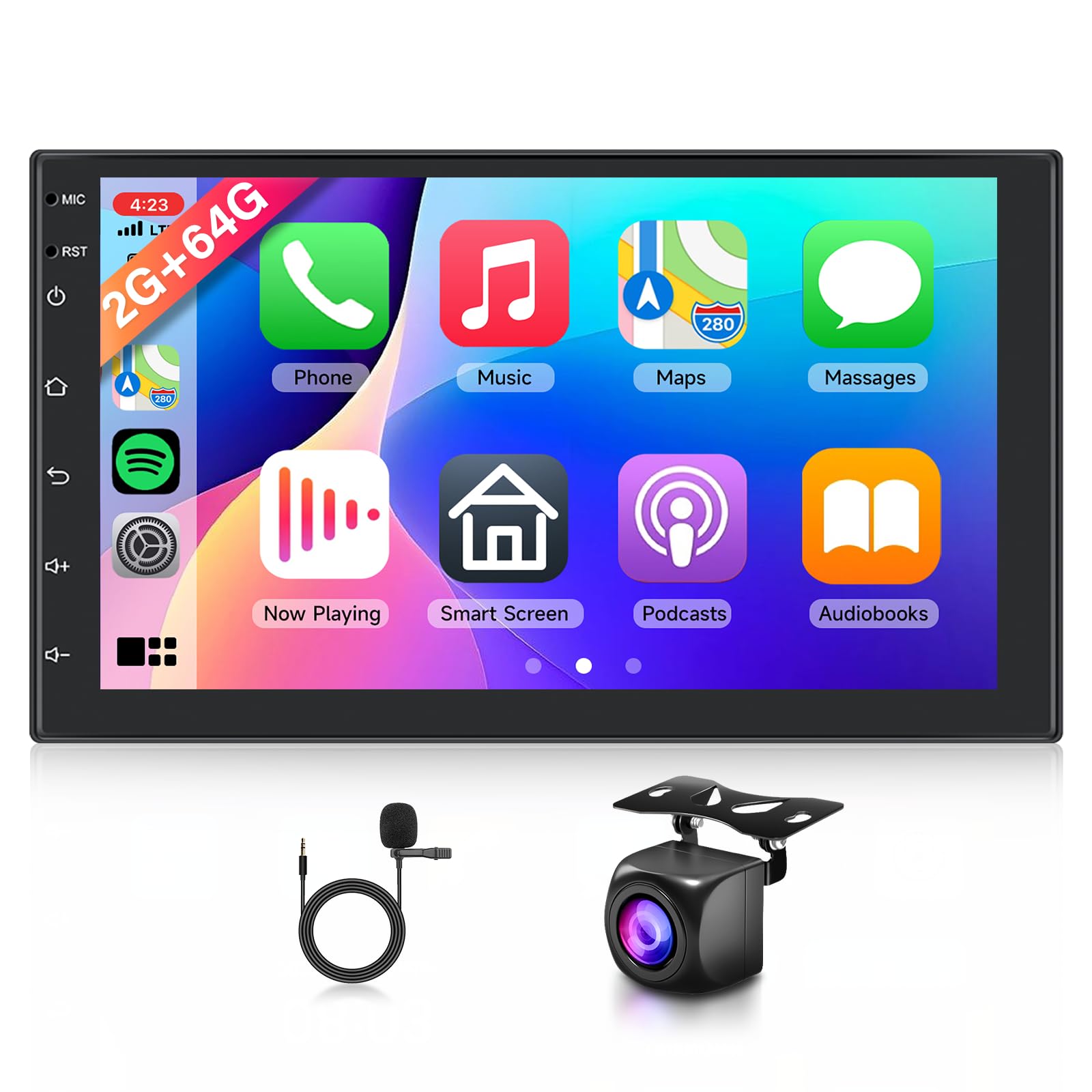
Image: The main unit of the Rimoody 7-inch 2 DIN Android 15 Car Radio, showcasing its touchscreen display and physical buttons.
5. Setup
5.1 Installation
Before installation, measure your car's dashboard opening to ensure compatibility with the double DIN size. Confirm your vehicle's wiring harness matches the provided connectors. Professional installation is strongly recommended.
- Disconnect Battery: Before starting, disconnect the negative terminal of your car battery to prevent electrical shorts.
- Remove Old Unit: Carefully remove your existing car radio and any mounting brackets.
- Connect Wiring:
- Connect the main power harness to your car's wiring. Ensure ACC, B+, and Ground wires are correctly matched.
- Connect speaker wires to the corresponding outputs.
- Connect the GPS antenna and position it in a location with a clear view of the sky (e.g., dashboard).
- Connect the radio antenna.
- If installing a rear camera, run the video cable from the camera to the unit's 'CAM IN' port and connect the camera's power to the reverse light circuit.
- Connect any additional accessories like USB cables or external microphone.
- Mount the Unit: Secure the new car radio into the dashboard opening using the provided brackets.
- Reconnect Battery: Reconnect the negative terminal of your car battery.
- Test Functionality: Turn on the car and test all functions of the radio before fully reassembling the dashboard.

Image: A visual comparison showing a car dashboard before and after the installation of the 7-inch car radio, highlighting the integrated look.
5.2 Initial Configuration
Upon first boot, the system may guide you through initial setup steps:
- Language Selection: Choose your preferred system language.
- Time and Date: Set the correct time zone, date, and time.
- WiFi Connection: Connect to an available WiFi network to enable online features and app downloads.
- Steering Wheel Control Learning: If your vehicle supports SWC, navigate to the settings menu to program the buttons.
6. Operating Instructions
6.1 Wireless Carplay & Android Auto
This unit supports both wireless and wired Carplay/Android Auto for seamless smartphone integration.
- For Wireless Connection:
- Ensure Bluetooth and WiFi are enabled on your smartphone.
- On the car radio, open the Carplay or Android Auto application.
- Search for your phone in the Bluetooth settings of the car radio and pair them.
- Confirm the connection prompt on your phone. The system will automatically switch to Carplay/Android Auto interface.
- For Wired Connection:
- Connect your smartphone to the car radio's USB port using a high-quality USB cable.
- The system should automatically detect your phone and launch Carplay/Android Auto. Follow any on-screen prompts.

Image: A visual representation of the car radio screen displaying Carplay, Android Auto, and Mirror Link interfaces, along with connection methods for each.
6.2 FM/RDS Radio
Access the 'Radio' application from the main menu.
- Auto Scan: Press the 'Scan' button to automatically search and save available radio stations.
- Manual Tuning: Use the arrow buttons to fine-tune frequencies.
- Preset Stations: Touch and hold a preset number to save the current station.
- RDS (Radio Data System): When available, RDS will display station information like song title or program type.
6.3 Bluetooth
The Bluetooth function allows for hands-free calls and audio streaming.
- Pairing:
- Go to the 'Bluetooth' application on the car radio.
- Enable Bluetooth on your smartphone and make it discoverable.
- Search for the car radio's Bluetooth name (e.g., "Rimoody Car BT") on your phone and pair.
- Confirm the pairing code if prompted.
- Hands-Free Calling: Once paired, you can make and receive calls directly from the car radio screen. Your phone's contact list may sync automatically.
- Bluetooth Music: Play audio from your phone through the car speakers via Bluetooth.

Image: Screenshots of the car radio's Bluetooth pairing screen, FM/RDS radio interface showing frequency tuning, and the graphic equalizer (EQ) settings.
6.4 GPS Navigation & WiFi
The unit comes with built-in GPS and WiFi for navigation and online services.
- GPS Navigation: Access the pre-installed navigation app or download your preferred map application from the app store. The system supports offline maps (downloadable via WiFi) and real-time online navigation.
- WiFi Connectivity: Connect to a mobile hotspot or home WiFi network to browse the internet, download apps, stream videos (YouTube, TikTok), and music (Spotify).

Image: The car radio screen displaying a GPS navigation map, alongside icons for various online applications like YouTube, Spotify, and Google Maps, illustrating WiFi and GPS capabilities.
6.5 EQ (Equalizer)
Customize your audio experience using the built-in equalizer.
- Access the 'EQ' or 'Sound Settings' application.
- Adjust frequency bands, bass, treble, and other audio parameters to suit your preferences.
- Choose from various preset sound effects (e.g., Pop, Rock, Jazz) or create custom profiles.
6.6 Mirror Link
Mirror Link allows you to display your smartphone's screen content directly on the car radio.
- Open the 'Mirror Link' application on the car radio.
- Follow the on-screen instructions to connect your Android or iOS device, typically via USB cable or WiFi.
- Once connected, your phone's screen will be mirrored, allowing you to view maps, videos, and other content.
6.7 Rear Camera & Steering Wheel Control
Enhance safety and convenience with these integrated features.
- Rear Camera: When the vehicle is shifted into reverse gear, the car radio will automatically display the rear camera feed, providing a clear view for parking and maneuvering.
- Steering Wheel Control (SWC): After proper wiring and configuration in the settings, you can control functions like volume, track skipping, and mode switching directly from your steering wheel buttons, reducing distractions while driving.

Image: A composite image showing the car radio displaying a rear camera view, a separate rear camera unit, and a car steering wheel with highlighted control buttons, illustrating the rear camera and SWC functionalities.
6.8 Dual USB & File Manager
The unit features dual USB ports for versatile use.
- USB Transfer: Connect USB drives to play media files (audio, video, images) directly on the unit.
- USB Charging: Use the USB ports to charge your mobile devices.
- File Manager: The built-in file manager allows you to browse, copy, and delete files on connected USB storage devices.

Image: The car radio screen showing a file management interface, with illustrations of USB data transfer and USB charging capabilities.
7. Maintenance
- Cleaning the Screen: Use a soft, lint-free cloth to gently wipe the touchscreen. For stubborn smudges, slightly dampen the cloth with water or a screen-safe cleaner. Avoid harsh chemicals.
- Software Updates: Periodically check for software updates via the system settings (requires WiFi connection) to ensure optimal performance and access to new features.
- Avoid Extreme Conditions: Protect the unit from direct sunlight, extreme heat, cold, and excessive moisture.
- Cable Connections: Ensure all cables are securely connected. Loose connections can lead to intermittent issues.
8. Troubleshooting
| Problem | Possible Cause | Solution |
|---|---|---|
| Unit does not power on. | Incorrect wiring; Blown fuse; Loose power connection. | Check power cable connections (B+, ACC, Ground). Inspect vehicle's fuse box and the unit's fuse. Ensure battery is connected. |
| No sound from speakers. | Incorrect speaker wiring; Volume too low; Mute function active; EQ settings. | Verify speaker wire connections. Increase volume. Check if mute is enabled. Reset EQ settings to default. |
| GPS signal is weak or unavailable. | GPS antenna not properly placed or connected; Obstruction. | Ensure GPS antenna is placed in an open area with a clear view of the sky. Check antenna connection to the unit. |
| Bluetooth connection issues. | Phone not discoverable; Incorrect pairing; Interference. | Ensure Bluetooth is enabled on both devices. Delete previous pairings and re-pair. Restart both devices. |
| Touchscreen unresponsive or inaccurate. | Software glitch; Screen protector interference; Physical damage. | Restart the unit. Remove any thick screen protectors. If issue persists, contact support. |
| Carplay/Android Auto not connecting. | Incorrect USB cable; Phone settings; App issues. | Use a high-quality, data-enabled USB cable. Check phone settings for Carplay/Android Auto permissions. Restart phone and unit. For wireless, ensure Bluetooth and WiFi are on. |
9. Specifications
| Feature | Specification |
|---|---|
| Model Number | B0G2KWTKBK |
| Operating System | Android 15 |
| RAM | 2GB |
| ROM | 64GB |
| Screen Size | 7 inches |
| Screen Resolution | 1024x600 |
| Connectivity Technology | USB, CVBS, Bluetooth, WiFi |
| Special Features | GPS Navigation, Wireless Carplay, Android Auto, Mirror Link, FM/RDS Radio, EQ, Steering Wheel Control, Rear Camera Support |
| Audio Output Mode | Stereo |
| Surround Sound Channel Configuration | 4.0 |
| Output Power | 45 Watts (per channel, total 180 Watts) |
| Video Encoding | H.264, H.265/HEVC |
| Compatible Devices | Smartphone |
| Connector Type | RCA, Rear Camera |
| Product Dimensions | 10 x 10 x 10 cm; 500 g (Package Dimensions) |
| Country of Origin | China |
10. Warranty and Support
This Rimoody product is covered by a two-year manufacturer's warranty from the date of purchase. This warranty covers defects in materials and workmanship under normal use.
The warranty does not cover:
- Damage caused by improper installation or operation.
- Damage caused by accidents, abuse, misuse, liquid contact, fire, or other external causes.
- Damage caused by service performed by anyone who is not an authorized service provider.
- Cosmetic damage, including but not limited to scratches, dents, and broken plastic on ports.
For warranty claims or technical support, please contact Rimoody Tech, the seller, through your purchase platform or visit the official Rimoody brand store for contact information. Please have your purchase receipt and product model number (B0G2KWTKBK) ready when contacting support.

