
1. Introduction
This manual provides detailed instructions for the installation, operation, and maintenance of your Creality K1 Series-2025 AI Camera. This camera is designed exclusively for the Creality K1C 2025 and K1 Max 2025 3D printers, enhancing your printing experience with real-time monitoring, AI detection, and time-lapse capabilities. Please read this manual thoroughly before use to ensure proper functionality and safety.

Image 1.1: The Creality K1 Series-2025 AI Camera, highlighting its AI Detection, Time-lapse Filming, and Easy Installation features.
2. Product Features
- Upgraded Design: Specifically engineered for the 2025 K1 Max and 2025 K1C 3D printers.
- Easy Installation: Features reserved interfaces for straightforward setup.
- Real-Time Clear Image Video: Provides 1080P resolution for clear, true-to-life video. Remotely view prints via Creality Cloud and Creality Print.
- Intelligent AI Detection: Monitors for abnormal situations during printing, automatically pausing to prevent collisions and reduce material waste.
- Delayed Shooting (Time-lapse): Automatically generates time-lapse videos of your prints for sharing after completion, accessible through Creality Cloud.
3. Package Contents
Please verify that all components are present in the package:
- Creality K1 Series-2025 AI Camera
- Wiring Harness
- Mounting Screws (typically two)
- Qualified Certificate (if included)
Note: If any parts are missing or damaged, please contact Creality customer support.
4. Setup and Installation
The Creality K1 Series-2025 AI Camera is designed for easy installation with reserved interfaces on compatible 3D printers.
- Locate the Mounting Point: Identify the designated camera mounting point within your K1C 2025 or K1 Max 2025 printer chamber. This is typically at the front upper section.
- Secure the Camera: Align the camera's bracket with the mounting point. Use the provided screws to firmly attach the camera to the printer frame.
- Connect the Wiring Harness: Plug the wiring harness into the camera's port and then connect the other end to the reserved interface on your 3D printer's mainboard or designated port. Ensure the connection is secure.
- Power On: Once installed, power on your 3D printer. The camera should be recognized by the printer's system.

Image 4.1: Illustration of the camera's reserved interface for easy installation within the printer chamber.
5. Operating Instructions
5.1 Real-Time Monitoring
The camera provides a 1080P clear image for real-time viewing of your printing status. To access the live feed:
- Download and install the Creality Cloud app on your mobile device or Creality Print software on your computer.
- Log in to your Creality account.
- Connect your 3D printer to the Creality Cloud/Print platform.
- Navigate to the printer interface to view the live camera feed. This allows you to monitor your prints anytime, anywhere, helping to prevent wasted filament and ensure smooth printing.

Image 5.1: A clear image of a 3D print in progress, demonstrating the camera's 1080P resolution for real-time viewing.
5.2 AI Detection
The integrated AI detection system helps prevent common printing failures and issues.
- Pre-Printing Detection: Before a print begins, the camera can detect foreign objects on the printing platform. If an object is detected, the printing process will be automatically paused to prevent collision with the hotend.
- During Printing Detection: While printing, the camera continuously monitors for abnormal situations such as spaghetti detection or print detachment. If a printing failure is detected, the printer will automatically suspend the print to reduce filament waste.

Image 5.2: An on-screen prompt indicating an "AI detection prompt" to clean the printing platform before starting a print.

Image 5.3: An on-screen prompt showing an "AI detection prompt" for a detected print quality problem, leading to suspension of the print.
5.3 Time-lapse Filming
The camera supports delayed shooting, allowing you to create captivating time-lapse videos of your prints.
- Ensure your printer is connected to Creality Cloud.
- After a print is completed, log in to your Creality Cloud account.
- The system will automatically generate time-lapse images or videos of the printing process.
- These time-lapses can be viewed and shared directly from your Creality Cloud account, capturing the exciting moments of your creations.
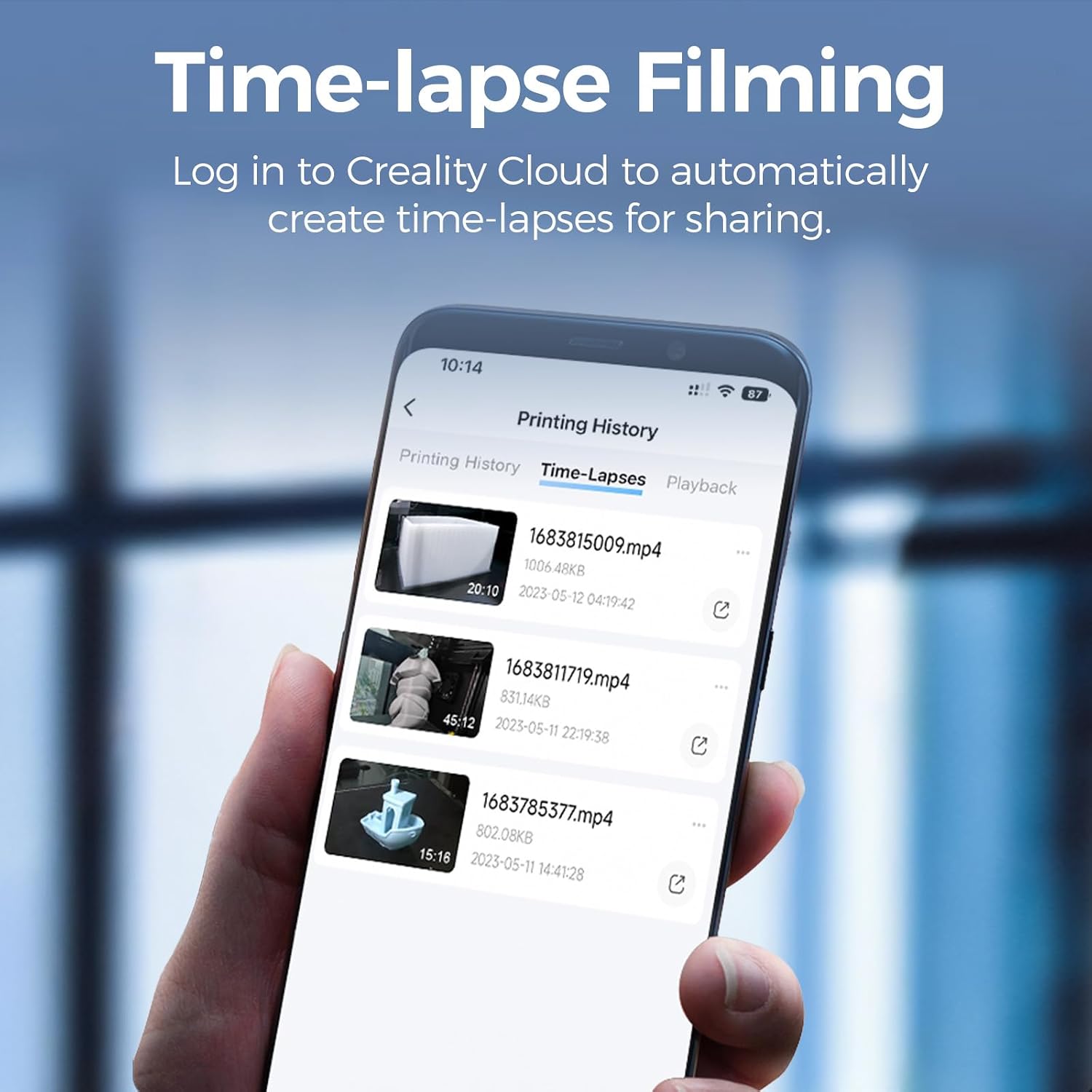
Image 5.4: A mobile phone screen displaying a "Printing History" interface with a "Time-Lapses" tab, showing various recorded time-lapse videos.
6. Maintenance
To ensure optimal performance and longevity of your AI camera, follow these maintenance guidelines:
- Cleaning the Lens: Gently wipe the camera lens with a soft, lint-free cloth. For stubborn smudges, use a lens cleaning solution specifically designed for optical surfaces. Avoid abrasive materials or harsh chemicals.
- Environmental Conditions: Ensure the printer chamber remains within the recommended operating temperatures. The camera is designed to withstand high temperatures during printing, but extreme conditions outside of normal operation should be avoided.
- Cable Inspection: Periodically check the wiring harness for any signs of wear, damage, or loose connections. Secure any loose connections immediately.
7. Troubleshooting
If you encounter issues with your Creality K1 Series-2025 AI Camera, refer to the following common problems and solutions:
- Camera Not Detected:
- Ensure the wiring harness is securely connected to both the camera and the printer's designated port.
- Verify that your printer firmware is up to date.
- Restart the 3D printer.
- No Live Feed/Poor Image Quality:
- Check your internet connection for stability if using Creality Cloud/Print remotely.
- Clean the camera lens as described in the Maintenance section.
- Ensure adequate lighting within the printer chamber.
- AI Detection Not Working:
- Confirm that AI detection features are enabled in your printer's settings or Creality Cloud/Print software.
- Ensure the camera lens is clean and unobstructed.
- Update your printer's firmware and Creality Cloud/Print software to the latest versions.
- Physical Fit Issues:
- This camera is specifically designed for the 2025 K1C and 2025 K1 Max models. It may not be compatible with earlier K1 series printers or other models. Verify your printer model.
- Ensure you are using the correct mounting hardware and following the installation steps precisely.
If problems persist, please contact Creality customer support for further assistance.
8. Specifications
Detailed technical specifications for the Creality K1 Series-2025 AI Camera:
| Attribute | Value |
|---|---|
| Product Name | K1 Series-2025 AI Camera |
| Field of View (FOV) | D=115° ± 3°, H=96° ± 3°, V=51° ± 3° |
| Input Voltage | 5V |
| Current | 125mA ± 10mA |
| Product Size | 36.4 x 44.2 x 54 mm |
| Net Weight | 12g |
| Compatible Models | K1C 2025, K1 Max 2025 |
| Video Capture Resolution | 1080p |
| Exposure Control Type | Automatic |
| Shooting Modes | Delayed Shooting, Time-lapse Filming |

Image 8.1: A visual representation of the camera's key specifications, including dimensions and field of view.
9. Warranty and Support
Creality products typically come with a limited warranty. For specific warranty terms and conditions, please refer to the warranty card included with your product or visit the official Creality website. For technical support, troubleshooting assistance, or to report any issues, please contact Creality customer service through their official channels. Keep your purchase receipt as proof of purchase for warranty claims.

