
1. Setup Guide
This section guides you through the initial setup of your MXQ PRO 4K Android TV Box.

Image: The MXQ PRO 4K Android TV Box, its remote control, and product packaging.
1.1 Package Contents
Before you begin, please verify that all items are present in the package:
- MXQ PRO 4K Android TV Box
- Remote Control
- Power Adapter
- HDMI Cable
- User Manual (this document)

Image: Contents of the MXQ PRO 4K Android TV Box package, including the TV box, remote control, power adapter, and cables.
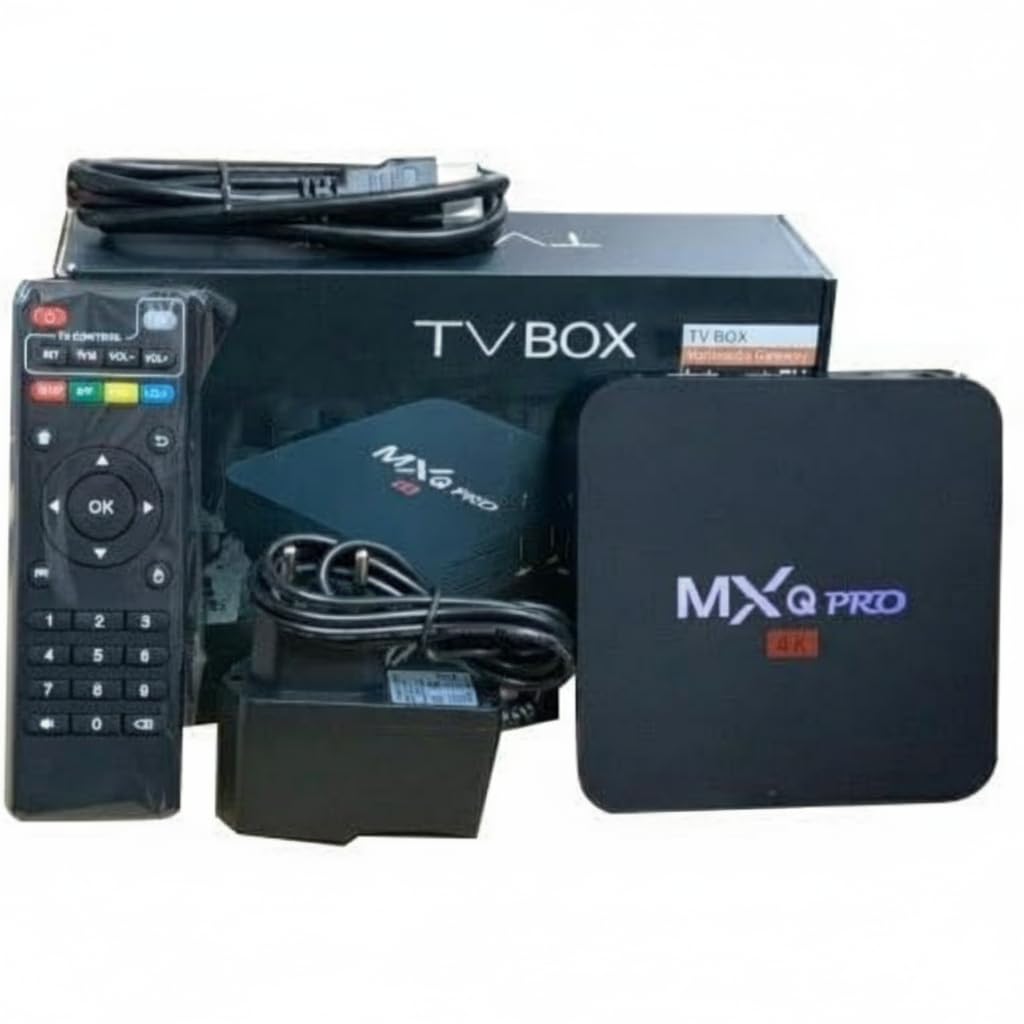
Image: Another view of the MXQ PRO 4K Android TV Box, remote control, power adapter, and various connection cables.
1.2 Connecting the Device
- Connect to TV: Use the provided HDMI cable to connect the HDMI port on the TV Box to an available HDMI input port on your television.
- Connect to Power: Plug the power adapter into the DC 5V port on the TV Box, then plug the other end into a wall outlet.
- Network Connection (Optional): For a wired internet connection, connect an Ethernet cable from your router to the LAN port on the TV Box. For Wi-Fi, proceed to section 2.2.
1.3 Initial Power On
Once all connections are secure, turn on your television and select the correct HDMI input source. The MXQ PRO 4K Android TV Box should automatically power on and display the boot-up screen. Follow any on-screen prompts for initial language and basic settings.
2. Operating Instructions
This section details how to operate your MXQ PRO 4K Android TV Box.
2.1 Remote Control Overview
The included remote control allows you to navigate the Android interface, launch applications, and control media playback. Familiarize yourself with the buttons for power, navigation (directional pad and OK button), volume, home, back, and app access.
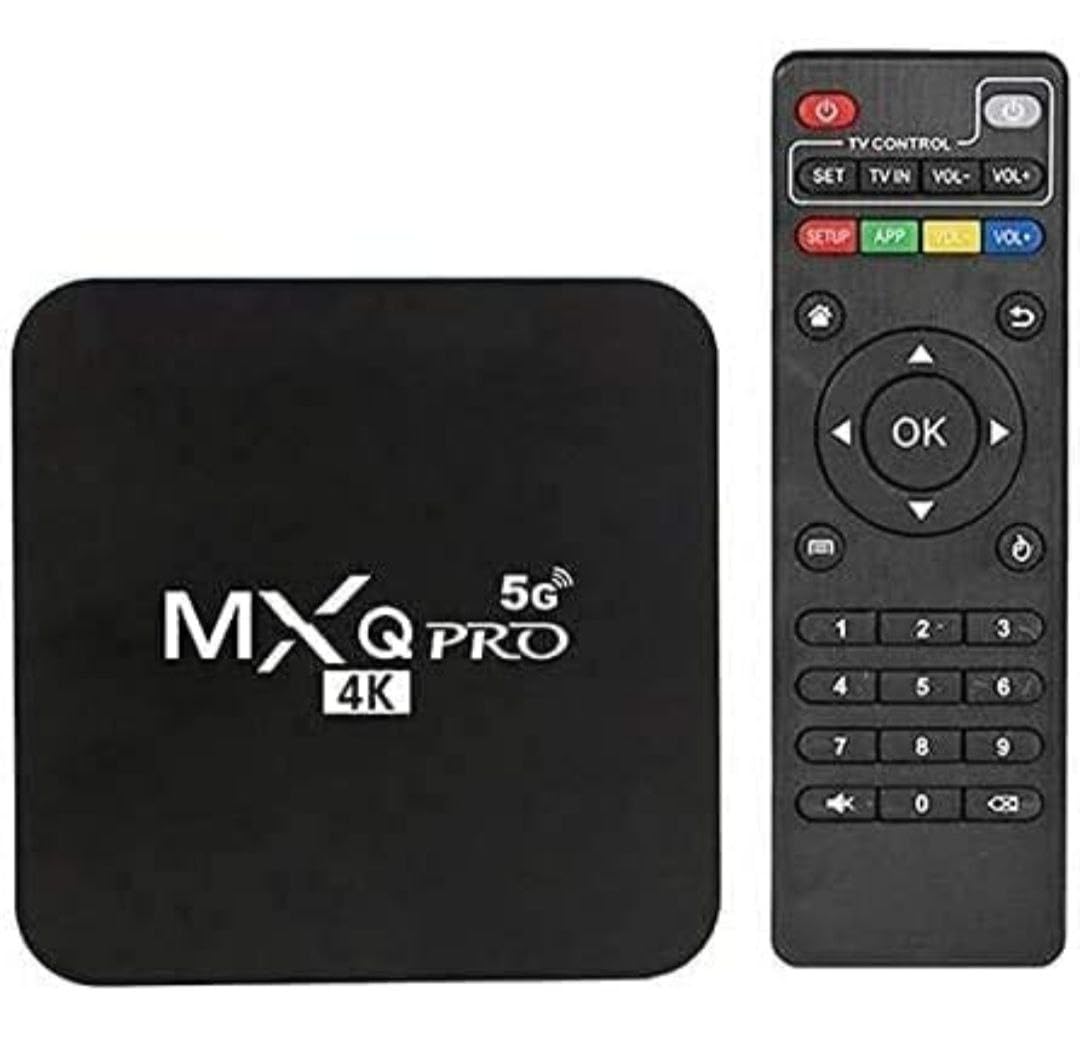
Image: The MXQ PRO 4K Android TV Box and its accompanying remote control, highlighting the compact design of both units.
2.2 Connecting to Wi-Fi
- From the home screen, navigate to Settings.
- Select Network & Internet.
- Choose your desired Wi-Fi network from the list.
- Enter the Wi-Fi password using the on-screen keyboard and select Connect.
2.3 Installing and Using Applications
The MXQ PRO 4K Android TV Box supports a wide range of Android applications. You can download and install apps from the pre-installed app store or other compatible sources.
- Navigate to the Apps section on the home screen.
- Browse or search for applications.
- Select an app to view its details and choose Install.
- Once installed, the app icon will appear in your Apps list for quick access.

Image: The MXQ PRO 4K Android TV Box user interface showing popular streaming applications like Netflix, YouTube, and Prime Video, indicating its smart TV capabilities.
2.4 Connecting a Bluetooth Speaker/Device
You can connect external Bluetooth devices such as speakers or headphones to enhance your audio experience.
- Go to the Settings icon on the home screen.
- Select Remotes & Accessories.
- Click on Add accessory.
- Put your Bluetooth device into pairing mode. The TV Box will search for available devices.
- Select your device from the list to connect.

Image: Step-by-step visual guide demonstrating how to connect a Bluetooth speaker or device to the MXQ PRO 4K Android TV Box through the settings menu.
3. Maintenance
Proper maintenance ensures the longevity and optimal performance of your device.
3.1 General Care
- Keep the device in a cool, dry place, away from direct sunlight and excessive heat.
- Avoid exposing the device to water or other liquids.
- Clean the exterior with a soft, dry cloth. Do not use abrasive cleaners or solvents.
- Ensure proper ventilation around the device to prevent overheating.
3.2 Software Updates
Periodically check for software updates in the device settings to ensure you have the latest features and security patches. Updates can improve performance and stability.
3.3 Resetting the Device
Important Warning:
If you reset your Android Box, any free pre-installed apps will be deleted. So, please do not reset it unless absolutely necessary and you are prepared to reinstall applications.
A factory reset will erase all user data and settings, restoring the device to its original factory state. This can be done via the Settings menu under "Device Preferences" or "About" and then "Factory data reset."
4. Troubleshooting
This section addresses common issues you might encounter with your MXQ PRO 4K Android TV Box.
| Problem | Possible Cause | Solution |
|---|---|---|
| No power / Device not turning on | Power adapter not connected or faulty; power outlet issue. | Ensure the power adapter is securely connected to the device and a working power outlet. Try a different outlet. |
| No signal on TV / Blank screen | Incorrect HDMI input selected on TV; loose HDMI cable. | Verify your TV is set to the correct HDMI input. Check that the HDMI cable is securely connected at both ends. Try a different HDMI port or cable. |
| Slow performance / Apps freezing | Too many apps running in the background; insufficient memory; poor internet connection. | Close unused applications. Clear cache for problematic apps. Restart the device. Check your internet speed and connection stability. |
| Wi-Fi connection issues | Incorrect password; router issues; device too far from router. | Double-check the Wi-Fi password. Restart your router and the TV Box. Move the TV Box closer to the router or consider a wired Ethernet connection. |
| Remote control not responding | Low batteries; obstruction; remote not paired. | Replace the batteries in the remote control. Ensure there are no obstructions between the remote and the TV Box. Re-pair the remote if it's a Bluetooth remote (refer to device settings). |
5. Specifications
Detailed technical specifications for the Generic MXQ PRO 4K Android TV Box.
| Feature | Detail |
|---|---|
| Brand | Generic |
| Model | MXQ PRO 4K (Mxq-4k 8gb/128gb) |
| Operating System | Android 12 |
| RAM Memory | 8 GB |
| Storage Capacity | 128 GB |
| Resolution | 4K Ultra HD (60Hz) |
| Processor | Quad-Core 64-bit CPU |
| Wi-Fi Connectivity | Dual-Band WiFi (802.11 a/b/g/n/ac), 2.4G WiFi |
| Video Decoding | H.265 |
| Special Features | 4K Resolution, Android Operating System, Internet TV, Remote Control, 3D Support |
| Compatible Devices | HDTV, LCD TV, LED TV, Smart TV |
| Connectivity Ports | Ethernet, HDMI, USB, Wi-Fi |
| Item Weight | 300 g |
| Package Dimensions | 15 x 12 x 5 cm |
6. Support and Warranty
For technical assistance or further inquiries, please contact customer support.
Customer Support Email: onlightshopping@gmail.com
Warranty Information: Please refer to your purchase documentation for specific warranty terms and conditions. Typically, electronic devices come with a limited manufacturer's warranty covering defects in materials and workmanship.


