
1. Introduction
This manual provides essential information for the safe and effective use of your NBD 8K 64MP Digital Camera. Please read this manual thoroughly before using the camera and retain it for future reference. This camera is designed for capturing high-resolution photos and videos, featuring an 8K video recording capability, 64MP still image resolution, 16X digital zoom, and a 180-degree flip screen for versatile shooting.
2. Safety Information
- Do not expose the camera to water or moisture. This device is not water-resistant.
- Avoid dropping the camera or subjecting it to strong impacts.
- Keep the camera away from strong magnetic fields.
- Do not attempt to disassemble or modify the camera. Repairs should only be performed by authorized service personnel.
- Use only NBD-approved batteries and chargers.
- Store the camera in a cool, dry place when not in use.
- Keep out of reach of children.
3. Package Contents
Verify that all items listed below are included in your package:
- NBD S100F 8K Camera
- 52mm Wide Angle Lens
- 52mm Macro Lens
- Rechargeable Lithium-Ion Batteries (x2)
- Battery Charger
- Camera Neck Rope (Strap)
- Black Leather Bag (Pouch)
- 64GB Memory Card (TF Card)
- USB Cable
- Card Reader
- Instruction Manual
- Lens Cleaning Cloth

Figure 3.1: Included Accessories
4. Camera Components
Familiarize yourself with the main parts and controls of your NBD 8K 64MP Digital Camera.
4.1 Front View
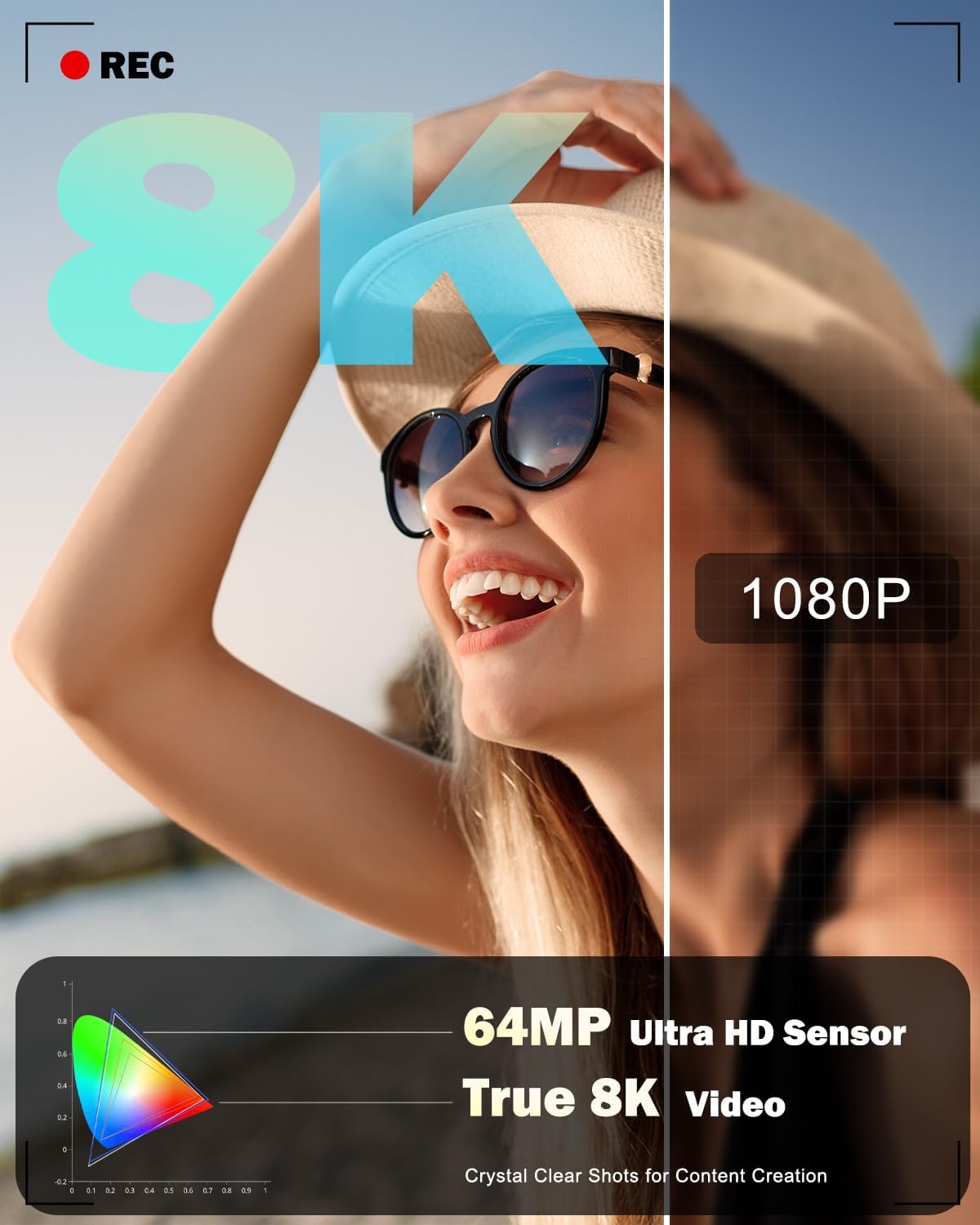
Figure 4.1: Front View of the Camera
This image displays the front of the camera, highlighting the main lens, built-in flash, and the NBD branding.
4.2 Rear View and Flip Screen

Figure 4.2: Rear View with Flip Screen
The rear view shows the 3-inch IPS 180-degree flip screen, which can be rotated for selfies or vlogging, along with various control buttons for menu navigation and settings adjustment.
4.3 Top View

Figure 4.3: Top View of the Camera
The top of the camera features the mode dial for selecting different capture modes, the shutter button, and the zoom control lever.
4.4 Dimensions

Figure 4.4: Camera Dimensions
The camera is designed to be compact and portable, with approximate dimensions of 4.5 inches by 2.7 inches, making it easy to carry.
5. Setup
5.1 Battery Installation and Charging
- Open the battery compartment cover located at the bottom of the camera.
- Insert a fully charged Lithium-Ion battery, ensuring the correct orientation as indicated inside the compartment.
- Close the battery compartment cover securely.
- To charge the battery, insert it into the provided charger and connect the charger to a power source. The indicator light on the charger will show the charging status.
5.2 Memory Card Installation
- Locate the memory card slot, typically near the battery compartment or on the side of the camera.
- Insert the 64GB microSD card (TF card) into the slot with the contacts facing the correct direction until it clicks into place.
- To remove the card, gently push it in until it springs out.
5.3 Attaching Lenses
The camera comes with a 52mm Macro Lens and a detachable wide-angle lens. To attach:
- Align the threads of the desired lens (macro or wide-angle) with the threads on the camera's main lens.
- Gently screw the lens clockwise until it is securely fastened. Do not overtighten.
- To remove, unscrew counter-clockwise.
5.4 Initial Power On and Basic Settings
- Press and hold the power button to turn on the camera.
- Upon first use, you may be prompted to set the date, time, and language. Follow the on-screen instructions using the navigation buttons and the 'OK' button.
- Format the memory card before first use to ensure optimal performance. Navigate to the 'Settings' menu, find 'Format Card', and confirm.
6. Operating the Camera
6.1 Power On/Off
Press the power button to turn the camera on or off. The camera will automatically power off after a period of inactivity to conserve battery life.
6.2 Basic Photography (Still Images)
- Turn the mode dial to the 'Photo' icon.
- Frame your shot using the 3-inch flip screen.
- Press the shutter button halfway down to activate autofocus. The focus frame will appear on the screen.
- Once focus is achieved, press the shutter button fully to capture the image.
6.3 Video Recording
- Turn the mode dial to the 'Video' icon.
- Press the shutter button to start recording. A 'REC' indicator will appear on the screen.
- Press the shutter button again to stop recording.
6.4 Using Capture Modes
The camera offers various capture modes accessible via the mode dial:

Figure 6.1: Camera Capture Modes
- Photo Mode: Standard still image capture.
- Interval Photo: Captures a series of photos at set intervals.
- Video Mode: Standard video recording (up to 8K resolution).
- Slow Motion Video: Records video for slow-motion playback.
- Interval Video: Records video clips at set intervals for time-lapse effects.
- Playback Mode: Review captured photos and videos.
6.5 Autofocus Operation
The camera features an autofocus system. Half-pressing the shutter button will engage the autofocus, indicated by a green frame on the screen when focus is achieved. The camera also supports face detection for improved portrait photography.

Figure 6.2: Autofocus in Action

Figure 6.3: Face Detection Autofocus
6.6 Digital Zoom
The camera features 16X digital zoom. Use the zoom lever (typically around the shutter button) to zoom in or out. Note that digital zoom magnifies the image electronically and may result in some loss of image quality compared to optical zoom.

Figure 6.4: Digital Zoom Levels
6.7 Using the Flip Screen
The 180-degree flip screen allows for flexible viewing angles. Rotate the screen to face forward for self-portraits or vlogging. The camera can also function as a PC webcam when connected via USB, utilizing the flip screen for monitoring.

Figure 6.5: Camera as PC Webcam
6.8 Flash Operation
The camera includes a built-in flash for illuminating subjects in low-light conditions. The flash can be set to automatic or forced-on modes via the camera's menu settings.

Figure 6.6: Built-in Flash Effect
6.9 WiFi Connection and App Control
The camera supports WiFi connectivity for remote control and image transfer to smartphones or computers.
- Enable WiFi on the camera via the settings menu.
- Download the dedicated NBD camera app on your smartphone.
- Connect your smartphone to the camera's WiFi network.
- Use the app for remote framing, transferring photos and videos, and sharing content to social media platforms.

Figure 6.7: WiFi and USB Connectivity
7. Maintenance
7.1 Cleaning the Camera and Lenses
- Use the provided lens cleaning cloth or a soft, lint-free cloth to gently wipe the camera body and screen.
- For lenses, use a lens brush to remove dust, then gently wipe with a lens cleaning cloth. Do not use abrasive materials or harsh chemicals.
7.2 Battery Care
- Charge batteries fully before use.
- Remove batteries from the camera if it will not be used for an extended period.
- Store batteries in a cool, dry place.
7.3 Storage
When storing the camera, ensure it is turned off, and the lens cap is attached. Place it in the provided pouch or a camera bag to protect it from dust and scratches.
8. Troubleshooting
If you encounter issues with your camera, refer to the following common problems and solutions:
| Problem | Possible Cause | Solution |
|---|---|---|
| Camera does not power on. | Battery is depleted or incorrectly inserted. | Charge the battery fully and ensure it is inserted correctly. |
| Cannot take photos/videos. | Memory card is full, not inserted, or corrupted. | Insert a memory card, delete unnecessary files, or format the card (backup data first). |
| Images are blurry. | Autofocus failed, camera shake, or dirty lens. | Ensure autofocus locks before shooting, hold camera steady, or clean the lens. |
| WiFi connection issues. | Incorrect password, camera WiFi not enabled, or app issues. | Verify WiFi password, enable WiFi on camera, restart app/camera. |
| No sound in recorded videos. | Microphone settings, or external microphone not connected properly. | Check camera audio settings. Ensure any external microphone is securely connected and functional. |
If the problem persists, please contact NBD customer support.
9. Specifications
| Feature | Specification |
|---|---|
| Model Name | NBD-8K64MP |
| Photo Sensor Technology | CMOS |
| Effective Still Resolution | 64 MP |
| Video Resolution | 8K (7680x4320), 5K (5120x2880 @ 25 FPS) |
| Digital Zoom | 16X |
| Lens Type | 52mm Macro Lens, Detachable Wide-Angle Lens |
| Display | 3-inch IPS 180° Flip LCD Screen |
| Autofocus | Yes (Hybrid Auto Focus) |
| ISO Range | 100-3200 |
| Storage Media | microSD (64GB card included) |
| Connectivity | USB, Wi-Fi |
| Battery Type | Lithium Ion (x2 included) |
| Supported File Formats | JPEG, MP4 |
| Shooting Modes | Easy, Landscape, Movie, Portrait, Sports, Interval Photo, Interval Video, Slow Motion |
| Mount Type | Tripod |
| Water Resistance Level | Not Water Resistant |
10. Warranty and Support
Your NBD 8K 64MP Digital Camera is covered by a manufacturer's warranty. Please refer to the warranty card included in your package for specific terms and conditions. For technical support, troubleshooting assistance, or warranty claims, please visit the official NBD website or contact NBD customer service through the contact information provided in your product documentation.
No official product videos from the seller were found to embed in this manual.


