
1. Introduction
Thank you for choosing the VANBAR CP04Pro 10.3-inch Android 14 Display Audio system. This device integrates advanced features such as a high-performance 8-core CPU, 4GB RAM, 64GB ROM, a 10.3-inch high-definition IPS touchscreen, built-in TPMS (Tire Pressure Monitoring System), and a dual front and rear dash camera. It supports wireless Apple CarPlay and Android Auto, allowing seamless smartphone integration. This manual provides essential information for safe and efficient use of your new display audio system.
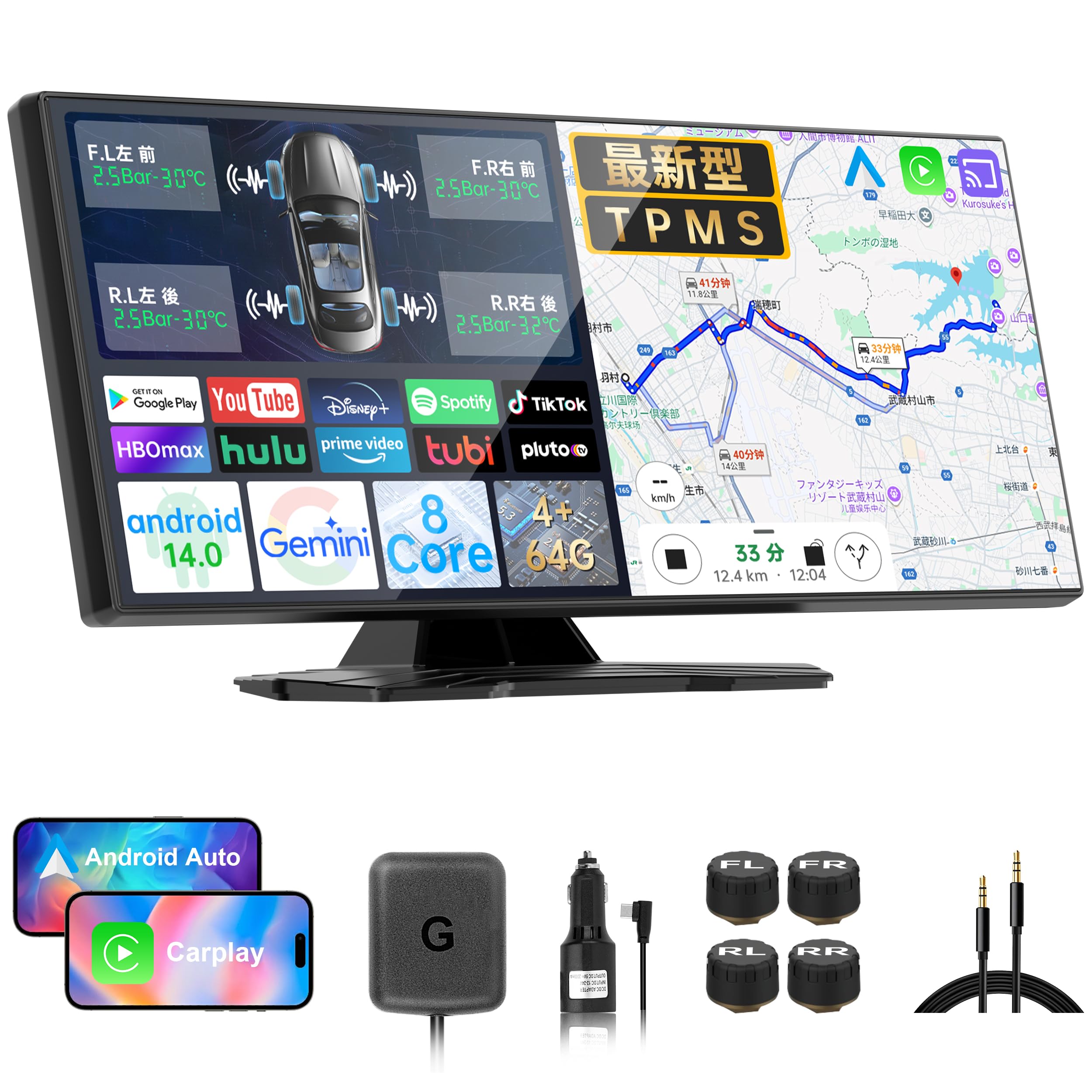
Image 1.1: The VANBAR CP04Pro 10.3-inch Display Audio System, showcasing its large screen and sleek design.
2. Safety Information
- Power Supply: Always use a 5A/3V charging adapter and a 3A overcurrent cable. Using an incorrect power supply may lead to insufficient power and activate ACC power protection, causing the device to malfunction.
- Installation: Ensure the device is securely mounted and does not obstruct the driver's view or interfere with vehicle controls. Professional installation is recommended if you are unsure.
- Operation While Driving: Avoid operating the touchscreen or watching videos that may distract you while driving. Use voice commands for essential functions.
- Temperature: Do not expose the device to extreme temperatures. Prolonged exposure to direct sunlight in a parked car may affect performance or damage the unit.
- Water Exposure: This device is not waterproof. Avoid exposure to water or other liquids.
3. Package Contents
Verify that all items are present in the package:
- VANBAR CP04Pro 10.3-inch Display Audio Unit
- Power Cable (with 5A/3V adapter and 3A overcurrent cable)
- Front Camera (integrated)
- Rear Camera
- TPMS Sensors (4 units)
- Mounting Bracket and Accessories
- User Manual
4. Product Overview
The VANBAR CP04Pro features a large 10.3-inch IPS display with 1920x720 pixel resolution, offering clear visuals from wide viewing angles. It runs on Android 14 with an 8-core CPU, 4GB RAM, and 64GB ROM for smooth operation and ample storage for apps.
Key Components:
- 10.3-inch Touchscreen: Main interface for all functions.
- Integrated Front Camera: Records forward view.
- Rear Camera Input: Connects to the included rear camera for reverse assistance and rear recording.
- TPMS Module: Receives data from tire pressure sensors.
- USB Ports: For data transfer and charging.
- MicroSD Card Slot: For dash cam recordings and media storage (MicroSD card sold separately).
- Microphone: For voice commands and hands-free calls.

Image 4.1: Overview of the 10.3-inch display, highlighting its Android 14 system, 8-core CPU, 4GB RAM, and 64GB ROM.
5. Setup
5.1 Mounting the Unit
- Choose a suitable location on your dashboard that does not obstruct your view or airbags.
- Attach the mounting bracket to the dashboard using the provided adhesive pad or screws.
- Secure the VANBAR CP04Pro unit to the mounting bracket. Adjust the angle for optimal visibility.

Image 5.1: Example of portable car navigation unit installation on a dashboard.
5.2 Power Connection
- Connect the provided power cable to the unit.
- Plug the other end of the power cable into your vehicle's 12V power outlet (cigarette lighter socket).
- Ensure you use the specified 5A/3V charging adapter and 3A overcurrent cable to prevent power issues.
5.3 Camera Installation
- The front camera is integrated into the main unit. Ensure its lens is clear and unobstructed.
- Install the rear camera at the back of your vehicle, typically above the license plate or on the rear window. Route the cable carefully to the main unit.
- Connect the rear camera cable to the designated input port on the main unit.

Image 5.2: Illustration of backup camera connection and display on the unit.
5.4 TPMS Sensor Installation
- Install the four TPMS sensors onto your vehicle's tire valves according to the instructions provided with the sensors.
- The system will automatically detect and display tire pressure and temperature once the vehicle is in motion.

Image 5.3: Display showing real-time tire pressure and temperature monitoring via the TPMS function.
6. Operating Instructions
6.1 Basic Operation
- Power On/Off: The unit powers on automatically with the vehicle's ignition. To manually power off, press and hold the power button.
- Touchscreen: Navigate the interface by tapping, swiping, and pinching on the 10.3-inch touchscreen.
- Volume Control: Adjust volume using the on-screen controls or physical buttons (if available).
6.2 Android 14 System
The device runs on an open Android 14 system, allowing you to download and install various applications from the Google Play Store.
- App Installation: Connect to Wi-Fi, open the Google Play Store, and download your desired apps (e.g., Netflix, YouTube, Spotify, navigation apps).
- Split Screen Function: Utilize the split-screen feature to run two applications simultaneously, such as navigation and a video player.

Image 6.1: The Android interface showing various apps and the split-screen functionality.
6.3 Wireless CarPlay / Android Auto
Connect your smartphone wirelessly to access navigation, music, calls, and messages through the unit's display.
- Ensure Bluetooth and Wi-Fi are enabled on your smartphone.
- On the CP04Pro, select the CarPlay or Android Auto icon.
- Follow the on-screen prompts to pair your phone.

Image 6.2: Display showing the wireless CarPlay and Android Auto interfaces, enabling seamless smartphone integration.
6.4 Dual Dash Camera (Front & Rear)
The integrated front camera and connected rear camera provide simultaneous 1080P recording, ensuring comprehensive coverage.
- Loop Recording: The system automatically records in continuous loops, overwriting the oldest files when the MicroSD card is full.
- Emergency Recording: Manually trigger emergency recording with a single button press to save critical footage.
- HDR/WDR: High Dynamic Range and Wide Dynamic Range functions ensure clear recordings in various lighting conditions, including tunnels and backlighting.

Image 6.3: The display showing simultaneous front and rear camera views, with 1080P resolution.
6.5 Google AI Assistant
The built-in Google AI Assistant allows for hands-free control using voice commands.
- Say "OK Google" or tap the microphone icon to activate the assistant.
- Use commands for music playback, navigation search, weather checks, and more.
6.6 Media Playback
Enjoy various media options:
- Streaming Apps: Access Netflix, YouTube, Spotify, Hulu, Disney+, etc., via Wi-Fi.
- Local Media: Play audio and video files from a MicroSD card or USB drive.
- FM Transmitter: Transmit audio to your car's FM radio for enhanced sound.
- Bluetooth: Connect to your phone for music streaming and hands-free calls.
7. Maintenance
- Cleaning: Use a soft, dry cloth to clean the screen and unit. Avoid abrasive cleaners or solvents.
- Software Updates: Periodically check for software updates via the system settings to ensure optimal performance and access to new features. Connect to Wi-Fi for updates.
- MicroSD Card: Format the MicroSD card regularly (e.g., monthly) to maintain recording efficiency and prevent data corruption.
8. Troubleshooting
| Problem | Possible Cause | Solution |
|---|---|---|
| Unit does not power on. | Insufficient power supply; loose connection. | Ensure the power cable is securely connected. Verify you are using a 5A/3V adapter and 3A cable. Check vehicle's 12V outlet. |
| Screen is unresponsive or frozen. | Software glitch; temporary error. | Perform a soft reset by pressing and holding the power button until the unit restarts. |
| CarPlay/Android Auto not connecting. | Bluetooth/Wi-Fi off; phone not paired; app issues. | Ensure Bluetooth and Wi-Fi are active on your phone. Re-pair the device. Update CarPlay/Android Auto apps on your phone. |
| Dash cam not recording. | No MicroSD card; card full; card error. | Insert a MicroSD card. Format the card. Replace the card if it's faulty. |
| TPMS not displaying tire pressure. | Sensors not installed; vehicle not in motion; sensor battery low. | Ensure sensors are correctly installed. Drive for a few minutes for sensors to activate. Check sensor batteries. |
9. Specifications
| Feature | Detail |
|---|---|
| Brand | VANBAR |
| Model | CP04Pro |
| Screen Size | 10.3 inches |
| Display Type | Touchscreen IPS |
| Resolution | 1920 x 720 pixels |
| Operating System | Android 14 |
| CPU | 8-core |
| RAM | 4GB |
| ROM | 64GB |
| Connectivity | Bluetooth 5.0, Wi-Fi |
| Features | Wireless CarPlay, Wireless Android Auto, TPMS, Front & Rear Dash Cam (1080P), Google AI Assistant, Split Screen, FM Transmitter |
| Mounting Type | Portable |
| Power Input | 5A/3V (recommended) |
| Dimensions | 31.2 x 14.7 x 9.9 cm |
| Weight | 1.2 kg |
10. Warranty & Support
The VANBAR CP04Pro is designed and manufactured to high-quality standards. This product has obtained technical conformity certification for wireless use in Japan, ensuring its legality and safety for domestic use.
- Warranty: Please refer to the warranty card included in your package for specific warranty terms and conditions.
- Technical Support: For technical assistance, troubleshooting, or inquiries, please contact VANBAR customer support through the retailer where you purchased the product or visit the official VANBAR website.
- Online Resources: Additional support and FAQs may be available on the VANBAR brand store page on Amazon.co.jp: VANBAR Store.