
1. Introduction
The Portronics RuffPad 16 Lite is a 16-inch multicolour LCD writing tablet designed for various creative and practical applications. It features a pressure-sensitive screen for a natural writing experience, an instant one-touch erase function, and a screen lock to prevent accidental clearing. This manual provides instructions for setup, operation, maintenance, and troubleshooting to ensure optimal use of your device.
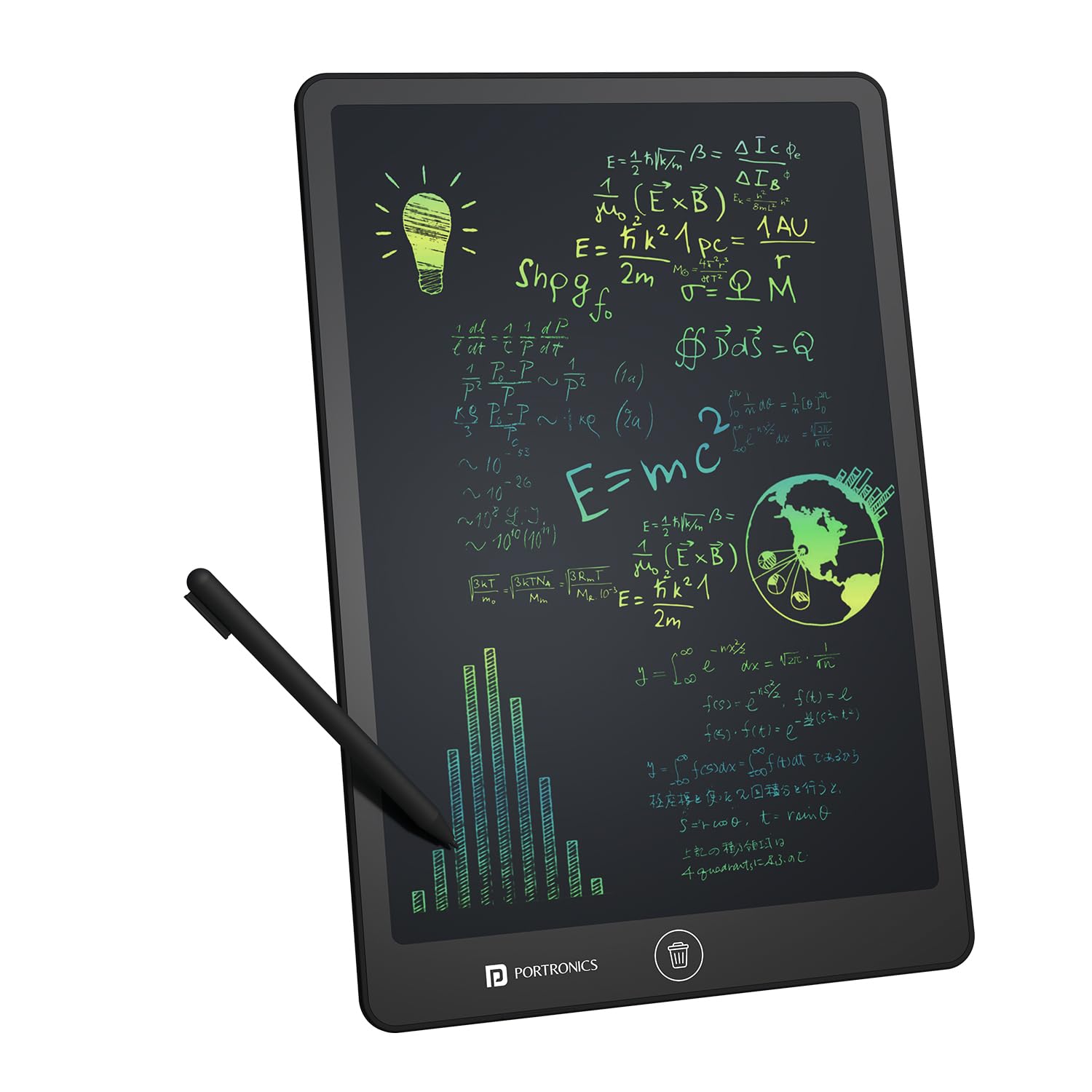
Image: The Portronics RuffPad 16 Lite, a 16-inch multicolour LCD writing pad.
2. Key Features
- Large 16-Inch Multicolour Display: Offers a spacious and vibrant LCD screen for writing, drawing, and note-taking.
- Pressure-Sensitive Screen: Adjusts line thickness based on writing pressure, mimicking a natural pen-on-paper feel.
- One-Touch Erase: Clears the entire screen instantly with a dedicated button.
- Screen Lock Switch: Prevents accidental erasure of content.
- Integrated Stylus Pen: Comes with a lightweight stylus that fits into a built-in holder.
- Ruffpad App Compatibility: Allows scanning and digital saving/sharing of creations (Android & iOS).
- Eco-Friendly Design: Reusable LCD surface reduces paper waste and operates with ultra-low power consumption.

Image: The 16-inch multicolour screen layers of the RuffPad 16 Lite.
3. Setup
- Unpack the Device: Carefully remove the RuffPad 16 Lite and its accessories from the packaging.
- Locate the Stylus: The stylus pen is typically stored in a dedicated slot on the side or top of the writing pad. Remove it for use.
- Initial Use: The device is ready for immediate use. No charging or power button is required for basic writing and erasing functions, as it uses a long-lasting button cell battery.

Image: The stylus pen and the one-tap erase button on the RuffPad 16 Lite.
4. Operating Instructions
4.1 Writing and Drawing
- Use the provided stylus pen to write or draw directly on the LCD screen.
- The screen is pressure-sensitive; applying more pressure will result in thicker lines, while lighter pressure creates thinner lines.

Image: The pressure-sensitive screen allows for varied line thickness based on stylus pressure.
4.2 Erasing Content
- To clear the entire screen, press the circular erase button located on the bottom center of the device.
- The screen will instantly refresh, ready for new content.
4.3 Using the Screen Lock
- To prevent accidental erasure of your notes or drawings, locate the screen lock switch on the side of the device.
- Slide the switch to the "locked" position (usually indicated by a closed padlock icon). This will disable the erase button.
- To enable erasing again, slide the switch back to the "unlocked" position.

Image: The screen lock switch, used to prevent accidental erasure.
4.4 Ruffpad App Integration
- Download the Ruffpad app from the Google Play Store (for Android) or the Apple App Store (for iOS).
- Use the app's scanning feature to capture your creations digitally. This allows you to save, organize, and share your notes and drawings.
- For more information and to download the app, scan the QR code below or visit the provided link.

Image: The Ruffpad app can be used to save and share your creations.
Scan for Ruffpad App: Ruffpad App Download
5. Maintenance
- Cleaning: Use a soft, dry, lint-free cloth to clean the screen and body of the device. Avoid using liquid cleaners or abrasive materials.
- Stylus Care: Always use the provided stylus or a similar non-abrasive tool. Do not use sharp objects, as they can damage the screen. Store the stylus in its designated slot when not in use.
- Storage: Store the RuffPad in a cool, dry place, away from direct sunlight and extreme temperatures.
- Battery Replacement: The RuffPad 16 Lite uses a button cell battery. If the erase function stops working, it may indicate a low battery. Consult the manufacturer's support for battery replacement instructions or service.
6. Troubleshooting
| Problem | Possible Cause | Solution |
|---|---|---|
| Screen does not erase. | Screen lock is engaged. Low battery. | Disengage the screen lock switch. Replace the button cell battery (consult support). |
| Writing is faint or not appearing. | Insufficient pressure applied. Screen damage. | Apply more pressure with the stylus. Ensure the screen is not damaged. Avoid using sharp objects. |
| Stylus not responding. | Using an incorrect tool. Stylus damage. | Only use the provided stylus or a similar non-abrasive plastic tip. Contact support if the stylus is damaged. |
| Accidental erasure of content. | Screen lock not engaged. | Always engage the screen lock switch when you want to preserve content. |
7. Specifications
- Brand: Portronics
- Model: RuffPad 16 Lite
- Display Size: 16-Inch
- Display Type: Multicolour LCD, Pressure-Sensitive
- Dimensions (L x W x Thickness): 35.7L x 23.8W x 1Th Centimeters
- Item Weight: 290 Grams
- Special Features: One-Tap Erase, Screen Lock, Includes Stylus Pen
- Country of Origin: China
8. Warranty and Support
Portronics offers personalized support for its products.
- Warranty: Up to 1 Year Warranty.
- Contact Support:
- Call/WhatsApp: +91 9555-245-245
- Email Support: help@portronics.com or visit https://support.portronics.com
- Operating Hours: 10 AM - 6 PM
- Service: Easy Pickup & Quick Exchange options may be available.

Image: Portronics customer care details for support and warranty.
