
Introduction
The MechLands Aula SC590 PRO is a versatile wireless gaming mouse designed for high performance and user convenience. It features triple-mode connectivity (2.4GHz wireless, Bluetooth, and USB-C wired), a multifunctional display screen for real-time metrics, an adjustable DPI up to 20,000, and a high-precision PAW3311 optical sensor. Its lightweight and ergonomic design ensures comfort during extended use, while durable micro-switches provide consistent click response. This manual provides detailed instructions for setting up, operating, and maintaining your SC590 PRO gaming mouse.

Figure 1: MechLands Aula SC590 PRO Wireless Gaming Mouse showcasing its features.
Package Contents
Verify that all items are present in the package:
- MechLands Aula SC590 PRO Wireless Gaming Mouse
- USB-C Charging Cable
- 2.4GHz USB Receiver Dongle
- User Manual

Figure 2: Included items: SC590 PRO mouse, USB-C cable, 2.4GHz receiver, and user manual.
Product Overview
Familiarize yourself with the various components and buttons of your SC590 PRO gaming mouse.

Figure 3: Multi-functional buttons and components of the SC590 PRO mouse.
- Left/Right Buttons: Standard mouse click functions.
- Scroll Wheel: For vertical scrolling and middle-click function.
- LED Display: Shows real-time information such as DPI, connection mode, and battery level.
- Forward/Backward Buttons: Side buttons for navigation.
- On/Off (Lighting Mode) Switch: Located on the bottom, controls power and RGB lighting.
- Mode Switch/BT Pair Key: Located on the bottom, switches connectivity modes and initiates Bluetooth pairing.
- Receiver Slot: Storage for the 2.4GHz USB receiver.

Figure 4: Key internal and external features including dimensions, sensor, and switches.
Setup
Charging the Mouse
The SC590 PRO is equipped with a 500mAh rechargeable battery. To charge, connect the provided USB-C cable to the Type-C port on the front of the mouse and to a USB power source (e.g., computer USB port, wall adapter). The display screen will indicate the charging status and battery percentage.

Figure 5: Type-C charging port location.
Connectivity Modes
The mouse supports three connection modes: 2.4GHz Wireless, Bluetooth, and USB-C Wired.

Figure 6: The three versatile connectivity options.
2.4GHz Wireless Mode
- Locate the 2.4GHz USB receiver dongle stored in the slot on the bottom of the mouse.
- Plug the USB receiver into an available USB port on your computer.
- Set the switch on the bottom of the mouse to the 2.4G wireless mode. The display screen will show the 2.4G connection status.

Figure 7: 2.4GHz USB receiver slot.
Bluetooth Mode
- Set the switch on the bottom of the mouse to Bluetooth mode.
- Press and hold the Mode Switch/BT Pair Key on the bottom of the mouse until the display indicates pairing mode.
- On your device (computer, smartphone, tablet), go to Bluetooth settings and search for "SC590 PRO" to pair.
USB-C Wired Mode
- Connect the USB-C cable to the mouse and to your computer.
- The mouse will automatically switch to wired mode. This mode also charges the mouse.
Operating Instructions
DPI Adjustment
The SC590 PRO features adjustable DPI settings up to 20,000. You can cycle through six preset DPI levels using the dedicated DPI button, typically located near the scroll wheel. The current DPI setting is shown on the display screen.

Figure 8: Display screen showing DPI and connection status.
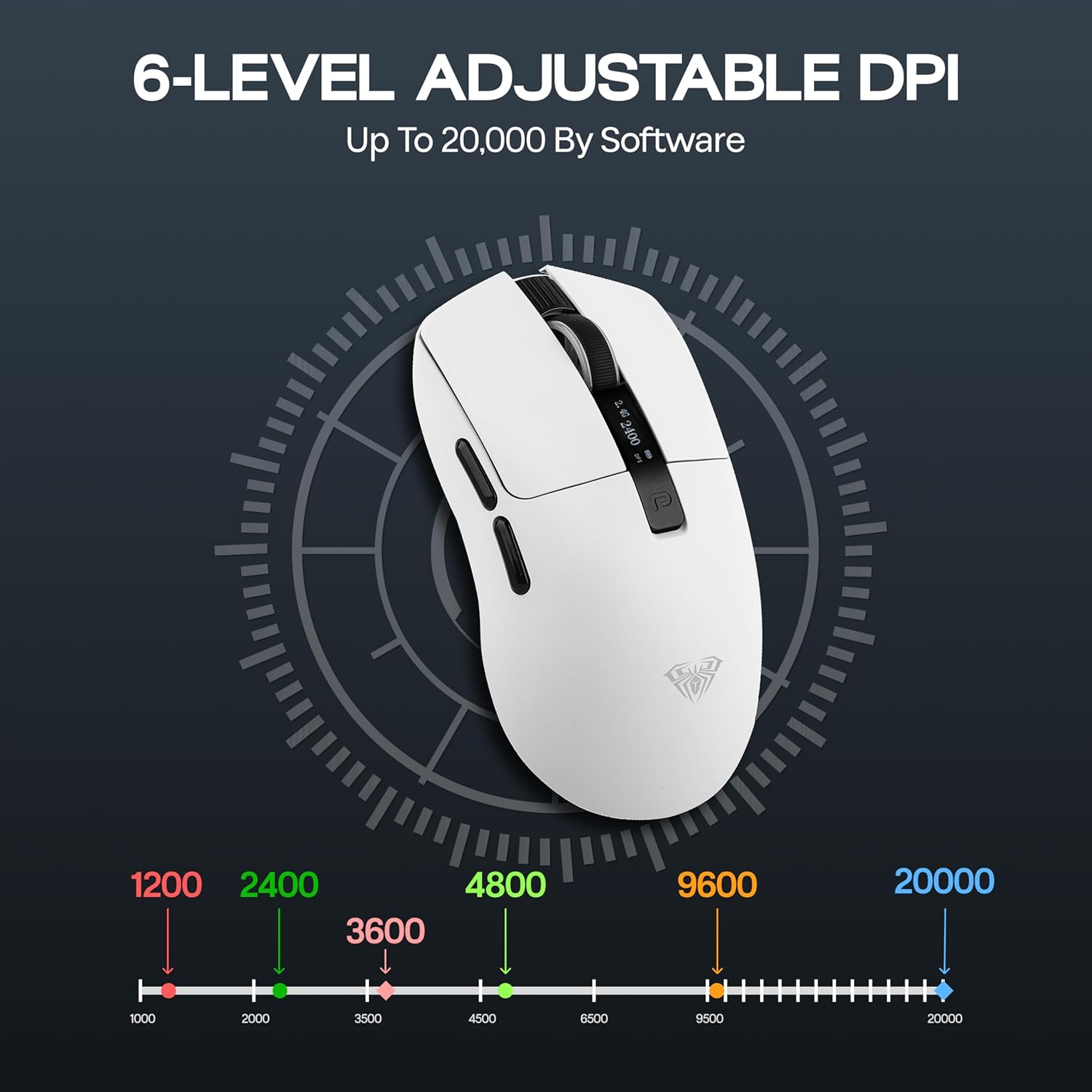
Figure 9: Visual representation of adjustable DPI levels.
Polling Rate
The mouse operates at a 1000Hz polling rate in 2.4GHz wireless and USB-C wired modes, ensuring responsive cursor movement. In Bluetooth mode, the polling rate is 125Hz.
Programmable Software
For advanced customization, download the official MechLands software. This software allows you to:
- Create and assign macros to mouse buttons.
- Fine-tune DPI speed settings.
- Adjust polling rate.
- Customize button functions.

Figure 10: Programmable software interface for customization.
Maintenance
To ensure the longevity and optimal performance of your MechLands Aula SC590 PRO gaming mouse, follow these maintenance guidelines:
- Cleaning: Use a soft, dry cloth to wipe the mouse surface. For stubborn dirt, slightly dampen the cloth with water or a mild cleaning solution. Avoid harsh chemicals or abrasive materials.
- Sensor Care: Keep the optical sensor on the bottom of the mouse clean and free from dust or debris to ensure accurate tracking.
- Storage: When not in use for extended periods, store the mouse in a dry, cool place away from direct sunlight and extreme temperatures.
- Battery: Avoid fully discharging the battery frequently. Charge the mouse when the battery level is low to prolong battery life.
Troubleshooting
If you encounter issues with your SC590 PRO mouse, refer to the following common problems and solutions:
| Problem | Possible Solution |
|---|---|
| Mouse not responding |
|
| Cursor movement is erratic or jumpy |
|
| Bluetooth pairing fails |
|
| Display screen is off or not updating |
|
Specifications
| Feature | Detail |
|---|---|
| Brand | MechLands |
| Model | SC590 PRO |
| Connectivity Technology | 2.4GHz Wireless, Bluetooth, USB-C Wired |
| Movement Detection Technology | Optical (PAW3311 Sensor) |
| DPI (Dots Per Inch) | Adjustable up to 20,000 |
| Polling Rate | 1000Hz (2.4GHz/USB-C), 125Hz (Bluetooth) |
| Battery Capacity | 500mAh |
| Buttons | 6 (Left, Right, Scroll, Forward, Backward, DPI) |
| Hand Orientation | Right |
| Compatible Devices | Personal Computer, Smartphone, Tablet |
| Operating System | Android, Mac OS, Windows |
| Item Weight | 0.18 Kilograms (64 grams) |
| Enclosure Material | Plastic |
Warranty and Support
Warranty Information
The MechLands Aula SC590 PRO Gaming Mouse comes with a 1-year warranty from the date of purchase. This warranty covers manufacturing defects and ensures the product is free from defects in material and workmanship under normal use. Please retain your proof of purchase for warranty claims.
Customer Support
For technical assistance, troubleshooting, or warranty inquiries, please contact MechLands US customer support. Refer to the official MechLands website or your purchase documentation for the most current contact information.