
1. Setup
1.1 Unboxing and Initial Inspection
Carefully unpack all components from the box. Ensure all items listed below are present and undamaged. Retain packaging for future transport or storage.
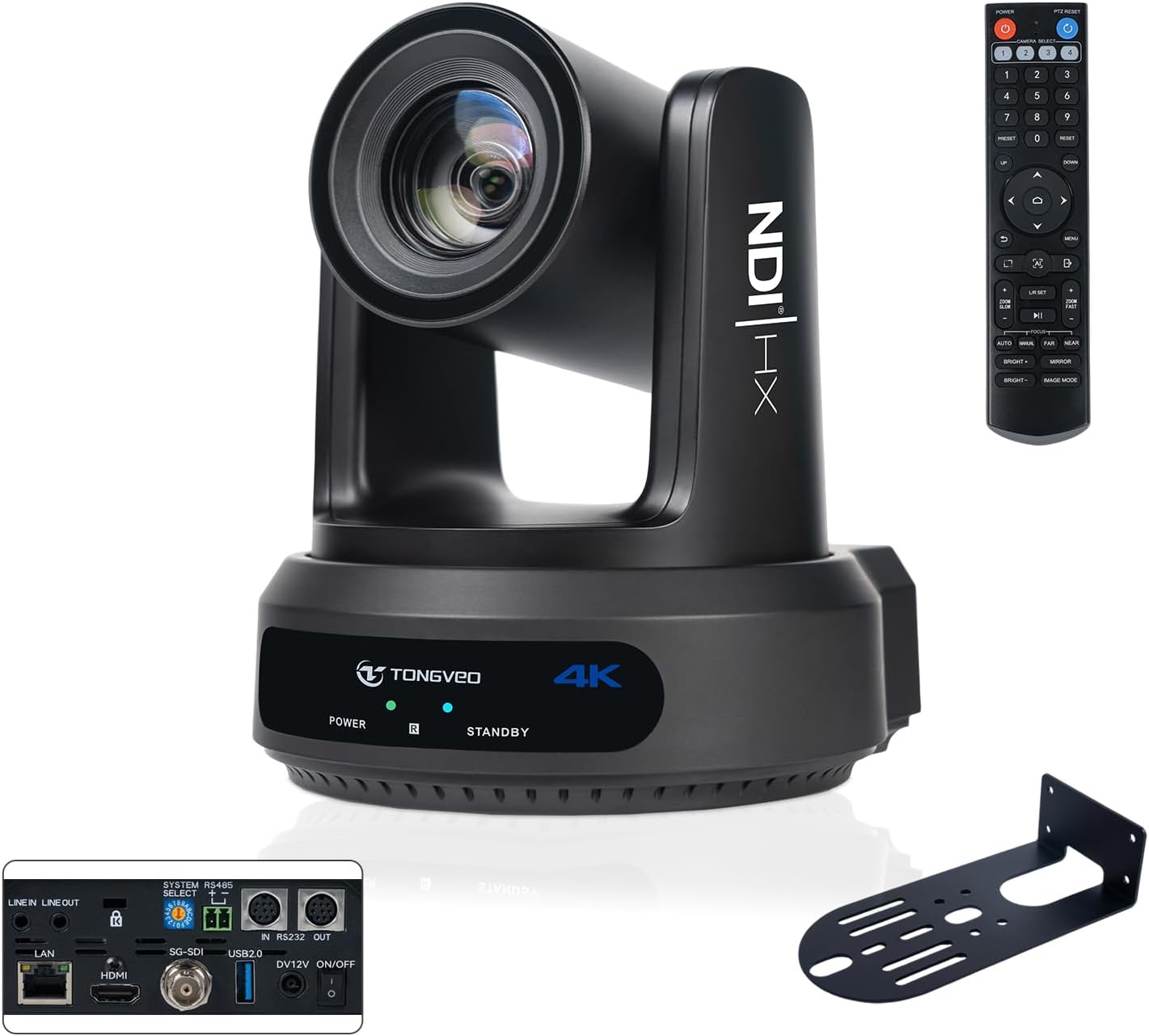
Image: The TONGVEO 4K NDI PTZ Camera and its included accessories, such as cables, remote control, and mounting bracket, are neatly arranged on a white background.
Included Components:
- 1 x TONGVEO 4K NDI PTZ Camera
- 1 x IR Remote Control
- 1 x 9.8ft USB 3.0 Cable
- 1 x DC 12V/2A Power Adapter
- 1 x Wall Bracket with Screws
- 1 x User Manual
Unboxing Video:
Video: This video provides a detailed unboxing experience of the PTZ camera, showcasing all included components and explaining their initial setup and connection ports.
1.2 Physical Installation
The camera can be installed on a desk, wall, monitor, tripod, or ceiling. Use the provided wall bracket and screws for secure wall or ceiling mounting. Ensure the camera is placed in a location that provides optimal viewing angles and is free from obstructions.

Image: A TONGVEO 4K NDI PTZ Camera is shown securely mounted on a wall using its dedicated bracket, demonstrating a typical installation scenario.
1.3 Connectivity Overview
The TV-NV620A-4K60P camera offers multiple output options for versatile integration into various setups:
- HDMI 2.0: For direct connection to displays or video switchers, supporting 4K@60fps.
- USB 3.0: For direct connection to a computer for video capture and control.
- 3G-SDI: For professional long-distance video transmission.
- LAN (RJ45): Supports NDI|HX2 for low-latency IP streaming, control, and Power over Ethernet (PoE).
- RS232/RS485: For PTZ control via external controllers.
- DC 12V: Power input (PoE can also power the device via LAN).

Image: A close-up view of the camera's rear panel, highlighting the DC 12V power input, RS485, RS232, USB-C, HDMI, and RJ45 (LAN/PoE) ports.
USB Connection Video:
Video: This video demonstrates how to connect the PTZ camera to a laptop via a USB cable, illustrating the physical connection process.
2. Operating
2.1 Basic Camera Controls
The camera can be controlled using the included IR remote control, a network interface (via LAN port), or serial port (RS485, RS232). The remote control allows for easy adjustment of pan, tilt, zoom, and access to preset positions.

Image: The remote control for the TONGVEO PTZ Camera is displayed, showing various buttons for controlling camera movement, zoom, focus, and activating AI tracking modes.
- Pan/Tilt: Use the directional arrows to move the camera horizontally and vertically.
- Zoom: Adjust optical and digital zoom levels using the dedicated zoom buttons. The 20x optical zoom ensures no resolution loss.
- Presets: Store and recall up to 255 preset positions (10 via remote control) for quick scene changes.
- Focus: Adjust focus manually or use auto-focus.
Optical Zoom Demonstration:
Video: This video demonstrates the camera's optical zoom capabilities, highlighting how it maintains image resolution even when zooming in significantly.
2.2 AI Auto-Tracking Features
The camera integrates advanced AI algorithms for intelligent tracking, offering three primary modes:
- Presenter Tracking Mode: The camera automatically follows a designated presenter, keeping them centered in the frame.
- Zone Tracking Mode: (Web browser only) Define specific zones for tracking, ensuring steady capture within those areas, ideal for whiteboards or multiple displays.
- Auto Framing: Automatically adjusts the frame to include all participants in the view, suitable for group discussions.

Image: A TONGVEO PTZ Camera is shown actively tracking a presenter in a conference setting, demonstrating its Presenter Tracking Mode.

Image: The camera's Zone Tracking Mode is illustrated, showing how it can capture content across multiple displays by defining dedicated content zones.

Image: The Auto Framing tracking mode is depicted, showing the camera intelligently adjusting its view to include all individuals in a multi-person meeting.
Activate AI tracking by pressing the 'AI' button on the remote or through the web interface. The web page allows for fine-tuning of settings such as close-up image proportions, tracking activation, tracking zone configuration, and display position of the tracking target.
2.3 Video Output and Streaming
The camera supports real-time 4K Ultra HD video streaming at 60fps via NDI|HX2 protocol, ensuring low latency and high-quality transmission over a single Ethernet cable. It also supports H.264/H.265 encoding.

Image: A TONGVEO 4K NDI PTZ Camera is featured with graphics emphasizing its NDI|HX2 compatibility and 4K 60FPS video output for high-quality streaming.
The camera is compatible with popular video conferencing and streaming software such as Zoom, Microsoft Teams, vMix, OBS, Skype, and GoToMeeting.
3. Maintenance
- Cleaning: Use a soft, dry cloth to clean the camera body. For the lens, use a lens cleaning cloth and specialized lens cleaning solution. Avoid abrasive cleaners or solvents.
- Firmware Updates: Periodically check the TONGVEO official website for firmware updates to ensure optimal performance and access to new features. Follow the instructions provided with the firmware update carefully.
- Environmental Conditions: Operate and store the camera within recommended temperature and humidity ranges to prevent damage. Avoid exposing the camera to extreme temperatures, direct sunlight, or moisture.
4. Troubleshooting
- No Video Output:
- Check all cable connections (HDMI, USB, SDI, LAN) to ensure they are secure.
- Verify the power supply is connected and the camera is powered on.
- Ensure the correct input source is selected on your display or video switcher.
- No PTZ Control:
- Confirm the remote control batteries are functional.
- For network control, ensure the camera has a valid IP address and is accessible on the network.
- For serial control, check RS232/RS485 cable connections and protocol settings.
- Poor Image Quality:
- Clean the camera lens.
- Adjust lighting conditions in the environment.
- Check camera settings (exposure, white balance, focus) via the remote or web interface.
For more detailed troubleshooting steps, please refer to the comprehensive user manual included with your product or visit the TONGVEO support website.
5. Specifications
| Feature | Specification |
|---|---|
| Brand | TONGVEO |
| Model Number | TV-NV620A-4K60P |
| Photo Sensor Technology | CMOS (1/1.8" 8.42MP) |
| Video Capture Resolution | 4K (3840x2160) at 60fps |
| Optical Zoom | 20x |
| Digital Zoom | 16x |
| Maximum Focal Length | 132.6 Millimeters |
| Outputs | HDMI, LAN (NDI|HX2, PoE), 3G-SDI, USB |
| Control Protocols | 232/422/485/UVC, Network Protocols (IP) |
| Pan/Tilt Movement | Horizontal: -170°~ +170°, Tilt: -30°~ +90° |
| Item Weight | 6.53 pounds |
| Package Dimensions | 11.41 x 8.66 x 7.87 inches |
6. Warranty and Support
The TONGVEO 4K NDI PTZ Camera comes with a 3-year manufacturer warranty. TONGVEO also provides lifetime technical support for this product.
If you have any questions, require assistance, or need to claim warranty service, please do not hesitate to contact TONGVEO customer support. You can find contact information in your user manual or by visiting the official TONGVEO store on Amazon: TONGVEO Store.


