
1. Overview
The Goshyda Multifunction Programmable Rotary Button Controller is a versatile input device designed to enhance productivity across various applications. It features a customizable rotary knob and button, offering multiple connectivity options for seamless integration with different operating systems and devices. This controller is ideal for multimedia control, presentations, video editing, and other tasks requiring precise and efficient input.

The Goshyda controller connected to a laptop, illustrating its compact and portable design. It supports various functions including multimedia control and page turning.
2. Product Features
- Efficiency Booster: Designed to simplify repetitive tasks in video editing, software navigation, and multimedia control, significantly improving workflow efficiency.
- Durable Construction: Made from a combination of aluminum alloy and ABS materials, ensuring longevity and reliability for extended daily use.
- Long-lasting Battery: Equipped with a built-in 400 mAh rechargeable Li battery, supporting prolonged operation via USB-C charging across all three connection modes.
- Extended Multi-platform Compatibility: Compatible with major operating systems including Wins, OS X, and Android. Features built-in memory to store custom key mappings and complex shortcut combinations.
- Seamless 3-in-1 Connectivity: Offers flexible connection options: Bluetooth, 2.4 GHz wireless mode, and USB-C wired mode. USB-C provides plug-and-play functionality without requiring drivers.
- Fully Customizable Functions: The multifunction button can be programmed for a wide range of actions via 360° rotation, including media playback control, screen brightness adjustment, volume control, web page navigation, video editing commands, and e-book page turning.
- RGB Lighting: Integrated RGB lighting allows for easy identification and personalization of the controller.

The controller features customizable RGB lighting, shown here in different colors.
3. Package Contents
Please check the package carefully to ensure all items are present and in good condition.
- 1 x Goshyda Multifunction Programmable Rotary Button Controller
- 1 x USB-C Data Cable

The Goshyda controller shown alongside its USB-C data cable, as included in the package.
4. Product Diagram
Familiarize yourself with the components of your Goshyda controller:
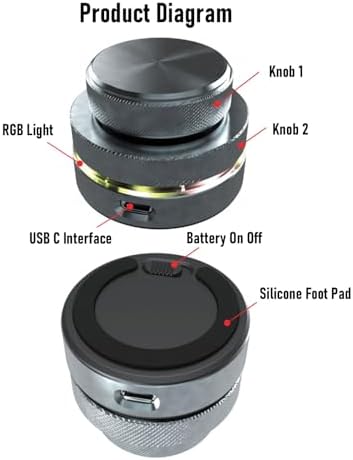
Detailed product diagram highlighting key components such as Knob 1, Knob 2, RGB Light, USB C Interface, Battery On/Off switch, and Silicone Foot Pad.
- Knob 1: Upper rotary knob, typically used for fine adjustments or specific functions.
- Knob 2: Lower rotary knob, often used for broader adjustments or different functions.
- RGB Light: Customizable LED lighting for visual feedback and personalization.
- USB C Interface: Port for wired connection and charging.
- Battery On/Off: Switch to power the device on or off.
- Silicone Foot Pad: Provides stability and prevents slipping during use.
5. Specifications
| Feature | Description |
|---|---|
| Model Number | Goshydauvipe13ng9 |
| Material | ABS, Aluminum Alloy |
| Connectivity Modes | 2.4G Wireless, Bluetooth (BT), USB-C Wired |
| Supported Systems | Wins, Android, OS X |
| Button Diameter | Approx. 55 mm / 2.2 inches |
| Button Height | Approx. 40 mm / 1.6 inches |
| Battery | 1 x 400 mAh Li Battery (Built-in) |
| Manufacturer | Goshyda |
| Country of Origin | China |

Dimensions of the Goshyda controller, showing its diameter and height.
6. Setup
6.1 Charging the Device
Before initial use, ensure the controller is fully charged. Connect the provided USB-C data cable to the USB-C interface on the controller and the other end to a power source (e.g., computer USB port, USB wall adapter).
- The RGB light may indicate charging status (refer to specific light patterns in the operating section if available).
- A full charge typically takes a few hours.
6.2 Powering On/Off
Locate the Battery On/Off switch on the device (refer to the Product Diagram). Slide the switch to the 'On' position to power on the controller. Slide it to the 'Off' position to power it off when not in use to conserve battery.
6.3 Connecting the Device
The controller supports three connection modes:
- USB-C Wired Connection:
- Connect the USB-C data cable from the controller to a USB port on your computer.
- The device is plug-and-play and typically requires no driver installation.
- 2.4 GHz Wireless Connection:
- Insert the 2.4G wireless receiver (if included, typically a small USB dongle) into a USB port on your computer.
- Ensure the controller is powered on. The device should automatically pair with the receiver.
- Bluetooth Connection:
- Ensure the controller is powered on and in Bluetooth pairing mode (refer to specific instructions for entering pairing mode, usually indicated by a blinking RGB light).
- On your device (computer, tablet, phone), go to Bluetooth settings and search for new devices.
- Select the Goshyda controller from the list of available devices to pair.
7. Operating Instructions
7.1 Customizing Functions
The Goshyda controller is highly customizable. Specific software or a web interface is typically used to program the functions of Knob 1, Knob 2, and their press actions. Please refer to the manufacturer's official website or included software for detailed customization instructions.
- Rotary Actions: Both knobs can be programmed for 360° rotation, allowing for actions like volume control, scrolling, zooming, or timeline navigation in editing software.
- Press Actions: Each knob can also be pressed down to trigger specific commands, such as play/pause, mute, or opening applications.
- RGB Lighting: The RGB lighting can often be customized for color, brightness, and effects to match your preferences or indicate different modes.
7.2 Common Applications
The controller can be configured for various tasks:
- Multimedia Control: Adjust volume, skip tracks, play/pause, mute.
- Presentation Control: Navigate slides, adjust screen brightness.
- Video Editing: Scrub through timelines, adjust parameters, zoom in/out.
- Web Browsing: Scroll pages, navigate tabs.
- E-book Reading: Turn pages.
8. Maintenance
To ensure the longevity and optimal performance of your Goshyda controller, follow these maintenance guidelines:
- Cleaning: Use a soft, dry cloth to wipe the surface of the device. For stubborn dirt, a slightly damp cloth can be used, but ensure no moisture enters the ports or crevices. Avoid harsh chemicals or abrasive cleaners.
- Storage: Store the controller in a cool, dry place away from direct sunlight, extreme temperatures, and high humidity.
- Handling: Avoid dropping the device or subjecting it to strong impacts, as this can damage internal components.
- Charging: Use only the provided USB-C cable or a certified equivalent for charging. Do not overcharge the battery.
9. Troubleshooting
If you encounter issues with your Goshyda controller, please refer to the following common solutions:
- Device not responding:
- Ensure the device is powered on (check the Battery On/Off switch).
- Check battery level and charge the device if necessary.
- For wireless connections, ensure the receiver is properly inserted or Bluetooth is paired. Try re-pairing.
- For wired connection, ensure the USB-C cable is securely connected to both the controller and the computer. Try a different USB port or cable.
- Functions not working as expected:
- Verify that the correct software or application is active and in focus.
- Check your custom key mappings in the configuration software to ensure they are set correctly.
- Restart the controller and your connected device.
- Intermittent connection:
- Ensure there are no strong interference sources (e.g., other wireless devices, large metal objects) near the controller or receiver.
- Move the controller closer to the connected device or receiver.
- Update Bluetooth drivers on your computer if using Bluetooth connection.
If the problem persists after trying these steps, please contact customer support.
10. Warranty and Support
10.1 Manufacturer's Warranty
The Goshyda Multifunction Programmable Rotary Button Controller comes with a 2-year manufacturer warranty. This warranty covers defects in materials and workmanship under normal use. It does not cover damage caused by misuse, accidents, unauthorized modifications, or normal wear and tear.
Please retain your proof of purchase for warranty claims.
10.2 Customer Support
For technical assistance, troubleshooting, or warranty inquiries, please contact Goshyda customer support through the retailer where you purchased the product or visit the official Goshyda website for contact information.