
1. Introduction
Thank you for choosing the Omikamo Ergonomic Foldable Bluetooth Keyboard. This portable keyboard is designed for comfort and versatility, featuring a unique V-shape with a 166-degree angle and split keyset to promote a natural typing position and reduce wrist strain. It supports multi-device connectivity and is ideal for business and travel. This manual provides detailed instructions for setup, operation, and maintenance.
2. What's in the Box
- Ergonomic Folding Keyboard (x1)
- Phone Stand (x1)
- User Manual (x1)
- Type-C Charging Cable (x1)
- 2.4G USB Receiver (x1)
3. Setup
3.1 Initial Charging
Before first use, fully charge the keyboard using the provided Type-C charging cable. Connect the cable to the keyboard's Type-C port and a power source. The portable keyboard is equipped with a 210mAh lithium battery, offering a standby time of up to 70 hours.

Image: Keyboard connected for charging, illustrating the Type-C port and battery indicator lights.
3.2 Power On/Off
To power on the keyboard, unfold it. To power off, fold the keyboard. Ensure the metal latches secure the keyboard in the open position for stable use.
Video: Demonstrates unfolding the keyboard, securing it with metal latches, and powering it on. Also shows using the keyboard on a lap.
3.3 Connecting to Devices (2.4G USB Wireless & Bluetooth)
The keyboard supports connection to up to three devices via 2.4G USB Wireless and two Bluetooth channels (BT1, BT2).
3.3.1 2.4G USB Wireless Connection
- Insert the 2.4G USB receiver into an available USB port on your computer or device.
- Turn on the keyboard.
- Press Fn + D to switch to the 2.4G channel. The indicator light will show activity.
- The keyboard should automatically connect.
3.3.2 Bluetooth Connection (BT1 / BT2)
- Ensure Bluetooth is enabled on your device (e.g., iPad, smartphone, tablet, laptop).
- Turn on the keyboard.
- Press Fn + A for Bluetooth channel 1 (BT1) or Fn + S for Bluetooth channel 2 (BT2). The corresponding indicator light will flash.
- Press Fn + C to enter pairing mode. The indicator light will flash rapidly.
- On your device, search for Bluetooth devices and select "Omikamo Keyboard" (or similar) to pair.
- Once paired, the indicator light will stop flashing and remain solid for a few seconds before turning off.
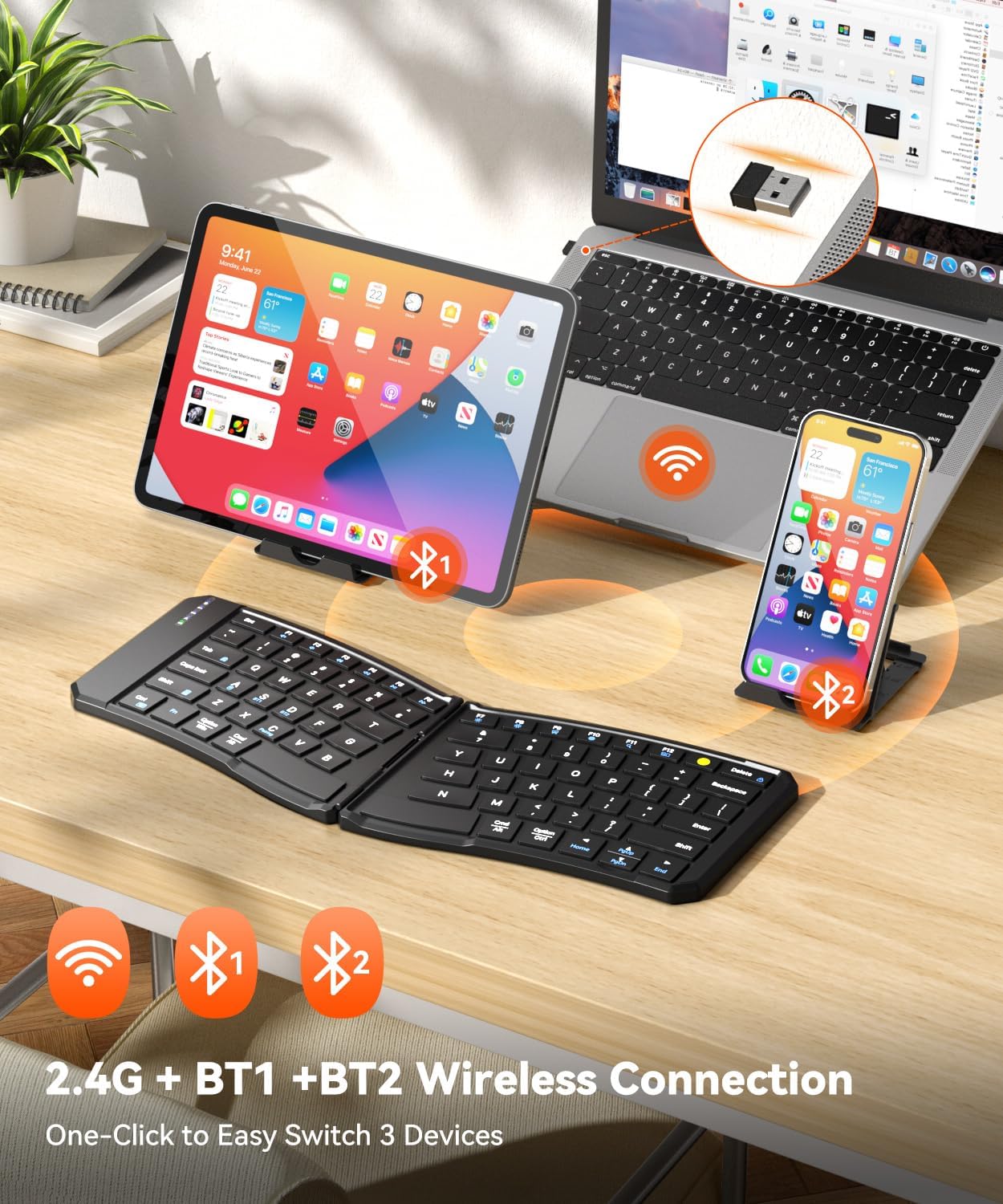
Image: The keyboard connected simultaneously to a tablet (Bluetooth), laptop (2.4G), and smartphone (Bluetooth).
4. Operating Instructions
4.1 Ergonomic Design and Typing Comfort
The keyboard features an ergonomic V-shape with a 166-degree angle and a split keyset design. This design helps maintain a natural typing posture, minimizing pressure on your hands and wrists during extended use. The full-sized keys with 1.5cm spacing and X-shaped scissor-switch keys provide a quiet and precise typing experience with good rebound feedback.

Image: Illustrates the ergonomic design with hands positioned comfortably on the keyboard, contrasting with a traditional keyboard.
4.2 Switching Between Connected Devices
To switch between your connected devices, use the following key combinations:
- Press Fn + A to switch to Bluetooth Channel 1 (BT1).
- Press Fn + S to switch to Bluetooth Channel 2 (BT2).
- Press Fn + D to switch to 2.4G USB Wireless Channel.
4.3 Shortcut Keys and Functions
The keyboard includes several one-click shortcut keys for enhanced productivity:
- Fn + Caps: Lock/unlock the Fn key for direct access to F1-F12 functions or multimedia controls.
- Fn + Shift: Check battery capacity (Red lights flash 4/3/2/1 times to show 100%~75%~50%~25%~0% capacity).
- F9: Screenshot
- F10: Switch Language
- F11: Multi-Window
- F12: Emoji
- Delete: Lock Screen
- Other function keys (F1-F8) control media playback, volume, and brightness.

Image: Detailed view of the function keys and their associated shortcuts.
4.4 Using the Keyboard on Your Lap
The keyboard is designed with a metal support wire on the back, which securely regularizes the keyboard to keep it in an open state. This allows for a stable typing experience even on uneven surfaces like your knees, balancing portability and usability.
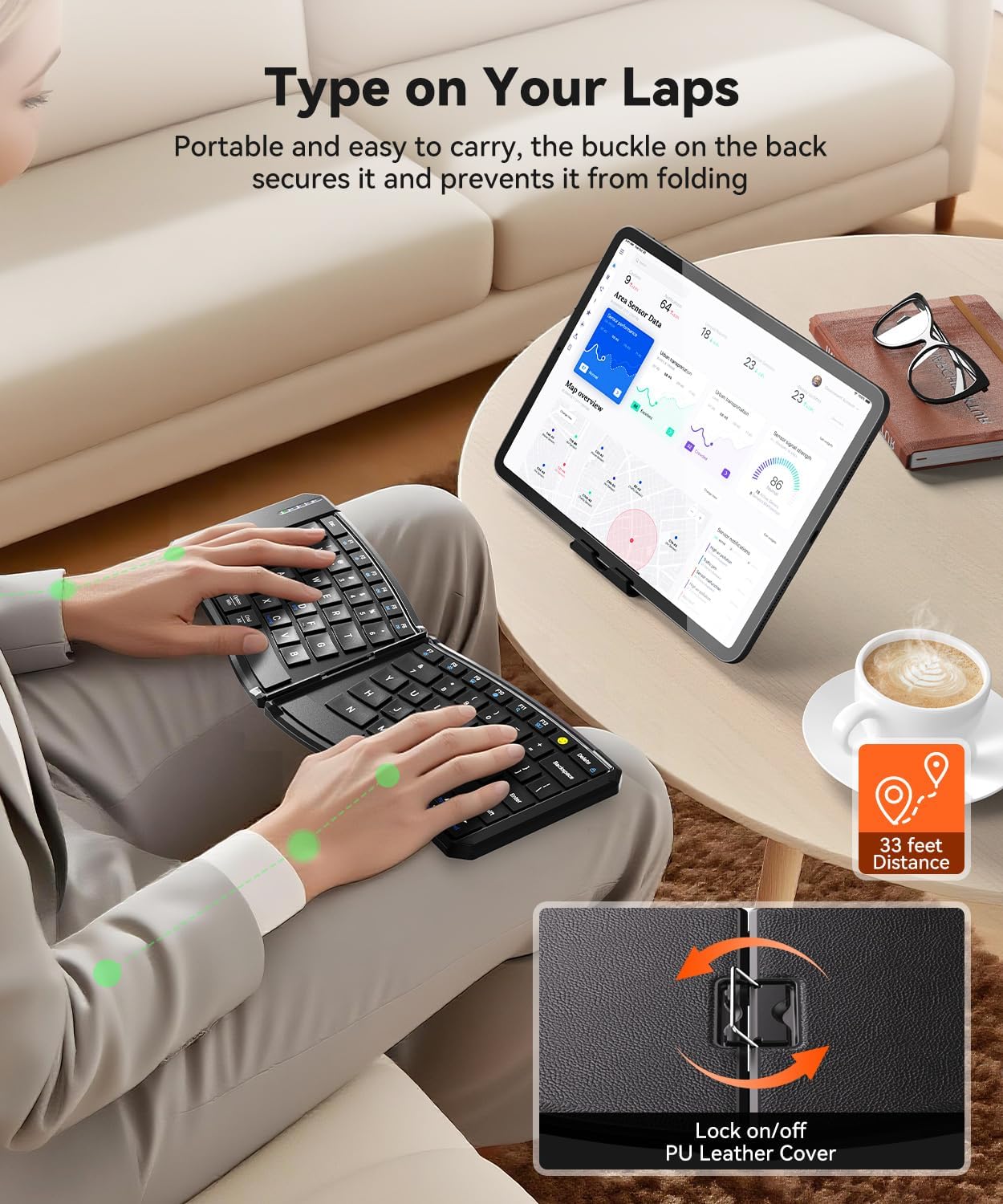
Image: Demonstrates the keyboard being used comfortably on a person's lap.
4.5 Automatic Sleep Mode
To conserve power, the keyboard automatically enters sleep mode after 10 minutes of inactivity. To wake it up, simply press any key.
5. Maintenance
To ensure the longevity and optimal performance of your keyboard, follow these maintenance guidelines:
- Cleaning: Use a soft, dry cloth to wipe the keyboard surface. For stubborn dirt, slightly dampen the cloth with water or a mild cleaning solution. Avoid harsh chemicals or abrasive materials.
- Storage: When not in use, fold the keyboard to protect the keys and internal components. Store it in a cool, dry place away from direct sunlight and extreme temperatures.
- Handling: Avoid dropping the keyboard or exposing it to excessive force, which could damage the internal mechanisms or the folding hinge.
- Liquid Exposure: Keep the keyboard away from liquids. In case of accidental spills, immediately power off the keyboard, disconnect it from any devices, and allow it to dry completely before attempting to use it again.
6. Troubleshooting
If you encounter issues with your Omikamo keyboard, please refer to the following common solutions:
- Keyboard not connecting:
- Ensure the keyboard is powered on and fully charged.
- Verify that the correct connection channel (2.4G, BT1, or BT2) is selected using Fn + A/S/D.
- For Bluetooth, ensure your device's Bluetooth is enabled and the keyboard is in pairing mode (Fn + C).
- Try restarting both the keyboard and your device.
- Keys not responding:
- Check the battery level (Fn + Shift) and recharge if necessary.
- Ensure the keyboard is properly connected to your device.
- Clean around the keys to remove any debris that might be obstructing them.
- Intermittent connection:
- Ensure the keyboard is within the wireless range (up to 33 feet).
- Minimize interference from other wireless devices.
- Reconnect the keyboard to your device.
7. Specifications
| Brand | Omikamo |
| Model Number | B0G1XHYSKW |
| Connectivity Technology | 2.4G USB Wireless, Bluetooth |
| Compatible Devices | Laptop, PC, Smartphone, Tablet |
| Operating Systems | Windows, macOS, iOS, Android, iPadOS |
| Special Features | Ergonomic, Foldable, Hotkeys and Media Keys, Portable, Quiet |
| Material | PU leather |
| Power Source | Battery Powered (210mAh Lithium Battery) |
| Keyboard Layout | QWERTY |
| Number of Keys | 80 |
| Folded Dimensions | 7.09 x 5.7 x 0.72 inches (approx. 18.1 x 14.4 x 1.8 cm) |
| Open Dimensions | 10.12 x 5.7 x 0.36 inches (approx. 25.7 x 14.4 x 0.9 cm) |
| Weight | 0.55 lb (approx. 250g) |

Image: Visual representation of the keyboard's dimensions when folded and unfolded.
8. Warranty and Support
8.1 Warranty Information
This Omikamo keyboard comes with a 1 Year Manufacturer Warranty from the date of purchase. This warranty covers manufacturing defects under normal use. It does not cover damage caused by misuse, accidents, unauthorized modifications, or normal wear and tear.
8.2 Customer Support
For any questions, technical support, or warranty claims, please contact Omikamo customer service. You can find more information and contact details by visiting the official Omikamo Store on Amazon: Omikamo Store.