
1. Introduction
This manual provides essential information for setting up, operating, maintaining, and troubleshooting your HP Envy 6155e Wireless All-in-One Printer. Please read these instructions carefully to ensure proper use and optimal performance of your device.
Product Overview
The HP Envy 6155e is a versatile all-in-one inkjet printer designed for home use, offering print, scan, and copy functionalities. It features wireless connectivity, automatic two-sided printing, and a color touchscreen for easy navigation.

Image 1.1: Front view of the HP Envy 6155e All-in-One Printer.
What's in the Box
- HP Envy 6155e All-in-One Printer
- HP 68 Setup Black Cartridge
- HP 68 Setup Tri-Color Cartridge
- Regulatory flyer
- Setup guide
- Reference guide
- Power cord
2. Setup
Unpacking the Printer
- Remove the printer from its packaging.
- Remove all packing materials, tapes, and protective films from the exterior of the printer.
- Open the ink cartridge access door and remove any internal packing materials.
Connecting Power
- Connect the power cord to the back of the printer.
- Plug the other end of the power cord into a grounded electrical outlet.
- Press the Power button to turn on the printer.
Installing Ink Cartridges
- Open the ink cartridge access door. The carriage will move to the center.
- Wait until the carriage is idle and silent before proceeding.
- Unpack the new ink cartridges (black and tri-color).
- Insert the black cartridge into the right slot and the tri-color cartridge into the left slot. Push firmly until they click into place.
- Close the ink cartridge access door.
Loading Paper
- Pull out the input tray.
- Slide the paper width guides outward.
- Load a stack of plain white paper into the input tray with the print side facing down.
- Slide the paper width guides inward until they rest against the edges of the paper.
- Push the input tray back into the printer.
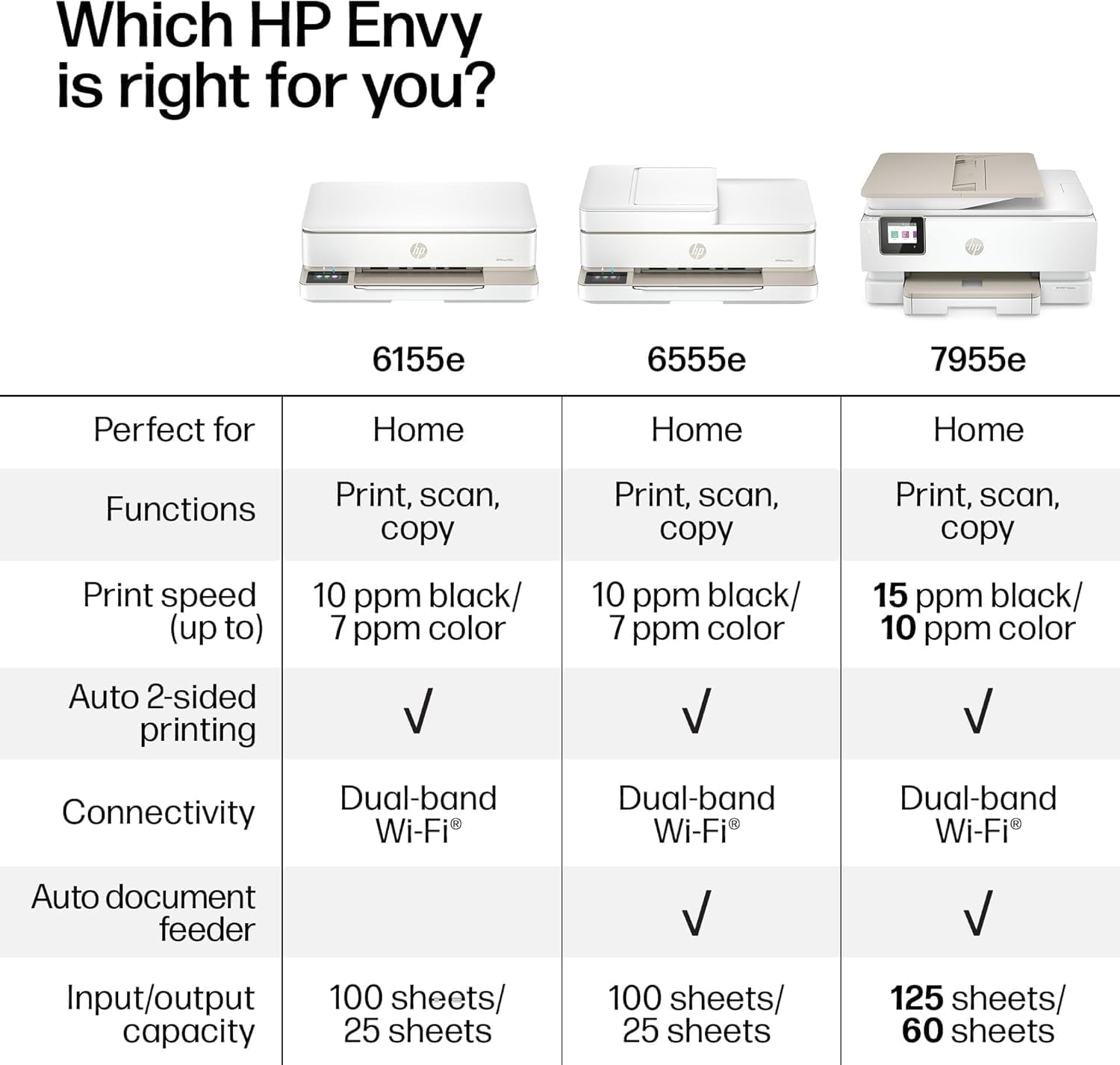
Image 2.1: Loading paper into the input tray and printing from a mobile device.
Wireless Setup
- On the printer's 2.4-inch color touchscreen, navigate to the Wireless Setup Wizard.
- Select your Wi-Fi network from the list of available networks.
- Enter your Wi-Fi password (WPA key or passphrase) when prompted.
- Confirm the connection. The printer should display a 'Connected' message.
- Download the HP Smart app on your computer or mobile device for full functionality and driver installation.
3. Operating Instructions
Printing Documents
- Ensure the printer is powered on and connected to your network.
- Open the document or image you wish to print on your computer or mobile device.
- Select 'Print' from the application's menu.
- Choose 'HP Envy 6155e' as your printer.
- Adjust print settings such as paper size, orientation, color, and number of copies. For two-sided printing, select the 'Duplex Printing' option.
- Click 'Print'.
Scanning Documents
- Lift the scanner lid.
- Place the document or photo face down on the scanner glass, aligning it with the guide.
- Close the scanner lid.
- From the printer's touchscreen, select 'Scan', or use the HP Smart app on your device.
- Choose scan settings such as resolution, color, and destination (e.g., computer, email, cloud).
- Initiate the scan.
Image 3.1: The flatbed scanner on the HP Envy 6155e printer.
Copying Documents
- Place the document on the scanner glass as described in the scanning section.
- On the printer's touchscreen, select 'Copy'.
- Choose the number of copies and whether you want color or black and white.
- Press 'Start Copy'.
Using HP AI for Formatted Prints
The HP Envy 6155e utilizes HP AI technology to optimize print layouts, especially for web pages and emails. This feature helps remove unwanted content and ensures prints are formatted correctly, reducing wasted paper.

Image 3.2: Example of HP AI optimizing print layout by removing unwanted content.
4. Maintenance
Replacing Ink Cartridges
When an ink cartridge is low or empty, the printer will display a notification. Replace cartridges as follows:
- Ensure the printer is on.
- Open the ink cartridge access door. The carriage will move to the center.
- Wait until the carriage is idle.
- Press down on the old cartridge to release it, then pull it out of its slot.
- Unpack the new cartridge and insert it into the correct slot (black on the right, tri-color on the left). Push firmly until it clicks.
- Close the ink cartridge access door.
Cleaning the Printer
- Exterior: Wipe the exterior surfaces of the printer with a soft, lint-free cloth. Do not use abrasive cleaners.
- Scanner Glass: Use a soft, lint-free cloth lightly dampened with glass cleaner to clean the scanner glass. Avoid spraying cleaner directly onto the glass.
5. Troubleshooting
Common Issues and Solutions
- Printer Not Responding:
- Check power connections and ensure the printer is turned on.
- Verify wireless network connection. Restart your router if necessary.
- Restart both the printer and your computer/device.
- Poor Print Quality:
- Check ink levels and replace any low or empty cartridges.
- Run a print head cleaning cycle from the printer's maintenance menu or HP Smart app.
- Ensure you are using genuine HP ink cartridges.
- Paper Jams:
- Turn off the printer and unplug it.
- Carefully open all access doors (front, rear, input tray) and gently pull out any jammed paper. Avoid tearing the paper.
- Ensure no small pieces of paper remain inside.
- Close all doors, plug in, and turn on the printer.
- Wireless Connection Issues:
- Ensure the printer is within range of your Wi-Fi router.
- Verify the Wi-Fi password entered is correct.
- Use the HP Smart app to diagnose and resolve network issues. The printer features dual-band Wi-Fi for reliable connection.
6. Specifications
| Feature | Specification |
|---|---|
| Model Name | HP ENVY 6155e |
| Functions | Print, Copy, Scan |
| Printing Technology | Inkjet |
| Connectivity Technology | Bluetooth, Ethernet, Wi-Fi (Dual-band) |
| Print Speed (Black) | Up to 10 ppm |
| Print Speed (Color) | Up to 7 ppm |
| Print Resolution (Black) | Up to 1200 x 1200 dpi |
| Print Resolution (Color) | Up to 4800 x 1200 dpi |
| Scanner Type | Flatbed |
| Copy Resolution (Black/Color) | Up to 1200 dpi / 4800 x 1200 dpi |
| Automatic Duplex Printing | Yes |
| Input Tray Capacity | 100 sheets |
| Output Tray Capacity | 25 sheets |
| Display | 2.4-inch Color Touchscreen |
| Compatible Ink Cartridges | HP 68 Black, HP 68 Tri-Color |
| Dimensions (D x W x H) | 16.7" x 6.06" x 11.97" |
| Weight | 14 Pounds |
| Power Consumption | 50 watts (maximum) |
7. Warranty and Support
Warranty Information
The HP Envy 6155e printer comes with a 1-year limited warranty. This warranty covers defects in materials and workmanship under normal use. For specific terms and conditions, please refer to the warranty documentation included with your product or visit the official HP support website.
Customer Support
For further assistance, technical support, or to download the latest drivers and software, please visit the official HP support website. You can also find FAQs and troubleshooting guides online.
- HP Support Website: support.hp.com
- HP Smart App: Available for download on iOS, Android, Windows, and macOS app stores.


