
Introduction
This manual provides essential instructions for setting up, operating, maintaining, and troubleshooting your HP Envy 6552e Wireless All-in-One Color Inkjet Printer. Please read this manual thoroughly before using the printer to ensure proper function and longevity of your device.

Figure 1: HP Envy 6552e Wireless All-in-One Color Inkjet Printer, front view.
1. Setup
1.1 Unboxing and Placement
Carefully remove the printer from its packaging. Ensure all packing materials, tapes, and protective films are removed from the exterior and interior of the printer. Place the printer on a stable, flat surface with adequate space for paper loading and output.
1.2 Power Connection
- Connect the power cord to the back of the printer.
- Plug the other end of the power cord into a grounded electrical outlet.
- Press the power button to turn on the printer. The touchscreen will illuminate.
1.3 Paper Loading
- Pull out the input tray located at the bottom front of the printer.
- Adjust the paper guides to fit the size of the paper you are loading.
- Load a stack of plain white paper into the tray, print-side down. Do not overfill the tray.
- Push the input tray back into the printer until it clicks into place.
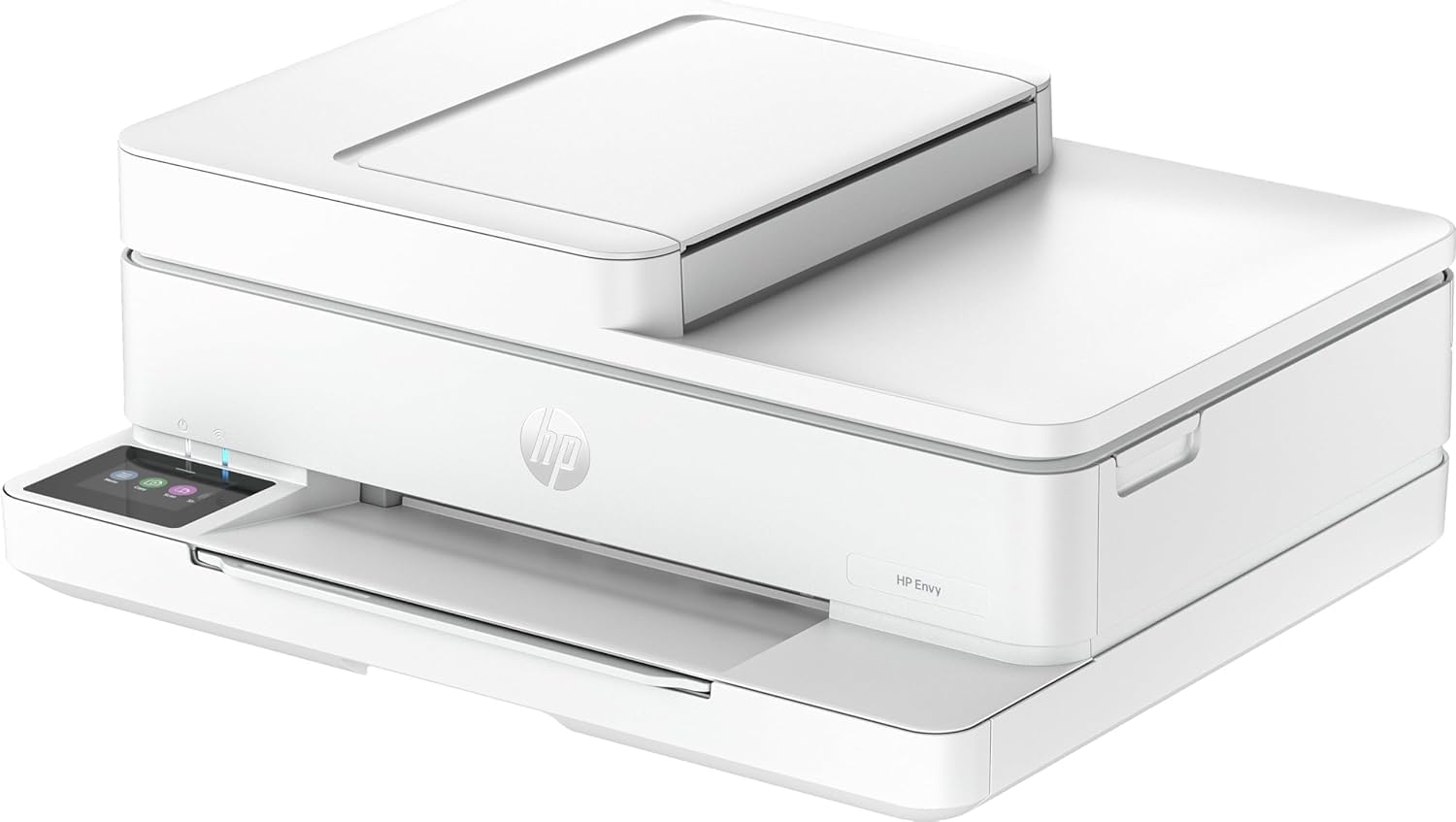
Figure 2: Paper input tray extended for loading.
1.4 Ink Cartridge Installation
- Open the ink cartridge access door.
- Remove the new HP 68 Setup Black and HP 68 Setup Tri-Color cartridges from their packaging.
- Insert the cartridges into their respective slots, ensuring they click into place.
- Close the ink cartridge access door.
1.5 Software and Wireless Connection
- Follow the on-screen instructions on the printer's 2.4" color touchscreen to complete the initial setup, including language selection and network connection.
- Download the HP Smart app on your computer or mobile device from hpsmart.com.
- Open the HP Smart app and follow the prompts to add your printer and connect it to your Wi-Fi network. The printer supports dual-band Wi-Fi (2.4GHz and 5.0GHz).
- Once connected, the app will guide you through installing necessary drivers and completing the setup process.
2. Operating the Printer
2.1 Printing Documents and Photos
The HP Envy 6552e allows printing from various devices, including computers and mobile phones, via Wi-Fi or Bluetooth connectivity.
- From a Computer: Select the print option in your application, choose the HP Envy 6552e, and adjust settings as needed (e.g., color, duplex, paper type).
- From a Mobile Device: Use the HP Smart app or your device's native print function (e.g., AirPrint for iOS) to send documents or photos directly to the printer. Ensure your device is connected to the same Wi-Fi network as the printer.

Figure 3: Key features of the HP Envy 6552e, including print, copy, scan, auto 2-sided printing, and a 2.4" color touchscreen.
2.2 Copying Documents
To make copies:
- Place the original document face-down on the scanner glass or face-up in the Automatic Document Feeder (ADF).
- On the printer's touchscreen, select the 'Copy' option.
- Adjust settings such as number of copies, color/black & white, and paper size.
- Press the 'Start Copy' button.
2.3 Scanning Documents
To scan documents:
- Place the original document on the scanner glass or in the ADF.
- On the printer's touchscreen, select the 'Scan' option, or initiate the scan from the HP Smart app on your device.
- Choose your scan destination (e.g., computer, email, cloud service) and adjust scan settings (e.g., resolution, file type).
- Press the 'Start Scan' button or confirm in the app.
2.4 Duplex Printing
The HP Envy 6552e supports automatic two-sided (duplex) printing. When printing from your computer or mobile device, select the duplex printing option in the print settings dialog box. The printer will automatically flip the paper to print on both sides.

Figure 4: HP AI technology helps optimize prints by removing unwanted content and reducing wasted pages.
3. Maintenance
3.1 Ink Cartridge Replacement
When an ink cartridge is low or empty, a message will appear on the printer's touchscreen or in the HP Smart app. To replace:
- Open the ink cartridge access door.
- Press down on the empty cartridge to release it, then pull it out.
- Unpack the new HP 68 ink cartridge and insert it into the correct slot until it clicks.
- Close the ink cartridge access door. The printer will automatically align the new cartridges.
3.2 Cleaning Procedures
- Printhead Cleaning: If print quality declines (streaks, faded colors), use the 'Tools' or 'Maintenance' menu on the touchscreen or in the HP Smart app to perform a printhead cleaning cycle.
- Scanner Glass Cleaning: Use a soft, lint-free cloth lightly dampened with glass cleaner to wipe the scanner glass and the underside of the scanner lid. This prevents smudges from affecting scan quality.
3.3 Paper Jam Resolution
If a paper jam occurs, the printer's touchscreen will display instructions. Generally, you will need to:
- Turn off the printer and unplug it.
- Open all access doors (front, rear, top) and carefully remove any jammed paper, pulling it gently in the direction of the paper path.
- Ensure no torn pieces of paper remain inside.
- Close all doors, plug in the printer, and turn it back on.
4. Troubleshooting
Refer to the printer's touchscreen for specific error messages and guided solutions. Below are common issues and general troubleshooting steps:
- Printer Not Responding:
- Check power connections and ensure the printer is turned on.
- Verify Wi-Fi connectivity. The blue light next to the power button indicates Wi-Fi status.
- Restart the printer and your computer/mobile device.
- Poor Print Quality:
- Check ink levels and replace any low or empty cartridges.
- Perform a printhead cleaning and alignment from the printer's maintenance menu.
- Ensure you are using appropriate paper for your print settings.
- Connectivity Issues:
- Ensure the printer is within range of your Wi-Fi router.
- Restart your router.
- Re-establish the wireless connection through the printer's touchscreen or the HP Smart app.
5. Specifications
| Feature | Detail |
|---|---|
| Brand | HP |
| Model Name | HP Envy 6552e All-in-One Printer |
| Connectivity Technology | Bluetooth, Ethernet, Wi-Fi |
| Printing Technology | Inkjet |
| Special Feature | Auto-Duplex |
| Printer Output | Color |
| Maximum Print Speed (Color) | 7 ppm |
| Maximum Print Speed (Monochrome) | 10 ppm |
| Item Weight | 18.08 Pounds |
| Scanner Type | ADF |
| Resolution | 1200 x 1200 (Print), 4800 x 1200 dpi (Max Color Print) |
| Additional Printer Functions | All In One, Copy, Scan |
| Number of Trays | 1 |
| Dual-sided printing | Yes (Automatic) |
| Maximum Sheet Capacity | 100 |
| Paper Size | 3 x 5 to 8.5 x 12 in; Duplex: 3 x 5.5 to 8.5 x 11.7 in |
| Built-In Media | HP Envy 6552e All-in-One Printer; HP 68 Setup Black Cartridge; HP 68 Setup Tri-Color Cartridge; Regulatory flyer; Setup guide; Reference guide; Power cord |
6. Warranty and Support
6.1 Product Warranty
The HP Envy 6552e printer typically comes with a 1-year limited warranty. Please refer to the warranty documentation included with your product for specific terms and conditions. Additional protection plans may be available for purchase.
6.2 Customer Support
For further assistance, technical support, or to access updated drivers and software, please visit the official HP support website or contact HP customer service. Have your printer's model number and serial number ready when contacting support.


