
1. Introduction and Overview
The LAMTTO 4-in-1 Wireless CarPlay & Android Auto Adapter is designed to convert your vehicle's original wired CarPlay system into a wireless connection, offering enhanced convenience and functionality. This device supports wireless Apple CarPlay, Android Auto, AirPlay, and Miracast, providing a smarter, faster, and more comfortable driving experience for both iOS and Android phone users.
Its ultra-mini design (0.9 x 0.8 inches) makes it 50% smaller than traditional adapters, ensuring it integrates seamlessly into any car interior. Made from advanced nanocomposite materials, it is lightweight and durable.

This image illustrates the various functions enabled by the LAMTTO adapter, including GPS navigation, music streaming, AirPlay, Miracast, and hands-free calling, all accessible wirelessly on your car's display.
2. What's in the Box
- 1 x LAMTTO 3-in-1 Wireless CarPlay Adapter
- 1 x User Manual
- 1 x Type-C Connector

The image displays the compact LAMTTO wireless adapter and the accompanying Type-C connector, ready for use.
3. Safety Information
Caution:
- This product uses wireless technology and may interfere with other devices.
- It contains a battery and must be disposed of according to local regulations.
- Please read the instructions carefully before use.
4. Compatibility
4.1 Vehicle Compatibility
This wireless CarPlay adapter is only compatible with vehicles factory-equipped with wired Apple CarPlay. It is not compatible with vehicles that only support wired Android Auto. To confirm compatibility:
- Check your vehicle's menu to confirm Apple CarPlay is available and enabled, and Android Auto is deactivated.
- Alternatively, connect an iPhone to your vehicle with a data cable. If the CarPlay interface appears on the vehicle's display, your vehicle is compatible.
The adapter is compatible with vehicles manufactured from 2016 onwards. It is not compatible with BM-W, Tesla vehicles, or vehicles with modified multimedia systems.
4.2 Phone Compatibility
- iOS Devices: iPhone 6 or later, running iOS 10 or higher.
- Android Devices: Android 13.0 or higher. Google phones compatible with Android 8.0 and above.
- Note: Huawei phones are not supported. The Miracast function is not compatible with Google and Sony phones.

This chart visually represents the broad compatibility of the adapter with various car brands (2016+) and phone operating systems (iOS 10+, Android 11+), while also highlighting specific exclusions.

This diagram illustrates two methods to verify if your car's original stereo supports wired CarPlay, which is a prerequisite for using the LAMTTO wireless adapter.
5. Setup and Installation
5.1 Initial Setup (Plug and Play)
- Connect the LAMTTO wireless adapter to your car's USB port (USB-A or USB-C using the provided connector). Ensure the USB port supports data transfer.
- On your smartphone, activate both Wi-Fi and Bluetooth.
- Search for the adapter's Bluetooth name (e.g., "CAR2-XXXX") in your phone's Bluetooth settings and pair with it.
- Follow any on-screen prompts on your phone and car display to allow connection and access to CarPlay or Android Auto.
- Once successfully paired, your car's display will switch to the wireless CarPlay or Android Auto interface.

This image provides a visual step-by-step guide for connecting your smartphone to the LAMTTO adapter for wireless CarPlay or Android Auto functionality.

This image illustrates the process of setting up wireless AirPlay and Miracast for screen mirroring from your smartphone to the car's display.
5.2 USB Port Compatibility
The adapter's innovative design ensures it fits perfectly into most car USB ports. It comes with a Type-C connector for versatile use with both USB-A and USB-C ports.

This image demonstrates how the LAMTTO adapter can be used with both standard USB Type-A and modern USB Type-C ports in a vehicle.
5.3 Automatic Reconnection
After the initial pairing, the advanced chip ensures stable signal transmission and seamless reconnection within 5-15 seconds every time you start your vehicle, providing a hassle-free experience.
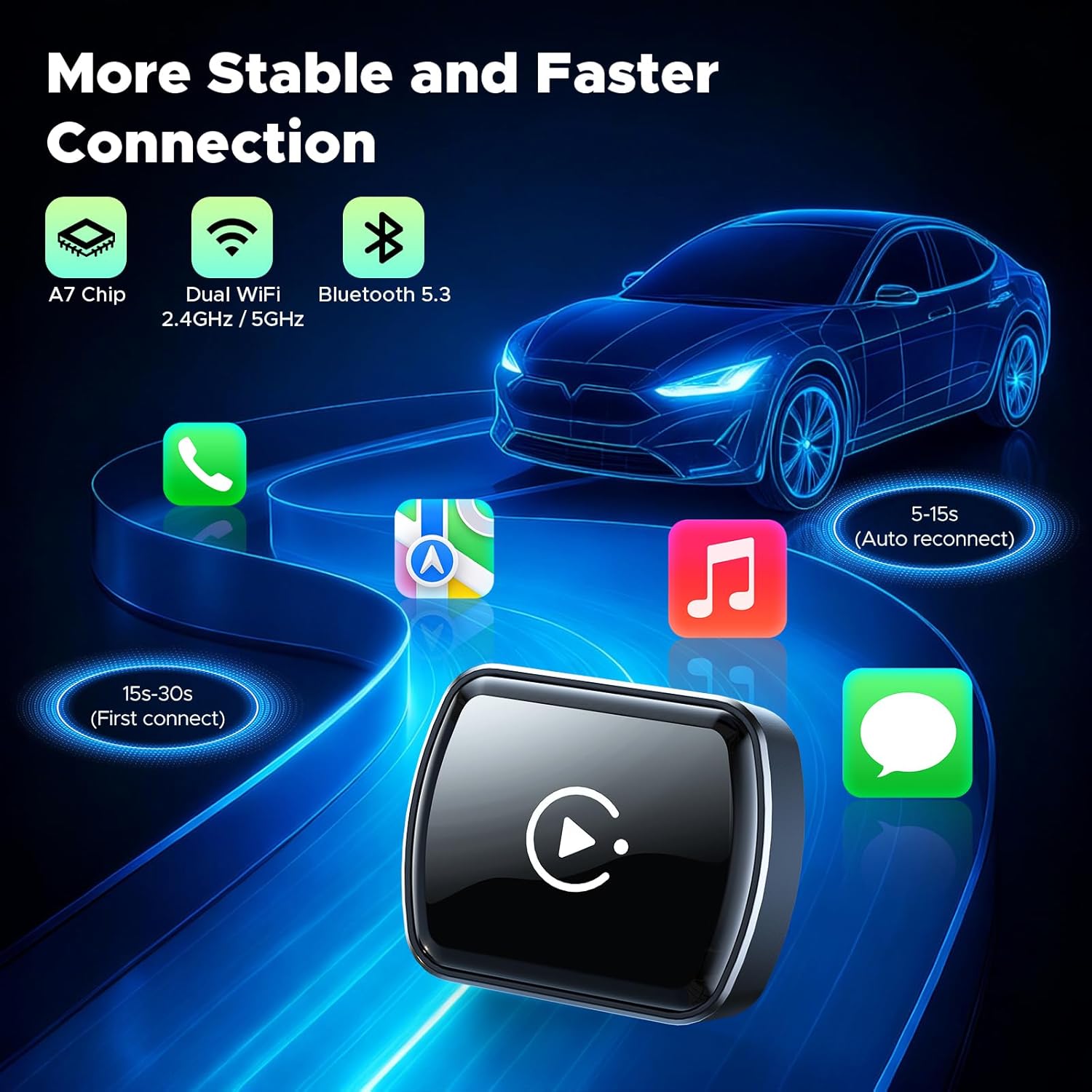
This diagram highlights the quick first connection (15-30s) and rapid auto-reconnection (5-15s) times, emphasizing the adapter's stable performance with its A7 chip, dual Wi-Fi, and Bluetooth 5.3.
Video 1: How to Connect and Use Wireless CarPlay. This video demonstrates the step-by-step process of connecting your iPhone to the adapter for wireless CarPlay functionality.
Video 2: How to Connect and Use Wireless Android Auto. This video guides users through connecting an Android phone to the adapter for wireless Android Auto functionality.
Video 3: How to Connect CarPlay with Ottocast MINI. This video provides a general guide on connecting CarPlay using a similar mini adapter, which can be applied to the LAMTTO device.
Video 4: 2-in-1 Wireless Adapter for CarPlay and Android Auto. This video showcases the dual functionality of a wireless adapter for both CarPlay and Android Auto, similar to the LAMTTO product.
Video 5: Using OTTOCAST – Getting Started Guide. This video offers a general getting started guide for a similar wireless adapter, providing useful tips for initial setup and usage.
6. Operating Instructions
6.1 Wireless CarPlay and Android Auto
Once connected, the adapter provides seamless access to navigation, music, calls, and voice assistants directly on your car's display. You can interact with these features using your car's original controls.

This image displays both the Apple CarPlay and Android Auto interfaces on a car's infotainment screen, demonstrating the adapter's core functionality.
6.2 Mirror Link (AirPlay & Miracast)
The adapter supports ultra-smooth, low-latency video streaming via wireless AirPlay or Miracast. This allows you to enjoy TV shows or movies through your car's audio system with lossless playback quality for platforms like TikTok/YouTube. This feature is compatible with Apple and Android phones.
Note:
- Mirroring of copyright-protected videos is prohibited.
- The Miracast function is not supported by Google and Sony phones.

This image demonstrates the Mirror Link feature, allowing content from a smartphone to be displayed on the car's screen, ideal for video streaming.
6.3 Retaining Original Car Controls
The LAMTTO adapter allows you to maintain control over your car's functions through various methods:
- Touchscreen: Directly interact with the car's display.
- OEM Buttons: Use your car's original equipment manufacturer buttons.
- Steering Wheel Controls: Manage functions conveniently from your steering wheel.
- Voice Assistant: Utilize Google Assistant or Siri for hands-free commands.

This image illustrates how the adapter integrates with the car's existing control mechanisms, including touchscreen, OEM buttons, steering wheel controls, and voice assistants.
7. Maintenance
7.1 OTA Firmware Updates
Regular software updates are provided to ensure the flawless operation of your wireless Android Auto or CarPlay adapter. To update the firmware:
- Connect your mobile device to the adapter's Wi-Fi network.
- Open a web browser on your mobile device.
- Enter the IP address
192.168.1.101into the browser's address bar. - Follow the on-screen instructions to check for and install any available firmware updates.
8. Troubleshooting (Frequently Asked Questions)
8.1 Why does the adapter disconnect randomly?
- Check compatibility: Ensure your car and smartphone support Apple CarPlay.
- Check USB port: Use a USB port that supports data transfer.
- Restart phone: A restart can resolve Bluetooth or software issues.
- Reconnect adapter: Disconnect the adapter for 10 seconds, then reconnect it.
- Wi-Fi interference: Disconnect your phone from other Wi-Fi networks to avoid interference.
8.2 Does the vehicle need to be factory-equipped with wired CarPlay to be compatible?
Yes, the vehicle must support wired CarPlay. The adapter is not compatible with vehicles that only support wired Android Auto. Check your vehicle settings or connect your iPhone via cable. If the CarPlay interface appears, the vehicle is compatible.
8.3 Why isn't the phone screen mirroring function working?
Check your phone's version. Android 13 or higher is recommended. Note that Huawei phones are not supported, and the Miracast function is not compatible with Google and Sony phones.
8.4 How to deactivate when the car system switches to Apple CarPlay?
- Open settings in the menu.
- If Android Auto is active, deactivate it, then activate Apple CarPlay.
9. Specifications
| Brand | LAMTTO |
| Model | Wireless CarPlay Mirror Link Adapter |
| Item Weight | 15 g |
| Package Dimensions | 9.5 x 6.4 x 2.9 cm |
| Hardware Interface | 802.11 ac/b/g/n, Bluetooth |
| Compatible Devices | Smartphone, Tablet |
| Connectivity Technology | Bluetooth, Wi-Fi |
| Wireless Type | 802.11ac, 802.11n, Bluetooth |
| Supported Standards | Bluetooth 5.0, IEEE 802.11b/g/n/ac |
| Power Source Type | Corded Electric |
| Audio Output Mode | Stereo |
| Audio Output Type | Bluetooth, Speaker |
| Material | Advanced Composite Material |
| Batteries Included | No |
| Remote Control Included | No |
| Date First Available | November 12, 2025 |
10. Warranty and Support
LAMTTO provides a 24-month risk-free purchase guarantee for this product. Additionally, 24/7 customer support is available to assist you with any queries or issues.
For technical assistance or warranty claims, please refer to the contact information provided in your purchase documentation or visit the official LAMTTO website.