
Introduction
This manual provides detailed instructions for setting up, operating, maintaining, and troubleshooting your AWOW AiBook 11 Windows 11 Tablet with Keyboard. Please read this manual thoroughly before using your device to ensure proper function and longevity.
What's in the Box
Verify that all items are present in the package:
- Tablet PC
- Detachable Keyboard
- 36W PD Charger
- User Manual
Product Overview
The AWOW AiBook 11 is a versatile 2-in-1 device designed to function as both a tablet and a mini laptop. It features a 10.1-inch display, an Intel N150 processor, 12GB of RAM, and a 256GB SSD, running on Windows 11.

Image: Overview of the AWOW AiBook 11's key features including display size, processor, storage, RAM, operating system, connectivity, and cameras.
Setup
1. Charging the Device
Before initial use, fully charge your tablet. Use the provided 36W Power Delivery (PD) charger. A full charge typically takes approximately 3 hours.

Image: The AWOW AiBook 11 tablet connected to a charger, illustrating the 36W PD fast charging capability and battery life indicators.
2. Attaching the Keyboard
The keyboard connects magnetically to the tablet. Align the tablet with the keyboard's connector and allow the magnets to secure it in place. The keyboard also functions as a protective cover and includes an integrated stand.
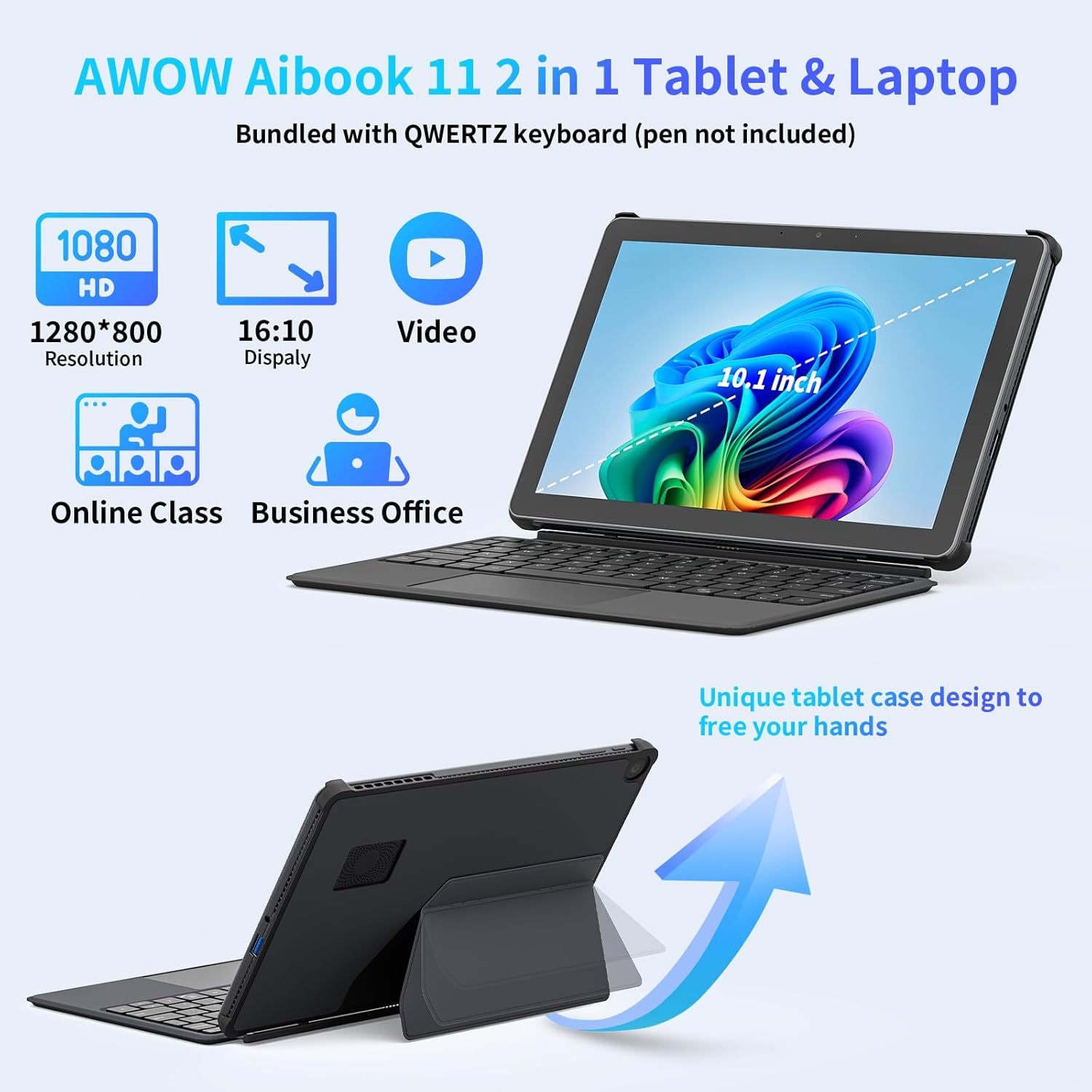
Image: The AWOW AiBook 11 tablet shown with its detachable keyboard and protective cover, highlighting its 2-in-1 functionality.
3. Initial Power On and Windows Setup
Press and hold the power button located on the side of the tablet until the screen illuminates. Follow the on-screen prompts to complete the Windows 11 initial setup, including language selection, network connection, and user account creation.
Operating Your Device
1. Modes of Use
The AiBook 11 supports multiple usage modes:
- Tablet Mode: Detach the keyboard for a pure tablet experience, ideal for touch navigation and media consumption.
- Laptop Mode: Attach the keyboard and use the integrated stand for a traditional laptop setup, suitable for typing and productivity.
- Creative Mode: Adjust the stand to an angled position for drawing or comfortable viewing.

Image: The AWOW AiBook 11 tablet demonstrating its flexibility in laptop, creative, and handheld tablet modes.
2. Display Features
The device features a 10.1-inch In-Cell Full HD (1920x1080) display. In-Cell technology integrates the touch layer directly into the LCD, resulting in a thinner panel and clear visuals with reduced glare.

Image: A visual comparison illustrating the difference between traditional display layers and the thinner, integrated layers of an In-Cell display.
3. Connectivity
The AiBook 11 offers various connectivity options:
- Wireless: Supports WiFi 6 (802.11ax) for high-speed internet and Bluetooth 5.0 for connecting peripherals.
- Ports: Includes Micro HDMI (4K 60Hz), a full-function Type-C port (4K 144Hz), and a USB 3.0 port. A headphone jack is also available.

Image: The AWOW AiBook 11 tablet connected to two external monitors, demonstrating its capability to extend the display via Type-C and Micro HDMI ports.
4. Performance and Storage
The tablet is powered by an Intel N150 Quad-Core processor, paired with 12GB of LPDDR5 RAM and a 256GB PCIe 3.0 SSD. This configuration supports efficient multitasking and quick application loading. Storage can be expanded via a TF card slot, supporting up to 512GB.

Image: A diagram showing the benefits of 12GB LPDDR5 RAM and 256GB PCIe 3.0 SSD for multitasking and data access speed.
Maintenance
1. Cleaning the Device
Use a soft, lint-free cloth to clean the screen and exterior surfaces. For stubborn smudges, slightly dampen the cloth with water or a screen-cleaning solution. Avoid abrasive materials or harsh chemicals.
2. Battery Management
To prolong battery life, avoid fully discharging the battery frequently. Charge the device when the battery level is low. Store the device in a cool, dry place when not in use for extended periods.
3. Software Updates
Regularly check for and install Windows updates to ensure your system has the latest security patches and performance improvements. Go to Settings > Windows Update to manage updates.
4. Storage Expansion
If additional storage is required, insert a TF (microSD) card into the designated slot. The device supports TF cards up to 512GB.
5. Cooling System
The AiBook 11 includes an internal fan system to manage heat and maintain stable CPU performance during operation. Ensure ventilation slots are not obstructed to allow for proper airflow.

Image: A diagram illustrating the internal fan system designed to cool the processor and maintain device stability.
Troubleshooting
- Device Not Powering On: Ensure the device is charged. Connect the charger and wait a few minutes before attempting to power on again. If the issue persists, perform a hard reset by holding the power button for 10-15 seconds.
- Screen Not Responding: If the touchscreen is unresponsive, try restarting the device. If using the keyboard, ensure it is properly connected.
- Wi-Fi/Bluetooth Connectivity Issues: Check if Wi-Fi or Bluetooth is enabled in Windows settings. Restart the device and your router/Bluetooth accessory. Ensure drivers are up to date via Device Manager.
- Slow Performance or Overheating: Close unnecessary applications running in the background. Ensure ventilation slots are clear. If the device consistently runs warm, reduce intensive tasks.
- Keyboard Not Working: Ensure the magnetic connection is secure. Restart the tablet. If the issue continues, detach and reattach the keyboard.
For further assistance, please refer to the support section.
Specifications
| Feature | Specification |
|---|---|
| Model Name | AiBook 11 |
| Operating System | Windows 11 |
| Screen Size | 10.1 Inches |
| Screen Resolution | 1920x1080 Pixels |
| Processor | Intel N150 (up to 3.6 GHz) |
| RAM | 12 GB LPDDR5 |
| Storage | 256 GB PCIe 3.0 SSD |
| Expandable Storage | TF Card up to 512 GB |
| Graphics Coprocessor | Intel UHD Graphics |
| Wireless Type | 802.11ax (WiFi 6), Bluetooth 5.0 |
| Ports | Micro HDMI, Type-C (Full-function), USB 3.0, Headphone Jack |
| Average Battery Life | 7 Hours |
| Charging | PD 36W Fast Charging |
| Item Weight | 2.5 pounds (approx. 1.13 kg) |
| Product Dimensions | 9.6 x 0.4 x 6.5 inches (approx. 24.5 x 1.0 x 16.4 cm) |
Warranty and Support
Your AWOW AiBook 11 Tablet is covered by a manufacturer's warranty. Please refer to the warranty card included in your product packaging for specific terms and conditions. For technical support, troubleshooting assistance, or warranty claims, please visit the official AWOW website or contact their customer service department. Contact information can typically be found on the manufacturer's website or in the product documentation.


