
CBDZONE XT606
CBDZONE XT606 GPS Drone User Manual
Model: XT606 | Brand: CBDZONE
1. Introduction
This manual provides essential instructions for the safe operation, setup, and maintenance of your CBDZONE XT606 GPS Drone. Please read this document thoroughly before your first flight to ensure proper functionality and to prevent damage or injury. Retain this manual for future reference.
Safety Guidelines
- Always operate the drone in open areas, away from people, animals, buildings, and obstacles.
- Do not fly near airports or restricted airspace.
- Ensure all batteries are fully charged before each flight.
- Perform a pre-flight check of all components, including propellers and motors.
- Avoid flying in strong winds or adverse weather conditions.
- Keep hands and face clear of rotating propellers.
- Children should operate the drone under adult supervision.
2. Package Contents
Verify that all items listed below are included in your package. If any items are missing or damaged, please contact customer support.
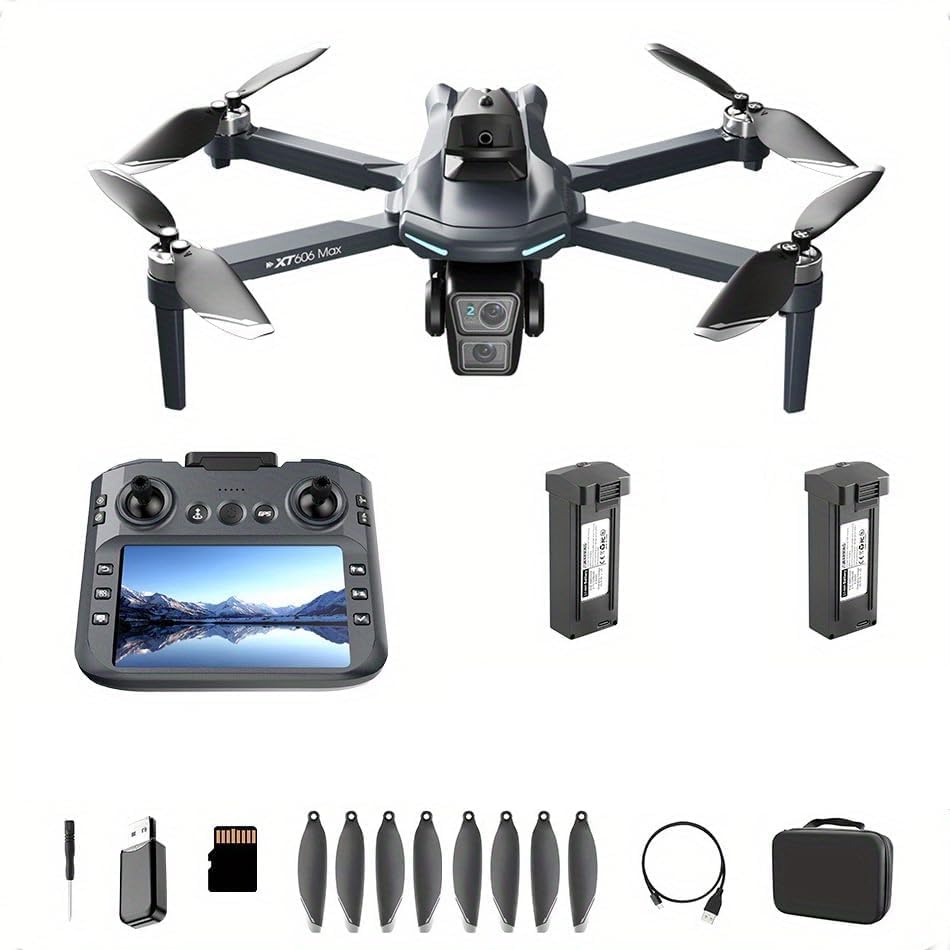
Image: The XT606 drone, remote controller, two drone batteries, spare propellers, screwdriver, USB charging cable, MicroSD card, USB card reader, and a carrying case are displayed.
- XT606 GPS Drone (Foldable)
- Remote Controller with Integrated Screen
- Drone Battery (x2)
- Spare Propellers (x8)
- USB Charging Cable
- Screwdriver
- MicroSD Card
- USB Card Reader
- Carrying Case
- User Manual (This document)
3. Setup
3.1 Charging Batteries
Ensure both the drone batteries and the remote controller battery are fully charged before use.
- Drone Batteries: Connect the drone battery to the USB charging cable. Plug the USB cable into a 5V/2A USB adapter (not included). The charging indicator will show the charging status and turn off or change color when fully charged. Charging time is approximately 120-180 minutes per battery.
- Remote Controller Battery: The remote controller features a built-in rechargeable battery. Connect the remote controller to the USB charging cable. The charging indicator on the remote will show charging status and turn off when fully charged.
3.2 Unfolding the Drone
The XT606 drone features a foldable design for portability.
- Gently unfold the front arms of the drone until they lock into place.
- Then, unfold the rear arms until they also lock into place.
- Ensure all arms are securely extended before flight.
3.3 Propeller Installation/Replacement
The propellers are labeled 'A' and 'B'. Match the propeller type to the corresponding motor arm. Use the provided screwdriver to secure or remove the propellers.
- Ensure the correct propeller (A or B) is installed on the correct motor shaft.
- Tighten the propeller screws firmly but do not overtighten.
- Always replace damaged propellers immediately.
3.4 Installing Drone Battery
Insert a fully charged drone battery into the battery compartment on the rear of the drone until it clicks securely into place.
3.5 App Installation and Pairing
Download the dedicated control app by searching for "XT606" or "CBDZONE Drone" in your mobile device's app store. Follow the in-app instructions for connecting your mobile device to the drone's Wi-Fi network and pairing the remote controller.
4. Operating Instructions
4.1 Pre-Flight Checklist
- Drone and remote controller batteries are fully charged.
- Propellers are correctly installed and undamaged.
- Drone arms are fully unfolded and locked.
- Fly in an open area, clear of obstacles and people.
- Ensure strong GPS signal (if flying outdoors).
4.2 Basic Flight Controls
The remote controller features two joysticks and various buttons for flight control. Refer to the remote's screen for real-time flight data.

Image: The XT606 drone and its remote controller. Text overlays highlight 'GPS Return', '5G remote control with screen', 'Intelligent obstacle avoidance', 'Brushless power', 'Optical Flow hover', and 'Electrically adjustable dual camera'.
- Left Joystick (Throttle/Yaw): Push up/down to control altitude. Push left/right to rotate the drone (yaw).
- Right Joystick (Pitch/Roll): Push up/down to move forward/backward (pitch). Push left/right to move left/right (roll).
- One-Key Takeoff/Landing: Press the designated button on the remote for automatic takeoff or landing.
4.3 Advanced Flight Features

Image: The XT606 drone and its remote controller with a 12.5cm screen. Features like 'Electrically adjustable dual cameras', 'Intelligent obstacle avoidance', 'Brushless motor', 'Optical flow hovering', and 'GPS Return to Home' are emphasized.
- GPS Positioning: The drone utilizes GPS for stable hovering and precise positioning outdoors. Ensure sufficient GPS satellites are acquired before takeoff.
- GPS Return to Home (RTH): Press the RTH button on the remote, or if the drone loses signal or has low battery, it will automatically return to its takeoff point. Ensure a clear return path.
- Intelligent Obstacle Avoidance: The drone is equipped with sensors to detect and avoid obstacles, enhancing flight safety.
- Optical Flow Hover: For stable indoor flight or when GPS signal is weak, optical flow sensors assist in maintaining a stable hover.
- Headless Mode: In Headless Mode, the drone's orientation is relative to the pilot, simplifying control regardless of the drone's front direction.
4.4 Camera Operation

Image: A close-up view of the XT606 drone's camera system, highlighting its 4K HD video capability, ultra-wide-angle lens, and variable aperture. Icons below depict features like remote control with screen, GPS positioning, 360° obstacle avoidance, Headless Mode, optical flow hover, long-lasting battery, brushless wind resistance, cool LED lights, and APP control.
- 4K HD Video & 12 MP Stills: The drone captures high-resolution video and still images.
- Electrically Adjustable Dual Cameras: Control the camera angle directly from the remote controller or app to capture various perspectives.
- Recording & Photo Capture: Use the dedicated buttons on the remote or the app interface to start/stop video recording or take photos. Media is saved to the inserted MicroSD card.
5. Maintenance
5.1 Cleaning
- Wipe the drone body with a soft, dry cloth.
- Gently clean the camera lens and obstacle avoidance sensors with a microfiber cloth.
- Do not use harsh chemicals or solvents.
5.2 Propeller Care
Inspect propellers before and after each flight for cracks, bends, or damage. Replace any damaged propellers immediately using the provided spare parts and screwdriver.
5.3 Battery Care and Storage
- Store batteries in a cool, dry place, away from direct sunlight and extreme temperatures.
- Do not overcharge or over-discharge batteries.
- If storing for extended periods, charge batteries to approximately 50-60% capacity.
5.4 Storage
When not in use, fold the drone arms and store the drone and all accessories in the provided carrying case to protect them from dust and damage.
6. Troubleshooting
If you encounter issues, refer to the common problems and solutions below. If the problem persists, contact customer support.
| Problem | Possible Cause | Solution |
|---|---|---|
| Drone does not power on | Low or uncharged battery; Battery not properly inserted | Charge drone battery; Reinsert battery securely |
| Remote controller does not power on | Low or uncharged battery | Charge remote controller battery |
| Drone cannot connect to remote/app | Incorrect pairing procedure; Wi-Fi interference | Repeat pairing steps; Ensure no other devices are interfering with Wi-Fi |
| Unstable flight/Drifting | Improper calibration; Strong winds; Damaged propellers | Perform gyroscope calibration; Fly in calm conditions; Replace damaged propellers |
| Camera not recording/taking photos | MicroSD card full or not inserted; Card error | Insert/reinsert MicroSD card; Format card; Use a new card |
7. Specifications
| Feature | Detail |
|---|---|
| Model Name | XT606 |
| Brand | CBDZONE |
| Video Capture Resolution | 4K |
| Effective Still Resolution | 12 MP |
| Connectivity Technology | Bluetooth, Wi-Fi |
| Skill Level | Beginner; All |
| Item Weight | 246 Grams (8.7 ounces) |
| Material | Advanced lightweight material |
| Battery Cell Composition | Lithium Ion (Drone) |
| Product Dimensions (Folded) | Approximately 9.65"L x 11.37"W x 2.2"H |
| Manufacturer Part Number | RLV001 |
8. Warranty and Support
The CBDZONE XT606 GPS Drone comes with a standard manufacturer's warranty. For detailed warranty information, please refer to the warranty card included in your package or visit the official CBDZONE website. For technical support, troubleshooting assistance, or spare parts, please contact CBDZONE customer service through the contact information provided on the product packaging or website.
Please have your model number (XT606) and purchase date ready when contacting support.