
Introduction
This manual provides detailed instructions for the Redragon K631 HE Rapid Trigger RGB Gaming Keyboard. It covers setup, operation, customization, connectivity, maintenance, troubleshooting, and specifications to ensure optimal performance and user experience. The K631 HE features a 68-key wired mechanical design with hyper-fast actuation, Hall Effect 8K polling magnetic switches, and adjustable actuation points.
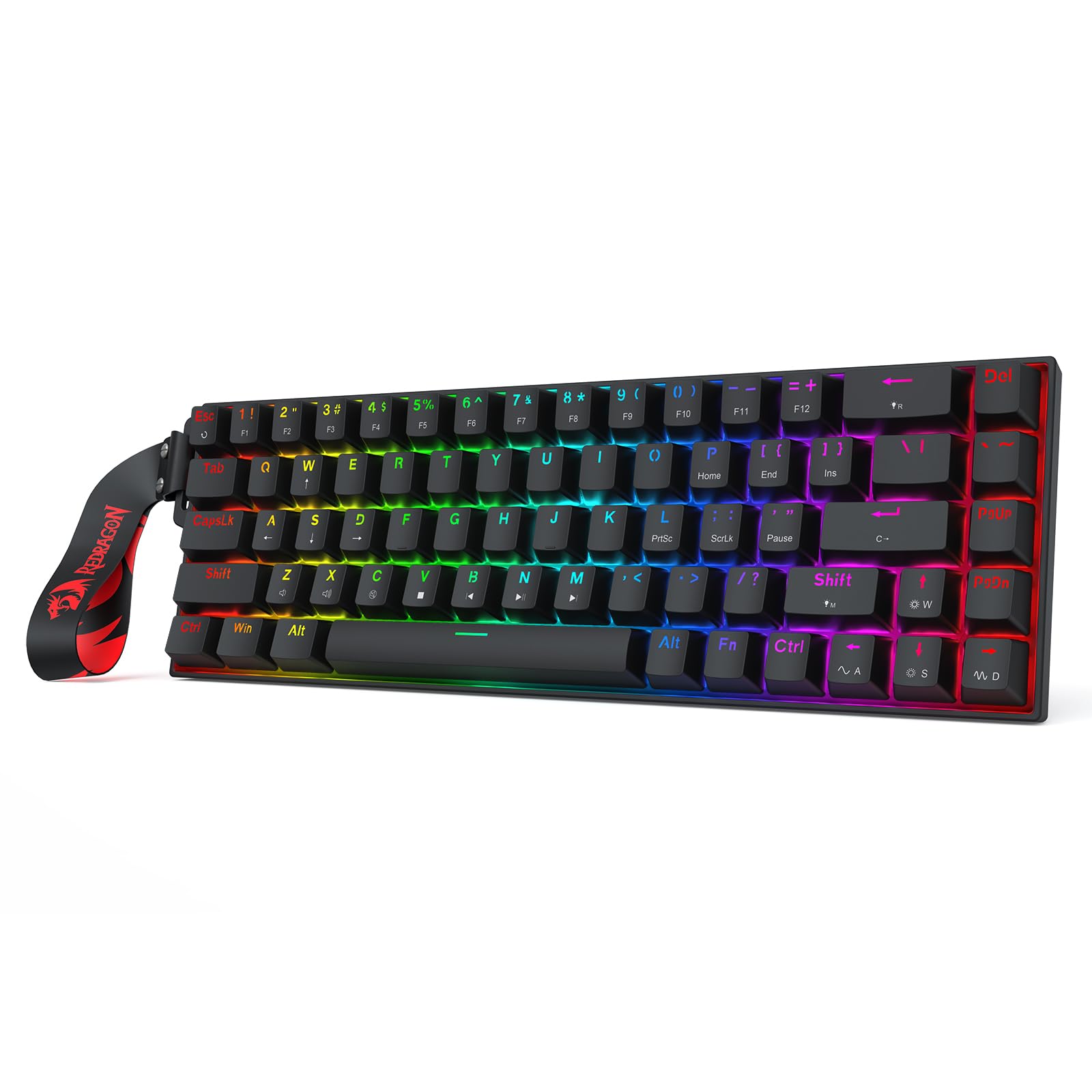
Figure 1: Redragon K631 HE Rapid Trigger RGB Gaming Keyboard overview.
1. Setup
1.1 Unboxing and Initial Connection
Carefully remove the keyboard and all accessories from the packaging. The package typically includes the keyboard, a detachable USB-A to USB-C cable, a switch and keycap puller, and spare switches. Connect the keyboard to your computer using the provided USB-C cable. The keyboard is plug-and-play for basic functionality.

Figure 2: Redragon K631 HE Keyboard in a typical desk setup, connected via USB-C.
1.2 Driver Installation (Optional)
For advanced customization, including macro programming and detailed RGB lighting effects, download the official Redragon software from the Redragon website. The software supports both desktop (Windows) and web-based platforms for broader operating system compatibility.
2. Operating Instructions
2.1 Basic Key Functions
The K631 HE is a 68-key compact keyboard. Standard alphanumeric keys function as labeled. Multimedia and special functions are typically accessed via the Fn (Function) key in combination with other keys. Refer to the keycaps for secondary functions, often indicated by smaller icons or text.
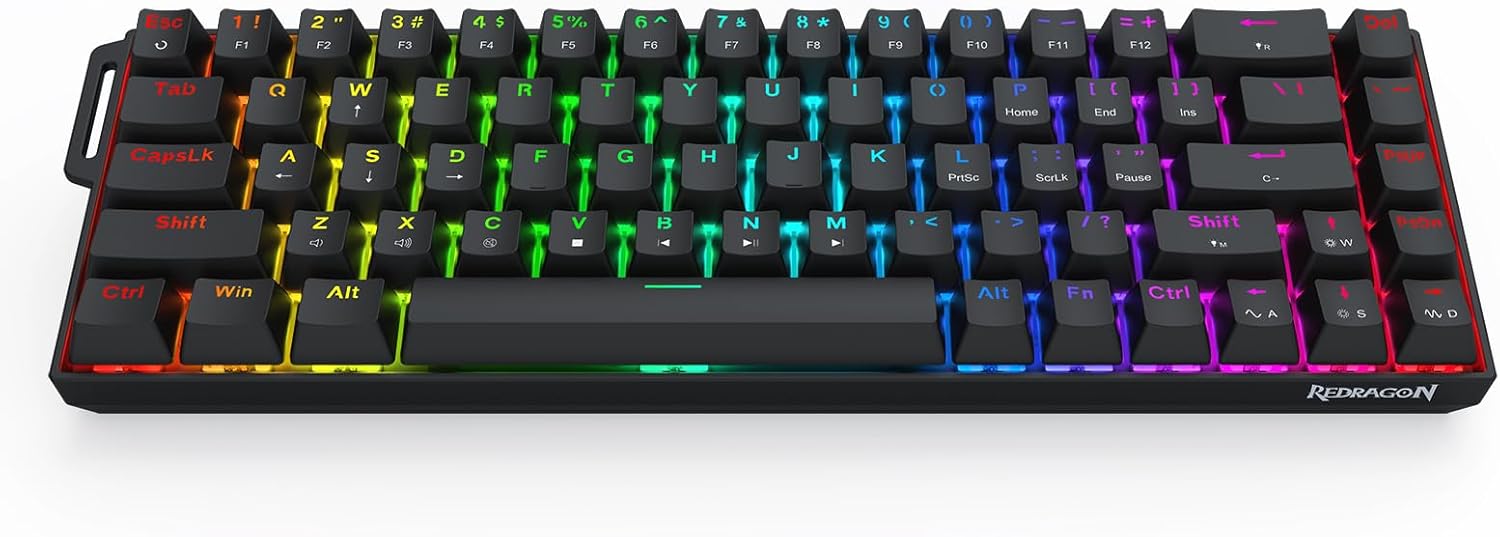
Figure 3: Top-down view of the Redragon K631 HE keyboard, highlighting the compact 68-key layout.
2.2 Rapid Trigger Technology
The Hall Effect magnetic switches enable Rapid Trigger technology. This allows for adjustable actuation points between 0.1-4.0 mm, providing hyper-fast actuation and reset. This feature is primarily configured through the Redragon software, allowing users to fine-tune sensitivity for gaming or typing preferences.
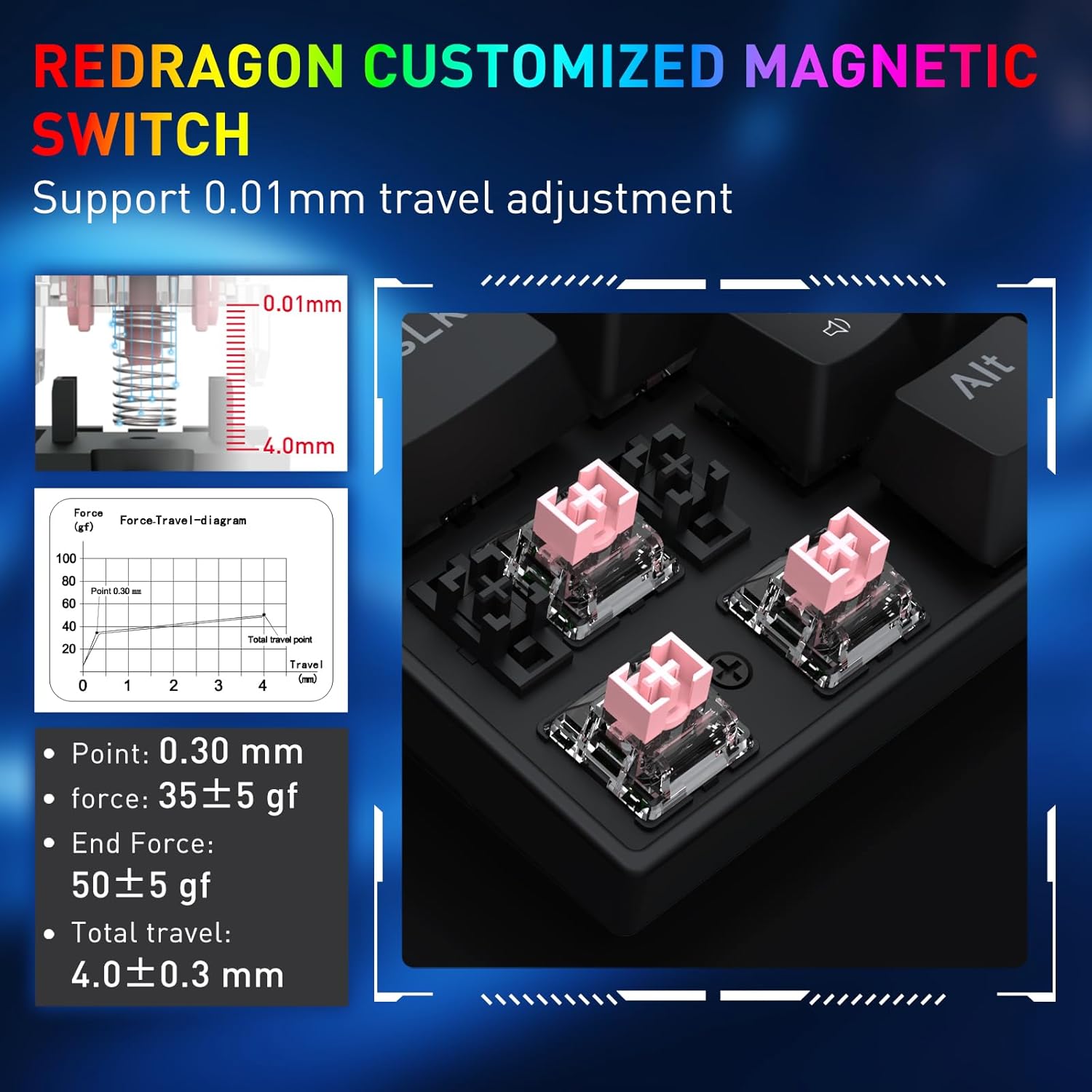
Figure 4: Detailed view of the Redragon customized magnetic switches, illustrating the 0.01mm travel adjustment and force diagram.
2.3 8K Polling Rate
The keyboard supports an 8,000Hz hyper-polling rate, reducing input latency to 0.125ms. This ensures that every keystroke is registered almost instantly, which is beneficial for competitive gaming. This high polling rate is active when connected via the wired USB-C connection.

Figure 5: A hand demonstrating interaction with the keyboard, emphasizing the 8000Hz max report rate for low latency.
3. Customization
3.1 Hot-Swappable Switches
The K631 HE features hot-swappable switches, allowing users to easily replace individual switches without soldering. This enables customization of typing feel and sound. The keyboard is compatible with most 3-pin and 5-pin mechanical switches. Use the provided switch puller to carefully remove and insert switches.
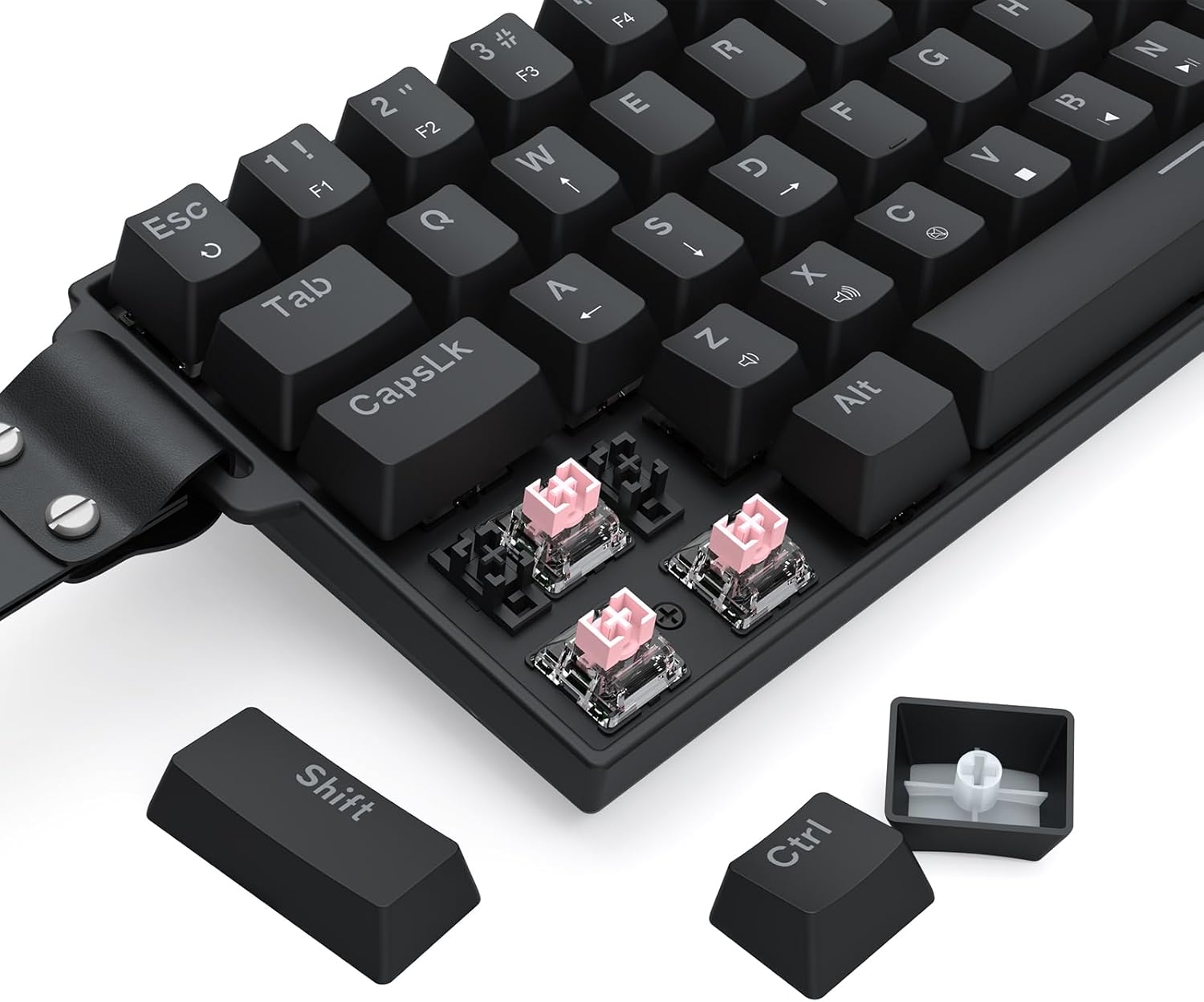
Figure 6: A close-up view showing the removal of a keycap and switch from the keyboard, demonstrating its hot-swappable feature.
3.2 RGB Backlighting
The keyboard features customizable RGB backlighting. Various lighting modes, colors, brightness, and speed can be adjusted directly on the keyboard using Fn key combinations or through the Redragon software. Note that non-transparent switches or keycaps may affect the visibility and diffusion of the RGB lighting.
- Fn + N: Cycle through different lighting modes.
- Fn + M: Switch between dynamic RGB and static color.
- Fn + TAB: Set backlight to full-lit white.
- Fn + Arrow Keys: Adjust RGB brightness and speed.
- Fn + Print Screen: Turn off RGB backlight.
4. Connectivity
The K631 HE keyboard offers wired USB-C connectivity. This model is primarily designed for wired use to ensure the lowest latency and full 8K polling rate. There is no mention of wireless connectivity (2.4GHz or Bluetooth) in the product specifications for this specific "HE Version".
For wired connection, simply plug the provided USB-A to USB-C cable into the keyboard and your computer's USB port. The keyboard should be recognized automatically by your operating system.
5. Maintenance
5.1 Cleaning the Keyboard
To clean the keyboard, first disconnect it from your computer. Use a soft, lint-free cloth slightly dampened with water or a mild cleaning solution to wipe down the keycaps and chassis. For deeper cleaning, use the provided keycap puller to remove keycaps and clean underneath with compressed air or a small brush. Ensure the keyboard is completely dry before reconnecting.
5.2 Switch Care
The Hall Effect magnetic switches are designed for durability. If a switch feels inconsistent or needs replacement, use the switch puller to carefully remove it and insert a new one. Avoid excessive force when removing or inserting switches to prevent damage to the switch or the PCB.
6. Troubleshooting
6.1 Keyboard Not Responding
- Ensure the USB-C cable is securely connected to both the keyboard and the computer.
- Try connecting the keyboard to a different USB port on your computer.
- Test the keyboard on another computer to rule out a system-specific issue.
- If using a USB hub, try connecting directly to the computer.
6.2 RGB Lighting Issues
- Check the RGB brightness settings using Fn + Arrow Up/Down.
- Ensure the backlight is not turned off (Fn + Print Screen).
- If using custom profiles, verify settings in the Redragon software.
6.3 Actuation Point Inconsistency
- Ensure the Redragon software is up to date.
- Recalibrate actuation points through the software.
- Check for any physical obstructions or debris around the switches.
6.4 Factory Reset
To perform a factory reset, press and hold Fn + Esc for approximately 3 seconds. This will revert all keyboard settings, including lighting and key assignments, to their default factory state.
7. Specifications
| Model Name | Castor (K631 HE) |
| Product Dimensions | 12.7 x 4.2 x 1.3 inches |
| Item Weight | 1.32 pounds |
| Manufacturer | Redragon |
| Connectivity Technology | USB-C (Wired) |
| Keyboard Description | 68 Keys 8K Magnetic Switch Rapid Trigger Gaming Keyboard |
| Recommended Uses | Gaming |
| Special Features | 8k Hz Polling, Magnetic Switch, Rapid Trigger, Actuation Point Adjustable |
| Color | Black + Strap (HE Version) |
| Backlighting | RGB |
| Material | Plastic + Fabric (Strap) |
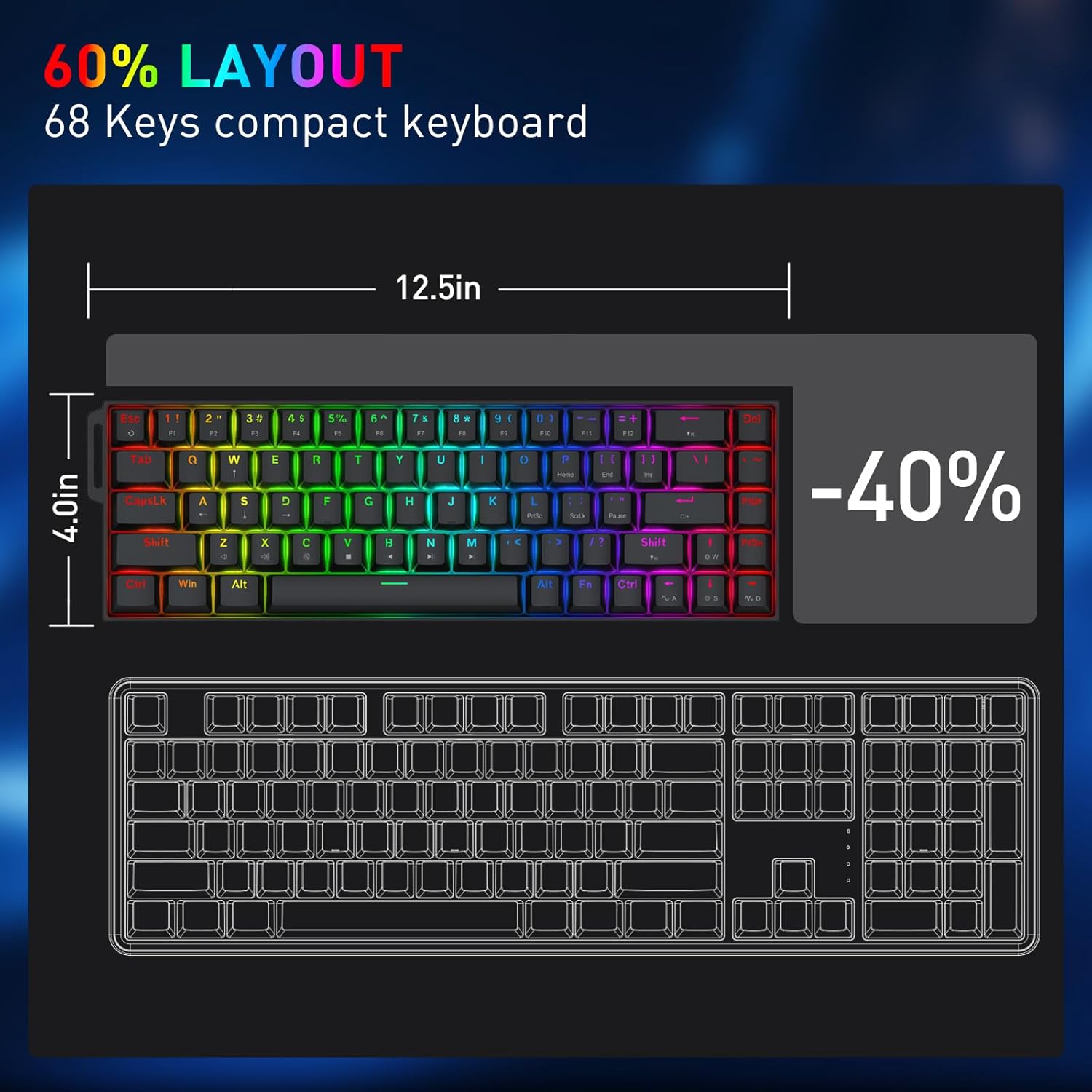
Figure 7: Dimensions of the Redragon K631 HE keyboard, illustrating its compact 60% layout.
8. Warranty
Redragon products typically come with a limited manufacturer's warranty. For specific warranty terms, duration, and claim procedures, please refer to the warranty card included in your product packaging or visit the official Redragon website. Keep your proof of purchase for warranty claims.
9. Support
For further assistance, technical support, or to download the latest software and drivers, please visit the official Redragon website. You can also find FAQs and community forums for additional help.
Official Website: www.redragonshop.com


