
1. Introduction
Thank you for choosing the GenXenon UF-05 AI Smart Glasses. These smart glasses integrate advanced AI translation capabilities with a comfortable, stylish design, offering a seamless blend of technology and daily life. This manual provides essential information for setting up, operating, and maintaining your new smart glasses.

Figure 1.1: Packaging contents including the AI Smart Glasses, User Manual, Cleaning Cloth, Storage Pouch, and Data Cable. Various usage scenarios are also depicted.
2. Setup
2.1 Unboxing and Initial Inspection
Carefully remove all components from the packaging. Verify that all items listed in Figure 1.1 are present and undamaged. If any items are missing or damaged, please contact customer support.
2.2 Charging the Smart Glasses
Before first use, fully charge the smart glasses. Use the provided data cable and a 5V 1A power adapter (not included) to connect the magnetic charging port on the glasses to a power source.
- The glasses feature two 70mAh batteries, providing approximately 5-6 hours of music playback or 200 hours of standby time on a full charge.

Figure 2.1: Details on battery life, including 5-6 hours playback, 200 hours standby, 70*2 mAh battery capacity, and 5V 1A magnetic charging.
2.3 App Installation and Pairing
The full functionality of the smart glasses, especially translation features, requires the installation of the Ear Dance application on your smartphone. The app is compatible with both Android and iOS devices.
- Download the App: Search for "Ear Dance" in your device's app store (Google Play Store for Android, Apple App Store for iOS) and install it.
- Power On Glasses: Press and hold the power button on the smart glasses until the indicator light illuminates.
- Enable Bluetooth: On your smartphone, go to Bluetooth settings and ensure Bluetooth is enabled.
- Pair Devices: In the Ear Dance app or your phone's Bluetooth settings, search for available devices and select "GenXenon UF-05" (or similar name) to pair. Follow any on-screen prompts to complete the pairing process.
3. Operating Instructions
3.1 Basic Controls
- Power On/Off: Press and hold the power button for approximately 3 seconds.
- Music Playback: Once paired, the glasses function as open-ear audio devices. Control playback (play/pause, skip tracks) via your connected smartphone.
- Call Handling: Use the integrated microphone for hands-free calls. Answer/end calls via the glasses' controls (refer to specific button functions in the Ear Dance app or quick start guide).
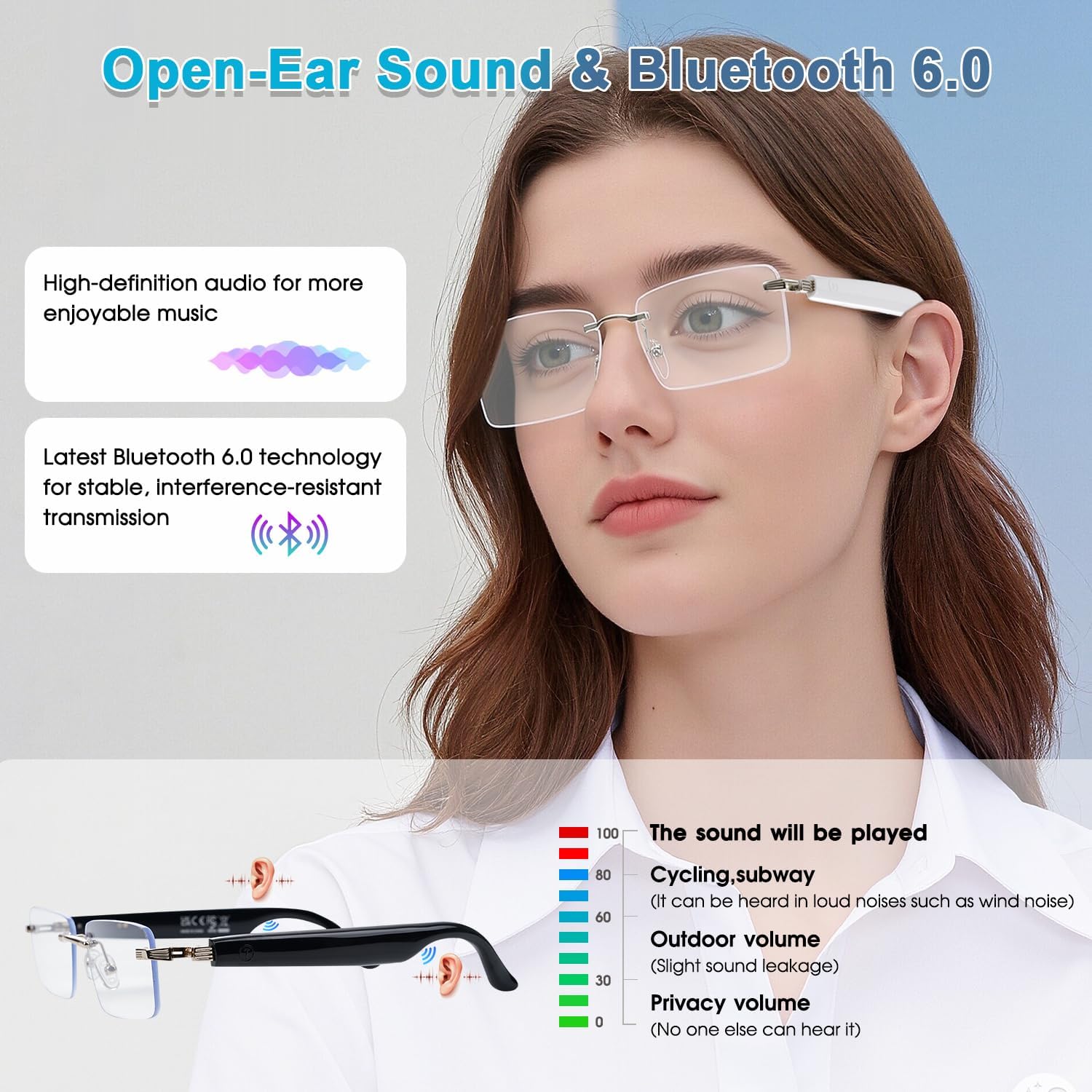
Figure 3.1: Explanation of open-ear sound technology for high-definition audio and the stable, interference-resistant transmission provided by Bluetooth 6.0. Includes a visual guide for sound projection and volume levels in different environments.
3.2 Real-Time Translation
The GenXenon UF-05 supports real-time translation for 164 languages with 99% accuracy and a 0.3-second response time. Access translation features through the Ear Dance app.
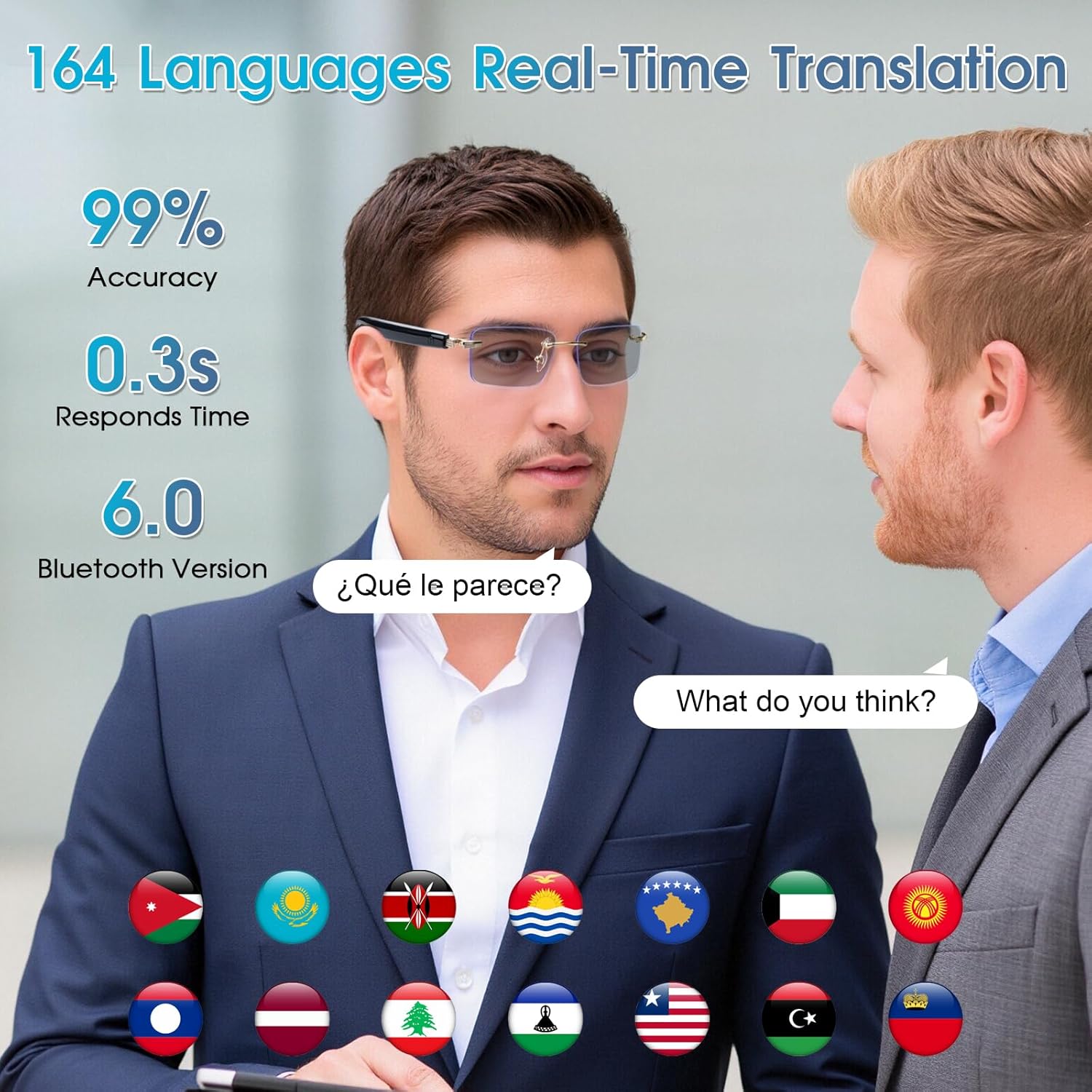
Figure 3.2: Demonstration of the smart glasses' ability to translate 164 languages in real-time with high accuracy and fast response, facilitated by Bluetooth 6.0. Shows a conversation with translated speech bubbles.
Translation Modes:
The Ear Dance app offers various translation modes to suit different scenarios:
- Free Talk: For natural, spontaneous conversations.
- Translation Machine Mode: Dedicated mode for direct translation input.
- Glasses + Phone Mode: Utilizes both devices for enhanced translation.
- Voice Note Mode: Translates spoken notes.
- Simultaneous Interpretation: Provides near real-time interpretation during conversations.
- Photo Translation: Translates text captured via your phone's camera.
- Audio and Video Translation Mode: Translates audio from calls or video content.
- AI Chat Mode: For interactive AI-powered language assistance.

Figure 3.3: Visual representation of the 8 distinct translation modes offered by the smart glasses, accessible through the companion app.
3.3 Photochromic Lenses
The lenses automatically adjust their tint based on UV light exposure:
- Indoors: Lenses remain clear, blocking blue light from screens.
- Outdoors: Lenses darken to provide UV protection and reduce glare, functioning as sunglasses.

Figure 3.4: Illustration of the photochromic lenses transitioning from clear indoors to dark outdoors, adapting to different light conditions.
4. Maintenance
4.1 Cleaning
Use the provided cleaning cloth to gently wipe the lenses and frame. Avoid using abrasive materials or harsh chemical cleaners, which can damage the lenses or coatings.
4.2 Water Resistance
The smart glasses are rated IPX5 for water resistance, meaning they can withstand splashes and light rain. They are not designed for submersion in water. Avoid exposing them to strong jets of water or prolonged immersion.
4.3 Storage
When not in use, store the smart glasses in the provided storage pouch to protect them from scratches and dust. Keep them in a cool, dry place away from direct sunlight and extreme temperatures.
5. Troubleshooting
5.1 Common Issues and Solutions
- Glasses not powering on: Ensure the glasses are fully charged. Connect them to the charger and wait a few minutes before attempting to power on again.
- Unable to pair via Bluetooth:
- Ensure Bluetooth is enabled on your smartphone.
- Make sure the glasses are in pairing mode (refer to the quick start guide for specific instructions).
- Try restarting both the glasses and your smartphone.
- Ensure the glasses are within the Bluetooth range of your phone (typically 10 meters).
- Translation not working or inaccurate:
- Verify that the Ear Dance app is installed, open, and connected to the glasses.
- Check your internet connection, as some translation features may require online access.
- Ensure the correct source and target languages are selected in the app.
- Speak clearly and at a moderate pace into the microphone.
- Poor audio quality:
- Ensure the glasses are positioned correctly on your head for optimal open-ear sound.
- Check the volume levels on both the glasses and your connected device.
- Move closer to your connected device to improve Bluetooth signal strength.
If you encounter issues not covered here, please refer to the Ear Dance app's help section or contact customer support.
6. Specifications
| Feature | Detail |
|---|---|
| Model Number | UF-05 |
| Brand | GenXenon |
| Connectivity | Bluetooth 6.0 |
| Battery Capacity | 2 x 70 mAh (Lithium-polymer) |
| Playback Time | 4-6 hours |
| Standby Time | Up to 200 hours |
| Charging Input | 5V 1A (Magnetic Charging) |
| Water Resistance | IPX5 |
| Translation Languages | 164 languages |
| Translation Accuracy | 99% |
| Translation Response Time | 0.3 seconds |
| Lens Type | Photochromic, Blue Light Blocking, UV Protection |
| Frame Type | Rimless with Spring Hinges |
| Input Method | Microphone |
| Compatible OS | Android, iOS (via Ear Dance App) |
| Target Audience | Adult Unisex |
7. Warranty Information
Warranty details for the GenXenon UF-05 AI Smart Glasses are typically provided with your purchase documentation or can be found on the official GenXenon website. Please retain your proof of purchase for warranty claims.
8. Customer Support
For further assistance, technical support, or inquiries regarding your GenXenon UF-05 AI Smart Glasses, please visit the official GenXenon website or contact their customer service department. Contact information is usually available on the product packaging or the brand's official online presence.