
1. Introduction
This manual provides detailed instructions for the installation, operation, and maintenance of your MOOKAKA 16.2 Inch Android 15 Car Radio. This head unit is specifically designed for Jeep Wrangler models manufactured between 2018 and 2022. It features an Android 15.0 operating system, an 8-core CPU, 12GB RAM, and 256GB ROM, offering a responsive and smooth user experience. Key functionalities include wireless Carplay and Android Auto, GPS navigation, 4G and WiFi connectivity, Bluetooth 5.0, and Mirror Link capabilities.

Image 1.1: MOOKAKA 16.2 Inch Car Radio integrated into a Jeep Wrangler dashboard, highlighting compatibility.
2. Setup and Installation
The MOOKAKA 16.2 Inch Android 15 Car Radio is designed for a non-destructive, plug-and-play installation, eliminating the need to cut existing vehicle wiring. All necessary cables and an installation tool are included to facilitate the process.
2.1 Included Components
- Power Cord
- WiFi Antenna
- Reversing Visibility Cable
- USB Cables (multiple)
- SIM Card Slot
- GPS Antenna
- Radio Antenna
- Installation Tool

Image 2.1: Comparison of the Jeep Wrangler dashboard before and after the installation of the MOOKAKA 16.2 Inch Car Radio, demonstrating the integrated fit.

Image 2.2: Visual representation of the 16.2-inch screen dimension and a comprehensive display of all included accessories for installation.
2.2 Installation Steps
- Carefully remove the original car stereo unit using the provided installation tool.
- Connect the power cord, WiFi antenna, GPS antenna, and radio antenna to the corresponding ports on the new head unit.
- If applicable, connect the reversing visibility cable and any additional USB cables.
- Insert your 4G SIM card into the designated slot if you plan to use cellular data.
- Carefully integrate the new head unit into the dashboard, ensuring all connections are secure and no wires are pinched.
- Secure the unit in place.
- Power on the vehicle and test all functions of the new car radio.
3. Operating Instructions
Your MOOKAKA car radio operates on Android 15.0, providing a familiar and intuitive interface. The 16.2-inch IPS touchscreen allows for easy navigation and control.
3.1 Basic Operation
- Power On/Off: Press and hold the power button (if available) or turn on your vehicle's ignition.
- Touchscreen Control: Navigate through menus, select applications, and adjust settings by touching the screen.
- Volume Control: Adjust volume using the on-screen controls or your vehicle's steering wheel controls.

Image 3.1: A detailed view of the MOOKAKA 16.2 Inch Car Radio unit, showcasing its large touchscreen display and integrated controls.
3.2 Android 15.0 Operating System
The unit runs on Android 15.0, allowing you to download and install various applications from the app store. The split-screen feature enables simultaneous use of two applications, such as navigation and music playback.

Image 3.2: The car radio display showing the Android 15.0 operating system interface with various application icons.
3.3 GPS Navigation
The built-in GPS module supports various navigation software, including Google Maps, Waze, and IGO. Download your preferred navigation app and enjoy real-time directions.

Image 3.3: The car radio display showing a GPS navigation map, indicating its built-in navigation capabilities.
3.4 Connectivity Features
- 4G & WiFi Network: Support for 4G SIM cards and built-in WiFi allows you to stay connected, download apps, stream music, and browse the internet.
- Wireless Carplay / Android Auto: Connect your smartphone wirelessly or via USB to access Carplay or Android Auto. This allows for voice control, navigation, messaging, and music playback directly from your phone's interface on the car radio screen. The system utilizes ZLINK for this functionality.
- Bluetooth 5.0: Pair your mobile device via Bluetooth for hands-free calling and audio streaming.
- Mirror Link: Mirror content from your Android (Miracast) or iOS (AirPlay) smartphone directly to the car stereo screen.

Image 3.4: The car radio display showing network icons, illustrating its 4G and WiFi connectivity features.

Image 3.5: The car radio display showing the Carplay interface, with a smartphone below demonstrating the wireless connection.

Image 3.6: The car radio display and a smartphone illustrating Bluetooth 5.0 connectivity for device pairing.

Image 3.7: The car radio display mirroring a smartphone screen, demonstrating the Mirror Link feature.
3.5 Audio Features
The unit supports multiple stereo surround sound and provides lossless sound quality output, enhanced by Digital Signal Processing (DSP) for an optimized auditory experience. It also supports SD/USB music and video playback.
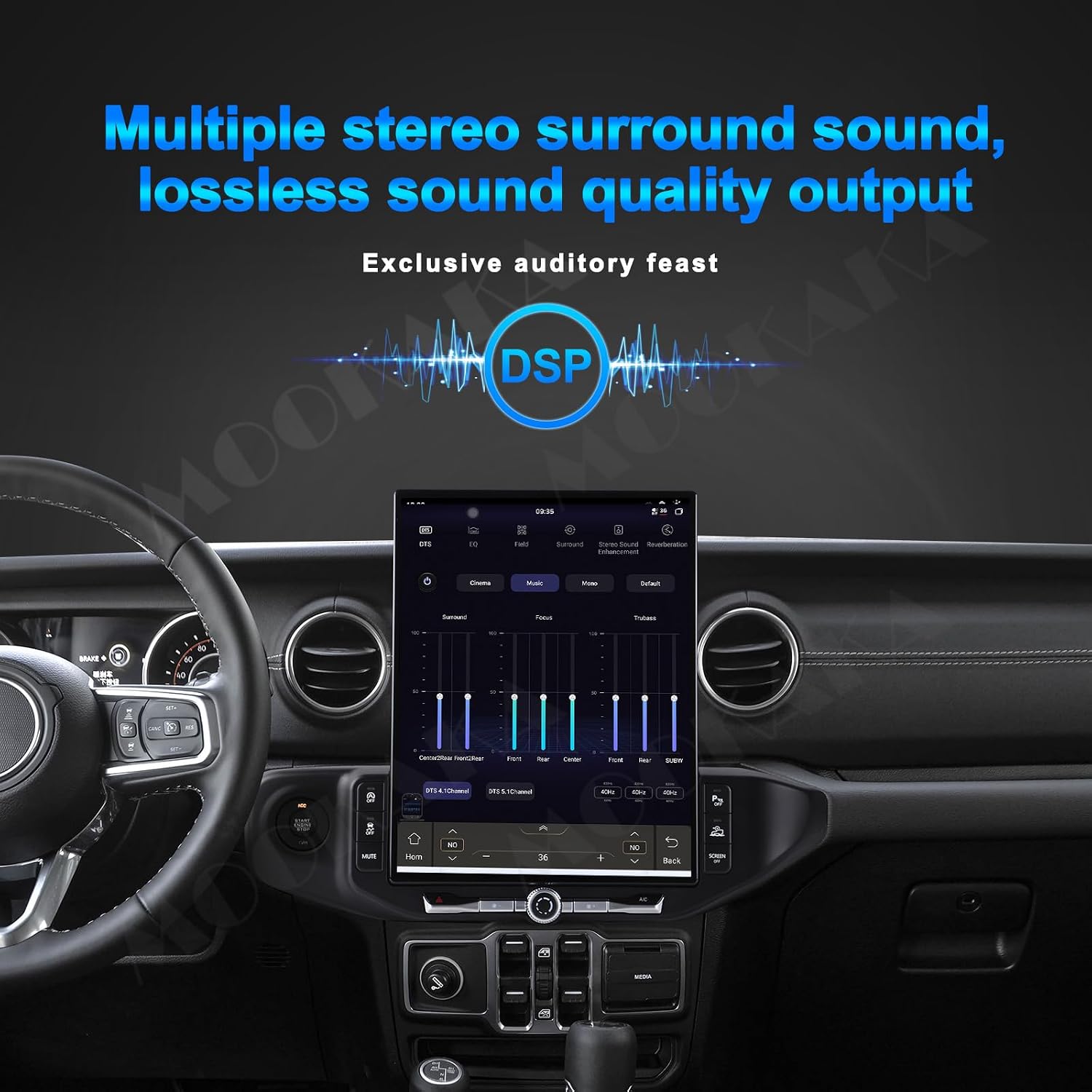
Image 3.8: The car radio display showing an audio equalizer interface with a DSP logo, indicating advanced sound processing.

Image 3.9: The car radio display showing a music player interface, indicating support for high-fidelity music playback.
3.6 Steering Wheel Control (SWC)
The head unit supports existing steering wheel control buttons, allowing you to change tracks, adjust volume, and manage calls without taking your hands off the wheel, enhancing driving safety.

Image 3.10: An illustration demonstrating how the car radio integrates with and supports existing steering wheel controls.
4. Maintenance
To ensure the longevity and optimal performance of your MOOKAKA car radio, follow these maintenance guidelines:
- Cleaning: Use a soft, dry cloth to clean the screen and exterior. Avoid abrasive cleaners or solvents that could damage the display or finish.
- Temperature: Avoid exposing the unit to extreme temperatures, both hot and cold, as this can affect performance and lifespan.
- Connections: Periodically check all cable connections to ensure they are secure and free from corrosion.
5. Troubleshooting
If you encounter any issues with your car radio, consider the following basic troubleshooting steps:
- No Power: Check all power connections and ensure the vehicle's ignition is on. Verify fuses if necessary.
- No Sound: Check volume settings, audio source selection, and speaker connections.
- GPS Signal Issues: Ensure the GPS antenna is properly installed and has a clear view of the sky.
- Connectivity Problems (WiFi/Bluetooth): Restart the unit and your connected device. Ensure devices are within range and properly paired.
- Touchscreen Unresponsive: Try restarting the unit. If the issue persists, contact customer support.
For persistent issues or complex problems, please refer to the Support section for contact information.
6. Specifications

Image 6.1: Various views of the MOOKAKA 16.2 Inch Car Radio unit, detailing its physical design and ports.
| Feature | Specification |
|---|---|
| Brand | MOOKAKA |
| Display Size | 16.2 Inches |
| Display Type | LED, IPS Touch Screen |
| Operating System | Android 15.0 |
| CPU | 8-core |
| RAM | 12GB |
| Memory Storage Capacity | 256 GB |
| Connectivity Technology | Bluetooth 5.0, 4G, WiFi |
| Special Features | Touchscreen, Built-in Carplay / Android Auto, GPS Navigation, Mirror Link, Steering Wheel Control, HDMI output, AM / FM RDS radio |
| Map Type | North America (supports various navigation software) |
| Control Method | Touch |
| Included Components | Cables, Installation tool |
7. Warranty Information
This MOOKAKA 16.2 Inch Android 15 Car Radio comes with a 1-Year Warranty from the date of purchase. This warranty covers manufacturing defects and malfunctions under normal use. Please retain your proof of purchase for warranty claims.
8. Support
For any questions regarding installation, operation, or troubleshooting, please do not hesitate to contact our professional sales and support team. We are committed to providing assistance throughout your product experience.
Contact Information: Please refer to the seller's contact details on your purchase platform or the official MOOKAKA website for the most up-to-date support information.
