
Introduction
This manual provides detailed instructions for the installation, operation, and maintenance of your Oskkude 2G+64G Car Stereo. This unit is designed for Ford F250 and F350 Super Duty vehicles manufactured between 1999 and 2004. Please read this manual thoroughly before installation and use to ensure proper function and safety.
Important Installation Notice

Warning: This car stereo is NOT a plug-and-play unit. Installation requires cutting and splicing wires. Professional installation is highly recommended to avoid damage to the unit or your vehicle's electrical system.
Before proceeding with installation, ensure you have the necessary tools and technical knowledge. If you are unsure about any step, consult a qualified car audio technician.
Package Contents
Verify that all components are present in the package before beginning installation.
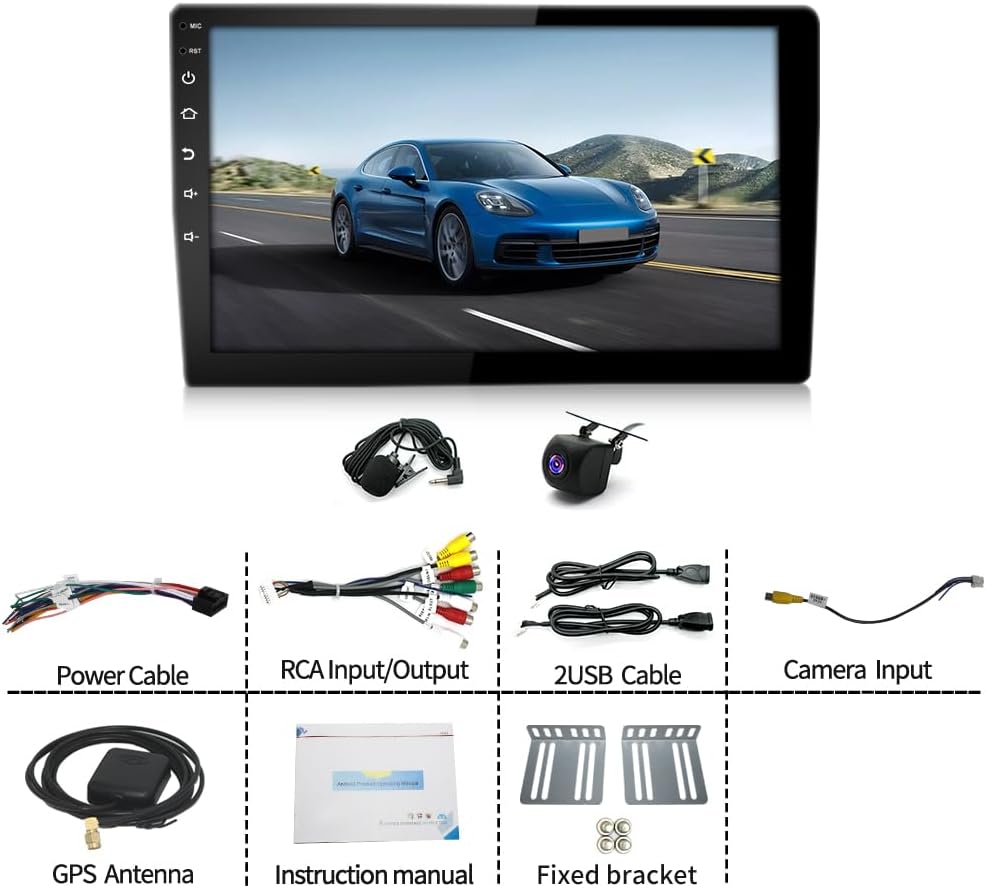
Image: Overview of the Oskkude car stereo unit and its included accessories.
- Oskkude 10.1" Car Stereo Unit
- Power Cable Harness
- RCA Input/Output Cables
- 2 USB Cables
- Camera Input Cable
- GPS Antenna
- Instruction Manual (this document)
- Fixed Brackets (mounting hardware)
Setup and Installation
Vehicle Compatibility
This unit is compatible with Ford F250 and F350 Super Duty models from 1999 to 2004. Ensure your vehicle's dashboard configuration matches the requirements for a 10.1-inch double DIN stereo.
Wiring Instructions
As noted, installation requires wire cutting and splicing. Refer to the wiring diagram provided with the unit for specific connections. Key connections typically include:
- Power: Connect the yellow wire to constant 12V, red wire to accessory 12V, and black wire to ground.
- Speakers: Connect speaker wires according to polarity (e.g., white/white-black for front left, gray/gray-black for front right, etc.).
- Steering Wheel Control (SWC): Connect the SWC wires to your vehicle's steering wheel control interface. Configuration may be required in the unit's settings.
- Backup Camera: Connect the camera's video output to the "CAM IN" RCA port and the camera's power to the reverse light circuit.
- GPS Antenna: Mount the GPS antenna in a location with a clear view of the sky, typically on the dashboard or under the windshield.
- USB Ports: Route the USB cables to an accessible location for connecting external devices.
Always disconnect the vehicle's battery before starting any electrical work.
Mounting the Unit
Use the provided fixed brackets to secure the car stereo into your vehicle's dashboard opening. Ensure the unit is firmly mounted to prevent vibrations and movement.
Operating Instructions
Initial Power On and System Setup
After installation, turn on your vehicle's ignition. The unit should power on automatically. Follow the on-screen prompts for initial setup, including language selection, time zone, and Wi-Fi connection.
Wireless CarPlay and Android Auto

Image: Wireless CarPlay and Android Auto interfaces.
This unit supports both wireless CarPlay for iOS devices and wireless Android Auto for Android devices. To connect:
- Ensure Bluetooth and Wi-Fi are enabled on your smartphone.
- On the car stereo, open the CarPlay or Android Auto application.
- Pair your phone via Bluetooth with the car stereo.
- Confirm the connection on both your phone and the stereo. The system will automatically switch to the CarPlay or Android Auto interface.
- Use voice commands (Siri for CarPlay, Google Assistant for Android Auto) for navigation, calls, messages, and music playback.
GPS Navigation and Wi-Fi

Image: GPS navigation and Wi-Fi connectivity features.
The integrated GPS module and Wi-Fi connectivity allow for both online and offline navigation. The unit comes with pre-installed offline maps for North America. For online navigation and app downloads:
- Connect the unit to a Wi-Fi hotspot (e.g., from your smartphone).
- Access the application store to download additional navigation apps or other Android applications.
- For offline navigation, ensure the desired map regions are downloaded and updated.
Bluetooth Connectivity
The integrated Bluetooth module allows for hands-free calling and audio streaming.
- Enable Bluetooth on your phone and the car stereo.
- Search for available devices on your phone and select the car stereo (usually named "Oskkude" or similar).
- Confirm pairing. Once connected, you can make/receive calls and play music wirelessly.
Steering Wheel Control (SWC)

Image: Steering Wheel Control interface and settings.
If properly wired, the unit supports your vehicle's steering wheel controls. To configure:
- Go to the system settings on the car stereo.
- Locate the "Steering Learn" or "SWC Settings" option.
- Follow the on-screen instructions to map your steering wheel buttons to the corresponding functions on the stereo (e.g., volume up/down, track skip, mode).
Backup Camera Functionality
When a compatible AHD backup camera is connected and properly wired, the stereo will automatically display the rear view when the vehicle is shifted into reverse. This feature enhances parking safety.
FM/RDS Radio

Image: Split-screen mode and FM/RDS Radio interface.
Access the Radio application to listen to FM broadcasts. The unit supports automatic and manual station searching. RDS (Radio Data System) provides additional information like station name and program type where available.
- Auto Scan: Press the "Scan" button to automatically search and save available stations.
- Manual Tuning: Use the arrow buttons to fine-tune frequencies.
- Presets: Save your favorite stations to preset buttons for quick access.
Split Screen Function
The split-screen feature allows you to run two applications simultaneously, such as navigation on one side and music playback on the other. To activate, long-press the recent apps button or drag an app to one side of the screen (method may vary slightly based on Android version).
Maintenance
- Screen Cleaning: Use a soft, lint-free cloth to clean the touchscreen. Avoid abrasive cleaners or solvents.
- Software Updates: Periodically check for system software updates via the Wi-Fi connection to ensure optimal performance and access to new features.
- General Care: Keep the unit free from excessive dust and moisture. Avoid extreme temperatures.
Troubleshooting
| Problem | Possible Cause | Solution |
|---|---|---|
| Unit does not power on. | Incorrect wiring, blown fuse, vehicle battery issue. | Check power connections (yellow, red, black wires). Inspect vehicle fuses. Ensure battery is charged. |
| No sound from speakers. | Incorrect speaker wiring, volume too low, mute activated. | Verify speaker connections and polarity. Increase volume. Check if mute is active. |
| CarPlay/Android Auto not connecting. | Bluetooth/Wi-Fi off, phone not paired, app issues. | Ensure Bluetooth and Wi-Fi are on. Re-pair phone. Restart phone and stereo. |
| GPS signal weak or inaccurate. | GPS antenna placement, environmental interference. | Ensure GPS antenna has a clear view of the sky. Avoid placing near metal objects. |
| Steering Wheel Controls not working. | Incorrect SWC wiring, not configured. | Check SWC wiring. Perform "Steering Learn" in settings. |
For persistent issues, please contact Oskkude customer support.
Specifications
| Feature | Detail |
|---|---|
| Model Number | B0G1LX2JBF |
| Operating System | Android 14.0 |
| RAM | 2GB |
| ROM (Internal Storage) | 64GB |
| Screen Size | 10.1 inches |
| Display Type | IPS Touchscreen |
| Display Resolution | 1024x600 |
| Connectivity | Bluetooth, USB, Wi-Fi |
| Special Features | Wireless CarPlay, Android Auto, GPS Navigation, Steering Wheel Control, Split Screen, AHD Backup Camera Support, FM/RDS Radio, Mirror Link |
| Compatible Vehicles | Ford F250 F350 Super Duty (1999-2004) |
| Audio Output Mode | Stereo, 5.1 Surround Sound Channel Configuration |
Warranty and Support
For warranty information and technical support, please refer to the contact details provided with your purchase or visit the official Oskkude website. Keep your purchase receipt as proof of purchase for warranty claims.
Manufacturer: Oskkude
Date First Available: November 10, 2025