
1. Introduction
Thank you for purchasing the Genérico S-X1 Drone. This advanced aerial photography drone is equipped with a 4K HD camera, 3-axis gimbal, GPS, and a 4.5-inch remote control screen for an immersive flight experience. This manual provides essential information for safe operation, setup, maintenance, and troubleshooting. Please read it thoroughly before operating your drone.
2. Safety Information
Operating a drone requires responsibility and adherence to safety guidelines. Failure to follow these instructions may result in injury, damage to the drone, or property damage.
- Flight Environment: Fly in open areas, away from people, buildings, trees, and power lines. Avoid flying in strong winds or adverse weather conditions.
- Battery Safety: Use only the provided charger and battery. Do not overcharge or puncture batteries. Discontinue use if batteries show signs of damage or swelling.
- Propeller Safety: Keep hands, face, and loose clothing away from rotating propellers. Ensure propellers are correctly installed before each flight.
- Line of Sight: Always maintain visual line of sight with your drone during flight.
- Legal Compliance: Be aware of and comply with all local regulations and laws regarding drone operation.
3. Package Contents
Verify that all items are present in your package:
- 1 x S-X1 Drone
- 1 x Remote Control with 4.5" Screen
- 1 x Small USB Cable
- 8 x Spare Propellers
- 1 x User Manual (this document)
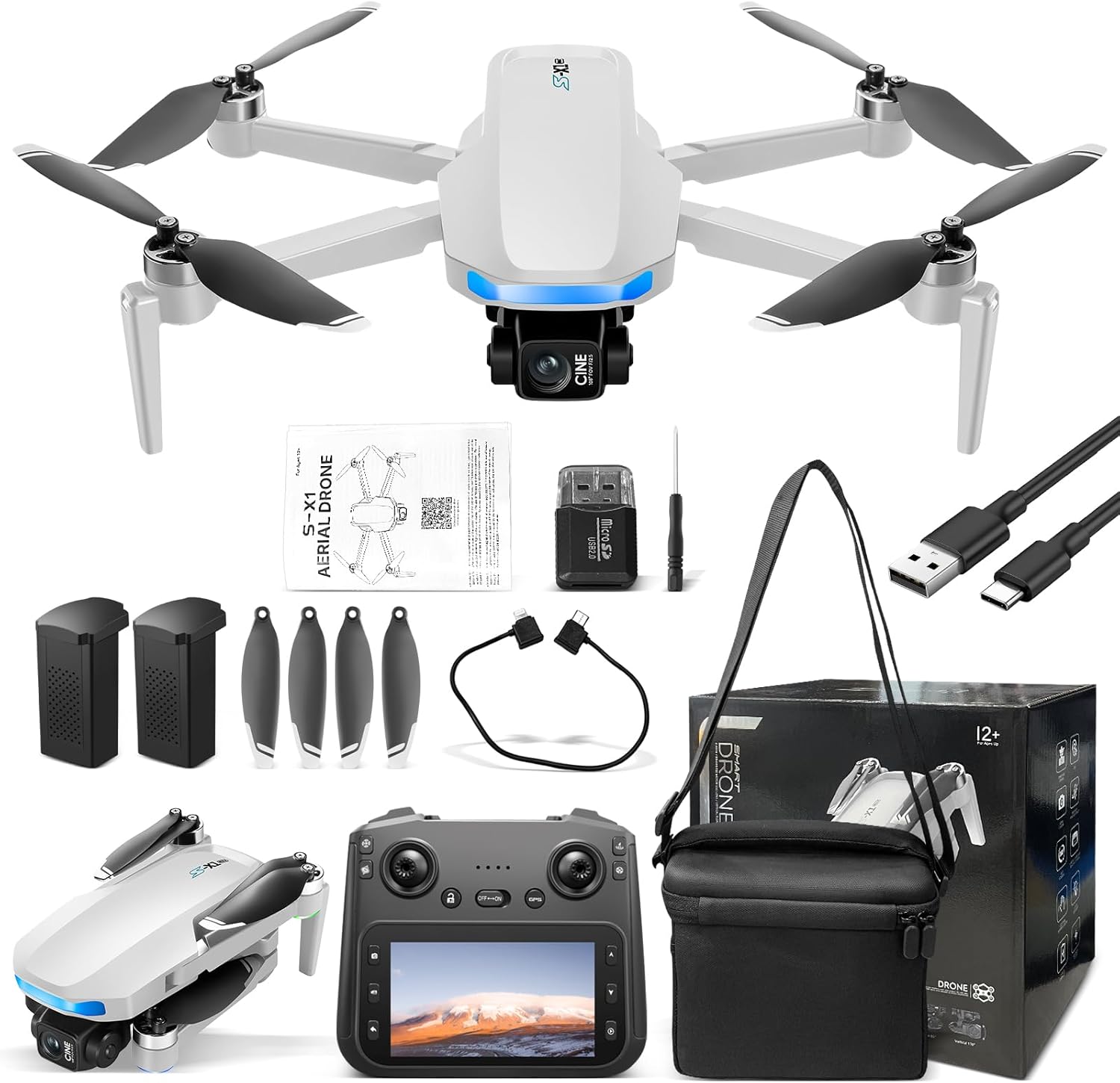
Image: The S-X1 Drone, remote control, batteries, propellers, and charging cables included in the package.
4. Product Overview
4.1. Drone Components
- 4K HD Camera: High-definition camera for capturing photos and videos.
- 3-Axis Gimbal with EIS: Provides electronic image stabilization for smooth, vibration-free footage.
- Brushless Motors: Ensures powerful, efficient, and quiet flight.
- Propellers: Four main propellers for lift and movement.
- GPS Module: Enables precise positioning, return-to-home functions, and intelligent flight modes.
- Battery Compartment: Houses the 1600mAh Li-ion flight battery.

Image: Close-up view of the S-X1 Drone's main camera and its 3-axis self-stabilizing gimbal.
4.2. Remote Control
- 4.5-inch High-Resolution Screen: Displays real-time FPV feed and flight data.
- Control Sticks: For flight direction and altitude control.
- Function Buttons: Dedicated buttons for takeoff/landing, return-to-home, and camera controls.

Image: The remote control for the S-X1 Drone, showing its integrated screen and controls for intelligent GPS functions.
5. Setup
5.1. Battery Charging
- Connect the drone battery to the provided USB charging cable.
- Plug the USB cable into a suitable USB power adapter (not included).
- The charging indicator will show the charging status. A full charge takes approximately 120 minutes for the 1600mAh battery.

Image: Details of the S-X1 Drone's 1600mAh 7.4V battery, highlighting its 30-minute flight autonomy.
5.2. Propeller Installation
Ensure propellers are installed correctly according to their rotation direction (marked A or B) and match the corresponding motor arms. Incorrect installation can affect flight stability.
5.3. Remote Control Setup
Power on the remote control. Ensure it is fully charged. The remote control automatically connects to the drone when both are powered on and within range.
5.4. Drone Power On/Off
- Power On: Insert the charged battery into the drone's battery compartment. Press and hold the power button on the drone until the indicator lights illuminate.
- Power Off: Press and hold the power button on the drone until the indicator lights turn off. Remove the battery for storage.
6. Operating Instructions
6.1. Pre-Flight Checklist
- Ensure drone and remote control batteries are fully charged.
- Check that propellers are securely attached and undamaged.
- Verify the flight environment is safe and clear of obstacles.
- Power on the remote control, then the drone. Wait for GPS signal acquisition (if applicable).
6.2. Takeoff and Landing
- One-Touch Takeoff: Press the dedicated takeoff button on the remote control. The drone will automatically ascend to a safe altitude.
- Manual Takeoff: Push both control sticks outwards and downwards to start the motors, then slowly push the left stick up to ascend.
- One-Touch Landing: Press the dedicated landing button. The drone will automatically descend and land.
- Manual Landing: Slowly pull the left stick down to descend. Once landed, push both sticks outwards and downwards to stop the motors.
6.3. Flight Controls
The remote control uses standard drone control stick configurations:
- Left Stick (Throttle/Yaw): Up/Down for altitude, Left/Right for rotation.
- Right Stick (Pitch/Roll): Up/Down for forward/backward movement, Left/Right for left/right movement.
6.4. Intelligent Flight Functions
The S-X1 Drone features several intelligent flight modes:
- GPS Return to Home (RTH): Automatically returns the drone to its takeoff point. Triggered by one-touch, low battery, or signal loss.
- Automatic Follow Me: The drone tracks and follows the remote control or a designated subject.
- Custom Route (Waypoint Flight): Draw a desired flight path on the remote control screen, and the drone will follow it.
- Headless Mode: Eliminates the need to distinguish the drone's head direction, making it easier for beginners to control.

Image: The drone's altitude hold feature, demonstrating stable hovering for consistent aerial photography.
6.5. Camera Operation
The 4K HD camera with 3-axis EIS gimbal ensures high-quality aerial footage.
- Photo/Video Capture: Use the dedicated buttons on the remote control to take photos or start/stop video recording.
- Gimbal Control: Adjust the camera angle using the gimbal control on the remote control for optimal framing.
- Real-time FPV: View the camera feed directly on the remote control's 4.5-inch screen.

Image: A visual comparison demonstrating the enhanced stability and visual quality achieved with the drone's EIS stabilization versus without it.
7. Maintenance
7.1. Cleaning
Wipe the drone and remote control with a soft, dry cloth after each use. Avoid using harsh chemicals or solvents.
7.2. Storage
Store the drone and its components in a cool, dry place, away from direct sunlight. Remove batteries from the drone and remote control if storing for extended periods.
7.3. Propeller Replacement
If propellers become damaged, replace them immediately with the provided spare propellers. Ensure correct orientation (A or B) during installation.
8. Troubleshooting
- Drone does not power on: Ensure the battery is fully charged and correctly inserted.
- Drone does not respond to remote control: Ensure both devices are powered on and within range. Re-pair if necessary (refer to specific pairing instructions in the full manual).
- Unstable flight: Check for damaged propellers or incorrect propeller installation. Calibrate the drone's gyroscope and compass if flight remains unstable.
- Poor image quality: Ensure the camera lens is clean. Check for proper gimbal function.
- GPS signal issues: Fly in open areas away from tall buildings or interference. Wait for sufficient GPS satellites to connect before takeoff.
9. Specifications
| Brand | Genérico |
| Model Name | S-X1 |
| Video Capture Resolution | 4K |
| Final Resolution | 8.3 MP |
| Connectivity Technology | 5G, GPS, Wi-Fi |
| Skill Level | Beginner to Advanced |
| Battery Capacity | 1600 mAh |
| Flight Time | Up to 30 minutes |
| Charging Time | Approx. 120 minutes |
| Remote Control Technology | 5G Digital Image Transmission with GPS |
| Max Flight Distance | 5 KM |
| Item Weight | 300 Grams |
| Folded Dimensions (L x W x H) | 8.2 x 14.8 x 6.4 cm |
| Unfolded Dimensions (L x W x H) | 26 x 25.5 x 6.4 cm |
| Material | Electronic Components, Metal, Plastic |

Image: The S-X1 foldable drone held in hand, illustrating its compact folded dimensions (8.2 x 14.8 x 6.4 cm) and unfolded dimensions (26 x 25.5 x 6.4 cm).
10. Warranty and Support
For warranty information and technical support, please refer to the contact details provided with your purchase documentation or visit the manufacturer's official website. Keep your proof of purchase for warranty claims.