
1. Safety Information
Please read all safety instructions carefully before assembly and use. Retain this manual for future reference.
- Always ensure the desk is properly anchored to the floor to prevent tipping.
- Do not exceed the maximum weight capacity of 180 pounds (81.6 kg).
- Use LED lights in a well-lit environment and avoid prolonged direct exposure to prevent eye strain.
- Keep children and pets away from the desk during height adjustment to prevent injury.
- Ensure all cables are properly managed to avoid entanglement or damage during desk movement.
- Do not place liquids directly on the desk surface without proper coasters or protection.
2. Package Contents
Verify that all components are present before beginning assembly. Refer to the detailed parts list in the assembly video for specific part identifiers.
- Desktop sections (Carbon Fiber Surface)
- Desk Legs (Alloy Steel)
- Crossbeams and Support Structure
- Electric Motor and Control Box
- Smart Control Panel
- LED Light Strips
- Headphone Hook
- All necessary screws, bolts, and tools for assembly
- Power Adapter
3. Setup and Assembly
Follow these steps to assemble your HLDIRECT Gaming Standing Desk. It is recommended to have two people for assembly.
3.1 Assembly Video Guide
For a visual step-by-step guide, please watch the official installation video:
Video Description: This video provides a detailed, step-by-step guide on how to correctly install the HLDIRECT electric standing desk. It covers the entire assembly process from unboxing to final setup, ensuring proper construction and functionality.
3.2 Step-by-Step Assembly
- Foot Installation: Attach the foot pads to the bottom of the desk legs. Ensure they are securely fastened.
- Motor Installation: Insert the motor into the designated slot on one of the desk legs. Connect the drive rod to the motor and the other leg, ensuring proper alignment.
- Beam Installation: Attach the crossbeams to the top of the desk legs. These beams provide structural support for the desktop.
- Desktop Panel Installation: Carefully place the desktop sections onto the assembled frame. Secure them using the provided screws.
- Accessory and Line Connection: Install the headphone hook and connect all necessary cables, including the power cable, motor cable, and control panel cable. Ensure all connections are firm and organized.

Image Description: This diagram illustrates the dimensions of the HLDIRECT 63-inch gaming desk, including its length (63 inches), depth (23.7 inches), and adjustable height range (27.8 to 44.5 inches).

Image Description: This image displays the HLDIRECT gaming desk at its lowest (27.8 inches) and highest (44.5 inches) adjustable positions, demonstrating its stable height adjustment mechanism.
4. Operating Instructions
Your HLDIRECT Gaming Standing Desk offers electric height adjustment and integrated LED lighting for an enhanced user experience.
4.1 Height Adjustment
The desk's height can be adjusted between 27.8 inches (70.6 cm) and 44.5 inches (113 cm).
- Up/Down Buttons: Use the ▲ (Up) and ▼ (Down) buttons on the smart control panel to manually adjust the desk to your desired height.
- Memory Presets: The control panel features three memory height settings (1, 2, 3). To save a height, adjust the desk to the desired position, then press and hold one of the memory buttons (1, 2, or 3) until you hear a beep or see the display flash. To recall a saved height, simply press the corresponding memory button.
- Child Lock: Activate the child lock feature (indicated by a lock icon on the panel) to prevent accidental height adjustments.
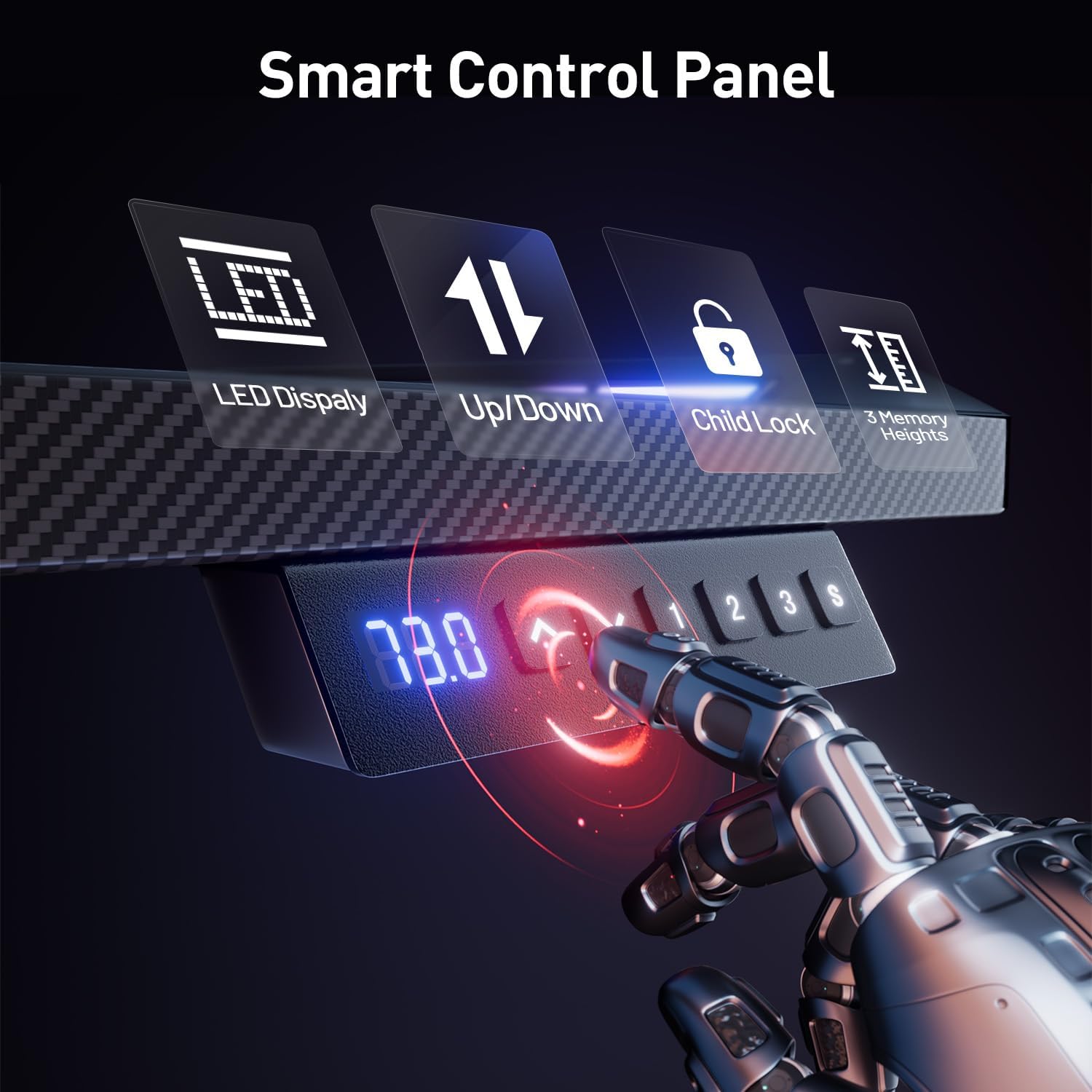
Image Description: A close-up view of the smart control panel on the HLDIRECT gaming desk, showing buttons for LED display, up/down adjustment, child lock, and three memory height settings.
4.2 LED Lights Operation
The integrated LED lights offer multiple modes and colors.
- LED Display Button: Use the dedicated LED button on the control panel to cycle through different lighting modes and colors.
- Lighting Modes: Options typically include multi-color gradient, single-color cycling, and static color modes.
- Brightness and Speed: Adjust brightness and speed of dynamic modes as per the control panel or any included remote (if applicable).

Image Description: This image highlights the integrated LED lights on the HLDIRECT gaming desk, showcasing their vibrant colors and how they enhance the gaming ambiance.
4.3 Anti-Collision Function
The desk is equipped with an intelligent anti-collision detection system.
- If the desk encounters an obstacle during height adjustment, it will automatically stop and reverse slightly to prevent damage or injury.
- Ensure the area around the desk is clear before and during adjustment for optimal safety.

Image Description: An illustration of the anti-collision technology feature of the HLDIRECT gaming desk, showing the desk stopping its movement when an obstruction is detected.
4.4 Product Overview Video
View a brief overview of the HLDIRECT Gaming Standing Desk features:
Video Description: This video provides a dynamic overview of the HLDIRECT Gaming Standing Desk, showcasing its design, LED lighting, and electric height adjustment capabilities in a gaming environment.
5. Maintenance
Proper maintenance ensures the longevity and optimal performance of your desk.
- Cleaning: Wipe the carbon fiber surface with a soft, damp cloth. Avoid abrasive cleaners or harsh chemicals that could damage the finish.
- Cable Management: Regularly check and organize cables to prevent pinching or damage during height adjustments.
- Motor Care: The motor is designed for low noise and durability. Avoid obstructing the motor mechanism. No special lubrication is typically required.
- Fasteners: Periodically check all screws and bolts to ensure they remain tight. Retighten if necessary.
6. Troubleshooting
If you encounter issues with your desk, refer to the following common solutions:
- Desk Not Adjusting Height:
- Check if the power cable is securely plugged into both the desk and a working power outlet.
- Ensure all motor and control panel cables are properly connected.
- Verify that the child lock is not activated.
- If an error code appears on the display, consult the manufacturer's support for specific instructions.
- LED Lights Not Working:
- Check the power connection for the LED strips.
- Ensure the LED control button on the panel is pressed.
- Unstable Desk:
- Ensure all assembly screws are tightened.
- Verify the desk is on a flat, level surface. Adjust foot pads if necessary to balance.
- Do not exceed the maximum weight capacity.
If the issue persists, please contact HLDIRECT customer support.
7. Specifications
| Feature | Detail |
|---|---|
| Brand | HLDIRECT |
| Model Number | Z-160 |
| Product Dimensions (D x W x H) | 23.7"D x 63"W x 44.5"H (60.2 cm D x 160 cm W x 113 cm H) |
| Adjustable Height Range | 27.8" - 44.5" (70.6 cm - 113 cm) |
| Tabletop Material | Carbon Fiber |
| Tabletop Thickness | 0.63 Inches (1.6 cm) |
| Base Material | Alloy Steel |
| Maximum Weight Recommendation | 180 Pounds (81.6 kg) |
| Special Features | Adjustable Height, Electric, LED Lights, Anti-Collision Function, Headphone Hook |
| Motor Noise Level | Less than 50 decibels |
| Assembly Required | Yes |
8. Warranty and Support
HLDIRECT is committed to providing quality products and customer satisfaction.
- Warranty: This product comes with a limited warranty. Please refer to your purchase documentation for specific warranty terms and conditions.
- Customer Support: For any questions regarding assembly, operation, troubleshooting, or warranty claims, please contact HLDIRECT customer service. A professional after-sales service team is available to assist you.
- Contact: You can typically find contact information on the HLDIRECT official website or through your purchase platform.