
1. Introduction
Thank you for choosing the FEINODI Wireless HDMI Adapter. This device allows you to wirelessly mirror content from your iPhone, iPad, Android device, or Windows computer to a larger display such as a TV, monitor, or projector. Enjoy seamless streaming, presentations, and media sharing without the need for cables.
This manual provides essential information on how to set up, operate, and troubleshoot your wireless HDMI adapter to ensure optimal performance and a smooth user experience.
2. Product Overview
The FEINODI Wireless HDMI Adapter is designed for ease of use and high performance. It transforms any standard display into a wireless screen, enabling instant content sharing from your mobile devices or computers.
- Easy Connection: Converts any TV or projector into a wireless display instantly, allowing you to share content from small screens to large screens in seconds, completely cable-free.
- Plug and Play: No software installation, no complex setup. Simply plug it in, and your screen is ready for sharing.
- High Performance: Features advanced 5 GHz wireless technology for a stable connection, supporting crystal-clear 4K decoding and smooth Full HD 1080P output at a 60 Hz refresh rate.
- Universal Compatibility: Works seamlessly with iOS, Android, macOS, and Windows systems, allowing you to mirror screens from iPhones, Android phones, tablets, or laptops to any HDMI display.
- Compact and Portable: Its ultra-compact design makes it easy to carry, turning any available screen into your personal wireless display on the go.
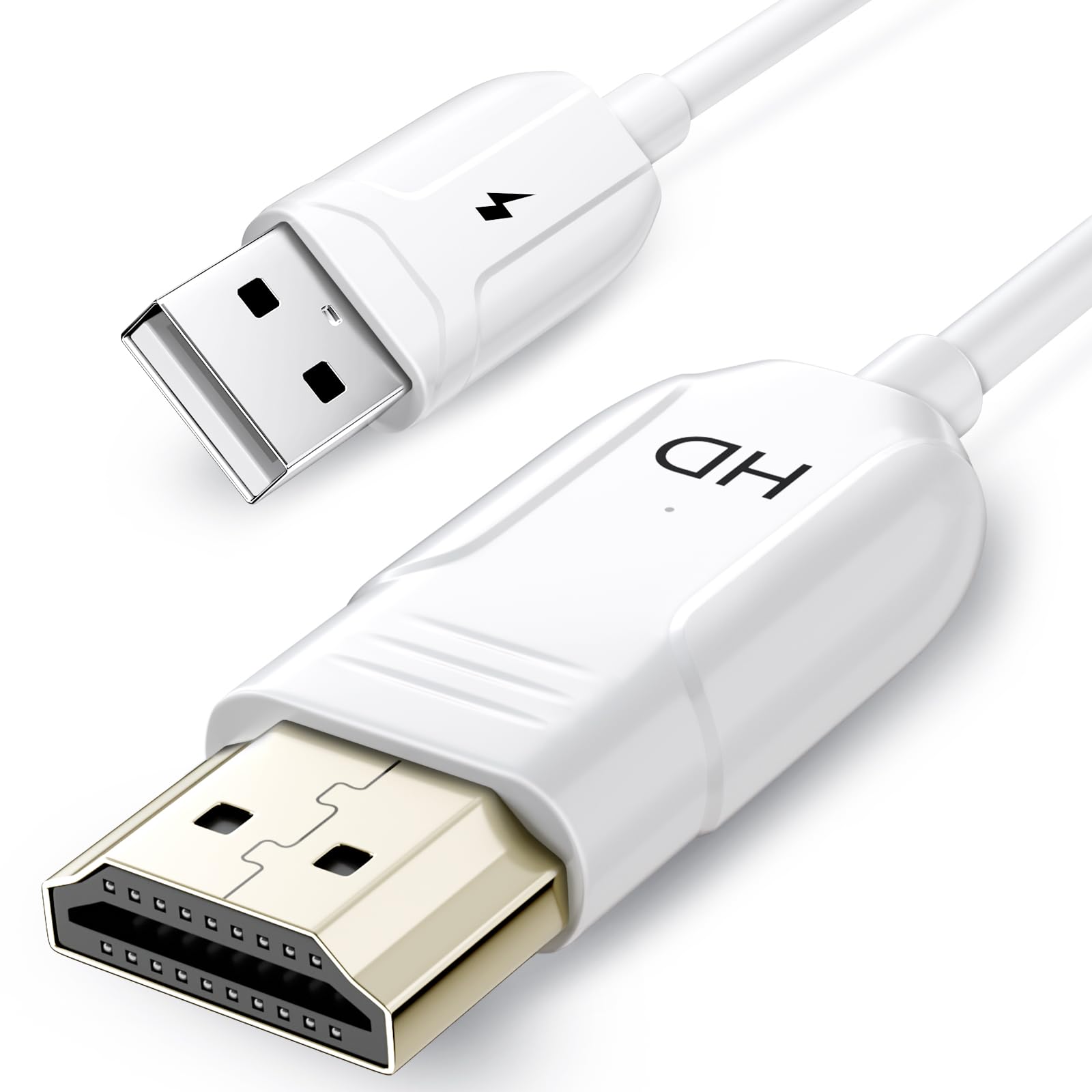
Image 2.1: The FEINODI Wireless HDMI Adapter in use, demonstrating wireless mirroring from a smartphone to a large TV screen.
3. Setup Instructions
Setting up your FEINODI Wireless HDMI Adapter is a straightforward process. Follow these steps to get started:
- Connect to Display: Plug the HDMI connector of the adapter into an available HDMI port on your TV, monitor, or projector.
- Provide Power: Connect the USB power cable from the adapter to a USB port on your display device or a USB power adapter (5V/1A recommended). Ensure the adapter receives stable power.
- Select Input: On your display device, use its remote control or menu to select the corresponding HDMI input source to which the adapter is connected.
- Wait for Boot Screen: The adapter will power on and display a boot screen with instructions for connecting your device. This screen typically shows the device name and password/PIN for mirroring.
- Connect Your Device: Proceed to the operating instructions section to connect your specific device (iOS, Android, Windows, macOS).

Image 3.1: Visual representation of the adapter's versatile compatibility with different display types and operating systems.
4. Operating Instructions
Once the adapter is set up and displaying its boot screen, you can connect your device using AirPlay (for Apple devices) or Miracast (for Android/Windows devices).
4.1. For iOS / macOS Devices (AirPlay)
- Ensure your iOS/macOS device is connected to the same Wi-Fi network as the FEINODI adapter (if the adapter creates its own Wi-Fi hotspot, connect to that).
- On your iPhone/iPad, swipe down from the top-right corner (or up from the bottom for older models) to open the Control Center. On macOS, click the Control Center icon in the menu bar.
- Tap or click on "Screen Mirroring" (or "AirPlay").
- Select the FEINODI adapter from the list of available devices. Its name will be displayed on the boot screen of your TV/monitor.
- If prompted, enter the PIN displayed on your TV/monitor into your iOS/macOS device.
- Your device's screen should now be mirrored to the display.
4.2. For Android / Windows Devices (Miracast)
- For Android: Go to your device's settings and look for screen mirroring options such as "Smart View," "Screen Cast," "Wireless Display," "MirrorShare," or similar. The exact name may vary by manufacturer.
- For Windows: Press the Windows key + P, then select "Connect to a wireless display."
- Select the FEINODI adapter from the list of available devices. Its name will be displayed on the boot screen of your TV/monitor.
- If prompted, enter the PIN displayed on your TV/monitor into your Android/Windows device.
- Your device's screen should now be mirrored to the display.

Image 4.1: The adapter facilitates wireless streaming for professional presentations and collaborative work environments.

Image 4.2: Examples of various environments where the FEINODI Wireless HDMI Adapter can be effectively used.
5. Compatibility
The FEINODI Wireless HDMI Adapter offers broad compatibility across various devices and operating systems:
- Operating Systems: iOS, Android, macOS, Windows.
- Compatible Devices: Smartphones (iPhone, Android), Tablets (iPad, Android tablets), Laptops (MacBook, Windows laptops).
- Display Devices: TVs, Monitors, Projectors with an HDMI input.
- Mirroring Technologies: Supports AirPlay for Apple devices and Miracast for Android and Windows devices.
5.1. Streaming App Compatibility
The adapter is compatible with a wide range of streaming applications. However, please note that some streaming services may implement Digital Rights Management (DRM) that prevents screen mirroring of their content. This is a limitation imposed by the content providers, not the adapter itself.

Image 5.1: Overview of streaming application compatibility, highlighting potential DRM restrictions for certain platforms on iOS/macOS.
6. Specifications
| Feature | Specification |
|---|---|
| Model Number | THT-020-8+ |
| Manufacturer | YCKD |
| Dimensions | 10.5 x 6.5 x 1.7 cm |
| Weight | 40 grams |
| Special Features | Data Transfer |
| Connector Type | HDMI |
| Cable Type | HDMI |
| Compatible Devices | Smartphone, Tablet, Laptop |
| Recommended Uses | Wireless connection to large screen, presentations, family entertainment, remote work |
| Connector Gender | Male to Female |
| Data Transfer Rate | 60 GHz (Wireless Band) |
| Number of Pins | 19 |
| Batteries Included | No |
| Batteries Required | No |
7. Troubleshooting
If you encounter issues while using your FEINODI Wireless HDMI Adapter, please refer to the following common troubleshooting steps:
- No Signal on Display:
- Ensure the adapter is securely plugged into the HDMI port of your display.
- Verify that the USB power cable is connected and providing sufficient power (5V/1A).
- Check that your TV/monitor is set to the correct HDMI input source.
- Unstable Connection or Lag:
- Ensure your source device (phone, laptop) is close to the adapter to minimize interference.
- Confirm that your device is connected to the adapter's 5 GHz Wi-Fi band for optimal performance.
- Reduce the number of active wireless devices in the vicinity that might cause interference.
- Restart both the adapter (by unplugging and replugging power) and your source device.
- No Audio:
- Check the volume settings on both your source device and the display device.
- Ensure your source device's audio output is directed to the mirrored display.
- Cannot Connect Device:
- Verify that your device's operating system (iOS, Android, Windows, macOS) is supported.
- Ensure you are using the correct mirroring function (AirPlay for Apple, Miracast for others).
- If a PIN is required, ensure it is entered correctly.
- Some corporate or public Wi-Fi networks may block mirroring protocols. Try connecting in a different network environment if possible.
- DRM Protected Content Not Mirroring:
- Certain streaming services (e.g., Netflix, Prime Video, Hulu on iOS/macOS) use Digital Rights Management (DRM) which prevents content from being mirrored. This is an intentional restriction by the content provider and not a fault of the adapter.
8. Maintenance
To ensure the longevity and optimal performance of your FEINODI Wireless HDMI Adapter, follow these simple maintenance guidelines:
- Cleaning: Use a soft, dry cloth to gently wipe the adapter. Avoid using liquid cleaners, solvents, or abrasive materials, as these can damage the device.
- Storage: When not in use, store the adapter in a cool, dry place away from direct sunlight and extreme temperatures.
- Handling: Handle the adapter with care. Avoid dropping it or subjecting it to strong impacts. Do not bend or twist the cables excessively.
- Power: Always use a stable power source (5V/1A USB) to prevent damage to the device.
9. Warranty and Support
The FEINODI Wireless HDMI Adapter is designed for reliability and performance. For specific warranty information, please refer to the product packaging or the retailer's terms of sale. If you experience any issues that cannot be resolved using the troubleshooting guide, or if you require further assistance, please contact FEINODI customer support through your purchase platform or the official brand website.
Please have your product model number (THT-020-8+) and proof of purchase ready when contacting support.