
1. Introduction
This manual provides comprehensive instructions for the FUVYMYT OEM Style Front 4K Dash Cam, designed specifically for Ford Ranger models from 2024 to 2026. This dash cam integrates seamlessly into your vehicle's interior, offering high-definition recording and advanced safety features without obstructing your view. Please read this manual thoroughly before installation and operation to ensure proper use and optimal performance.
Important Compatibility Note: This dash cam requires a USB port on the right side of the housing behind the rearview mirror for power. Please verify your vehicle has this port before proceeding with installation.
2. Package Contents
Verify that all items listed below are included in your package:
- Front 4K Dash Cam
- 64GB TF Card
- Card Reader
- Y-type Conversion Cable
- Crowbar (Installation Tool)
- Instruction Manual

Image: Contents of the FUVYMYT Dash Cam package, including the dash cam unit, memory card, card reader, installation tools, and user manual.
3. Installation Guide
The FUVYMYT dash cam is designed for a plug-and-play installation, replacing the original plastic cover behind your rearview mirror. No complex wiring is required.
3.1 Verify USB Port
Before starting, ensure your Ford Ranger (2024-2026) has a USB port on the right side of the housing behind the rearview mirror. This port is essential for powering the dash cam.

Image: A detailed view highlighting the necessary USB port for dash cam power.
3.2 Installation Steps
- Remove Original Cover: Carefully use the provided crowbar tool to detach the original plastic cover located behind your rearview mirror.
- Install Dash Cam: Align the FUVYMYT dash cam with the mounting area and snap it into place. Ensure it fits securely.
- Connect USB Cable: Connect the Y-type conversion cable to the dash cam and then plug it into the vehicle's USB connector.
- Secure Rear Cover: Reinstall the rear cover, ensuring all components are neatly tucked away and the dash cam is firmly in position.
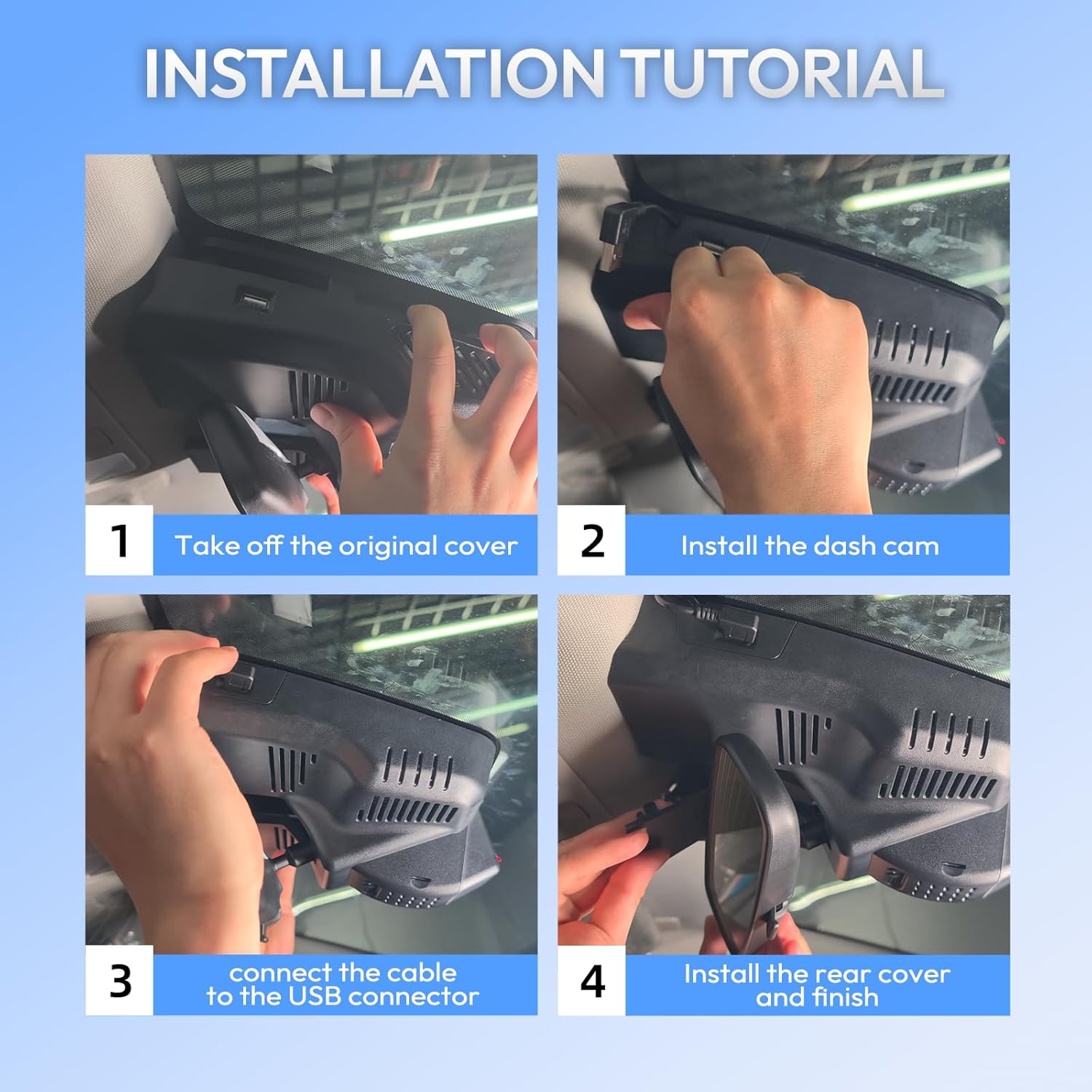
Image: Step-by-step visual instructions for installing the dash cam.

Image: Before and after comparison of the rearview mirror area, demonstrating the OEM-style integration of the dash cam.
3.3 Installation Video
For a visual guide, please refer to the official installation video:
Video: Official installation guide for the FUVYMYT Dash Cam in a Ford Ranger. This video demonstrates the process of removing the original cover, installing the dash cam, connecting the power cable, and securing the new unit.
4. Operating Instructions
Once installed, the dash cam will automatically power on and begin recording when your vehicle starts. Manage settings and view footage via the dedicated mobile application.
4.1 Mobile App and Wi-Fi Connectivity
The FUVYMYT dash cam connects to your smartphone via Wi-Fi, allowing for live preview, video download, and easy sharing through the free FUVYMYT App. The app also provides access to advanced features like GPS tracking and parking spot location.
- Download App: Search for "FUVYMYT" in the App Store (iOS) or Google Play Store (Android).
- Connect Wi-Fi: Enable Wi-Fi on your smartphone and connect to the dash cam's Wi-Fi network (SSID and password typically found on the device or in the manual).
- Live Preview & Playback: Use the app to view live footage, play back recorded videos, and adjust camera settings.

Image: The FUVYMYT app interface on a smartphone, demonstrating live view, map integration, and social media sharing options.
Video: A demonstration of the FUVYMYT mobile application, showcasing features such as live view, video playback, settings adjustment, and GPS tracking.
4.2 Loop Recording
The dash cam continuously records video in segments. When the memory card is full, the oldest footage is automatically overwritten by new recordings. This ensures uninterrupted recording without manual management of storage space.
4.3 G-Sensor (Emergency Recording)
The built-in G-Sensor detects sudden impacts or collisions. Upon detection, the current video segment is automatically locked and saved to a protected folder, preventing it from being overwritten by loop recording. This ensures critical incident footage is preserved.

Image: Visual representation of how loop recording overwrites old footage and the G-sensor locks critical video during an impact.
4.4 Parking Monitor (Optional)
For 24-hour parking surveillance, an optional hardwire kit is required (ASIN: B0F53NJRK3, sold separately). When connected, the parking monitor feature enables time-lapse video recording or collision detection while your vehicle is parked, providing security even when you're away.

Image: Illustration of the 24-hour parking mode feature, which requires an additional hardwire kit.
5. Key Features
5.1 4K UHD Video Quality
The dash cam records in 4K Ultra HD (2160P) at 30 frames per second, utilizing an f/1.6 aperture and CMOS sensor. This ensures clear and detailed footage, capturing important visual information such as license plates and road signs.

Image: Demonstrates the 4K UHD image quality from the front camera, with options for additional rear or cabin cameras.
5.2 Super Night Vision
Equipped with Super Night Vision technology and advanced image processing, the dash cam delivers crystal-clear and detailed footage even in low-light conditions or at night. The HDR (High Dynamic Range) feature automatically adjusts exposure for optimal visibility.

Image: Illustrates the dash cam's Super Night Vision capability and its 6-layered optical lens for enhanced low-light performance.
5.3 Expandable Storage
The dash cam supports up to a 256GB TF card, providing ample storage for extended recording periods. A 64GB TF card is included in the package.

Image: Demonstrates the dash cam's support for up to 256GB memory cards, with a 64GB card included.
6. Specifications
| Brand | FUVYMYT |
| Model | B0G1CCBWY9 |
| Vehicle Service Type | Ford Ranger 2024-2026 (Requires USB port behind rearview mirror) |
| Connectivity Technology | Wi-Fi |
| Video Capture Resolution | 2160p (4K UHD) |
| Frame Rate | 30 fps |
| Field Of View | 145 degrees |
| Optical Sensor Technology | CMOS |
| Maximum Aperture | f/1.6 |
| Flash Memory Type | microSD |
| Included Memory Card Size | 64 GB |
| Flash Memory Supported Size Maximum | 256 GB |
| Mounting Type | Rearview Mirror Mount |
| Control Method | App, Push Button |
| Item Weight | 1.5 pounds |
| Item Dimensions (D x W x H) | 3.15"D x 7.87"W x 8.27"H |
7. Troubleshooting
If you encounter issues with your FUVYMYT dash cam, refer to the following common solutions:
- Dash Cam Not Powering On: Ensure the Y-type conversion cable is securely connected to both the dash cam and the vehicle's USB port. Verify the vehicle's USB port is functional.
- Wi-Fi Connection Issues: Make sure your phone's Wi-Fi is enabled and you are connecting to the correct dash cam network. If connection fails, try restarting both the dash cam (by restarting the car) and your phone.
- App Not Displaying Live View/Recordings: Confirm your phone is connected to the dash cam's Wi-Fi. Close and reopen the app. Ensure the dash cam has a properly inserted and formatted TF card.
- Footage Not Saving: Check if the TF card is inserted correctly and is not full. If full, loop recording should overwrite older files, but ensure the card is not corrupted. Try formatting the TF card via the app or a computer (this will erase all data).
- GPS Function Not Activating: The GPS function requires manual connection and activation each time for use; it does not activate automatically. Ensure you enable it within the app after connecting.
- CarPlay/Bluetooth Interference: The dash cam operates independently and should not affect CarPlay or Bluetooth functionality. If issues arise, ensure the dash cam's Wi-Fi is only connected when actively managing recordings.
- Cannot Add Rear Dash Cam: This front dash cam model does not support adding a separate rear dash cam due to PCB board differences. If a dual-channel dash cam is desired, a complete dual-channel unit must be purchased.
8. Maintenance
Proper maintenance ensures the longevity and optimal performance of your dash cam:
- Clean Lens: Regularly clean the camera lens with a soft, lint-free cloth to ensure clear video quality. Avoid abrasive materials.
- Format TF Card: Periodically format the TF card (e.g., once a month) to prevent data corruption and maintain optimal recording performance. Back up any important files before formatting.
- Firmware Updates: Check the FUVYMYT app or website for any available firmware updates to ensure your dash cam has the latest features and bug fixes.
- Temperature: Avoid exposing the dash cam to extreme temperatures for prolonged periods, as this can affect battery life and component integrity.
9. Warranty and Support
FUVYMYT is committed to providing reliable products and customer satisfaction.
- Warranty: This product comes with a 1-year warranty from the date of purchase.
- Return Policy: A free 30-day refund or replacement guarantee is provided.
- Customer Support: For any issues or inquiries, please contact FUVYMYT customer support via Amazon. Support is available for 12 hours daily.