
1. Introduction
This manual provides essential information for the safe and efficient operation of your Velec TP360 Mini Smart Projector. Please read this manual thoroughly before using the product and retain it for future reference.
2. What's in the Box
Verify that all items are present in the package:
- 1 × Pea-Shaped Smart Small Projector
- 1 × Remote Control
- 1 × Power Adapter
- 1 × User Manual

Figure 2.1: Velec TP360 Projector and accessories.
3. Product Overview
The Velec TP360 is a compact and versatile smart projector designed for various entertainment and presentation needs. It features an intuitive Android 14.0 operating system, 8K video decoding support, and advanced connectivity options.
Key Features:
- 8K Video Decode & Android 14.0: Supports 8K video decoding (via HDMI connected device) and runs on Android 14.0 OS for direct access to streaming apps.
- 450 ANSI Lumens & Ultra-High Native Resolution: Delivers clear and vibrant images with 450 ANSI lumens brightness and 1280 x 720 native resolution.
- Dual-Band WiFi 6 & Bluetooth 5.4: Ensures stable and fast wireless connectivity for streaming and audio.
- Auto Keystone Correction & Precision Focus: Automatically adjusts image distortion and allows for precise manual focus.
- 270° Rotation & Ultra Portable: Flexible projection angles and a lightweight design (0.5kg / 1.1 lbs) for easy portability.
- Built-In Speaker: Integrated audio for convenience.

Figure 3.1: Velec TP360 Projector highlighting 8K video decode and 450 ANSI lumens.
4. Setup
4.1 Power Connection
- Connect the power adapter to the DC input port on the projector.
- Plug the power adapter into a suitable electrical outlet.
4.2 Placement and Orientation
The Velec TP360 features a 270° rotatable stand, allowing for flexible projection onto walls, ceilings, or floors. Its short-throw ratio means it can project a large image from a short distance.
- For optimal 75" viewing, position the projector approximately 4 feet from the screen.
- The projector includes a precision-engineered base for seamless tripod integration, offering stability and height adjustment.
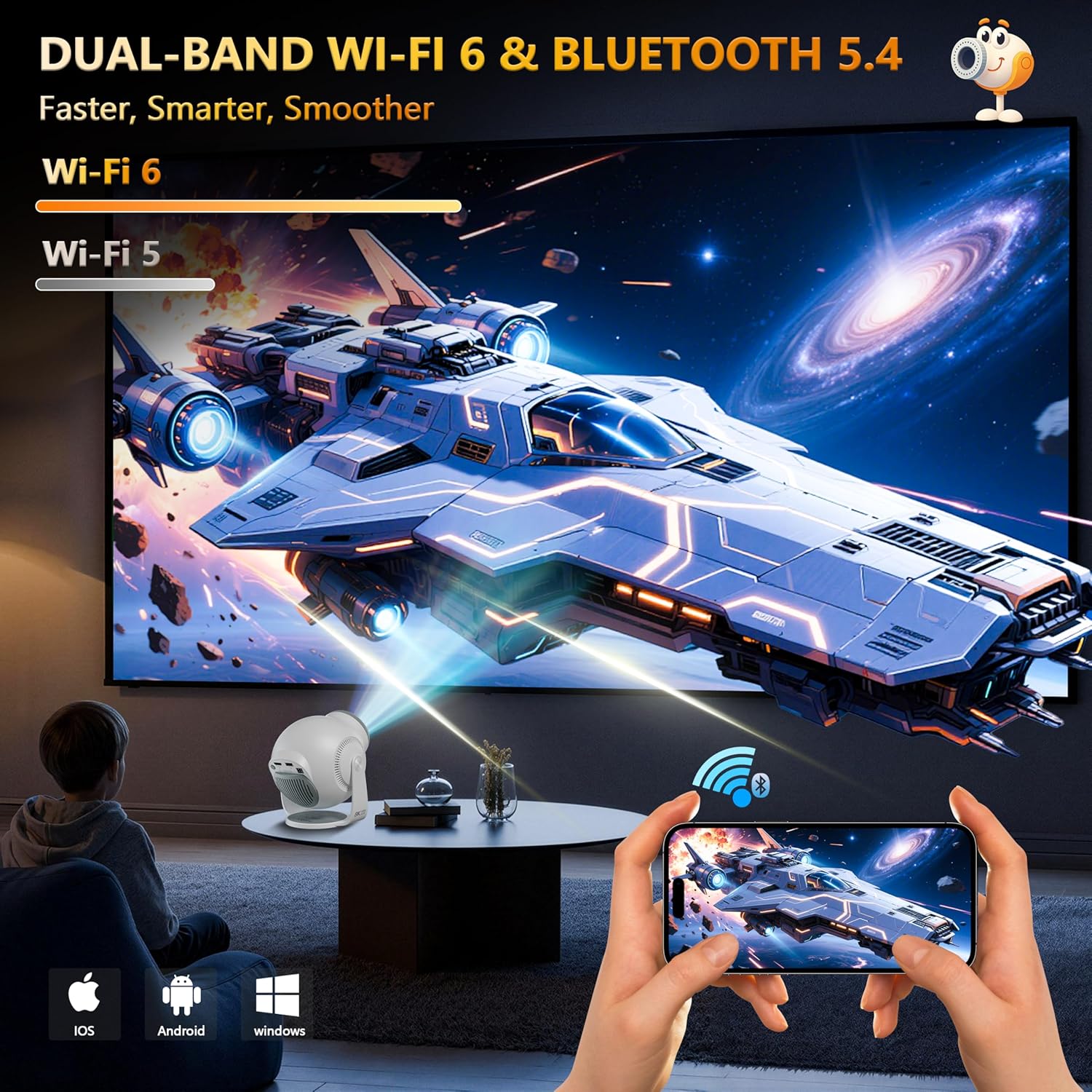
Figure 4.1: Flexible placement with 270° rotation.

Figure 4.2: Bottom bracket interface for mounting.
4.3 Initial Power On
- Press the power button on the projector or the remote control to turn on the device.
- The projector will boot up and display the Android 14.0 home screen.
5. Operating Instructions
5.1 Android 14.0 Operating System
The projector runs on Android 14.0, providing access to a wide range of applications directly from the device. You can download and use apps like YouTube, Netflix, and Disney+ without needing external devices.

Figure 5.1: Android 14.0 System interface.
5.2 Connectivity
The projector offers multiple connectivity options:
- Dual-Band WiFi 6 (5G/2.4G): Connect to your wireless network for seamless streaming.
- Bluetooth 5.4: Pair with external Bluetooth speakers or headphones for enhanced audio.
- HDMI Port: Connect external devices such as TV sticks, gaming consoles (PS5/Xbox), or laptops.
- USB Port: Connect USB drives for media playback.

Figure 5.2: Dual-Band WiFi 6 connectivity.
5.3 Image Adjustment
Ensure your projected image is clear and properly aligned:
- Auto Keystone Correction: The projector automatically corrects image distortion from various angles.
- Manual Focus: Rotate the focus knob on the projector to achieve a sharp image.
- Zoom Function: Adjust the screen size from 50% to 100% using the remote control. The projector can project an image size from 28" to 168".
Figure 5.3: Auto Keystone Correction and Manual Focus.
5.4 Remote Control
Use the included remote control to navigate the Android interface, adjust settings, and control media playback. The remote control requires batteries (not included).
5.5 Media Playback
Enjoy various media content through the projector:
- Stream directly from pre-installed apps or those downloaded from the App Store.
- Connect a USB drive to play local media files.
- Mirror content from your mobile device wirelessly.
- Connect a laptop or other HDMI-enabled device for screen sharing.
Video 5.1: Demonstration of the Velec Smart Projector's 8K video decode and Android 14.0 features.
Video 5.2: Overview of the projector's compact size and maximum functionality.
Video 5.3: Example of using the projector for home entertainment.
Video 5.4: A short demonstration of the projector's display quality in a room setting.
Video 5.5: A short demonstration of the projector creating a window effect in a bedroom.
6. Maintenance
To ensure the longevity and optimal performance of your Velec TP360 projector, follow these maintenance guidelines:
- Cleaning the Lens: Use a soft, lint-free cloth specifically designed for optical lenses. Do not use abrasive cleaners or solvents.
- Cleaning the Exterior: Wipe the projector's exterior with a soft, dry cloth. Avoid using harsh chemicals.
- Ventilation: Ensure the ventilation openings are clear of dust and obstructions to prevent overheating.
- Storage: When not in use, store the projector in a cool, dry place away from direct sunlight and extreme temperatures.
7. Troubleshooting
If you encounter issues with your projector, refer to the following common solutions:
- No Power: Ensure the power adapter is securely connected to both the projector and the power outlet.
- Blurry Image: Adjust the manual focus knob until the image is sharp. Check if the auto keystone correction is enabled or manually adjust it if needed.
- No Sound: Verify that the volume is not muted and is set to an audible level. If using external speakers, ensure they are properly connected via Bluetooth or an audio cable.
- No Signal (HDMI/USB): Ensure the external device is powered on and the cable is securely connected to the correct port. Select the appropriate input source from the projector's menu.
- Wi-Fi/Bluetooth Connectivity Issues: Restart the projector and your router/Bluetooth device. Ensure the projector is within range of the network/device.
8. Specifications
| Feature | Specification |
|---|---|
| Brand | Velec |
| Model Number | TP360 |
| Item Weight | 1.1 pounds |
| Product Dimensions | 6.06 x 5.96 x 5.51 inches |
| Color | White |
| Display Resolution | 1280 x 720 |
| Brightness | 450 ANSI Lumens |
| Connectivity Technology | Bluetooth, HDMI, USB, Wi-Fi |
| Special Features | Built-In Speaker, Built-In Wi-Fi, Digital Keystone Correction, Lightweight, Ultra Short Throw |
| Recommended Uses | Business, Education, Gaming, Home Cinema |
9. Warranty and Support
Velec is committed to providing quality products and customer satisfaction. For any inquiries or support, please refer to the following:
- Protection Plans: Optional 2-Year and 3-Year protection plans are available for purchase.
- Returns and Exchanges: A 30-day free return and exchange policy is typically offered.
- Technical Support: Velec provides lifetime technical support for its products.
- Customer Service: Expect 24-hour professional service for assistance.
For further details, please visit the official Velec store or contact customer support.


