
1. Introduction
The AOOSTAR EG01 is an external GPU (eGPU) dock designed to enhance the graphics performance of compatible Mini PCs and Notebook PCs. It utilizes an OCuLink interface for high-bandwidth, low-latency connectivity, supporting PCIe 4.0 x4 with a maximum transfer rate of 64Gbps. This dock provides a stable platform for your graphics card and can also supply power to your Mini PC, simplifying cable management.
2. Product Overview
The AOOSTAR EG01 eGPU Dock offers several key features:
- OCuLink Dedicated Interface: Provides PCIe 4.0 x4 connectivity with up to 64Gbps bandwidth, offering lower latency compared to USB4/Thunderbolt solutions for optimal eGPU performance.
- Mini PC Power Delivery: Capable of supplying up to 150W of power to compatible Mini PCs, reducing the need for multiple power adapters and improving cable organization.
- Stable Open Frame Design: Features a robust base and fixing screws for secure graphics card installation. This open design facilitates better heat dissipation and accommodates various graphics card lengths without restriction.
- Wide Compatibility: Supports a broad range of NVIDIA and AMD graphics cards. Compatible with standard ATX/SFX power supplies (sold separately).
- Compact Dimensions: Measures 26.8 cm (L) x 17.5 cm (W) x 2.2 cm (H), designed for efficient use of desk space.
Package Contents:
- AOOSTAR EG01 OCuLink eGPU Dock x1
- 6pin-DC conversion cable x1
- OCuLink cable (80cm) x1
Note: The graphics card itself and the external ATX/SFX power supply are not included and must be purchased separately.
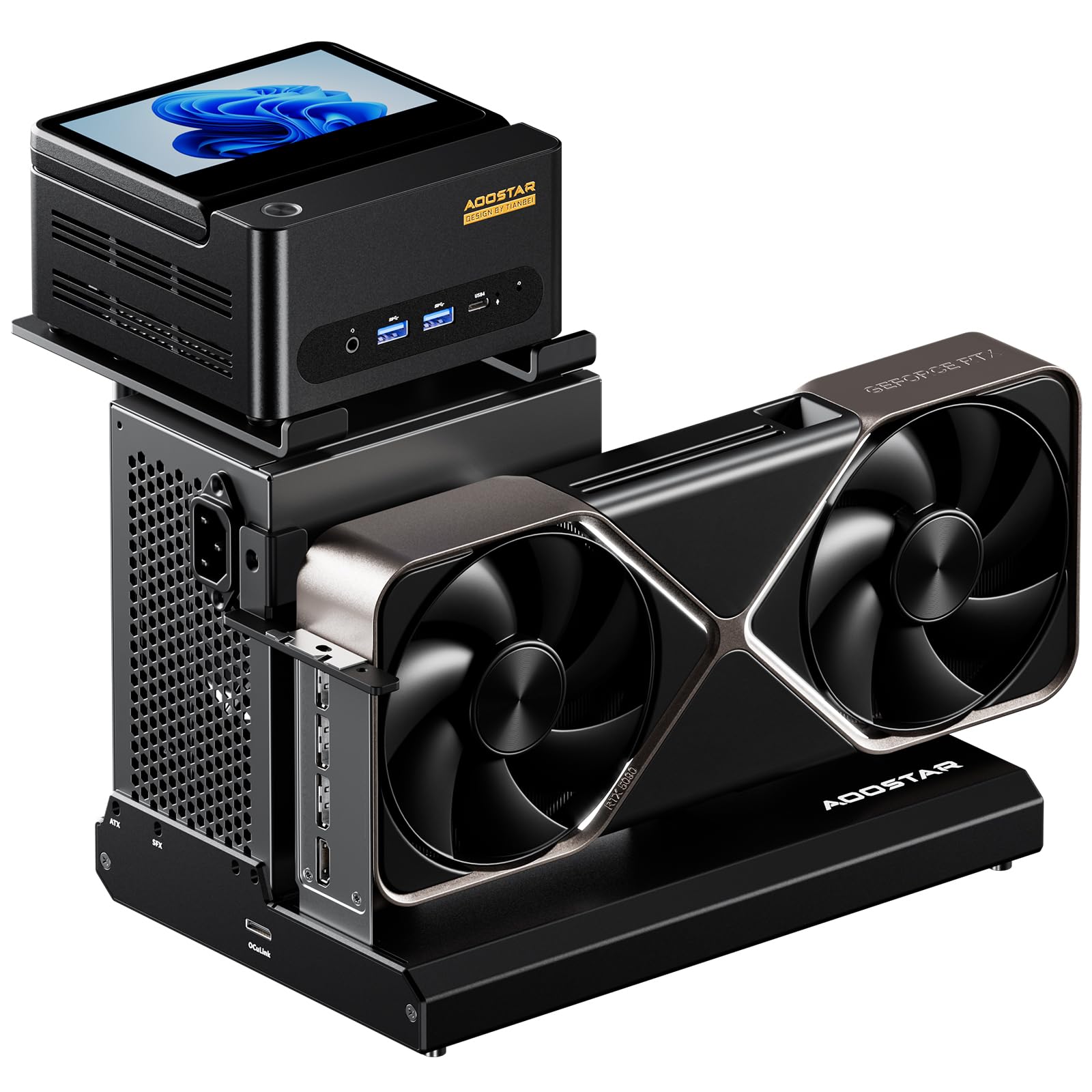
Image: The AOOSTAR EG01 OCuLink eGPU Dock, shown with an installed graphics card and a connected mini PC.

Image: A detailed view highlighting the OCuLink interface and the PCIe slot on the AOOSTAR EG01 dock.
3. Setup Instructions
Follow these steps to set up your AOOSTAR EG01 eGPU Dock:
- Install the Graphics Card: Carefully insert your graphics card into the PCIe slot on the EG01 dock. Secure it in place using the provided fixing screws. Ensure the card is fully seated.
- Connect External Power Supply: Connect your ATX or SFX power supply (not included) to the appropriate power inputs on the eGPU dock. Ensure all necessary power connectors for the graphics card are also attached.
- Connect OCuLink Cable: Connect one end of the included OCuLink cable to the OCuLink port on the EG01 dock. Connect the other end to the OCuLink port on your compatible Mini PC or Notebook PC.
- Connect Mini PC Power (Optional): If your Mini PC supports power delivery from the dock, use the included 6pin-DC conversion cable to connect the dock to your Mini PC's power input. This consolidates power for a cleaner setup.
- Connect Display: Connect your monitor(s) directly to the video output ports (e.g., HDMI, DisplayPort) on the graphics card installed in the EG01 dock.
- Initial Power On: First, power on the external power supply connected to the EG01 dock. Then, power on your Mini PC or Notebook PC.

Image: The AOOSTAR EG01 eGPU Dock connected to a mini PC, demonstrating the power delivery feature.
4. Operating Instructions
Once the EG01 eGPU Dock is set up, follow these guidelines for operation:
- Power On Sequence: Always ensure the external power supply for the EG01 dock is powered on before starting your Mini PC or Notebook PC.
- Driver Installation: After connecting the eGPU dock for the first time, your operating system may detect new hardware. Install the latest graphics drivers for your specific GPU model from the manufacturer's official website (NVIDIA or AMD). A system restart may be required.
- Power Off Sequence: To safely power down, first shut down your Mini PC or Notebook PC through the operating system. Once the PC is off, then power off the external power supply connected to the EG01 dock.
- Hot-Swapping: The EG01 dock supports hot-swapping for certain compatible systems (e.g., Lenovo TGX ThinkBook 14+/16+ 2024 Core Edition Notebook PCs). Refer to your PC's documentation for specific hot-swap capabilities.
5. Maintenance
Proper maintenance ensures the longevity and optimal performance of your EG01 eGPU Dock:
- Cleaning: Regularly inspect the dock and the installed graphics card for dust accumulation. Use compressed air to clear dust from fans and heatsinks. Wipe external surfaces with a soft, dry, lint-free cloth. Avoid using liquid cleaners directly on components.
- Cable Management: Ensure all connected cables (OCuLink, power, display) are securely fastened and not under undue stress or sharp bends. Loose or damaged cables can lead to connectivity issues.
- Environmental Conditions: Operate the eGPU dock in a well-ventilated area to prevent overheating. Keep it away from direct sunlight, excessive heat sources, and high humidity.
- Firmware Updates: Periodically check AOOSTAR's official website for any available firmware updates for the EG01 dock. Follow the provided instructions carefully if an update is necessary.
6. Troubleshooting
If you encounter issues with your AOOSTAR EG01 eGPU Dock, refer to the following common problems and solutions:
| Problem | Possible Cause / Solution |
|---|---|
| No display output from the graphics card. |
|
| Poor graphics performance. |
|
| Mini PC not powering on via the dock. |
|
| eGPU dock not detected by the host PC. |
|
7. Specifications
| Feature | Specification |
|---|---|
| Brand | AOOSTAR |
| Model | EG01 |
| Interface | OCuLink (PCIe 4.0 x4) |
| Max Bandwidth | 64Gbps |
| Dimensions (L x W x H) | 26.8 cm x 17.5 cm x 2.2 cm |
| Power Supply Compatibility | ATX/SFX (external, not included) |
| Mini PC Power Delivery | Up to 150W (for compatible models) |
| Compatibility | NVIDIA / AMD graphics cards, Mini PCs with OCuLink port |
| Origin | China |
8. Warranty Information
The AOOSTAR EG01 eGPU Dock comes with a limited warranty. For detailed warranty terms and conditions, including coverage period and claim procedures, please refer to the product's official Amazon listing or AOOSTAR's official website. It is recommended to retain your proof of purchase for warranty claims.
9. Support
For technical assistance, troubleshooting beyond the scope of this manual, or any other inquiries, please contact AOOSTAR customer support. You can typically find contact information on AOOSTAR's official website or through the seller page on Amazon where you purchased the product. Additionally, the AOOSTAR brand store on Amazon may offer further resources and FAQs.

