
TECKNET TK-HS023
TECKNET TK-HS023 V5.4 Bluetooth Trucker Headset
User Manual
1. Introduction
This manual provides detailed instructions for the proper use, setup, and maintenance of your TECKNET TK-HS023 V5.4 Bluetooth Trucker Headset. Please read this manual thoroughly before using the product to ensure optimal performance and longevity.
Package Contents
- TECKNET TK-HS023 Bluetooth Headset
- USB Charging Cable
- User Manual
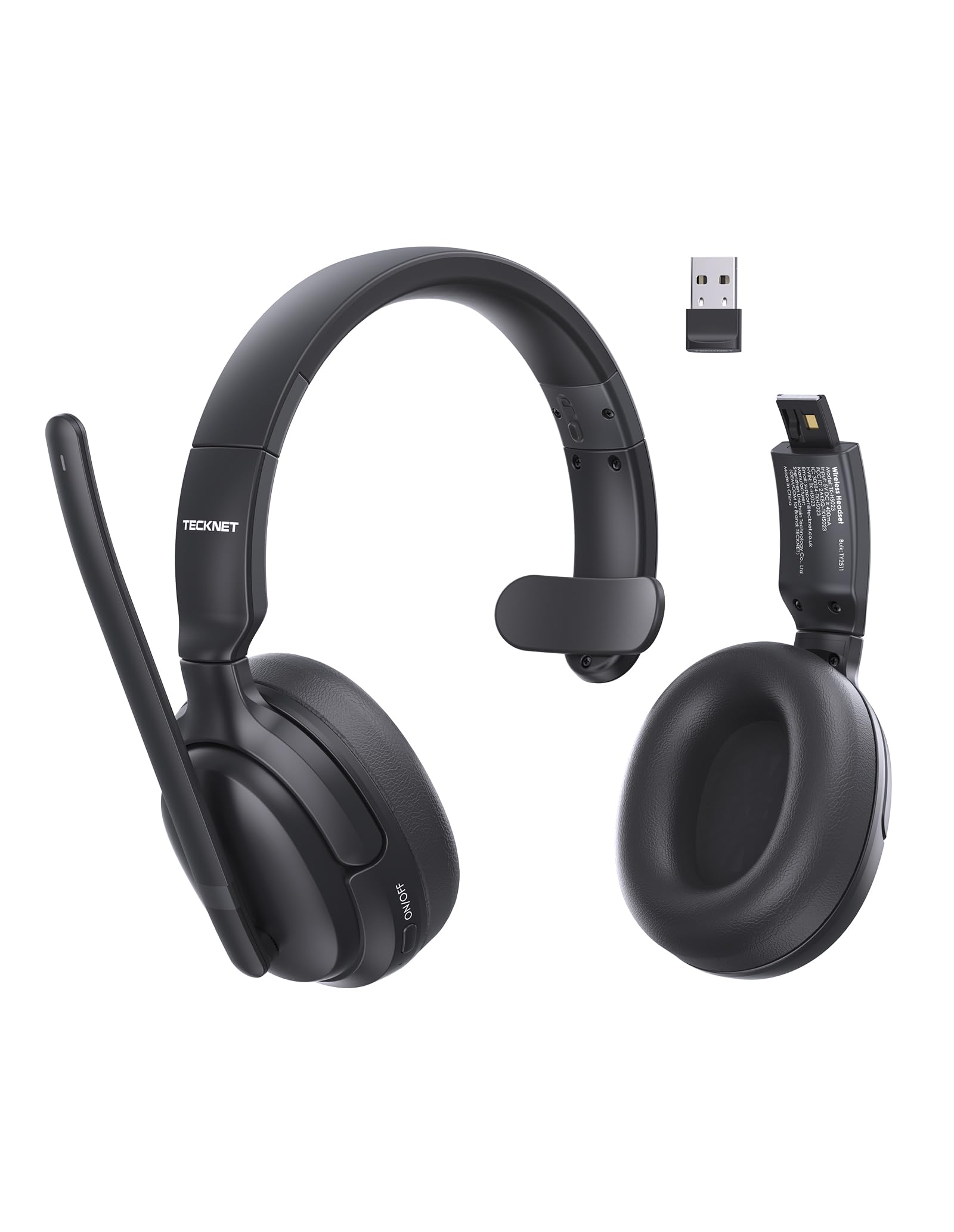
Image 1.1: TECKNET TK-HS023 Bluetooth Trucker Headset. This image displays the headset with its adjustable headband and microphone boom.
2. Product Features
- AI Noise-Canceling Microphone: Designed to filter out background noise, ensuring clear voice transmission in noisy environments.
- Single-Ear Design: Allows users to remain aware of their surroundings while using the headset.
- Dual-Device Seamless Connectivity: Connects to two Bluetooth devices simultaneously, enabling easy switching between calls and audio.
- Long-Lasting Battery: Provides extended usage time on a single charge.
- Stable Bluetooth V5.4 Connection: Offers reliable wireless connectivity with a range of up to 15 meters.
- Easy Call & Audio Controls: Intuitive buttons for managing calls, adjusting volume, and controlling media playback.
- Adjustable Headband: Ensures a comfortable fit for various head sizes.
3. Setup
3.1 Charging the Headset
Before initial use, fully charge the headset. A full charge takes approximately 2 hours and provides up to 65 hours of battery life.
- Connect the small end of the USB charging cable to the charging port on the headset.
- Connect the large end of the USB charging cable to a USB power source (e.g., computer USB port, wall adapter).
- The LED indicator on the headset will show the charging status. It typically turns red during charging and blue or off when fully charged.
3.2 Bluetooth Pairing
To connect your headset to a device via Bluetooth:
- Ensure the headset is fully charged.
- Power on the headset by pressing and holding the Multi-Function Button (MFB) until the LED indicator flashes blue and red alternately, indicating pairing mode.
- On your device (smartphone, tablet, laptop), enable Bluetooth and search for available devices.
- Select "TECKNET TK-HS023" from the list of found devices.
- Once connected, the LED indicator on the headset will flash blue slowly or turn solid blue.
Dual-Device Connectivity: After pairing with the first device, disable Bluetooth on the first device, then put the headset back into pairing mode to connect to a second device. Once the second device is paired, re-enable Bluetooth on the first device. The headset should automatically connect to both devices, allowing seamless switching.
4. Operating Instructions
4.1 Headset Controls
- Multi-Function Button (MFB): Power on/off, Play/Pause, Answer/End Call, Reject Call, Redial.
- Volume Up (+): Increase volume, Next track (long press).
- Volume Down (-): Decrease volume, Previous track (long press).
- Mute Button: Mute/unmute microphone during a call.
4.2 Call Management
- Answer Call: Press the MFB once.
- End Call: Press the MFB once during a call.
- Reject Call: Press and hold the MFB for 2 seconds.
- Redial Last Number: Double-press the MFB when not on a call.
- Mute Microphone: Press the Mute button during a call. Press again to unmute.
4.3 Audio Playback
- Play/Pause: Press the MFB once.
- Next Track: Long press the Volume Up (+) button.
- Previous Track: Long press the Volume Down (-) button.
4.4 AI Noise Cancelling Microphone
The integrated AI Noise Cancelling Microphone actively reduces ambient noise, such as engine sounds or office chatter, to ensure your voice is transmitted clearly to the other party during calls. Position the microphone boom approximately 1-2 inches from your mouth for best performance.
5. Maintenance
5.1 Cleaning
- Wipe the headset with a soft, dry, or slightly damp cloth.
- Do not use harsh chemicals, cleaning solvents, or strong detergents.
- Avoid getting moisture into any openings.
5.2 Storage
- Store the headset in a cool, dry place away from extreme temperatures.
- Avoid prolonged exposure to direct sunlight or moisture.
6. Troubleshooting
Common Issues and Solutions
- Headset does not power on: Ensure the headset is fully charged.
- Cannot pair with device:
- Ensure the headset is in pairing mode (LED flashing blue and red).
- Make sure Bluetooth is enabled on your device.
- Move the headset closer to your device.
- Restart both the headset and your device.
- No sound or poor audio quality:
- Check the volume levels on both the headset and your connected device.
- Ensure the headset is within the 15-meter Bluetooth range.
- Disconnect and reconnect the headset to your device.
- Check for interference from other wireless devices.
- Microphone not working:
- Ensure the microphone is not muted.
- Check microphone settings on your connected device.
7. Specifications
| Feature | Specification |
|---|---|
| Brand | TECKNET |
| Model Name | TK-HS023 |
| Connectivity Technology | Wireless (Bluetooth V5.4) |
| Bluetooth Range | Up to 15 meters |
| Ear Placement | Over Ear (Single-ear design) |
| Microphone | AI Noise Cancelling |
| Battery Charge Time | Approximately 2 Hours |
| Battery Average Life | Up to 65 Hours |
| Compatible Devices | Cellphones, Desktops, Laptops, Tablets |
| Additional Features | Adjustable Headband, Volume Control, Dual-Device Connectivity |
| Color | Black |
8. Warranty and Support
8.1 Warranty Information
The TECKNET TK-HS023 Bluetooth Trucker Headset comes with a 3-year warranty from the date of purchase. This warranty covers manufacturing defects and ensures the product is free from defects in material and workmanship under normal use.
The warranty does not cover damage caused by misuse, accident, unauthorized modification, or external causes such as drops or liquid damage.
8.2 Customer Support
For technical support, warranty claims, or any questions regarding your TECKNET TK-HS023 headset, please refer to the contact information provided on the TECKNET official website or your purchase documentation. Please have your model number (TK-HS023) and proof of purchase ready when contacting support.
Related documentsTK-HS023


Ask a question about this manual
Ask about setup, troubleshooting, compatibility, parts, safety, or missing instructions. Manuals+ will review the question and use this page’s manual context to help answer it.