
1. Introduction
Thank you for choosing the tenlamp G10-P15B-NB25 Podcast Equipment. This comprehensive kit is designed to provide studio-quality audio for podcasters, gamers, streamers, and content creators. It includes a 3.5mm condenser microphone with an articulated suspension arm and an advanced audio mixer. This manual will guide you through the setup, operation, and maintenance of your new equipment, ensuring a smooth and convenient audio experience.
2. Package Contents
Please check the box for the following items:
- G10 Audio Mixer
- Condenser Microphone
- Microphone Suspension Arm
- Pop Filter
- 3.5mm TRS Headphone Cable
- USB OTG Cable
- 3.5mm TRRS Audio Cable
- USB A-C Cable
- User Manual (this document)

Image: Overview of the tenlamp G10 Podcast Equipment and its included accessories.
3. Product Overview
The tenlamp G10 audio mixer features an intuitive interface with various controls for sound customization and live streaming. The condenser microphone captures clear audio, and the suspension arm provides flexible positioning.
3.1 Key Components and Controls
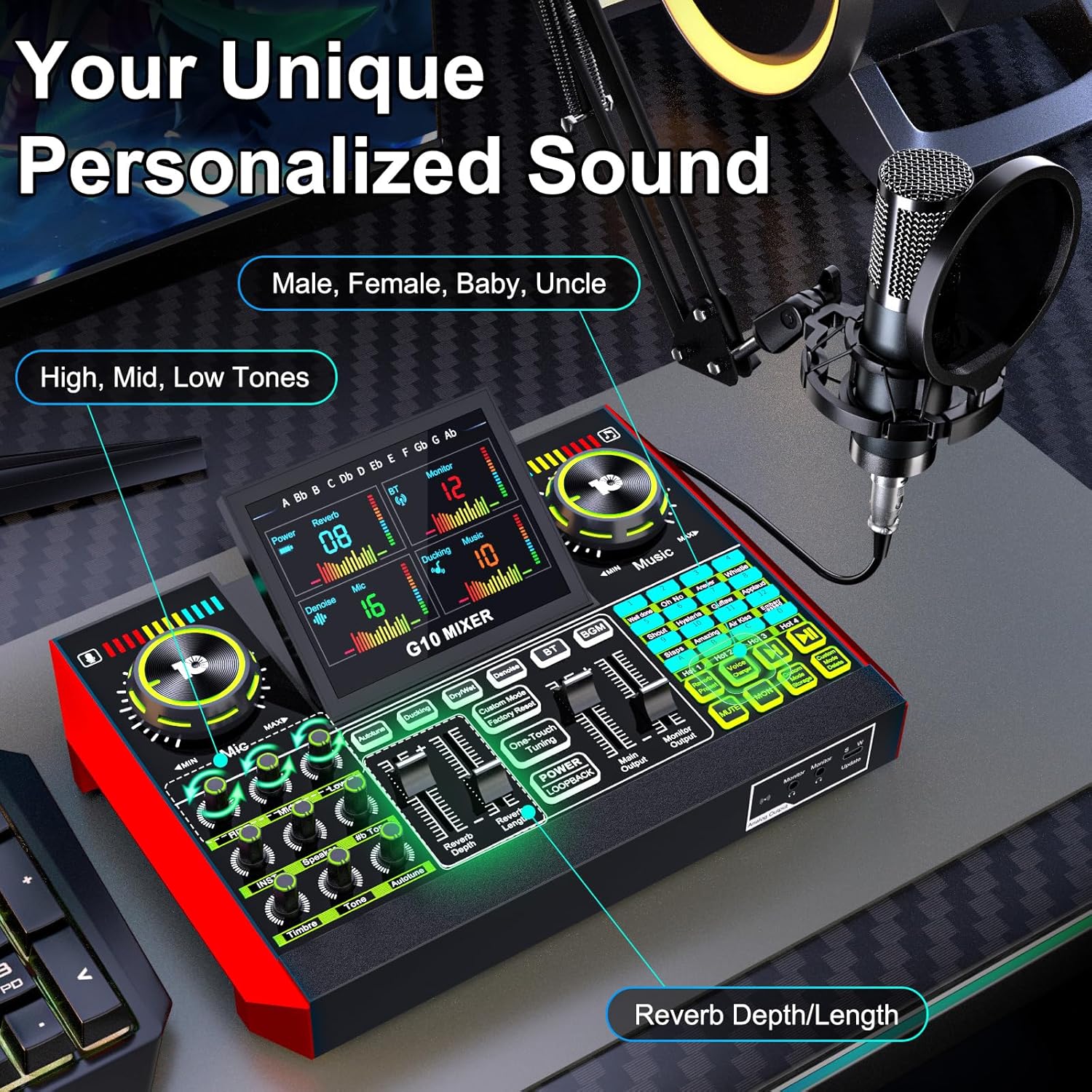
Image: Detailed view of the G10 mixer's control panel, highlighting voice and music adjustments.
- Microphone Input: Connect the condenser microphone.
- Volume Controls: Independent knobs for microphone, music, and monitor levels.
- Tone Adjustments: Bass, Mid, and Treble controls for microphone.
- Reverb Controls: Adjust reverb depth and length.
- Sound Effect Pads: Trigger various built-in sound effects.
- Voice Changer: Buttons for different voice modes (Male, Female, Baby, Uncle, etc.).
- Noise Reduction: Dedicated button to activate noise reduction.
- Mute Function: Mute microphone input.
- Connectivity Ports: USB-C, 3.5mm TRRS, XLR, Bluetooth.

Image: Detailed connection diagram of the G10 mixer's ports.
4. Setup
Follow these steps to set up your tenlamp G10 Podcast Equipment:
- Assemble the Microphone Arm: Securely attach the suspension arm to your desk using the clamp. Mount the condenser microphone onto the arm and attach the pop filter.
- Connect the Microphone: Plug the microphone cable into the designated XLR or 3.5mm microphone input on the G10 mixer. Ensure a secure connection.
- Power On: Connect the G10 mixer to a power source using the provided USB-C cable. The mixer is battery-powered and can be charged via USB-C.
- Connect to Device:
- PC/Laptop: Use the USB-C cable to connect the mixer to your computer. The mixer will be recognized as an audio device.
- Smartphone/Tablet: Use the 3.5mm TRRS audio cable or USB OTG cable to connect to your mobile device.
- Bluetooth: Activate Bluetooth on your mobile device and pair with the G10 mixer for wireless music input.
- Connect Monitoring Headphones: Plug your headphones into the 'Monitor' output for real-time audio monitoring.
- Connect Speakers (Optional): If desired, connect external speakers to the 'Speaker' output.
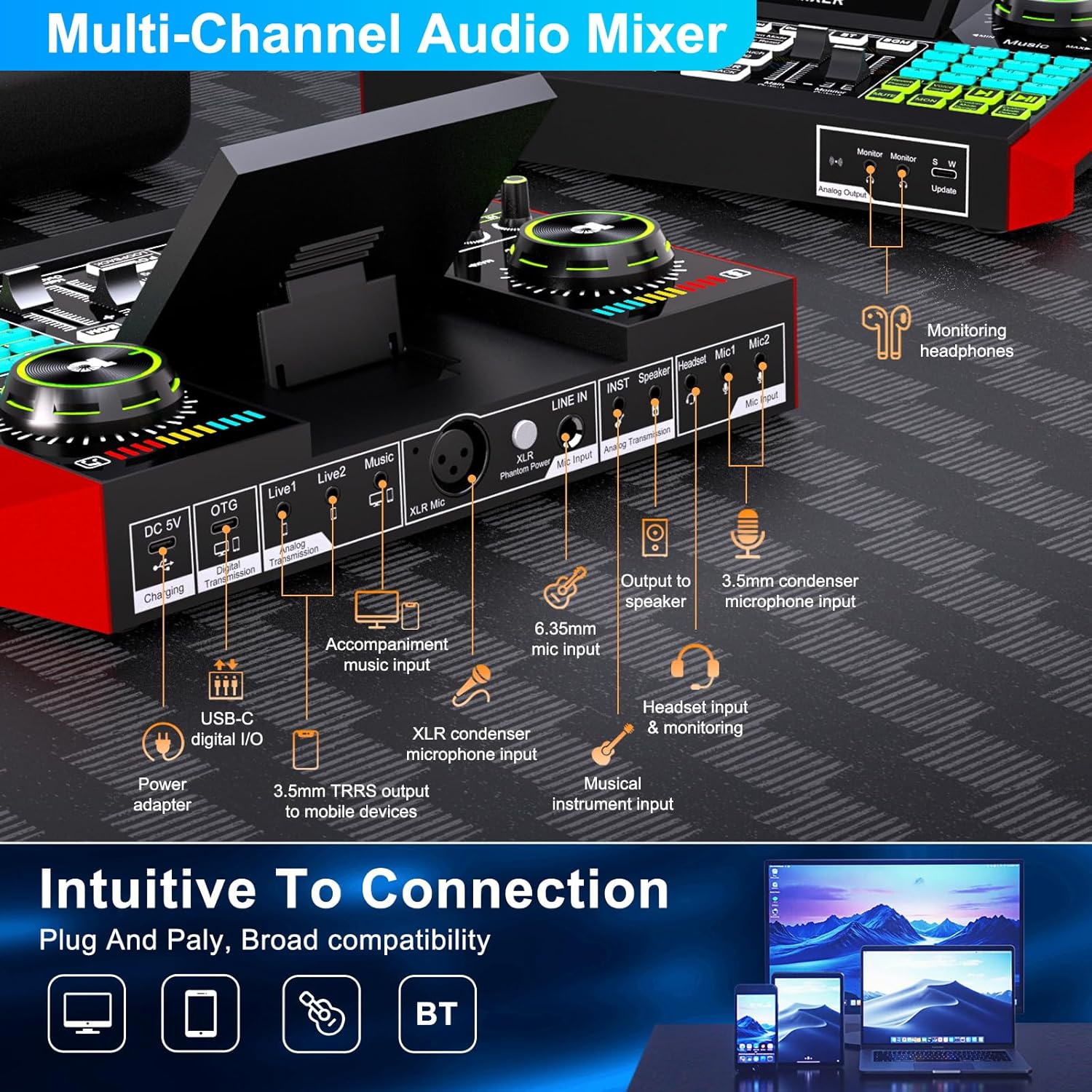
Image: Intuitive connection options for the G10 mixer.

Image: Demonstrating the Bluetooth connectivity feature.
5. Operating Instructions
5.1 Basic Audio Control
- Microphone Volume: Adjust the 'Mic' knob to control your microphone input level.
- Music Volume: Adjust the 'Music' knob to control the background music level.
- Monitor Volume: Adjust the 'Monitor' knob to control the headphone output volume.
- Tone Adjustment: Use the 'Bass', 'Mid', and 'Treble' sliders to fine-tune your vocal sound.
- Reverb: Use the 'Reverb Depth' and 'Reverb Length' controls to add echo effects to your voice.

Image: Customizing your sound and scene with the G10 mixer.
5.2 Special Features
Voice Changer
The G10 mixer includes a built-in voice changer. Press the dedicated buttons to instantly transform your voice into various modes such as Male, Female, Baby, or Uncle. You can further customize these voices using the bass and reverb settings.
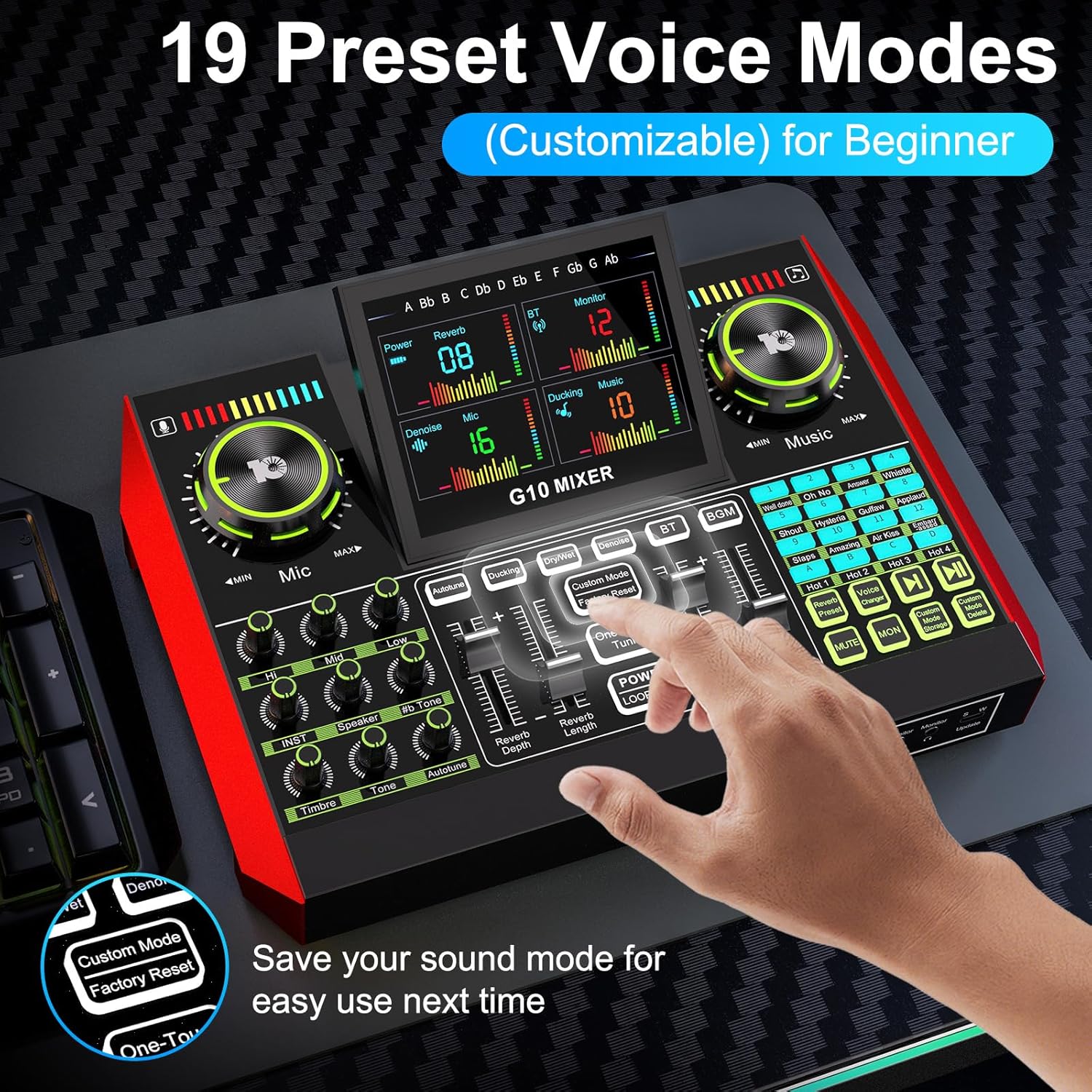
Image: Exploring the 19 preset voice modes for beginners.
Sound Effects
The sound effects panel offers 12 built-in effects, including applause, laughter, and more, to enhance your live broadcasts and make them more interactive. Simply press the corresponding pad to trigger an effect.
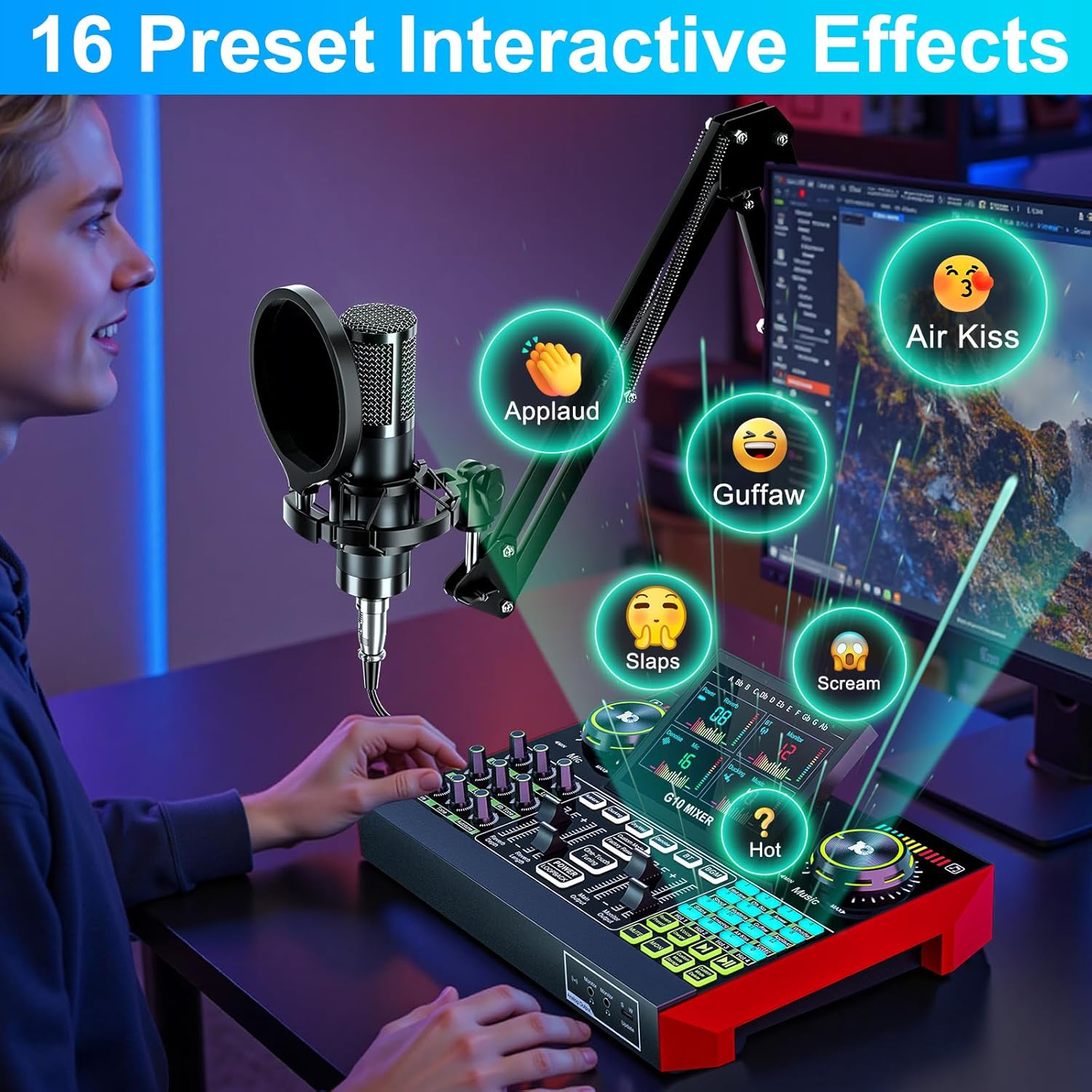
Image: Activating 16 preset interactive effects on the G10 mixer.
Noise Reduction
The G10 audio mixing console is equipped with a noise reduction system. Activate this feature to ensure crystal-clear voice by minimizing background noise, ideal for podcasts, voice-overs, and live streaming.
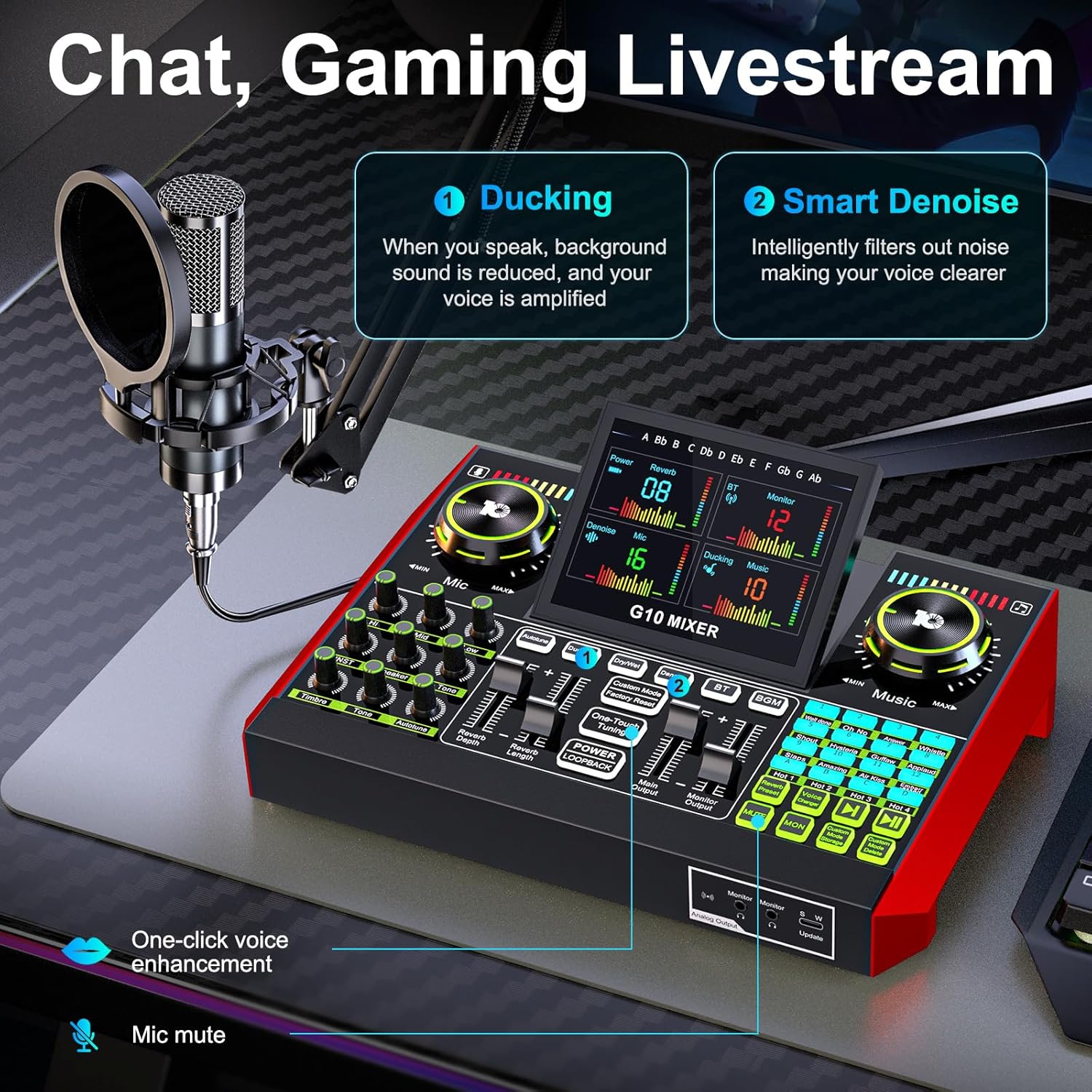
Image: Chat and Gaming Livestream features: Ducking and Smart Denoise.
Reverb Modes
The mixer offers 5 preset reverb modes: Original, KTV, Chat, Livestream, and MC. Select the mode that best suits your content type for optimal audio ambiance.
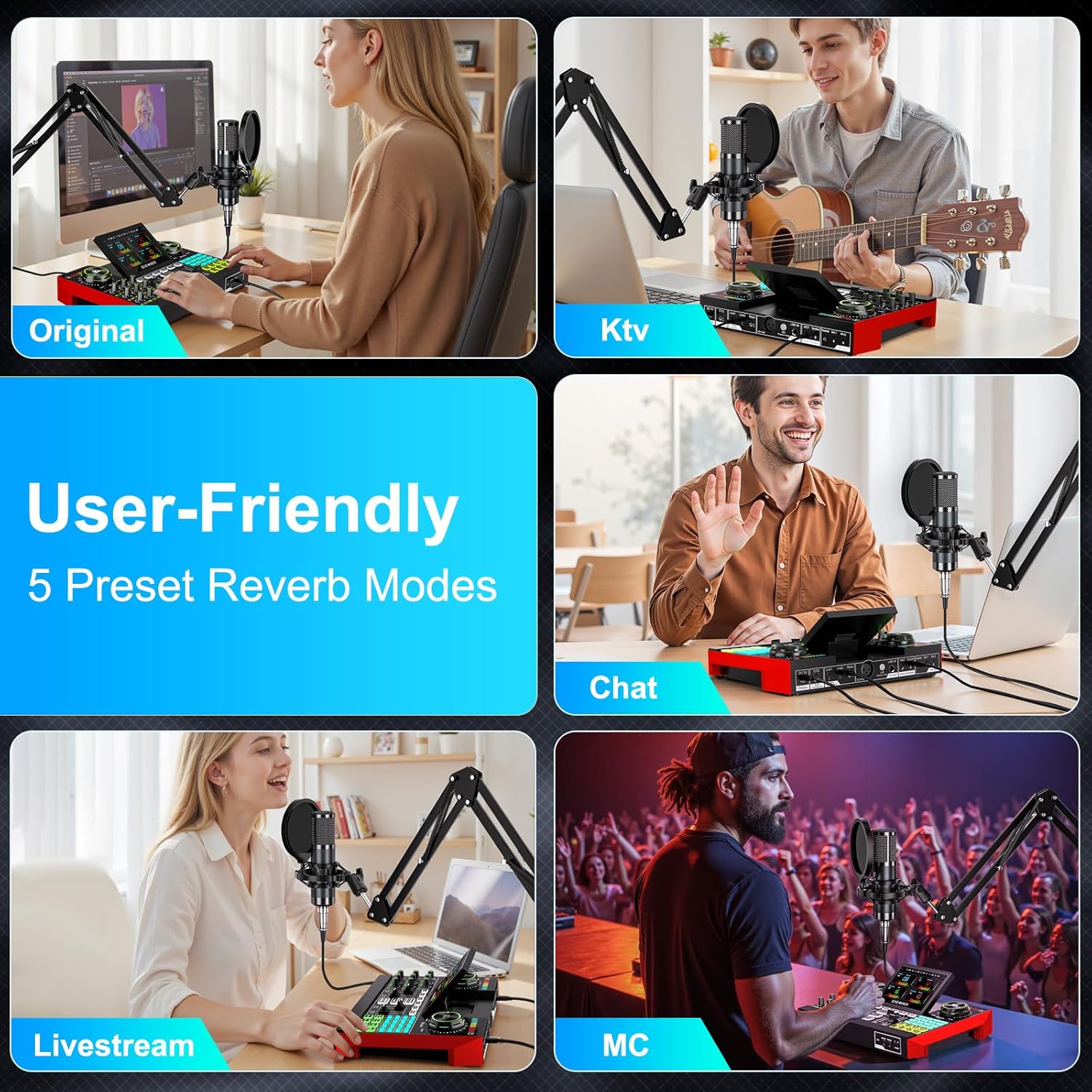
Image: User-friendly 5 preset reverb modes.
5.3 Live Streaming and Recording
The G10 mixer supports various applications for live streaming and recording:
- Chat/Gaming Livestream: Utilize the 'Ducking' feature where background sound is reduced when you speak, and your voice is amplified. The 'Smart Denoise' intelligently filters out noise for clearer voice.
- Singing Livestream: Features like 'Follow Singing' allow you to continuously hear original vocals, while 'Remove Vocal' can eliminate original vocals from a song, letting the audience hear only your voice and the accompaniment.
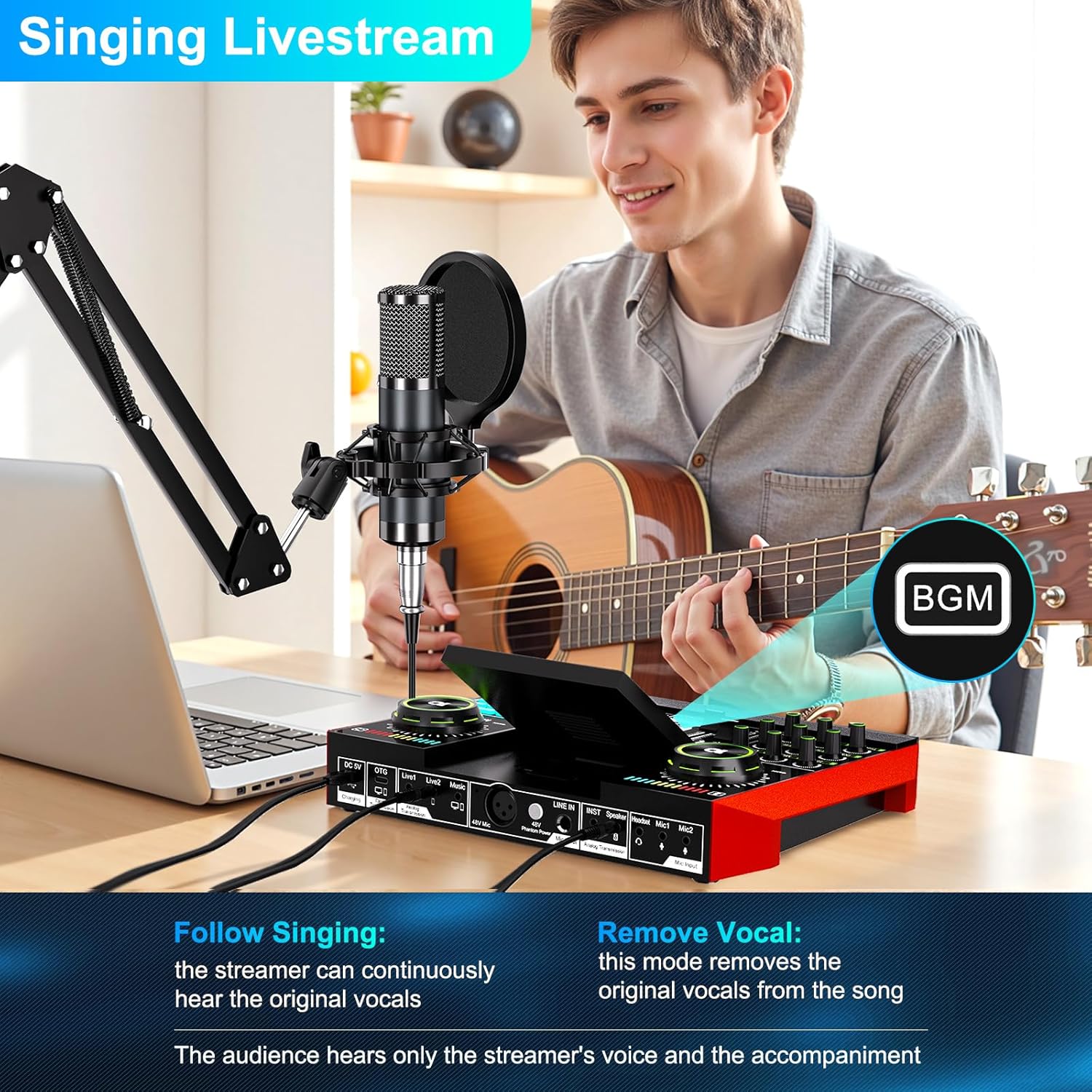
Image: Singing Livestream features: Follow Singing and Remove Vocal.

Image: Multi-channel audio mixer supporting 1-3 people for live streaming.
6. Maintenance
To ensure the longevity and optimal performance of your tenlamp G10 Podcast Equipment, follow these maintenance guidelines:
- Cleaning: Use a soft, dry cloth to wipe down the mixer and microphone. Avoid using liquid cleaners or abrasive materials.
- Storage: Store the equipment in a cool, dry place away from direct sunlight and extreme temperatures.
- Cable Care: Avoid bending or twisting cables excessively. Disconnect cables by pulling the plug, not the wire.
- Battery: The mixer is powered by an internal battery. Charge it regularly to maintain battery health. The mixer offers up to 12 hours of usage on a full charge.

Image: The G10 mixer is built for creators with up to 12 hours of live streaming usage.
7. Troubleshooting
If you encounter issues with your tenlamp G10 Podcast Equipment, refer to the following common problems and solutions:
- No Sound Output:
- Check all cable connections (microphone, headphones, speakers, device).
- Ensure volume knobs (Mic, Music, Monitor) are turned up.
- Verify the mixer is powered on and charged.
- Confirm the G10 mixer is selected as the input/output device in your computer's sound settings or mobile app.
- Poor Sound Quality/Noise:
- Activate the 'Noise Reduction' feature on the mixer.
- Adjust microphone gain and tone settings (Bass, Mid, Treble).
- Ensure the microphone is positioned correctly and the pop filter is used.
- Check for interference from other electronic devices.
- Voice Changer Not Working:
- Ensure the microphone is properly connected and receiving input.
- Press the voice changer buttons firmly.
- Bluetooth Connectivity Issues:
- Ensure Bluetooth is enabled on both the mixer and your device.
- Unpair and re-pair the devices.
- Move devices closer to each other to reduce interference.
8. Specifications
| Brand | tenlamp |
| Model Name | G10-P15B-NB25 |
| Connectivity Technology | Auxiliary, Bluetooth, USB, XLR |
| Connector Type | 3.5mm Jack, USB Type-C |
| Special Features | Volume control, Echo control, Mute function, Noise reduction |
| Compatible Devices | Headphones, Personal computer, Laptop, Smartphone, Tablet |
| Components Included | Microphone, Audio Mixer |
| Item Weight | 1200 Grams |
| Microphone Form Factor | Studio Condenser |
| Power Source | Battery Powered (1 A battery included) |
| Hardware Platform | Computer, Laptop, Smartphone |
| Number of Channels | 4 |
| Frequency Response | 20 KHz |
| Internal Material | Plastic |
9. Warranty and Support
The tenlamp G10-P15B-NB25 Podcast Equipment comes with a 1-year warranty for spare parts availability. For technical support, troubleshooting assistance, or warranty claims, please contact tenlamp customer service through your purchase platform or the official tenlamp website.


