
Introduction
Thank you for choosing the SIXWIN 8.1-inch IPS Portable Wireless CarPlay/Android Auto Motorcycle Display. This device is designed to enhance your riding experience by providing seamless integration with your smartphone's navigation, communication, and entertainment features. This manual provides essential information for the safe and effective use of your new display.
Safety Information
Please read all safety instructions carefully before operating the device. Failure to follow these instructions may result in injury or damage to the device or motorcycle.
- Always prioritize road safety. Do not operate the device in a manner that distracts you from riding.
- Ensure the device is securely mounted and all cables are properly routed to prevent interference with motorcycle controls.
- Do not attempt to disassemble or modify the device. Refer all servicing to qualified personnel.
- Keep the device away from extreme temperatures, direct sunlight for prolonged periods, and corrosive substances.
- The device is IP68 waterproof; however, avoid submerging it in water for extended periods or using high-pressure water jets directly on it.
Package Contents
Verify that all items are present in the package:
- SIXWIN 8.1-inch Motorcycle Display
- Power Cable (300cm)
- Mounting Brackets
- GPS Antenna (180cm)
- User Manual
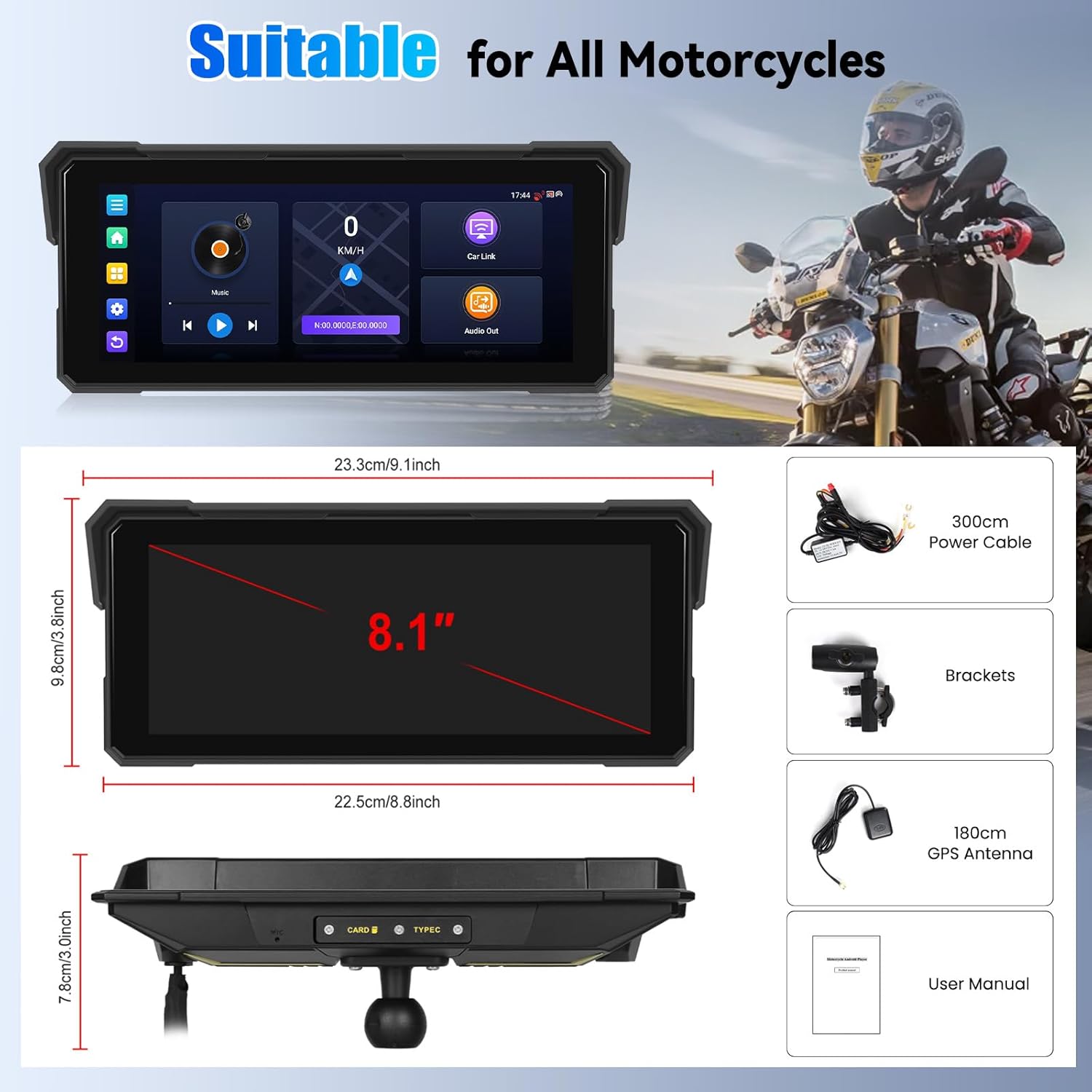
Figure 1: Display dimensions and included accessories. This image illustrates the physical size of the 8.1-inch display and lists the power cable, mounting brackets, GPS antenna, and user manual as included items.
Setup
1. Mounting the Device
The display comes with an adjustable universal handlebar bracket suitable for various motorcycle models. Choose a mounting location that provides clear visibility without obstructing your view of the road or motorcycle controls.
- Attach the mounting bracket securely to your motorcycle's handlebar.
- Connect the display to the bracket, ensuring it is firmly locked in place.
- Adjust the viewing angle for optimal visibility.
2. Power Connection
Connect the provided power cable to the display and to your motorcycle's 12V power supply. Ensure a stable connection to prevent power interruptions during operation.
3. GPS Antenna Connection
Connect the external GPS antenna to the designated port on the display. Position the antenna in a location with a clear view of the sky for optimal GPS signal reception.
Operating Instructions
1. Powering On/Off
Press and hold the power button located on the side of the device to power it on or off. A short press will turn the screen on/off while the device remains active.
2. User Interface Overview
The 8.1-inch IPS touch screen provides a clear and responsive interface. Navigate through menus and applications by tapping or swiping. The screen supports glove operation for convenience in various weather conditions.

Figure 2: The 8.1-inch HD touch screen interface. This image displays the main screen of the device, emphasizing its high-definition touch capabilities and underlying Android system specifications.
3. Wireless CarPlay / Android Auto Connection
The device supports both wireless CarPlay and Android Auto for seamless smartphone integration.
- Ensure your smartphone's Bluetooth and Wi-Fi are enabled.
- On the display, select the CarPlay or Android Auto icon.
- Follow the on-screen prompts to pair your smartphone. Your phone should automatically detect the display.
- Once paired, your phone's compatible apps (navigation, music, calls) will be mirrored on the display.

Figure 3: Wireless CarPlay and Android Auto in operation. This image illustrates how a smartphone connects wirelessly to the display, showing common app icons for navigation, music, and communication.
4. Built-in GPS Navigation
The display features a high-precision built-in GPS navigation module. It supports offline map downloads, allowing for accurate guidance even without network connectivity.
- Access the navigation application from the main menu.
- Download offline maps for your desired regions in advance.
- Enter your destination to receive turn-by-turn directions.

Figure 4: Built-in GPS Navigation and Wi-Fi. This image highlights the device's integrated GPS for navigation and its Wi-Fi capabilities for accessing online services and applications.
5. Bluetooth Audio Transmission
Connect your Bluetooth helmet headset or external speakers for high-definition audio. The device optimizes call sound quality with noise reduction.
- Enable Bluetooth on your audio device and set it to pairing mode.
- On the display, go to Bluetooth settings and search for available devices.
- Select your audio device to pair.
- Once connected, navigation prompts, music, and calls will be routed through your Bluetooth audio device.

Figure 5: Bluetooth Intelligent Assistant and Memory Card Slot. This image demonstrates the device's Bluetooth capabilities for calls and music, alongside the presence of a memory card slot for additional storage.
6. Media Playback
The device supports media playback from your connected smartphone via CarPlay/Android Auto or directly from a memory card inserted into the slot.
Maintenance
1. Cleaning the Display
Use a soft, lint-free cloth to gently wipe the screen. For stubborn smudges, slightly dampen the cloth with water or a screen-cleaning solution. Avoid abrasive materials or harsh chemicals.
2. Waterproof Protection (IP68)
The device features an IP68 waterproof and dust-proof design, making it resistant to rain and splashes. However, to maintain its integrity:
- Ensure all port covers are securely closed.
- Do not intentionally submerge the device.
- Avoid exposing the device to high-pressure water streams.

Figure 6: IP68 Waterproof Protection. This image visually confirms the device's IP68 rating, indicating its resilience against water and dust in various weather scenarios like rain and snow.
3. Storage
When not in use for extended periods, store the device in a cool, dry place, away from direct sunlight and extreme temperatures.
Troubleshooting
If you encounter issues with your device, refer to the following common problems and solutions:
| Problem | Possible Solution |
|---|---|
| Device does not power on. | Check power cable connection. Ensure motorcycle's 12V power supply is active. |
| CarPlay/Android Auto fails to connect. | Ensure smartphone's Bluetooth and Wi-Fi are on. Restart both the display and your phone. Forget and re-pair the device in your phone's Bluetooth settings. |
| No GPS signal. | Ensure the GPS antenna is properly connected and positioned with a clear view of the sky. Move to an open area away from tall buildings or dense foliage. |
| Touch screen unresponsive. | Restart the device. Ensure the screen is clean and dry. If wearing gloves, ensure they are compatible with capacitive touchscreens. |
| Bluetooth audio issues. | Ensure your audio device is charged and in pairing mode. Re-pair the Bluetooth connection. Check volume levels on both the display and your audio device. |
Specifications
Key technical specifications for the SIXWIN 8.1-inch IPS Portable Wireless CarPlay/Android Auto Motorcycle Display:
- Brand: SIXWIN
- Model Number: B0G19HG6GK
- Screen Size: 8.1 inches
- Display Type: IPS High-Definition Touch Screen
- Operating System: Android
- Connectivity: Wireless CarPlay, Wireless Android Auto, Bluetooth, Wi-Fi
- Special Features: Built-in GPS Navigation, IP68 Waterproof, Hands-Free Calling, Memory Card Slot
- Power Supply: 12V Car Power Supply
- Audio Output Mode: Stereo
- Compatible Devices: Smartphone
Warranty
This product comes with a 2-year warranty from the date of purchase. The warranty covers manufacturing defects and malfunctions under normal use. Please retain your proof of purchase for warranty claims. The warranty does not cover damage caused by misuse, accidents, unauthorized modifications, or improper installation.
Support
For further assistance, technical support, or warranty inquiries, please contact SIXWIN customer service through the retailer where the product was purchased or refer to the official SIXWIN website for contact information.
