
Introduction
Thank you for choosing the Winsing 10-inch Android 15 Tablet. This manual provides essential information for setting up, operating, and maintaining your device. Please read it thoroughly to ensure optimal performance and longevity of your tablet.
What's Included
Upon unboxing your Winsing Android Tablet, please verify that all items listed below are present:
- Winsing 10-inch Android Tablet
- USB Charging Cable
- Power Adapter
- User Manual (this document)
Video: An unboxing and initial setup guide for the Winsing Android Tablet, demonstrating the included items and how to power on the device.
Setup Guide
1. Initial Charge
Before first use, fully charge your Winsing Tablet. Connect the USB charging cable to the tablet's USB-C port and the power adapter, then plug the adapter into a wall outlet. The charging indicator will show progress.
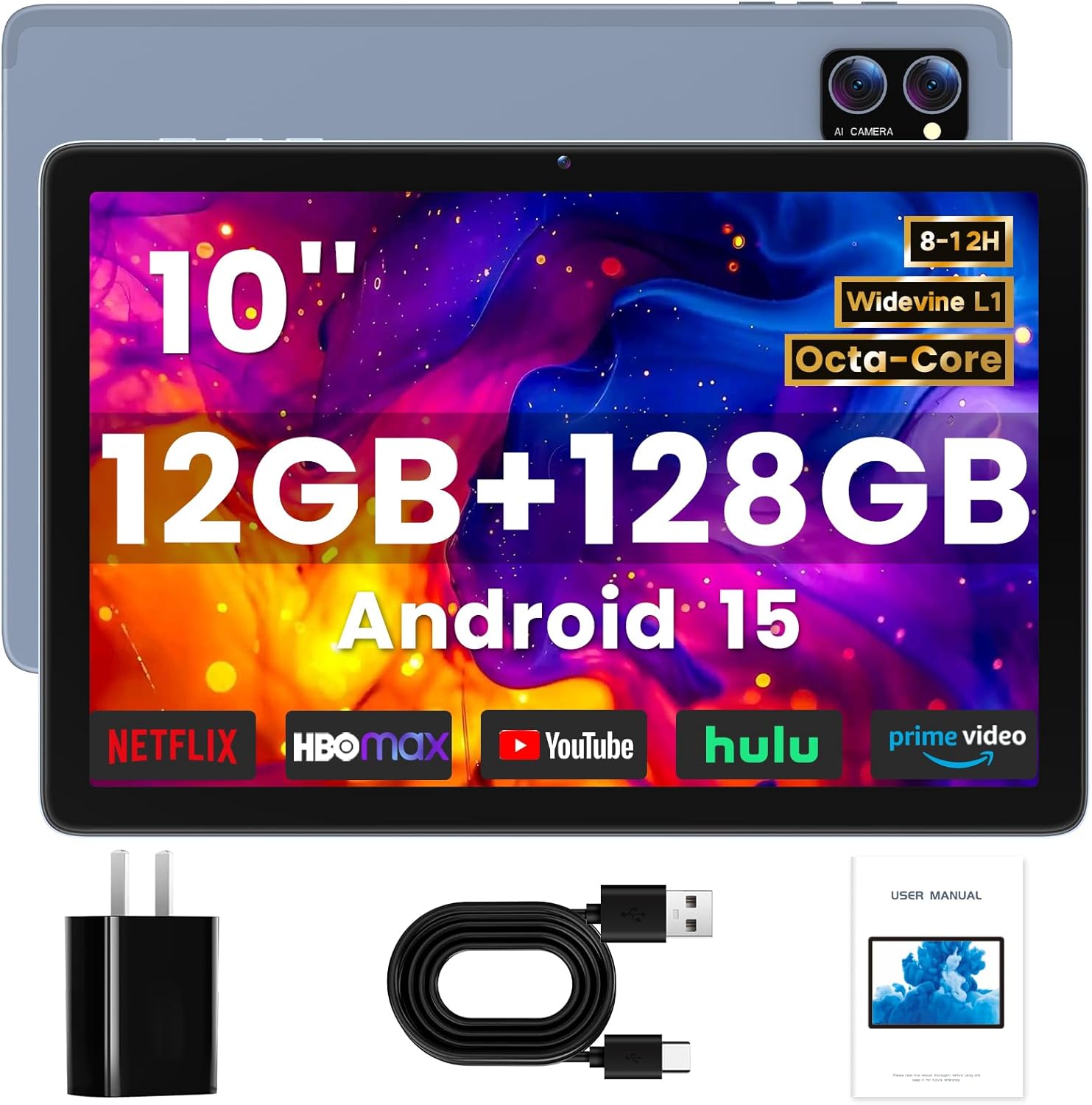
Image: Winsing Tablet connected to its charger, illustrating the charging process.
2. Powering On/Off
To power on, press and hold the Power ON/OFF button located on the side of the tablet until the screen lights up. To power off, press and hold the Power ON/OFF button, then select "Power off" from the options.
3. Initial Configuration
Follow the on-screen prompts to complete the initial setup. This includes selecting your language, connecting to a Wi-Fi network, and signing in with your Google account. A Google account is required to download apps from the Google Play Store.
4. Inserting a TF Card (Optional)
The tablet supports expandable storage up to 2TB via a TF card (not included). Locate the TF card slot on the side of the tablet and carefully insert the card until it clicks into place. Ensure the tablet is powered off before inserting or removing the TF card.
Operating Your Tablet
Navigation
- Touch Gestures: Use taps, swipes, and pinches to interact with the screen.
- Home Screen: Access your installed applications and widgets.
- Notifications: Swipe down from the top of the screen to view notifications and quick settings.
Volume Control
Use the Volume+ and Volume- buttons on the side of the tablet to adjust audio levels for media, calls, and notifications.
Connecting to Wi-Fi and Bluetooth
Navigate to Settings > Network & internet to manage Wi-Fi connections. For Bluetooth devices, go to Settings > Connected devices > Bluetooth.
Using the Camera
Open the Camera app to take photos and videos. The tablet features a 5MP front camera and a 13MP rear camera.

Image: The Winsing Tablet displaying its camera interface, highlighting the front camera functionality.
Split Screen Functionality
The Android 15 operating system supports split-screen mode, allowing you to run two applications simultaneously. This is useful for multitasking, such as taking notes while watching a lecture or browsing the web while chatting.

Image: Winsing Tablet demonstrating split-screen functionality, showing two applications running side-by-side.
Maintenance
Cleaning the Tablet
Use a soft, lint-free cloth to clean the screen and body of the tablet. Avoid using harsh chemicals or abrasive materials, as these can damage the device. For stubborn smudges, slightly dampen the cloth with water.
Battery Care
To prolong battery life, avoid exposing the tablet to extreme temperatures. Fully charge the device periodically if it will not be used for an extended period. The 6000mAh battery provides up to 12 hours of mixed use.
Software Updates
Regularly check for and install software updates to ensure your tablet has the latest features and security enhancements. Go to Settings > System > System update.
Troubleshooting
| Problem | Solution |
|---|---|
| Tablet does not power on. | Ensure the battery is charged. Connect the charger and wait a few minutes before attempting to power on again. If unresponsive, press the Reset button (if available, refer to device diagram). |
| Wi-Fi connection issues. | Check if Wi-Fi is enabled in settings. Restart your Wi-Fi router. Forget the network and reconnect. |
| Applications are slow or freezing. | Close unused applications. Clear app caches (Settings > Apps > [App Name] > Storage & cache). Restart the tablet. |
| Screen is unresponsive. | Perform a force restart by holding the power button for approximately 10-15 seconds. |
Specifications
| Feature | Detail |
|---|---|
| Brand | Winsing |
| Model Name | Android Tablet 10 inch |
| Item Model Number | 9836b755-9f76-450b-9a3f-dc342de78015 |
| Operating System | Android 15 |
| Screen Size | 10 Inches |
| Screen Resolution | 1280 x 800 pixels (HD IPS) |
| Processor | Quad-Core, 2 GHz ARM |
| RAM | 12GB (4GB physical + 8GB virtual) |
| Internal Storage | 128 GB |
| Expandable Storage | Up to 2TB via TF Card (not included) |
| Battery Capacity | 6000mAh |
| Average Battery Life | Up to 9-12 Hours (mixed use) |
| Wireless Connectivity | 802.11a/b/g/n/ac Wi-Fi, Bluetooth |
| Cameras | 5MP Front, 13MP Rear |
| Dimensions (LxWxH) | 9.5 x 6.3 x 0.31 inches |
| Item Weight | 1.85 pounds |
| Color | Gray Blue |
Warranty and Support
Winsing offers a 2-year protection plan for this tablet. For any product-related inquiries, technical assistance, or warranty claims, please contact Winsing customer support.
Contacting Support
You can typically reach customer support by:
- Visiting the official Winsing website for contact information.
- Referring to the contact details provided in your purchase documentation.
- For Amazon purchases, you can contact the seller directly through your order page.

Image: Illustration depicting customer support, symbolizing available assistance for product inquiries.